

| Attention Before you read this post, I highly recommend you check out my resources page for access to the tools and services I use to not only maintain my system but also fix all my computer errors, by clicking here! |
As is typically the case, a substantial number of people have been bogged down with the error code 0x8007045b while attempting to update their operating system, whether it’s a standard update or an OS upgrade. Update errors are fairly common, and follow a similar action to outcome. This particular error however, is quite old, having first appeared during the introduction of Windows 7.
Error code 0x8007045b (ERROR_SHUTDOWN_IN_PROGRESS) does not explicitly refer to an error with the update itself. In fact, the error code indicates that the system began the restart or shutdown phase right before it was about to start a Windows update or an associated service. In the vast majority of cases, this particular error code can be ignored. However, if the error is being triggered by something independent of the Windows service(s) it’s attempting to start, then it could be cause for concern.
What Causes Update Error 0x8007045b
Given the reality of error 0x8007045b, I was forced to approach this error a little differently from the others of its kind. That said, when looking at the general culprits of this error, we do find some commonalities. Such as:
- Faulty Windows Update component(s): An internal error may have occurred within Windows Update itself, effectively preventing it from installing or downloading the update(s). To resolve this problem, there are several approaches you can take, all of which are outlined below.
- Corruption of key system files: Windows system files are amongst the most crucial for the smooth functionality of your operating system. Thus, the corruption of these files can manifest itself in a variety of different ways. Oftentimes the result of a malicious file, but it can also be caused by app conflicts, system instability etc.
- An overzealous internet security tool: The vast majority of virus scanner suites today come with program guards, designed to prevent hackers from hijacking your system. However, these guards can sometimes be overzealous by blocking perfectly normal services.
Error code 0x8007045b may also be the result of the corruption of Windows Update service(s), in addition, other third party tools (other than your security tool) could also be at fault. Applications that alter the appearance of Windows (to make Windows 7 appear like Windows 10 for example), are known to cause this error. Uninstalling them may be your best and only option.
How to Fix It
For those of you stuck, trying to figure out how to fix this problem, there are a number of working, viable solutions that you can find in this section.
As previously explained, the error code 0x8007045b indicates that Windows entered a shutdown (or restart) phase during the initiation of Windows Update. In simple terms, this means, you can usually solve the issue by simply restarting your computer.
1. First, save your work and close all applications.
2. Then click on the Start -> Power -> Restart.
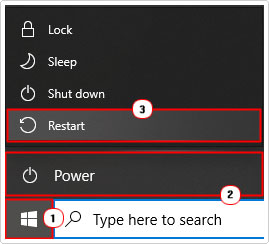
3. Once the OS successfully restarts, you can retry Windows Update, to see whether or not that fixed the error.
Disable Antivirus Software
Another possible cause of error 0x8007045b is an overzealous antivirus suite blocking one or more of the services required to successfully run Windows Update.
Internet security tools such as AVAST, Norton, and McAfee are all known culprits for this kind of thing. To determine whether or not this is the case, you will need to disable real-time scanning on them. This can be done from within the Menu system.
The exact instructions will vary, but you are essentially looking for Virus protection settings -> Real-Time Scanning/Protection. Then disable it.

If it is found that your internet security tool is the cause, then you may be put off from going back to it. In situations like this, I’d have to introduce you to Bitdefender. Which is, the very best internet security tool online. It’s lightweight, efficient and certainly better than any other option out there. If by any chance this tool interests you, visit the link below:
CLICK HERE TO CHECK OUT BITDEFENDER
Use Windows Repair Tool to Fix Error 0x8007045b
If after carrying out the solutions above, the Windows Update error 0x8007045b still persists, then I’d recommend you gave this Windows repair tool a try.
This particular tool is designed to scan, detect and fix a plethora of errors and issues you may encounter on your system. For this reason, it may prove a viable solution to your error problem.
It is a highly advanced tool designed by a number of professionals in the industry, to fix a wide variety of problems end users face, such as BSOD errors, game errors, Update errors (like 0x8007045b), OS corruption, DLL errors, registry corruption and more.
It also triples as a virus scanner and optimisation suite, making it, everything you may ever need to keep your system up and running optimally.
If by any chance this interests you, then visit the link below:
CLICK HERE TO CHECK OUT THE ADVANCED REPAIR TOOL
 The solution(s) below are for ADVANCED level computer users. If you are a beginner to intermediate computer user, I highly recommend you use the automated tool(s) above! |
Locate Culprit Program
Error 0x8007045b states the error was in a shutdown or restart phase during the update, but it doesn’t indicate what application put the OS into that state. As a solution, you could attempt to identify the culprit app, then remove it, if applicable.
The steps to doing this are as follows:
1. Boot into Windows as a full administrator.
2. Next, press  + R, type Eventvwr.msc and click on OK.

3. This will bring up Event Viewer, now navigate to the following path:
Windows Logs > System
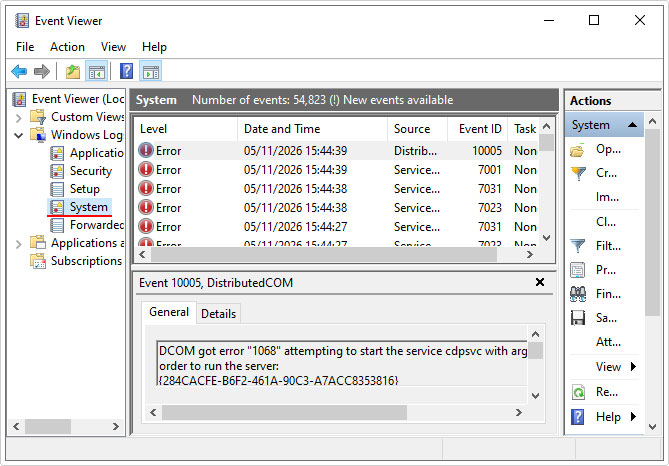
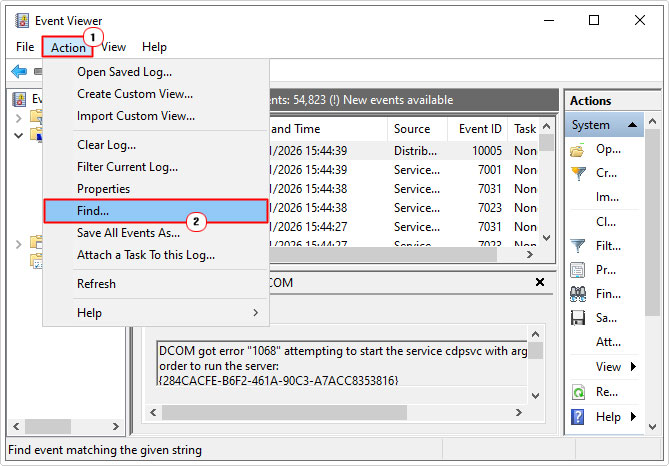
4. Click on Action -> Find.
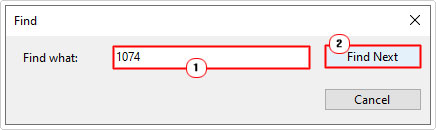
5. Type 1074 into the Find box and click on Find Next.
6. Click on the Event ID 1074 that it finds, then look in the General box to determine what program it is.
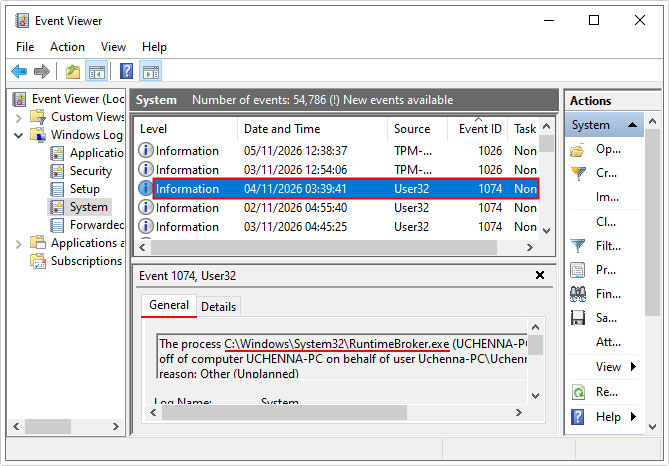
Note: It should give you to exact location of the app. If it is not in the Windows folder, then it is third-party. You can do a Web search on the filename, if you are unsure what it is.
7. Once you have located the culprit program, you should uninstall it, if possible. Just press + R, type appwiz.cpl and click on OK.
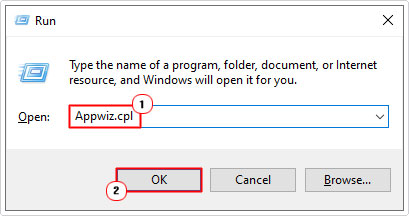
8. When Program and Features loads up, click on the App and click on Uninstall.

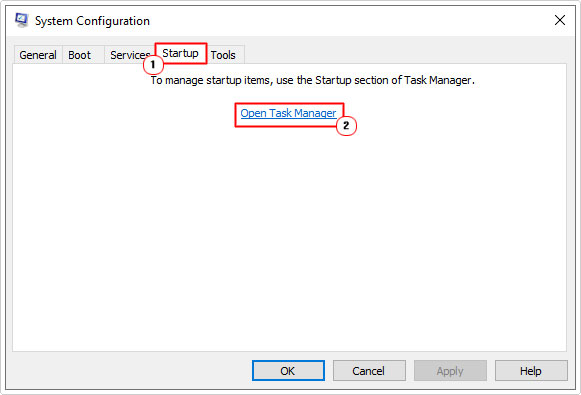
9. If uninstalling the app is not an option, then you should consider disabling it. To do that, press + R, type msconfig and click on OK.

10. When System Configuration loads up, click on the Startup Tab, then click on Open Task Manager.
11. In Task Manager on the Startup Tab, click on the App and select Disable.
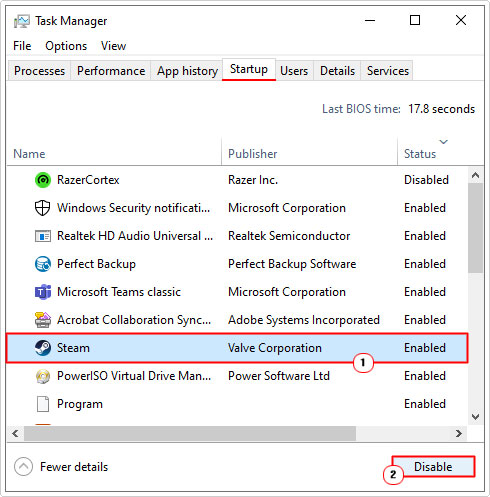
Note: The culprit app will only appear here if it’s a program that runs continuously in the background. Not all apps do this.
12. Now, restart your computer, and retry the Windows Update.
Reset Windows Services
If error 0x8007045b still hasn’t been resolved, even after attempting all the prior solutions, then you may want to consider restarting the Windows services that belong to Windows Update.
If the error is the result of a Windows Update glitch, then restarting all dependant services may fix the error.
To do that, follow my steps outlined in my post on fixing Update Error 0x8024a206.
Manual Install
This is more of a workaround than an actual fix, but essentially, you are attempting to install the update outside of the Windows Update service. To do that, you will need the KB number of the update, which you will search for in Microsoft’s Update Catalog. Here, you can download and install it manually.
If installing the update is more important than fixing the error, then this option may be best suited for you. My post on fixing Windows Update error 0x80246019, will show you how.
Use DISM and SFC
Another common culprit of error 0x8007045b is the corruption of integral system files. In this situation you will need a specialised tool, like the one mentioned earlier to fix it.
That said, in addition to that tool, you have SFC (System File Checker) and DISM (Deployment Image Servicing and Management). Two built in Windows tools that do have their limitations, but are equally worth a try. SFC works by scanning your OS for missing or corrupt system files, then replacing them where applicable.
DISM works by replacing corrupt or missing Windows files, essentially restoring the integrity of the operating system.
If the use of either one of these tools interest you, then you can find step-by-step instructions on how to use them from my post on fixing MSVCR71.dll missing errors.
Are you looking for a way to repair all the errors on your computer?

If the answer is Yes, then I highly recommend you check out Fortect.
Which is the leading registry cleaner program online that is able to cure your system from a number of different ailments such as Windows Installer Errors, Runtime Errors, Malicious Software, Spyware, System Freezing, Active Malware, Blue Screen of Death Errors, Rundll Errors, Slow Erratic Computer Performance, ActiveX Errors and much more. Click here to check it out NOW!