
| Attention Before you read this post, I highly recommend you check out my resources page for access to the tools and services I use to not only maintain my system but also fix all my computer errors, by clicking here! |
The sole purpose of Windows Updates is to provide “updates” to deal with known bugs and vulnerabilities as well as improve or boost the functionality of the operating system. That is why it’s crucial that this feature is functional at all times. When incidences arise, we call that a Windows Update error. Error code 0x800706d9 is one of literally hundreds of different issues an end user may encounter while attempting to download and/or install a Windows Update. In this tutorial, we’ll identify its root causes, as well as provide solutions you can use to fix this error, right away.
The full error message oftentimes looks something like the following:
Cumulative Update for Windows XX for (XX bit) – based Systems (KBXXXXXXX) – Error 0x800706d9
Error code 0x800706d9 appears most often when an end user attempts to install a Windows Essentials update or during the installation of several updates. The error code alludes to possible interference between Windows Firewall and Windows Update.
In many instances, the end user may prefer to use a third-party internet security suite to protect their system from malicious threats. However, if you are one of those users that prefers Microsoft’s built-in solution, then it’s likely the Windows Firewall component has become corrupted. Possibly the result of registry tampering. This has led to Windows Firewall inadvertently blocking updates.
The main function of a firewall tool is to prevent malicious files and computer hackers from gaining unauthorised access to your system. A firewall may also prevent malicious files from leaving your system, in the event that it has been infected.
In most instances, users pinpoint the Windows Firewall as being the main culprit for error 0x800706d9. But, there are other factors and potential causes one must consider.
For those of you bogged down with this error, to follow are a number of working solutions. But before we get to them, let’s take a deeper look into all possible causes of this error.
What Causes Windows Update Error 0x800706d9?
As previously touched on, there are a number of potential causes, however, Windows Firewall is shown to be the more likely causes. That said, there are other things for you to consider, such as:
- A third-party internet security tool running on your system is blocking the Windows Update service.
- Malicious file(s) have infiltrated the system and corrupted key system files.
- A disabled Windows Firewall is also capable of causing error code 0x800706d9.
Now that we have the most common causes out of the way, let’s look at the various known ways you can fix this problem.
How to Fix It
As is typically the case with Windows errors, there are a number of viable solutions you can use to fix Windows Update error 0x800706d9.
I’ve done the needful in providing and arranging them for difficulty and efficiency. So I recommend you attempt the solutions in the order that they appear.
Use Windows Repair Tool to Fix Windows Update Error 0x800706d9
The solutions outlined below are all relatively technical. Which, depending on your level of expertise, you may or may not find difficult to carry out. Thus, to make life so much easier for yourself, I recommend you use a Windows repair tool.
The tool I have in mind is a advanced repair solution and it is amongst the very best of its kind. Easily capable of fixing Windows Update errors (such as 0x800706d9). Additionally, it can fix DLL, game, registry, and app errors, amongst other things.
All you have to do is download and run it, and it’ll do the rest.
Once a full scan has complete, you can expect an error-free as well as a faster PC.
If that by any chance, interests you, then visit the link below:
CLICK HERE TO CHECK OUT THE ADVANCED REPAIR TOOL
 The solution(s) below are for ADVANCED level computer users. If you are a beginner to intermediate computer user, I highly recommend you use the automated tool(s) above! The solution(s) below are for ADVANCED level computer users. If you are a beginner to intermediate computer user, I highly recommend you use the automated tool(s) above! |
Enable Windows Firewall
Depending on the configuration of your system. If you do not have a third-party firewall tool installed and Windows Firewall has been disabled, there are instances when this can cause Windows Update to fail.
Maybe, a third-party internet security tool installed in the past, disabled it, or you may have unintentionally disabled it yourself. Either way, you should definitely consider turning it on, as a known working solution.
To do that, follow the steps outlined below:
1. First, boot into your system has a full administrator.
2. Then press  + R, type Control Firewall.cpl and click on OK.
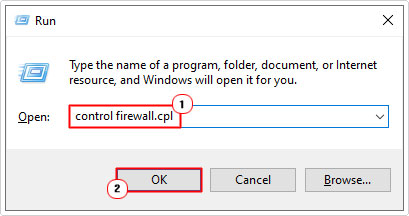
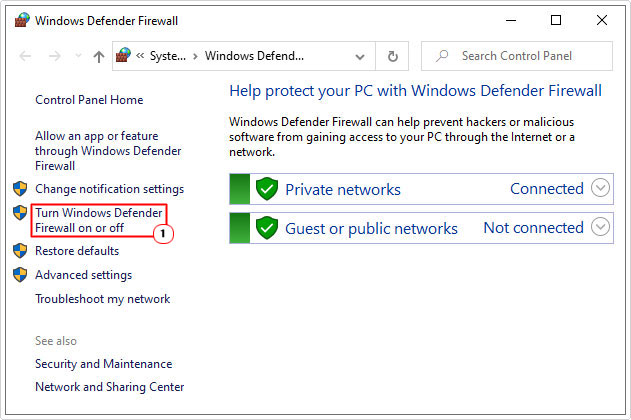
3. This will bring up Windows Defender Firewall, from here, click on Turn Windows Defender on or off.
4. On the following screen, Customise settings for each type of network, click on Turn on Windows Defender Firewall below Private network settings and Public network settings, then click on OK.

The next step, is to ensure Windows Firewall will run automatically after boot up. To do that simply follow the steps below:
5. First, press + R, type Services.msc and click on OK.
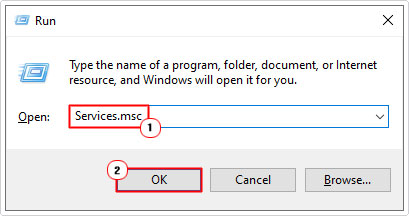
6. This will bring up the Services applet, from here, scroll down, locate and double-click on Windows Defender Firewall.

7. The Windows Defender Firewall Properties applet will appear, set Startup type to Automatic, then click on OK.
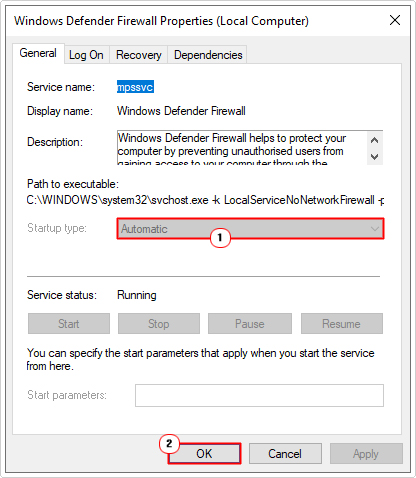
Note: If Windows Defender Firewall is properly running, then this option will be greyed out. Just ensure Startup type has Automatic selected.
8. Repeat steps 2 – 3 for Storage Service and Windows Update.
9. Lastly, restart the computer, then verify that the error has been fixed.
Reset Windows Firewall
The purpose of your firewall program is to ensure ingoing and outgoing data is problem-free, and block and allow traffic where applicable.
Depending on how the firewall is setup this can help safeguard the system – which is what you want. That said, it’s possible a settings issue with Windows Firewall is the root cause of error 0x800706d9. To reset your Windows Firewall settings, simply do the following:
1. Follow steps 1 – 2 of Enable Windows Firewall.
2. When the Windows Defender Firewall applet pops up, click on Restore defaults.

3. This will bring up the Restore default settings page, click on Restore defaults to confirm.
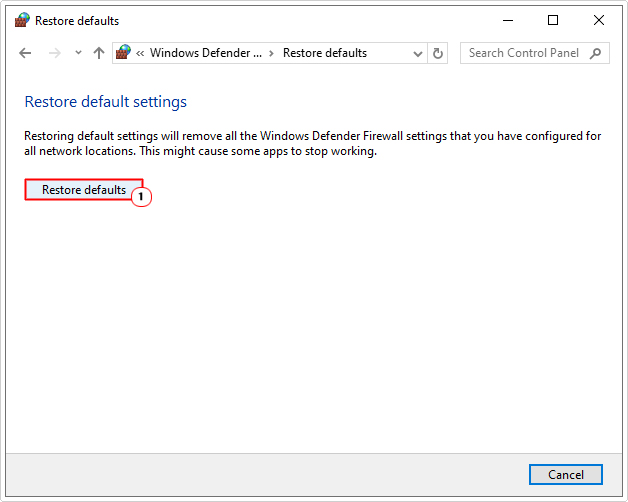
Note: Restore defaults will erase any settings changes that you have personally made to your network configuration.
Disable or Uninstall Third-Party Security Tool(s)
If you use a third-party internet security tool, then it’s possible it is the culprit for the error 0x800706d9. In which case, you may want to consider disabling it (or uninstalling it entirely).
To disable it, you will need to load up its GUI (Graphic User Interface) and locate an option to disable it. Typically, you’re looking at disabling real-time scanning, to switch it off. But you may need to consult the apps manual for confirmation.
If you would like to remove it permanently, then you can do that through the Add/Remove feature of Windows. Just do the following:
1. Boot into your system as a full administrator.
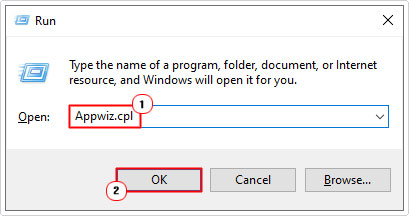
2. Then press + R, type Appwiz.cpl and click on OK.
3. When Uninstall or change a program loads up. Locate your internet security tool, click on it and click on Uninstall.
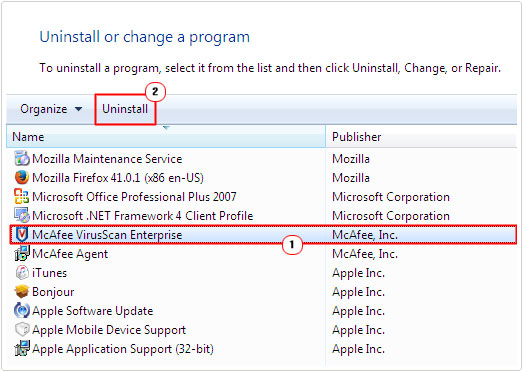
Once you’ve disabled or removed your third-party security tool, you can then verify whether or not the error 0x800706d9 has been fixed.
Reset Windows Update
There are instances when previously failed and/or corrupted updates can prevent future updates from completing successfully. In instances like this, removing all previously downloaded updates can fix the problem.
The best approach is a total reset of services and components belonging to the Windows Update feature. To do that, follow the steps outlined in my post on fixing Update error 0x8024a206.
Are you looking for a way to repair all the errors on your computer?
If the answer is Yes, then I highly recommend you check out Advanced System Repair Pro.
Which is the leading registry cleaner program online that is able to cure your system from a number of different ailments such as Windows Installer Errors, Runtime Errors, Malicious Software, Spyware, System Freezing, Active Malware, Blue Screen of Death Errors, Rundll Errors, Slow Erratic Computer Performance, ActiveX Errors and much more. Click here to check it out NOW!