
| Attention Before you read this post, I highly recommend you check out my resources page for access to the tools and services I use to not only maintain my system but also fix all my computer errors, by clicking here! |
Error 0x80073cf9 is a Windows error that appears when the end user attempts to install (or update) an app through Windows Store. Essentially, when the app installation fails, the end user is presented with the option of restarting or cancellation. However, any attempts to restart the process always results in the same error outcome. So, what can you do about it? There are several things, all of which will be explained in this tutorial.
If you are avid computer user, whether for leisure or work, then you’re sure to trigger an error or two, over time. Windows is not infallible and thus, errors are common, with features and built-in tools malfunctioning all the time.
However, it can be very frustrating when you attempt to download a newly purchased app, only to be confronted with the following error message:
Something happened and this app couldn’t be installed. Please try again. Error code: 0x80073cf9
This error message will ordinarily be followed by a halt in the installation process, essentially, preventing you from adding the app to Windows.
Fortunately, after some thorough research, looking into the ins and outs of this error, I was able to compile a number of solutions that you can use to effectively fix this problem.
But before we get to those, let’s take a deeper look at its root causes.
What Causes Windows Store Error 0x80073cf9?
Despite the convenience and general reliability of the Windows Store app, it’s not uncommon for errors such as 0x80073cf9 to occur while attempting to download or update an app. But why does it occur?
- Possibly because you have an intermittent wireless connection.
- The Windows registry has been corrupted.
- An incompatibility (or bug) exists between Windows Store and the specific app you’re trying to install.
- Windows Store lacks the appropriate permissions to update or install the program.
The good thing is that it is possible to fix this error, and I’m going to show you how.
So, continue reading for those much desired solutions.
How to Fix It
As always, I like to start with the simplest solutions first. So I’d recommend, you switched from a Wireless to a Wired Connection. Of course, this solution is only applicable to those that access their internet connection wirelessly.
The process is fairly simply, you’ll need an Ethernet Cable, and your system will need to be fairly close to the Internet Router.
Simply, plug the Ethernet cable into your motherboard.
Then plug the other end of the cable into one of the ports on the internet router.
A connection should be made automatically.
Now you can verify whether or not that fixed the error.
If that fails to fix error 0x80073cf9 consider disabling your internet security tool, at least temporarily.
The steps to doing this will vary, depending on the brand and version of security tool you have on your system. But generally, you’ll want to:
Double-click on its icon in the taskbar on the bottom-right of the screen.
Now look for anything called “Real-time scanning” and disable it.
If you use the built-in Windows Defender, then you can find steps on how to disable it on my post titled fixing error 0x800700E1.
Run Windows Repair Tool to Fix Windows Store Error 0x80073cf9
If the simple methods above fail to fix the error code 0x80073cf9, then you may want to try something more holistic, yet less complicated. This may be of special interest to less technical savvy individuals.
We’re talking about the use of a Windows repair tool. The tool I have in mind is capable of fixing Windows store error 0x80073cf9 in addition to update errors, DLL errors, registry corruption, BSOD, virus infections and much more.
All you need to do is download and run the tool, and it will do the rest.
If by any chance that interests you, then visit the link below:
CLICK HERE TO CHECK OUT THE ADVANCED REPAIR TOOL
 The solution(s) below are for ADVANCED level computer users. If you are a beginner to intermediate computer user, I highly recommend you use the automated tool(s) above! The solution(s) below are for ADVANCED level computer users. If you are a beginner to intermediate computer user, I highly recommend you use the automated tool(s) above! |
Re-Register Windows Store
It’s possible the Windows Store app has malfunctioned, in situations like that, you may want to try re-registering the app. Which is basically reinstalling the app within the Windows registry.
The steps to carrying this out are as follows:
1. First, boot into your system as a full administrator.
2. Then, right-click on the Start button and select Windows PowerShell (Admin).
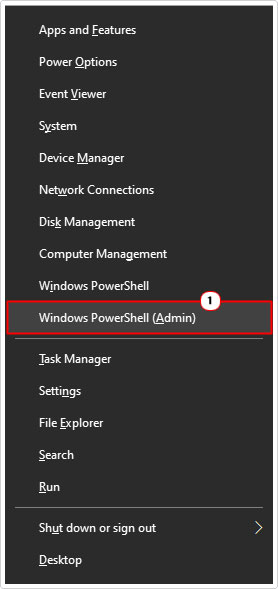
3. When Windows PowerShell loads up, type the command below and press Enter.
Get-AppXPackage | Foreach {Add-AppxPackage -DisableDevelopmentMode -Register “$($_.InstallLocation)\AppXManifest.xml”}4. After the process has completed, close Windows PowerShell, then restart your system.
You can now check whether or not it has fixed Windows Store.
Erase OLE Folder
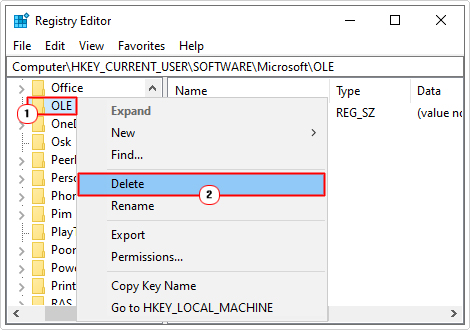
Another method end users have found to be quite helpful in fixing Windows store error 0x80073cf9 is the deletion of the OLE folder in Windows registry.
To do this, simply follow the steps below:
WARNING: The Windows registry is a very sensitive area of the operating system. Thus, any wrong modification can render your system inoperable. For this reason, do tread with caution.
1. First, boot into Windows as an admin.
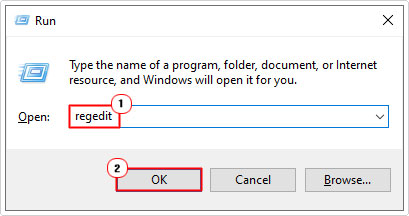
2. Then press  + R, type regedit and click on OK.
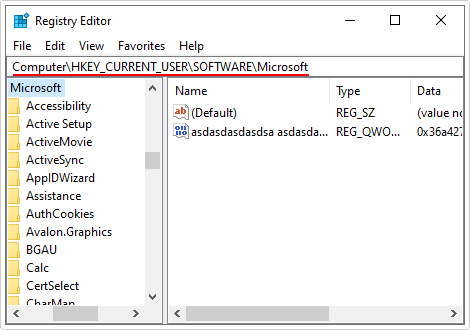
3. When Registry Editor loads up, navigate to the following path:
HKEY_CURRENT_USER\Software\Microsoft
4. On the left pane, right-click on OLE and select Delete.
5. Close Registry Editor and retry Windows Store.
Create AppReadiness Folder
Another method you can try involves creating an AppReadiness folder. The main responsibility of an AppReadiness folder is to prepare a Windows Store app for first-time usage, which, given the nature of the 0x80073cf9 error, could potentially rectify it.
To create this folder, simply do the following:
1. Boot into Windows as an admin.
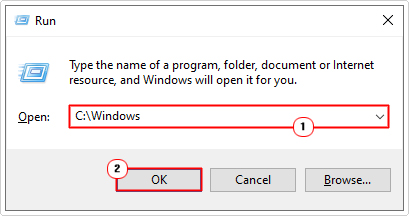
2. Then Press + R, type C:\Windows and click on OK.
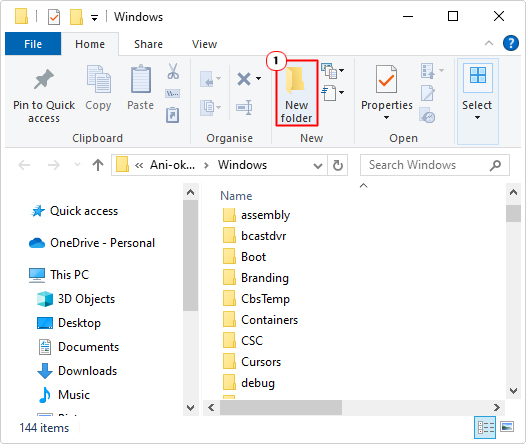
3. When the Windows folder loads up, click on New Folder.
4. Lastly, name the New Folder AppReadiness.
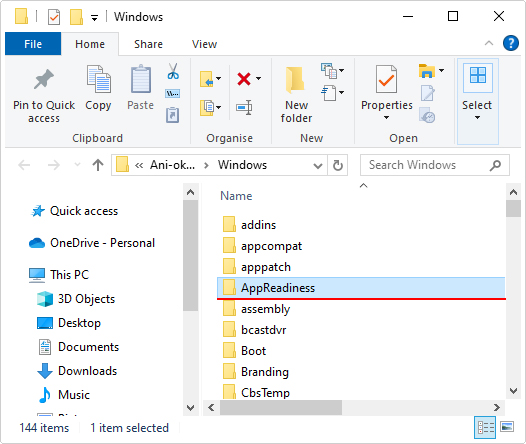
Now you can retry the Windows Store installation and see whether or not this fixes it.
Create AUInstallAgent Folder
AUInstallAgent is another crucial Windows System folder that is required for both installing and updating apps via Microsoft Store. If this folder doesn’t already exist on your system, then you should create it.
The steps to creating it are as follows:
1. Follow steps 1 – 3 of Create AppReadiness Folder.
2. Name the new folder AUInstallAgent.
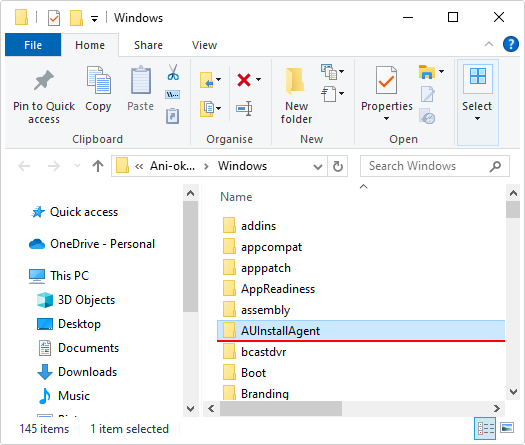
3. Restart Windows then retry Windows Store.
Reset Windows Store
This is another effective method at fixing issues with the Microsoft Store app. basically it’s a reset of app the itself, applied by a fairly simple line of code.
The instructions to doing this are as follows:
1. Boot into Windows as a full administrator.
2. Then press + R, type WSReset.exe and click on OK.
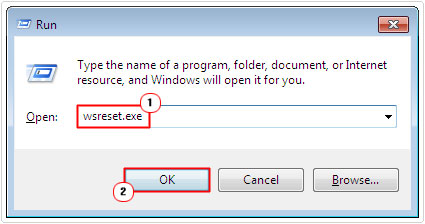
3. Once the process has complete, you can now retry Windows Store.
Use DISM & SFC
Sometimes errors such as 0x80073cf9 can be the result of data corruption, in this case, the corruption of important system files. In situations like this, it is possible to restore these files, using two built-in tools.
The first, System File Checker (SFC) is designed to scan the System folder and replace file(s) where possible. The other is called DISM or Deployment Image Servicing and Management, it is designed to restore or repair the OS integrity. So, a more extensive version of SFC.
Both are useful, which is why it’s recommended to use them in tandem.
Therefore, if these tools interests you by any chance, then I recommend you check out my post on fixing Msinfo32.exe “Can’t Collect Information” errors for step-by-step instructions on how to use them.
Are you looking for a way to repair all the errors on your computer?

If the answer is Yes, then I highly recommend you check out Advanced System Repair Pro.
Which is the leading registry cleaner program online that is able to cure your system from a number of different ailments such as Windows Installer Errors, Runtime Errors, Malicious Software, Spyware, System Freezing, Active Malware, Blue Screen of Death Errors, Rundll Errors, Slow Erratic Computer Performance, ActiveX Errors and much more. Click here to check it out NOW!