
| Attention Before you read this post, I highly recommend you check out my resources page for access to the tools and services I use to not only maintain my system but also fix all my computer errors, by clicking here! |
If you want a computer that runs optimally, without the occasional random system crash, then you must ensure your system is kept up-to-date with the latest patches and security updates. All of which is made possible through the Windows Update component. Error 0x80240438 is an error notification that pops up when this component fails. In this tutorial, we will go through, exactly what this error is, what causes it, and what you can do about it.
Error 0x80240438 occurs in both Microsoft Store and Windows Update on both Windows 10 & 11 systems. This is because both features are sharing the same components; which is very common in the Windows operating system. This means, the solutions are equally as universal. So what should fix the error in Windows Update should also fix the issue in Microsoft Store.
The particular error message (in Windows Update) end users may encounter, should resemble the following:
There were some problems installing updates, but we’ll try again later. If you keep seeing this and want to search the web or contact support for information, this may help. (0x80240438)
When it comes to Microsoft Store, the error may occur when attempting to update the app or download a particular program. Either way, the error message should look like the following:
Give us a few minutes
Something went wrong on our end. Wait a bit and then try again.
The error code is 0x80240438, in case you need it.
The Windows Store error 0x80240438 has been around for a relatively long time, which is both a good and bad thing. Ultimately, the number of working solutions has expanded with time, which should increase the chances of you fixing this problem.
Anyway, let’s take a deeper look into the various causes associated with this error.
What Causes Error 0x80240438?
Like with most errors that you may encounter while using your Windows system, there are many potential and possible causes of error 0x80240438. The most common of which are outlined below:
- A third-party security tool is blocking the feature: It’s not uncommon for antivirus, antimalware and firewall programs to block certain Windows features. This is oftentimes done as a security measure, but can ultimately end up having negative ramifications.
- Corrupted system files: The corruption of system files can occur as the result of a failed Windows Update, an abrupt shutdown or a power surge. Either way, it can cause system instability and in some cases, inhibit specific services and features from working altogether.
- Issue with the Windows Update component(s): There are a series of services and features that must work in tandem before the OS can carry out a successful update. If there is an issue with any one of them, it can cause an error.
In addition to the error causes outlined above, other possible causes may include an intermittent internet connection, incompatible device drivers and a virus infection. These are less common, but should not be ruled out.
Now that we know what may be causing error 0x80240438 in your system, let’s go through the numerous ways you can fix it.
How to Fix It
In this section of the tutorial, we will be going through a number of fixes for error code 0x80240438. For efficiency sake, you may want to consider utilising them in the order that they appear.
With that said, before we get to any of the more sophisticated solutions, let’s start with something relatively simple:
Disable Windows Defender
The update error 0x80240438 more commonly occurs when an overzealous security tool blocks its access to the web.
This is known to occur with both third-party tools and even the built-in Windows Defender. In either case, you can determine whether or not this is the case, but simply disabling real-time scanning.
Disabling real-time scanning will vary. For third-party tools, you will need to access it via its Desktop icon (usually located in the Taskbar), then find the option in the Settings menu.
However, when it comes to Windows Defender, you can find step-by-step instructions on how to do the same from my post on fixing error 0x800700E1.
Use Windows Repair Tool to Fix Error 0x80240438
If the solution outlined above, failed to fix the error 0x80240438, then you should consider using this Windows repair tool as a viable alternative.
This tool is highly proficient in fixing a wide range of issues on your computer. Such as Windows update errors, registry corruption, BSOD errors, appcrashes and much more.
All you need to do is download, install and run it, and it will do the rest of the work, within a single scan.
This tool is also proficient at locating and removing malicious threats, in addition to speeding up your system. Making it both a repair and maintenance suite. Ideal for the vast majority of Windows users.
If by any chance, this tool interests you, then visit the following link for more information:
CLICK HERE TO CHECK OUT THE ADVANCED REPAIR TOOL
 The solution(s) below are for ADVANCED level computer users. If you are a beginner to intermediate computer user, I highly recommend you use the automated tool(s) above! The solution(s) below are for ADVANCED level computer users. If you are a beginner to intermediate computer user, I highly recommend you use the automated tool(s) above! |
Disable IPv6
IPv6 or Internet Protocol Version 6 is, as the name states, the 6th version of the Internet Protocol, which hopes to fully replace IPv4. Its job is to provide unique IP addresses for the different devices connected to the web. However, there are times when it can causes issues, primarily as the result of a compatibility problem.
Either way, if IPv6 is the cause of update error 0x80240438, then you should be able to fix it, simply by disabling it.
To do that, follow the steps below:
1. First, boot into Windows as a full admin.
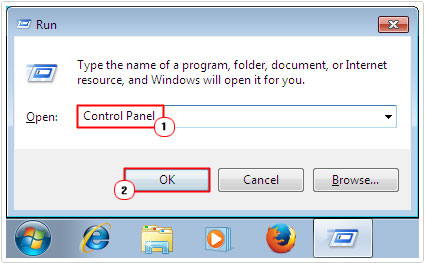
2. Then press  + R, type Control Panel and click on OK.
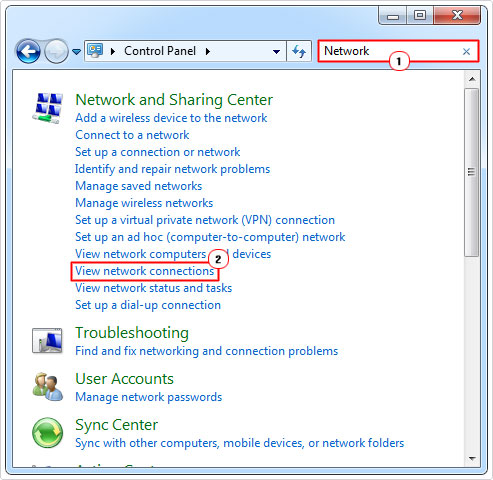
3. Next, type Network into the Search Control Panel box and click on View Network Connections.
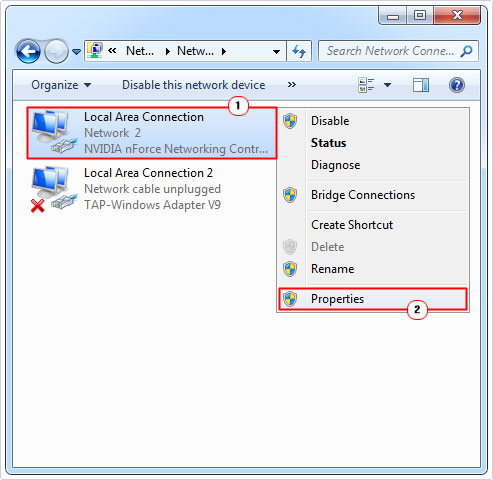
4. Now, right-click on your Network Connection and select Properties.
5. This will bring up the Connection Properties applet, in the “this connection uses the following items” box, scroll down, then un-tick the box next to Internet Protocol Version 6 (TCP/IPv6) and click on OK.

You can now check whether or not that fixed the error.
Rename Windows Store Cache Folder
If the error 0x80240438 occurs while attempting to download or update Windows Store, then you may want to try resetting the Cache folder.
This oftentimes will work if the data contained in the folder has been corrupted, usually as the result of a malicious file.
Anyway, the instructions are as follows:
1. Boot into Windows as an admin.
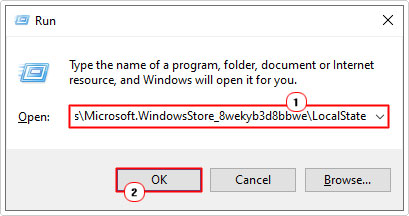
2. Then press + R, type %localappdata%\Packages\Microsoft.WindowsStore_8wekyb3d8bbwe\LocalState and click on OK.
3. Now, click on the Cache folder then click on Rename and give it the new name Cache.old.
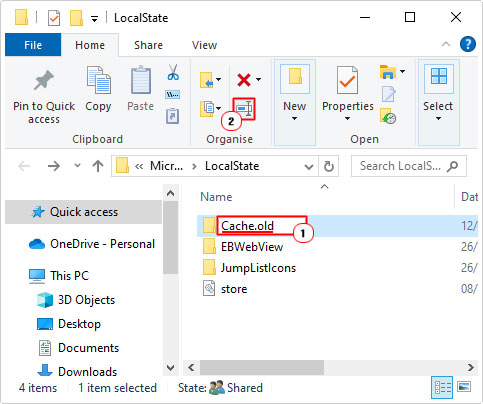
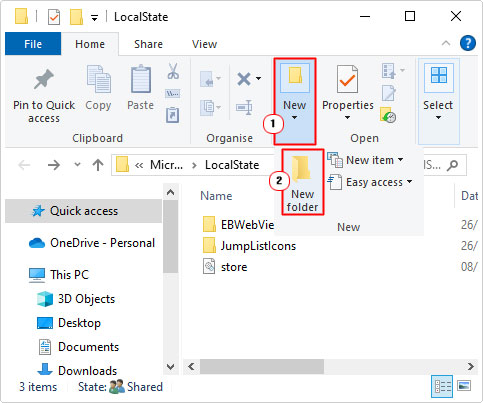
Note: If you are unable to find the Cache folder, then do the following:
4. In the LocalState folder click on New -> Folder.
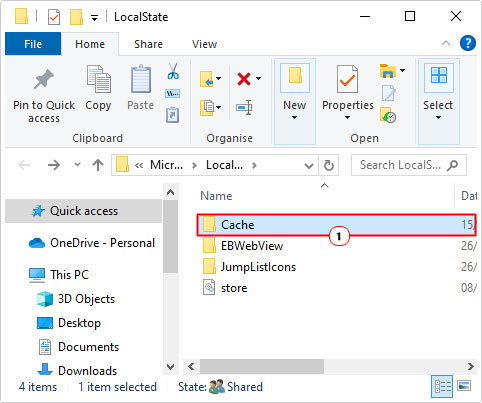
5. Name it Cache and close File Explorer.
6. Next, Press + I, and click on Update & Security.
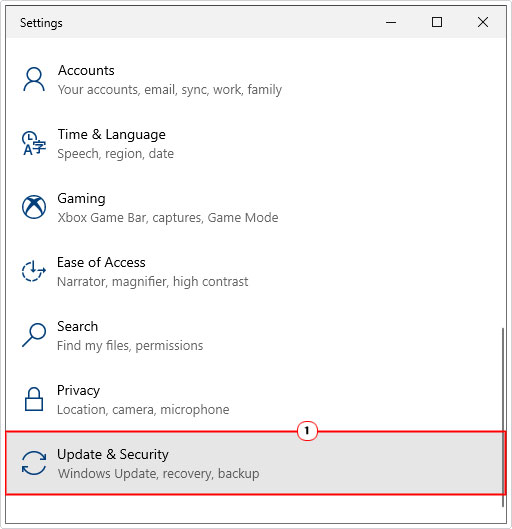
7. When Update & Security loads up, click on Troubleshoot.
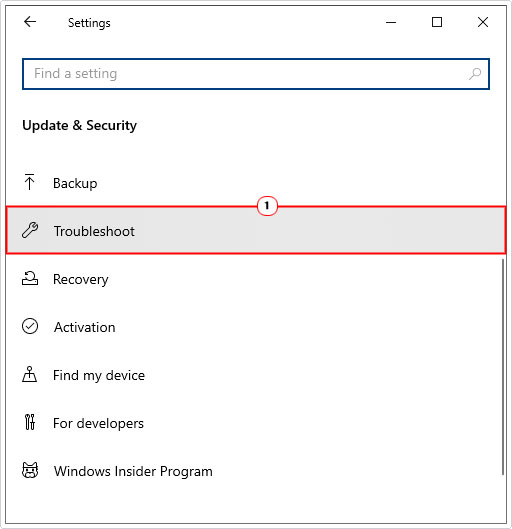
8. On the Troubleshoot page, click on Additional troubleshooters.
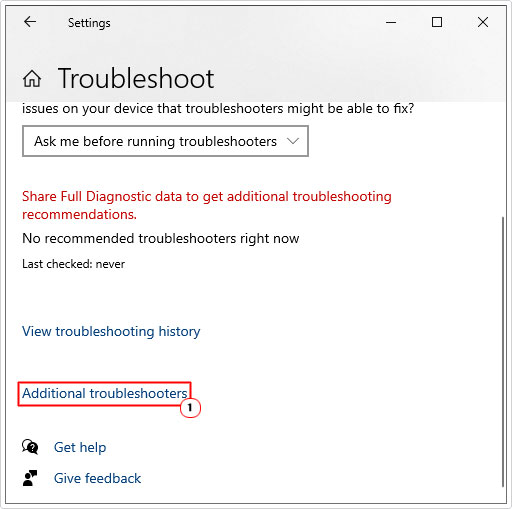
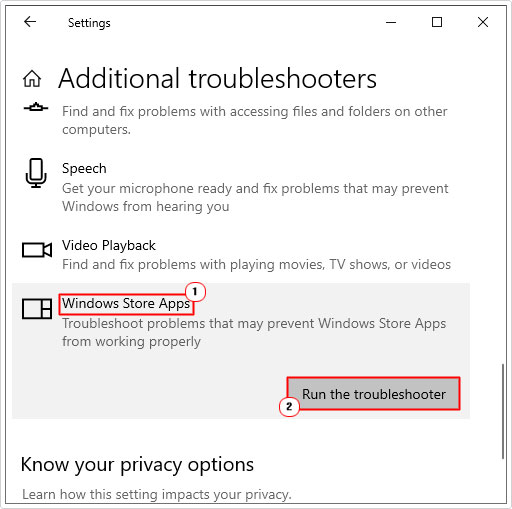
9. When Additional Troubleshooters appears, scroll down and click on Windows Store Apps then click on Run the troubleshooter.
Use Run Command
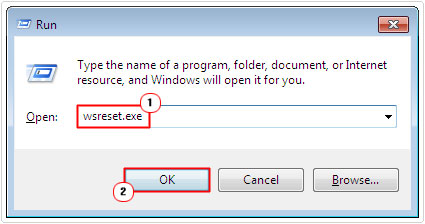
Additionally, if all of this seems too complicated, then you can try running the Windows Store reset command. Not as effective, but far simpler to execute. The steps are as follows:
1. Ensure you have administrative rights.
2. Then press + R, type Wsreset.exe and click on OK.
Use SFC and DISM
In the case of OS corruption due to a virus infection, you have two built-in tools designed to restore the integrity of your operating system.
The first is System File Checker (SFC), this tool is, as the name states, designed to scan and replace missing or corrupt system files. The second is Deployment Image Services and Management (DISM), this tool works by replacing missing or corrupt Windows files.
Both tools work best in tandem.
For step-by-step instructions on how to use these tools, check out my post on fixing MSVCR71.dll missing errors.
Reset Windows Update
When Windows Update appears to be acting up (i.e. 0x80240438), sometimes it’s best to adopt a more holistic approach. That is, to reset the entire component.
There are a number of features and services that must work together for Windows Update to work, so this is a fairly comprehensive solution.
Anyway, you can find the steps on my post on fixing Update error 0x8024a206.
Install Manually
This is not necessarily a fix, but rather a workaround. If the update, whether in Windows Update or Microsoft Store refuses to download and install, then you can do it manually.
If it’s an update, then you will need to its KB number. This can usually be located in the Status Windows. Once you have that, then visit Microsoft’s Update Catalog page, and download it from there.
You can find additional steps on how to do this, from my post on fixing Windows Update error 0x8007041d.
Are you looking for a way to repair all the errors on your computer?

If the answer is Yes, then I highly recommend you check out our 24/7 Live Support Service.
Which is the leading Online Support Service that is able to help you cure your system from a number of different ailments such as Windows Installer Errors, Runtime Errors, Malicious Software, Spyware, System Freezing, Active Malware, Blue Screen of Death Errors, Rundll Errors, Slow Erratic Computer Performance, ActiveX Errors and much more. Click here to check it out NOW!