
| Attention Before you read this post, I highly recommend you check out my resources page for access to the tools and services I use to not only maintain my system but also fix all my computer errors, by clicking here! |
It’s not uncommon, given the popularity of Windows Store for end users to encounter problems with it. The most common of which, is when apps refuse to download and install. There are a wide variety of error messages that allude to this same issue, but for this tutorial we will be talking about 0x803fb005. In some circumstances, end users have noted that the issue can occur randomly, while for others it can occur when attempting to install specific app(s). For this tutorial we will assume both scenarios are playing out on your system.
Windows Store is Microsoft’s take on establishing its own digital distribution platform, much like Steam. It’s now commonly used amongst Windows users, and for that reason, errors are not an unfamiliar occurrence when downloading certain apps or games. Depending on the severity of the problem, it can prevent users from downloading and updating apps altogether. This is an issue that occurs on all iterations of Windows and has been around for a considerable length of time.
When looking at its root cause, there isn’t any specific reason you can point to. But for clarity sake, the error message will look something like the following:
Something unexpected happened
Reporting this problem will help us understand it better. You can wait a bit and try again or restart your device. That may help.
Code: 0x803FB005
Windows Store error 0x803fb005 has a number of well-known culprits, with a corrupt or malfunctioning Windows Store app being one of the more common reasons. In cases like this, resetting or reinstalling the component has been known to fix the problem.
So, what do we do know? First things first, let’s take a deeper look into the many causes of this error.
What Causes Windows Store Error 0x803fb005?
It’s not uncommon for error 0x803fb005 to rear its ugly head when Microsoft’s servers are down. As this will prevent the app from working altogether.
In circumstances like this, Windows Store will prevent you from downloading from its catalogue of games and apps.
In addition to this possible cause, you must also consider the following:
- An overzealous security tool: Depending on the brand and version of security tool running on your system, you may need to disable real-time scanning (or protection) to make Windows Store accessible.
- OS Corruption: The corruption of key Windows files is known to cause a great many issues on your system. Resolving this issue is possible through a number of different apps and solutions.
- Windows is Outdated: Research has shown that Microsoft, in the past, identified and provided a hotfix for this problem, way back in 2019. So this problem should be addressed in most systems.
Now that we have a general idea of its root causes and what can be done about it, let’s get to those much desired solutions.
How to Fix It
As already noted, one of the more common causes of the Windows Store error 0x803fb005 is an overzealous internet security tool, that is, a security solution blocking the app from accessing the internet. This can happen either through its Program Guard or Firewall feature. Either way, you should be able to fix it, by simply disabling the tool.
The steps to completing this task will vary, depending on the security solution, but generally, you should consider doing the following:
1. Boot into Windows as a full admin.
2. Then open your Internet Security Solution through its Icon in the Taskbar (bottom right-hand corner).
3. Once it’s up, go into the Settings and look for Real-Time Protection/Scanning, and switch it off.
Now you can test Windows Store to see whether that fixed it. If not, then consider the additional solutions below.
Use Windows Repair Tool to Fix Windows Store 0x803fb005
In many instances, the solution outlined above may be all you need to do to fix error 0x803fb005. However, in the off chance that, that doesn’t fix it, then you may want to go with a more holistic approach. That is, by using a Windows repair tool.
This tool will solve this error by identifying the key areas of your OS that cause DLL errors, Update errors, app errors, BSOD errors, virus infections and fixing them.
If the repair tool is much to your liking, then I suggest you visit the link below for more information:
CLICK HERE TO CHECK OUT THE ADVANCED REPAIR TOOL
 The solution(s) below are for ADVANCED level computer users. If you are a beginner to intermediate computer user, I highly recommend you use the automated tool(s) above! The solution(s) below are for ADVANCED level computer users. If you are a beginner to intermediate computer user, I highly recommend you use the automated tool(s) above! |
Sign Out & In
There are so many reasons why error 0x803fb005 may occur, but in the event that it’s a glitch, simply signing out and back in again, may be all you need to do to fix this problem.
To do this, follow the steps below:
1. Boot into Windows as a full administrator.
2. Then press  + R, type ms-windows-store: and click on OK.
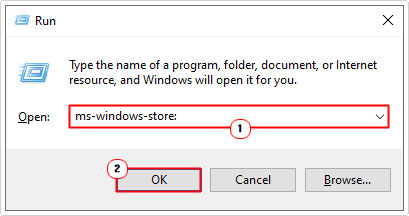
3. When Microsoft Store loads up, click on your Profile Icon and select Sign Out.
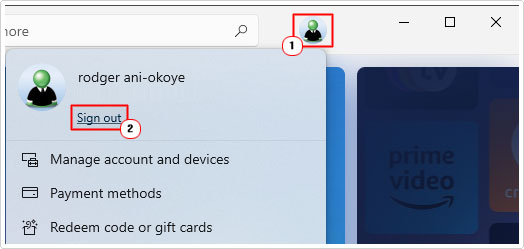
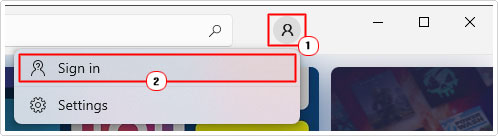
4. Now click on the Default Profile Icon and select Sign in.
5. This will bring up the Sign in dialog box, click on your Account then click on Continue.
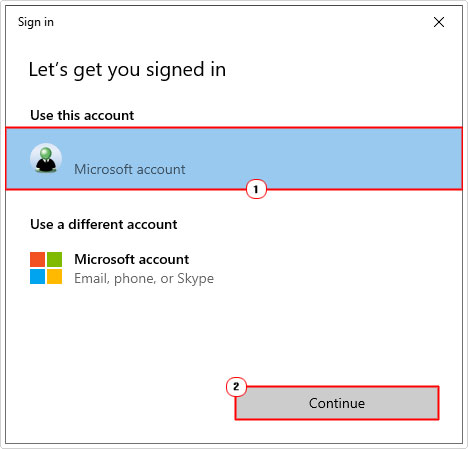
6. Enter your PIN or Password.
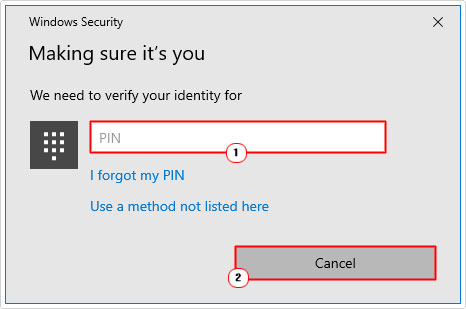
Note: Depending on your OS configuration you may use a PIN or a Password.
Now you can verify whether or not it fixed the error by downloading and installing something via Windows Store.
Reset Windows Store
If Windows Store has had a glitch then you may be able to fix it, by resetting it. The steps to doing that are as follows:
1. Boot into Windows as a full administrator.
2. Then press + I, click on Apps.

3. This will bring up Apps, now click on Apps & features.

4. Now, scroll down and click on Microsoft Store, then select advanced options.

5. When the Microsoft Store page loads up, scroll down and click on Reset.

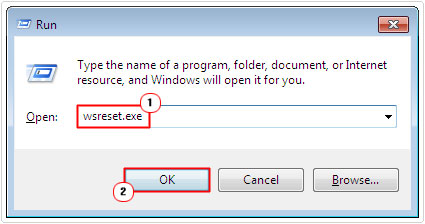
If you are unable to locate Windows Store in Apps & features, then you can reset the component by using Run box. The instructions to doing this are as follows:
1. Boot into Windows as an admin.
2. Then press + R, type Wsreset.exe and click on OK.
Re-Register Windows Store
Another method you can use, in the event that Windows Store has malfunctioned is to re-registering the entire component in Windows. This process can be done through Windows PowerShell, the steps to doing it are outlined in my post on fixing Windows Store Error 0x80073cf9.
Update Windows
As was previously discussed, Microsoft identified the error 0x803fb005 in the past and produced a hotfix for it. So for most users, this problem should already have been rectified.
That however, doesn’t mean it’s impossible for the error to occur, but it does mean, instances of it have been kept to a minimum.
Anyway, for those individuals who haven’t updated their systems in a long while, I’d recommend you did so.
The steps to doing this are relatively easy, my post on fixing Xapofx1_5.dll not found errors will show you how.
Use SFC and DISM
SFC (System File Checker) and DISM (Deployment Image Servicing and Management) are two built-in Windows tools designed to restore the integrity of your operating system.
If the Windows Store error 0x803fb005 is the result of OS corruption, then running these two tools may be able to fix it. The steps to doing that can be found in my post on fixing MSVCR71.dll missing errors.
Are you looking for a way to repair all the errors on your computer?
If the answer is Yes, then I highly recommend you check out our 24/7 Live Support Service.
Which is the leading Online Support Service that is able to help you cure your system from a number of different ailments such as Windows Installer Errors, Runtime Errors, Malicious Software, Spyware, System Freezing, Active Malware, Blue Screen of Death Errors, Rundll Errors, Slow Erratic Computer Performance, ActiveX Errors and much more. Click here to check it out NOW!