
| Attention Before you read this post, I highly recommend you check out my resources page for access to the tools and services I use to not only maintain my system but also fix all my computer errors, by clicking here! |
0xc1900200 is an error code that appears in a variety of circumstances. One of the most common is when attempting to upgrade ones system to Windows 10 using the Update Assistant tool. This error may occur when updating Windows 7/8.1 to Windows 10. In every circumstance, there is no identifiable cause, as for all indications the system meets the minimum specifications for Windows 10.
Microsoft is constantly updating its operating system. It does this through a series of periodic updates that are designed to enhance the overall security, performance and reliability of Windows. These updates come in a variety of forms, such as cumulative updates, security patches (such as known vulnerabilities fixes) feature updates (that add new tools and components) and driver updates for wider hardware support.
In the past, Microsoft made a routine of releasing these new patches on the second Tuesday of every month. These updates are vital to the smooth functionality of the operating system, as they ensure it remains protected from malicious threats, software faults and deteriorating system performance.
However, updating ones system is not always an easy seamless process. There are times when the process can be disrupted, resulting in errors.
When attempting to update your system, you may encounter the error code 0xc1900200:
Something went wrong.
You can contact Microsoft Support for help with this error. Here is the error code 0xc1900200.
There were some problems installing updates, but we’ll try again later. If you keep seeing this and want to search the web or contact support for information, this may help – (0xc1900200).
The Update error 0xc1900200 will usually appear when the download process has reached 99% then stall. This could indicate that the device the operating system is on, does not meet the minimum requirements for the update.
Addressing this problem is very important, as a failed update can leave your system vulnerable to all manners of ills and issues.
So, what can you do to fix this problem? We’ll explore that further on in this tutorial. But before we get to those solutions, let’s go over its most commonly recognised causes.
What Causes Windows Update Error 0xc1900200?
Below are the most common causes, based on research:
- System does not meet minimum specifications: If you want to upgrade your OS to Windows 10, then your system must meet the minimum recommended specifications. If you have an outdated system, it’s probably best you considered buying a new one, instead of updating its OS.
- Reserved Partition is out of space: Another known cause of this error is the reserved partition lacking the required space to upgrade Windows. The Windows Update Assistant will use this partition space when updating the operating system. Thus, if it runs out of space, it will inevitably halt the update. Increasing this space will oftentimes fix the problem.
- Windows Update is corrupted: It’s not uncommon for a Windows Update error to be the result of a corrupted Windows Update. The Windows Update component is derived from a number of Windows services, all must be working, for the component itself to complete a successful update.
- Windows has been corrupted: In the off chance, there is the possibility that the operating system has been corrupted. This could be the result of a virus infection, power surge, or faulty hardware component.
Now that we have the causes out of the way, let’s take a look at the many ways you can fix this problem.
How to Fix It
The first thing you should consider doing, is disconnecting all peripherals from your system. If you have a USB control pad or an external storage device attached to the system during the update process, it’s possible that it could be the cause of the 0xc1900200 error. Devices such as USB Bluetooth receivers are also known to cause this problem.
Thus, to eliminate hardware interference as a possible cause of the error, I suggest disconnecting everything, from game controllers to printers, to USB sticks, anything and everything the OS can live without. Then retry the update.
If the error still persists, then make sure your system meets the minimum specifications for Windows 10.
If you want the operating system to install without issue, then your computer must meet the minimum requirements for it. It must meet both the software and hardware requirements of Windows 10. This means ensuring you have the right CPU, RAM, hard drive space etc…
If your computer doesn’t appear to have any hardware problems, then its possible 0xc1900200 is the result of a software issue, such as incompatible drivers, firmware or an app. It’ll be up to you, to determine which app or hardware driver is causing it. That means, looking at your CPU, RAM, GPU & Sound card drivers and also going through your apps and updating or uninstalling where applicable.
Use Windows Repair Tool to Fix Update Error 0xc1900200
If the quick solutions above failed to fix the Windows Update error 0xc1900200, then there is a more comprehensive, yet, easier method you can use. That is, the Windows repair tool.
This tool is highly efficient at fixing a wide range of problems on your system, from OS corruption, to fatal system errors. All you need to do, is download and install it, and it’ll do the rest within a single scan.
Additionally, you can expect it to fix BSOD errors, DLL errors, registry corruption, runtime errors and much more. It’s also capable of making your system run faster, making it the ideal all-in-one maintenance and repair solution.
If for any reason that interests you, then visit the link below:
CLICK HERE TO CHECK OUT THE ADVANCED REPAIR TOOL
 The solution(s) below are for ADVANCED level computer users. If you are a beginner to intermediate computer user, I highly recommend you use the automated tool(s) above! The solution(s) below are for ADVANCED level computer users. If you are a beginner to intermediate computer user, I highly recommend you use the automated tool(s) above! |
Extend Reserved Partition
As already noted, error 0xc1900200 can occur as the result of insufficient space in the system reserved partition.
Many end users have reported that they were able to tackle this problem simply by extending the size of this partition.
There are several ways that you can do this, but the easiest and most efficient way is through the use of third-party software.
So, let us begin:
1. First, ensure you’ve booted into your system as a full administrator.
2. Next, download and install the Freeware tool MiniTool Partition Wizard. Just do a quick Google search to find it.
3. Once you’ve installed it. Execute the app, if you haven’t already.
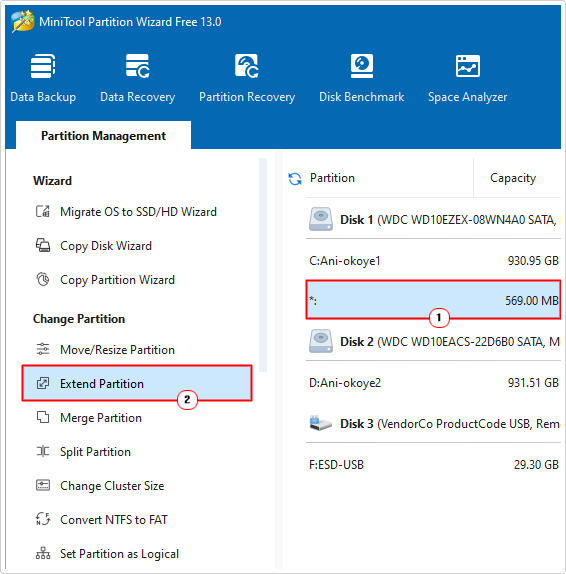
4. Now, click on your System Reserved Partition, then click on Extend Partition.
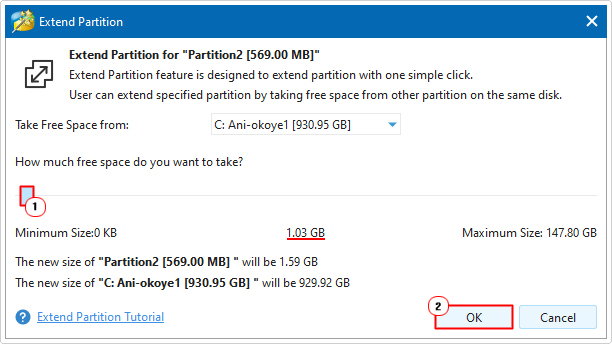
5. This will bring up the Extend Partition applet. Set the System Reserved Partition to 1GB and click on OK.
6. Once it’s complete, you can now retry the Windows Update.
Use Disk Clean-up
Disk Clean-up is a built-in Windows utility tool, designed to free up hard drive space by removing data from obscure areas of the operating system. If hard drive space is the cause of the 0xc1900200 error, then this tool may be just what you need to fix it.
To access this tool, just do the following:
1. First, boot into Windows as a full administrator.
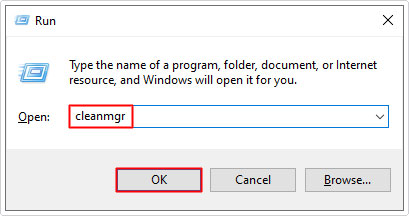
2. Then press  + R, type cleanmgr and click on OK.
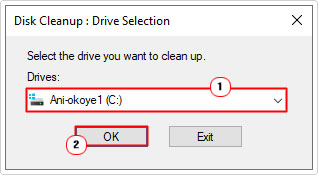
3. This will bring up the Disk Clean-up : Drive Selection applet, from here, choose C: and click on OK.
Note: Disk Clean-up will scan your hard drive.
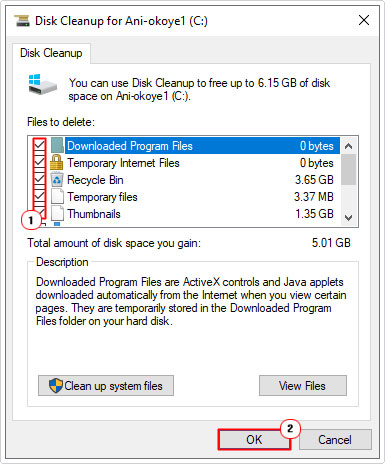
4. When the Disk Clean-up for C: pops up, tick all the boxes, then click on OK.
5. Once that’s finished, repeat steps 2 – 3.
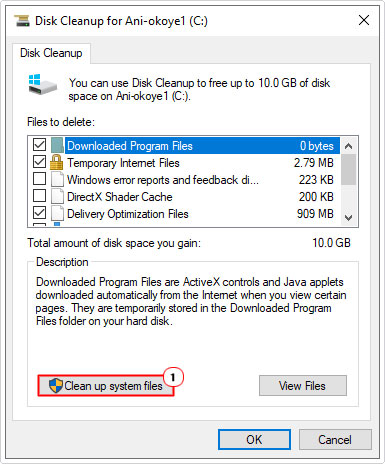
6. This time, click on Clean up system files.
7. Then select C: on the Disk Clean-up : Drive Selection applet.
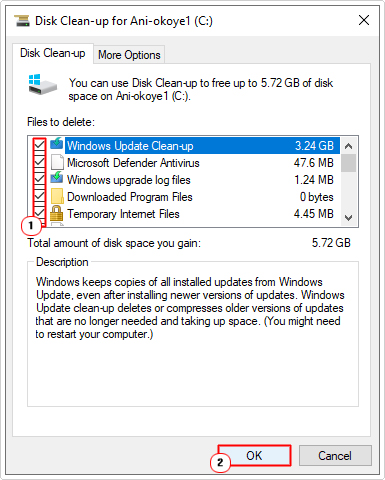
8. When the Disk Clean-up for C: applet appears again, tick all the boxes and click on OK.
Once that’s all complete, you can now retry the Windows Update.
Reset Windows Update
One of the more effective ways to fix Windows Update issues is to reset all the services and features that belong to it. This is a relatively simple process, if you know what you’re doing.
For step-by-step instructions on how to reset Windows Update, check out my post on fixing Update error 0x8024a206.
Use DISM & SFC
If your operating system has corrupted system files, then you need to repair them. To do that effectively, you have two built-in tools. They are, SFC (System File Checker) and DISM (Deployment Image Servicing and Management).
SFC scans a select number of system files, crucial to the smooth operation of Windows, and replaces the file(s) where applicable.
DISM on the other hand, attempts to restore the integrity of your operating system – in its entirety.
Both tools complement each other.
Thus, if you want step-by-step instructions on how to use them, check out my post on fixing Msinfo32.exe “can’t collect information” errors.
Update BIOS
Some end users have reported that error 0xc1900200 can oftentimes be the result of an outdated bios. This is most likely to occur only on the oldest of systems.
Thus, if you have a fairly old system and want to consider updating its BIOS. Then I recommend you consult the manual of your motherboard or visit the website of the board manufacturer. All installation instructions should be present there.
Are you looking for a way to repair all the errors on your computer?
If the answer is Yes, then I highly recommend you check out Advanced System Repair Pro.
Which is the leading registry cleaner program online that is able to cure your system from a number of different ailments such as Windows Installer Errors, Runtime Errors, Malicious Software, Spyware, System Freezing, Active Malware, Blue Screen of Death Errors, Rundll Errors, Slow Erratic Computer Performance, ActiveX Errors and much more. Click here to check it out NOW!