
| Attention Before you read this post, I highly recommend you check out my resources page for access to the tools and services I use to not only maintain my system but also fix all my computer errors, by clicking here! |
Did you recently encounter the error message: “The file is too large for the destination file system” While attempting to copy a substantially large file to another storage device? Did the error appear despite the storage device having enough free space to store the file? If so, then do not fear, as we will discuss why this happens and how you can fix it.
If you’re running a relatively old Windows based system with a hard drive formatted in FAT32, then you should expect many issues along the way. “The file is too large for the destination file system” is one of many issues you will encounter, but will have to somehow overcome. There are many ways you can tackle this problem, however, the approach that works for you, will depend on several factors.
So, why does this error occur? This issue will typically arise, when an end user attempts to move or copy a file larger than the 4GB limit of FAT32 file systems.
What Is A File System?
To put it simply, a file system is a method that your operating system uses to structure and organise data saved to disk. There are several methods of doing this, with the corresponding label used as an identifier for the storage device.
About exFAT, FAT, FAT32 & NTFS
FAT which is also known as FAT16 is the simplest file system. It offers relatively decent performance, however, it lacks the reliability and scalability of the more advanced file systems. For FAT, the maximum size a transferred file can be is 2GB.
FAT32 is one step up from FAT16 and is used primarily for smaller storage devices. For this file system, the maximum file limit is 4GB. The best thing about FAT32 is that it has wide spread compatibility, meaning it can and typically does work on a wider number of systems.
ExFAT, another term for this file system is FAT64. It was first introduced in Windows Embedded 5.0. Initially created to fill the space left by FAT32. However, it was and is used primarily as flash memory. Compatibility is very limited, making it an unpopular option.
NTFS is the most popular file system today. For NTFS, the largest a file can be is upwards of 16TB. This file system is most suitable for larger storage devices.
Today, you are most likely to encounter either FAT32 or NTFS, being the most popular file systems. The main difference between these systems can be shown below:
| FEATURE | FAT32 | NTFS |
| Max. Partition Size: | 2TB | 2TB |
| Max. File Size: | 4GB | 16TB |
| Max. Filename Length: | 8.3 Characters | 255 Characters |
| Encryption: | NO | YES |
| Fault Tolerance: | NO | Auto Repair |
| Security: | Network | Local & Network |
| Compression: | NO | YES |
| OS Support: | Windows 95 – 11 | Windows 95 – 11 |
Fortunately, there are things you can do to combat this error, with fully viable workarounds. However, before we get to the solutions, let’s take a closer look into its many causes.
What Causes “The File Is Too Large For Destination File System” Errors?
There are a wide range of file systems, from FAT to FAT32, exFAT and NTFS. However, each of these file systems have their pros and cons. The error message in question, most often occurs when trying to transfer large files (4GB+) to another storage device.
So, a rundown of its potential causes are:
- The Windows registry has been corrupted.
- Trying to transfer a file that exceeds the FAT or FAT32 file limit.
When it comes to fixing this problem, depending on the root cause, it can be relatively simple. However, it’s very important you know what’s causing the error if you want to be able to fix it. However, in most circumstances, it’s because the 4GB (of FAT32) or 2GB (of FAT) has been exceeded.
Anyway, let’s get to the solutions.
How to Fix It
When looking at viable solutions to this problem, there are several things you can do. You could try splitting the content up into smaller data chunks or you could reformat the storage device.
If splitting the file or reformatting the hard disc drive is not an option, then you could try compressing the data. Windows 7/8/10 & 11 support compression, however, there are third-party utility tools that you can also use.
That aside, let’s start with the easiest solution. Which is registry corruption. To tackle this problem, I suggest the solution below:
Use Windows Repair Tool to Fix “The File Is Too Large For Destination File System”
Your Windows based system comes jam-packed with a wide assortment of features. However, despite its many pluses, it’s not without its problems, which arrive in the form of issues and errors. Some of these may be complex to fix, while others, not so much.
To fix the more stubborn problems, you need something reliable and strong. This brings us to the Windows repair tool. A tool, capable of fixing a wide range of errors on your system.
This tool was developed by PC professionals, to be able to scan, detect and fix errors. This includes any problems you may be having with your system right now.
Off the top of my head, it can fix game errors, DLL errors, Windows Update errors, registry corruption, file corruption, BSOD errors, virus infections and much more.
If any of this sounds good to you, please check out the link below:
CLICK HERE TO CHECK OUT THE ADVANCED REPAIR TOOL
 The solution(s) below are for ADVANCED level computer users. If you are a beginner to intermediate computer user, I highly recommend you use the automated tool(s) above! The solution(s) below are for ADVANCED level computer users. If you are a beginner to intermediate computer user, I highly recommend you use the automated tool(s) above! |
Split the File
If the file is too large to transfer to the “other” storage device, then you may want to consider splitting it into smaller chunks and transferring it that way.
You can do that by using a third-party utility tool. The one I’ll be using for this tutorial is called WINRAR, but there are others, such as WINZIP.
Anyway, the instructions are as follows:
1. First, boot into your system as a full administrator.
2. Next, right-click on the File (you would like to split) and select Add to archive.
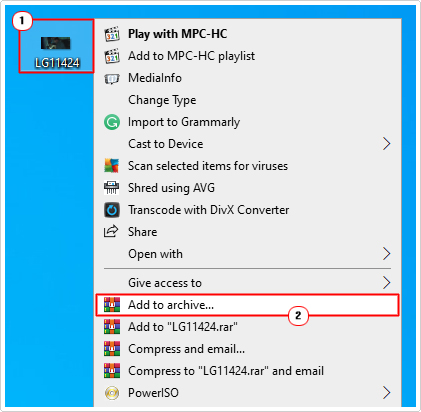
3. This will bring up the Archive name and parameters applet, from here, type a value (below the file limit size of your file system; FAT or FAT32), such as 500MB in the Split to volumes, size box and click on OK.
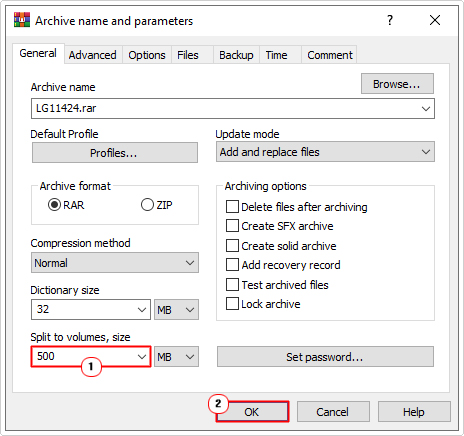
4. Once it’s finished creating the archive(s), copy the file(s) to your storage device.
Convert FAT32 to NTFS
There are several ways you can do this, but for the sake of convenience, we’ll be using the Command Prompt tool to convert your old FAT32 storage device to NTFS to fix “The file is too large for the destination file system” error.
To do that, follow the steps below:
1. Boot into your system as an admin.
2. Then press  + R, type cmd and press CTRL + Shift + Enter.
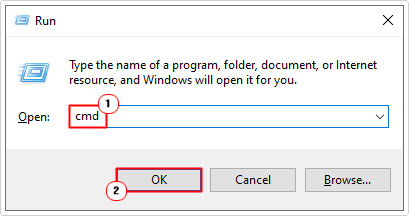
3. When Command Prompt loads up, type the command below and press Enter.
Convert N:/fs:ntfs
Note: Where N: is the letter of the drive you’re trying to copy or move the data to.
Note: Once complete, you will not be able to convert FAT32 back to NTFS. Additionally, you will need sufficient free space on the target drive to complete the conversion process.
Format FAT32 to NTFS
The easiest way to covert a FAT32 drive to NTFS is through the format process. However, there is one major downside to this method. Which is, that you will lose ALL data on the converted drive, once the process has completed. So only attempt this method, when either, the target drive is empty or doesn’t contain any sensitive data.
To complete this process, simply do the following:
1. Boot into your system as an admin.
2. Then press + R, type … and click on OK.
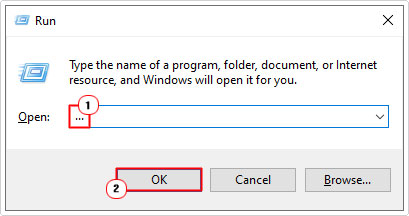
3. When File Explorer pops up, right-click on the problematic drive and select Format.
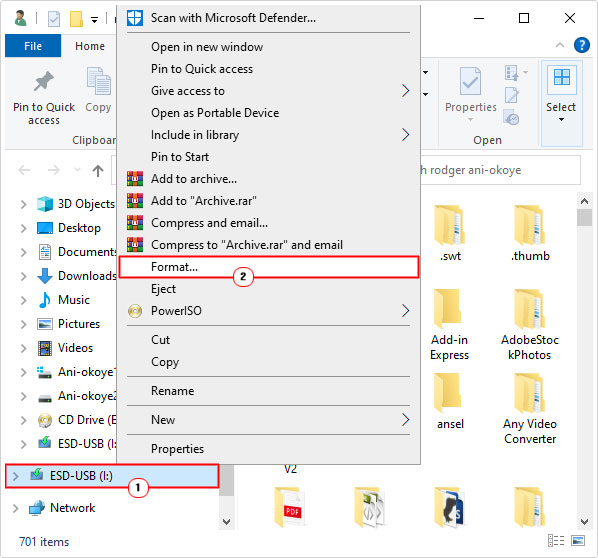
4. This will bring up the Format DRIVE (N:) applet, from here, simply select NTFS file system, then click on Start.
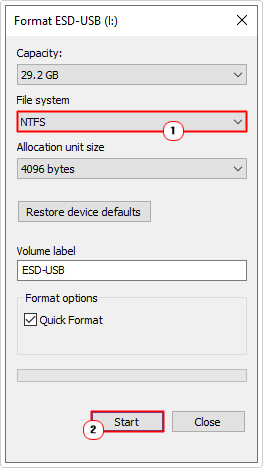
Note: Make sure the box for Quick format is ticked.
Use Different Storage
Probably the most logical option, in the event that the solutions above are not accessible to you, is to simply use a different storage device. Ideally one formatted in NTFS, as there is less chance of you encountering “The file is too large for the destination file system” error notification while using it.
Additionally, you could use the cloud, if that’s an acceptable option.
Are you looking for a way to repair all the errors on your computer?
If the answer is Yes, then I highly recommend you check out Fortect.
Which is the leading registry cleaner program online that is able to cure your system from a number of different ailments such as Windows Installer Errors, Runtime Errors, Malicious Software, Spyware, System Freezing, Active Malware, Blue Screen of Death Errors, Rundll Errors, Slow Erratic Computer Performance, ActiveX Errors and much more. Click here to check it out NOW!