
| Attention Before you read this post, I highly recommend you check out my resources page for access to the tools and services I use to not only maintain my system but also fix all my computer errors, by clicking here! |
Did you recently encounter the Virus scan failed error notification while attempting to download a file using the Google Chrome browser? It will occur in a number of different circumstances. But generally, it will appear when the browser or your internet security tool detects a malicious file during the download process. As a result, the process is halted, effectively protecting your system from potential infection.
Google Chrome comes with a built-in downloader which you can use to download a wide assortment of file types. However, Google Chrome doesn’t only download these files, it also carries out a quick scan to detect for potential viruses. In the event that it detects something, it will alert you with the “virus scan failed” notification. However, there are instances when the notification may appear, even when a virus has not been detected – essentially, preventing you from downloading files.
In the vast majority of cases, Google Chrome would quickly and effectively sniff out and eliminate any malicious file before it can infiltrate your system. This will be done in a variety of instances, depending on the circumstances. However, in most cases, the end user should be able to download other files to their system.
It’s those instances where the user cannot download other files to their system that this error becomes problematic.
So, what can you do about it? You’ve probably already tried restarting the browser, but to no avail. So what options are available to you? Before we get to the solutions, let’s first take a deeper look at its potential causes.
What Causes Virus Scan Failed Errors?
It’s not uncommon for Google Chrome to wrongly block a file download despite it coming from a reputable source – this is often referred to as a false flag. So, what options do you have in this situation? How can you verify that the file is in fact safe?
Well first, you must establish the root causes. It’s only after you have a general idea of its cause, that you can begin to establish proper ground works to fixing it.
So what are its common cause? Below is a rundown of what I was able to research:
- Google Chrome has experienced a temporary error (or glitch).
- Your system has been infected with a malicious file.
- An internet security tool is blocking the file download.
- The Windows registry has been corrupted.
- A browser extension is conflicting with the site or Google Chrome.
Now, with that out of the way, let’s take a look at the ways you can fix it.
How to Fix It
Well, before attempting any fixes, the first thing you’ll want to ensure is that you’re running the latest version of Google Chrome. As the cause could be something as simple as a compatibility issue, in which case, a browser update should fix it.
The next thing you should try is a browser restart. If the issue is temporary, then a simple restart should fix the problem.
You also want to establish whether or not the issue is wide spread or unique to a particular file. To do that, you will need to try downloading a different file. If it downloads without issue, then you know the issue is specific to that file. In which case, you’d want to consider downloading it from a different source.
It’s always best to download a file from its official website. Only then can you be sure whether your system is to blame or not.
That said, if the issue continues to persist, even after attempting these simple solutions above, then I recommend you try the more sophisticated solutions below.
Run Windows Repair Tool to Fix Virus Scan Failed Errors
Is your computer running much slower than it once did? Is it reporting a whole plethora of error types and issues? If so, then it’s probably best you scanned your system using a Windows repair tool.
The tool I have in mind is multifaceted, capable of detecting and fixing a wide range of problems on your system. Just off the top of my head, it will fix BSOD errors, DLL errors, registry corruption, runtime errors and much more.
This tool when run, will not only fix errors but also optimise the performance of your system – making it an all-in-one repair and maintenance suite.
It’s very easy to get to grips with, sporting an intuitive user interface and a wide range of options.
If any of this interests you, then I suggest you visit the link below for more information:
CLICK HERE TO CHECK OUT THE ADVANCED REPAIR TOOL
 The solution(s) below are for ADVANCED level computer users. If you are a beginner to intermediate computer user, I highly recommend you use the automated tool(s) above! The solution(s) below are for ADVANCED level computer users. If you are a beginner to intermediate computer user, I highly recommend you use the automated tool(s) above! |
Ensure File Download Is Safe
Even files downloaded from a reputable sources shouldn’t be spared. You want to ensure the file you’re trying to download is safe. To do that, I suggest you follow the steps below:
1. First, boot into your system as a full administrator.
2. Then visit the VirusTotal website: https://www.virustotal.com/gui/home/upload
3. Click on URL then paste the URL of the file download into the search or scan a URL box and click on Search.
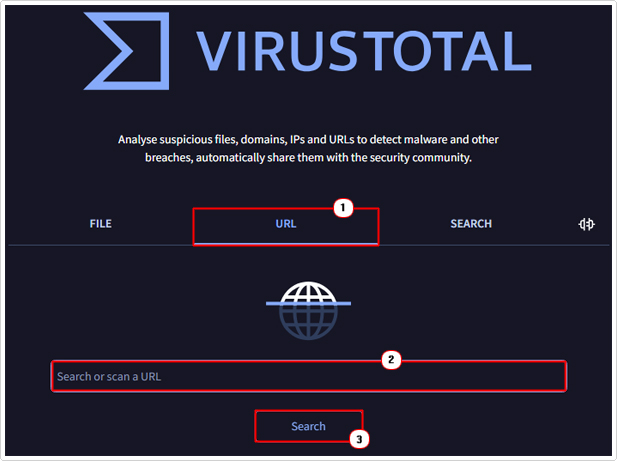
4. The website will carry out a scan on the file to determine whether or not it is clean. If it detects a virus, then you know the issue lies with the file and not your system.
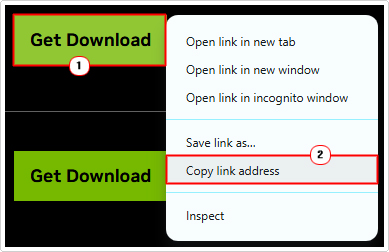
Note: You can get the URL of the file download, by simply right-clicking on the download link and selecting Copy link address.
Disable Security Extensions
It’s possible you have a security extension that is interfering with Google Chromes built-in downloader module. Essentially halting the download process midway.
Thus, to determine whether or not this is the case, I’d recommend you, at the very least, disabled it.
If you don’t know how to disable it, then I suggest you visit my post on fixing ERR_FILE_NOT_FOUND errors, for step-by-step instructions.
Exclude Download Folder (Windows Defender)
This isn’t necessarily a fix, more of a workaround, and a method I only recommend you use, if you are personally sure on the authenticity of the file.
Essentially, Windows Defender (if you use it) will scan the entirety of your system, to locate, identify and remove malicious files. With this method, the objective is to exclude the Download folder from this process. That way, the download will complete, without the Virus scan failed issue.
To do that, follow the steps below:
1. Boot into your system as a full administrator.
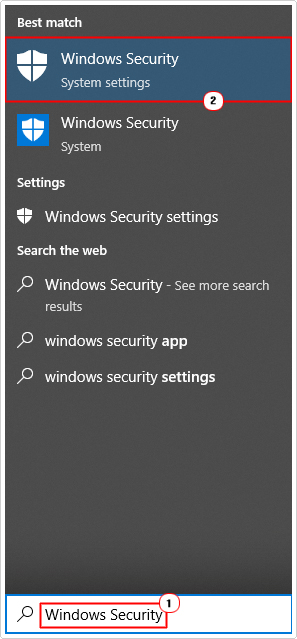
2. Then type Windows Security into the Type here to search box, and click on Windows Security.
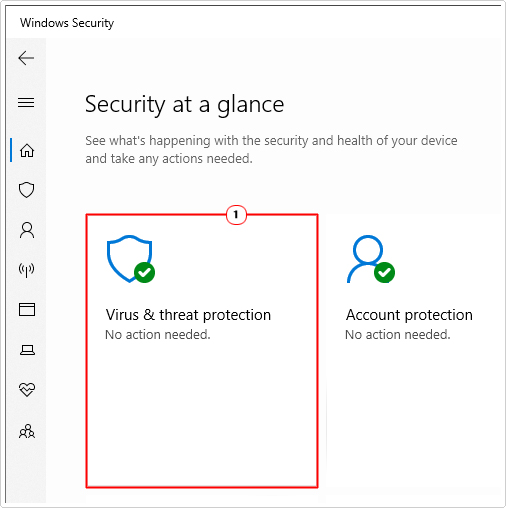
3. When Windows Security loads up, click on Virus & threat protection.
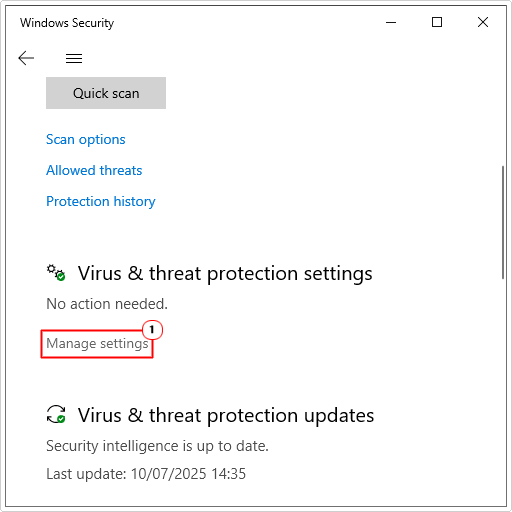
4. When Virus & threat protection loads up, click on Manage settings below Virus & threat protection settings.
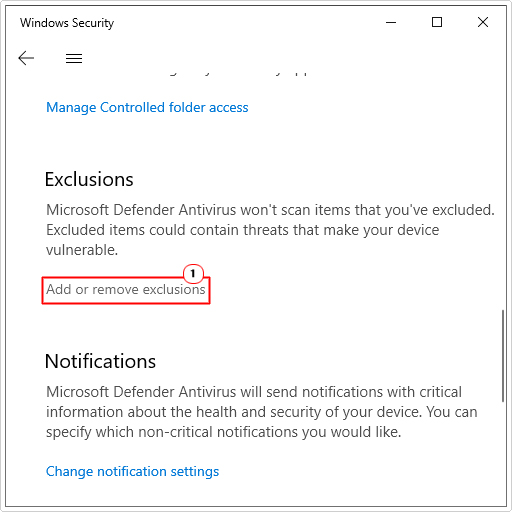
5. Scroll down to Exclusions and click on Add or remove exclusions.
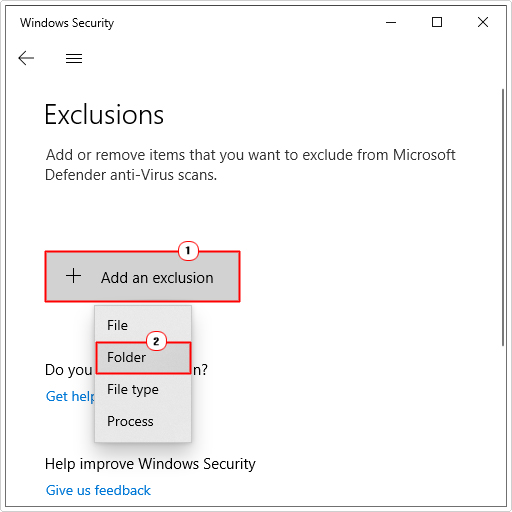
6. This will bring up the Exclusion option, from here, click on Add an exclusion and select Folder.
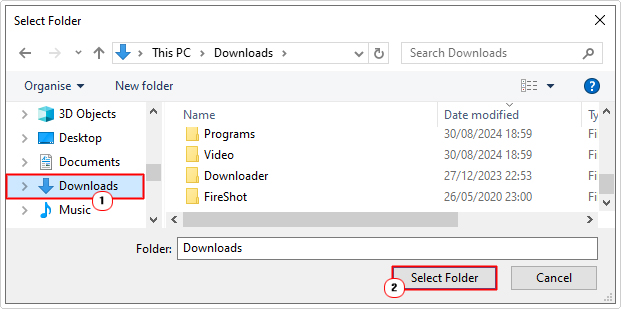
7. On the Select Folder applet, click on Downloads then click on Select Folder.
Now you should be able to download the file to the default download folder, without your security tool halting the process – even if the file is infected with a virus.
Incognito Mode
Google Chrome comes with its very own incognito mode, which in short, enhances the security of your browsing experience. This may come in handy, when the Virus scan failed issue is the result of saved browser items.
Anyway, to utilise this mode, simply do the following:
1. Boot into your system as an admin.
2. Then open Google Chrome, and click on the Three-Horizontal-Dots then select New Incognito Window.
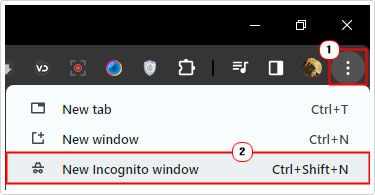
3. Now you can retry the problematic download.
Clear Browser Cache
Google Chrome uses cache files to improve and enhance your overall surfing experience. However, over the passage of time, it’s not uncommon for the web browser to pick up corrupt files or for the files to become corrupted over time. The Virus scan failed issue, may be the result of data corruption within the cache folder.
To eliminate this as a possibility, it is possible to clear out this folder.
For step-by-step instructions on how to do that, check out my post on how to fix ERR_CONNECTION_TIMED_OUT errors.
Reset Google Chrome
Google Chrome allows the users to have their own personalised experience while surfing the web. However, sometimes this custom configuration can become corrupted, resulting in error notifications such as virus scan failed.
Thus, as a last resort, you may want to consider resetting your browser. However, please keep in mind that you will lose ALL sensitive custom data, so you should only try this method if all else fails.
You can find instructions on how to reset the browser from my post on repairing ERR_FILE_NOT_FOUND errors.
Are you looking for a way to repair all the errors on your computer?

If the answer is Yes, then I highly recommend you check out Fortect.
Which is the leading registry cleaner program online that is able to cure your system from a number of different ailments such as Windows Installer Errors, Runtime Errors, Malicious Software, Spyware, System Freezing, Active Malware, Blue Screen of Death Errors, Rundll Errors, Slow Erratic Computer Performance, ActiveX Errors and much more. Click here to check it out NOW!