
| Attention Before you read this post, I highly recommend you check out my resources page for access to the tools and services I use to not only maintain my system but also fix all my computer errors, by clicking here! |
“Could not connect to the Steam network” is an error notification that can occur in many different circumstances. General symptom is an inability to access and use app features. If you’re currently bogged down by this error, and incapable of fixing it, then there are a wide range of troubleshooting techniques you can use. The tips outlined in this tutorial will show you how to fix the general causes of Steam network problems, allowing proper communication between Steams server(s) and the client software.
Steam is undoubtedly the best digital distribution service for games. Allowing you to purchase, manage and play your favourite game titles. General gaming experience is top notch, but like with all computer apps, it’s not without its problems. Issues and errors such as, steam games uninstalling themselves, load Steamui.dll errors and Steam network errors are all too common.
Most end users report encountering “Could not connect to Steam network” while attempting to log into their Steam account. Given that Steam is an online service, a connection to the internet is a must, if you want to use the vast majority of its features.
If you’d like to play a game on Steam, unless its accessible offline, you will need to connect to the Steam server before you can play it.
With all of that said, let’s take a deeper look at what’s most commonly the cause of Steam network problems.
What Causes “Could not connect to Steam network” Errors?
As previously noted, end users encounter “Could not connect to Steam network” errors while attempting to log into their Steam account. The most common reason why this occurs is because:
- The network settings are misconfigured: It’s possible your network settings are setup incorrectly. In circumstances like this, you should consider resetting your network setting back to default.
- An unreliable User Datagram Protocol (UDP): Steam uses UDP instead of the more common TCP, this is because it’s generally faster. However, UDP isn’t nearly as reliable as TCP as packet deliveries aren’t always assured. As a result, users may encounter random network issues while attempting to sign in.
Other reasons why you may experience this error include: minor technical glitches, Steam’s server(s) may be down, your system may not have access to the internet and an internet security tool (such as a firewall) could be blocking the Steam app.
So, with that out of the way, what can you do to fix it? Continue reading to find out.
How to Fix It
When it comes to fixing the “Could not connect to Steam network” error, the first thing you’ll want to do, is check your connection to the internet.
It’s possible your connection to the internet is down. Maybe your ISP server is experiencing difficulties or your router needs a simple reboot.
Either way, you want to ensure the problem doesn’t lie with your web connection. To determine whether or not the problem is your connection, simply open up your web browser (Google Chrome, Firefox, Microsoft Edge, etc…) and attempt to load a page.
If it fails, then you know the problem is with your connection, in which case you should reboot your router.
If a reboot fails to fix your connection issues, then contact you’re ISP ASAP as they should be able to fix it for you.
The next thing you should check is the server status of Steam.
Another very common cause of “Could not connect to Steam network” errors is the Steam server(s) being down. You want to ensure there are no problems on Steams end, before attempting any of the more sophisticated solutions before.
To check Steams server status, simply go to the following page: https://steamstat.us/
Check your country and make sure there is an OK beside it.

If there is no indication of a problem with the servers in your region, only then do I recommend you attempt the many solutions outlined below:
Run Windows Repair Tool to Fix “Could Not Connect To Steam Network” Errors
Overtime, it’s not uncommon for your Windows based system to start running much slower than usual. To throw up random errors and issues. In situations like this, the best solution you have is a Windows repair tool.
This recommended tool is multifaceted, capable of resolving a wide range of problems on your computer within a couple of clicks. All you need to do is download and run it, and it’ll do the rest.
General issues you can expect it to fix, include registry corruption, DLL errors, BSOD errors, App errors (like “Could not connect to Steam network”) and more. It also has a built-in virus scanner along with an optimisation component. Which should speed up your system within a single scan.
If any of that interests you, then I suggest you visit the link below:
CLICK HERE TO CHECK OUT THE ADVANCED REPAIR TOOL
 The solution(s) below are for ADVANCED level computer users. If you are a beginner to intermediate computer user, I highly recommend you use the automated tool(s) above! The solution(s) below are for ADVANCED level computer users. If you are a beginner to intermediate computer user, I highly recommend you use the automated tool(s) above! |
Run as Admin
If you run the steam app as admin, then you are ensuring you have administrative privileges, which is the highest access level. This way every feature of the app will be accessible to you.
To do that, simply do the following:
1. First, ensure you’ve booted into your system as an admin.
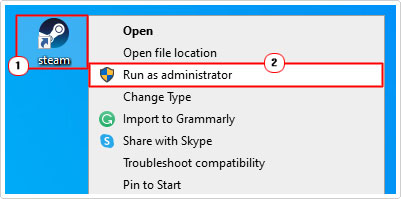
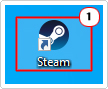
2. Then, right-click on the Steam shortcut and select Run as Administrator.
Change Internet Protocol
User Datagram Protocol (UDP) is the preferred default for Steam applications. However, it is possible to use the more consistent and stable Transmission Control Protocol (TCP) in the event you’re having connection problems.
To do that, follow the steps below:
1. First, ensure you’ve boot into your system as a full administrator.
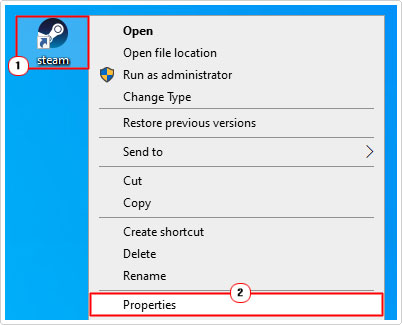
2. Now, right-click on the Steam shortcut and select Properties.
3. This will bring up the Steam Properties applet, from here, on the Shortcut Tab, add –tcp to the end of the Target line.
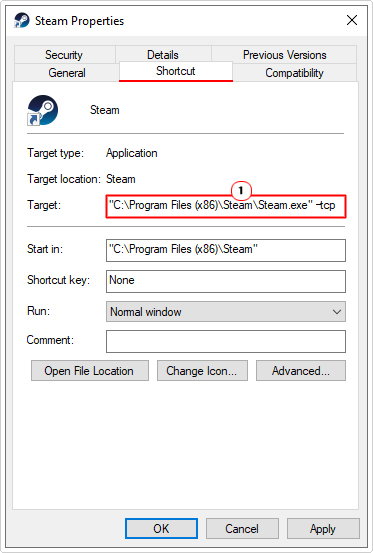
Note: The line should read, something like the following: “X:\Program Files (x86)\Steam\Steam.exe” –tcp
Where X is the storage drive.
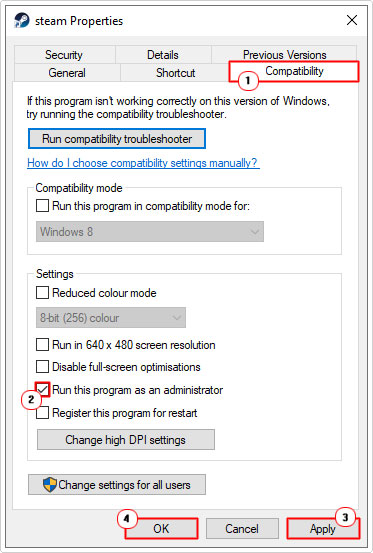
4. Next, click on the Compatibility Tab, then tick the box next to Run this program as an administrator, and click on Apply then OK.
5. Double-click on the Steam shortcut and verify whether or not the error has been fixed.
Reset Your IP Address
There are a wide range of things that can cause a “could not connect to Steam network” error. One of them, is a misconfigured network. To get around this possible cause, you should consider resetting your IP address.
To do that, follow the simple steps below:
1. First, boot into your system as an admin.
2. Then press  + R, type cmd and press CTRL + Shift + Enter.
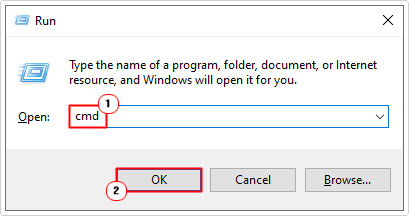
3. When Command Prompt loads up, type the command below and press Enter.
Ipconfig /flushdns
Check Background Apps
Steam is a very powerful, useful and intuitive app. However, like most software, it does run into incompatibility issues with other apps. For example, there are some internet security tools known to block Steam from accessing the internet.
Ultimately, this shouldn’t be an issue, but if you’re running one or more dodgy apps on your system, then it could cause a problem.
To disable a background app, simply do the following:
1. Boot into your system as an admin.
2. Then right-click on the Taskbar and select Task Manager.
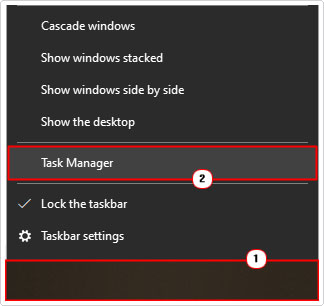
3. When Task Manager loads up, on the Processes Tab, locate an app, then right-click on it and select End task.

The types of apps you should look out for are:
- Internet security tools (antivirus, firewalls, antimalware, etc…)
- Torrent apps
- VPN programs
This is essentially a trial and error process. You will need to switch off an app, then verify each time. If the problem does prove to be an internet security tool, then you may need to consider using different tool to keep your system virus free.
Update Client Software
Steam should automatically download the latest version and apply it during boot up. This is a whole process, with a very visible notification bar, followed by a restart.
However, there are times when an update may be missed. In situations like this, you can carry out a manual update. To do that, follow the steps below:
1. Boot into your system as an admin, then load up Steam (by double-clicking on its desktop shortcut icon).
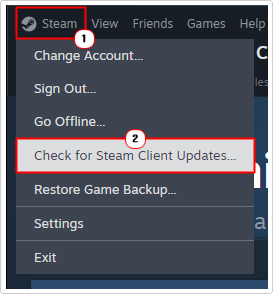
2. When Steam loads up, click on Steam (in the top bar), then click on Check for Steam Client Updates.
Reinstall Steam
If the “could not connect to Steam network” error continues to rear its ugly head, even after attempting all the solutions above, then you may want to try a total reinstallation of the app.
Note: Any downloaded games may need to be re-downloaded.
1. First, boot into Windows as an admin.
2. Then press + R, type appwiz.cpl and click on OK.
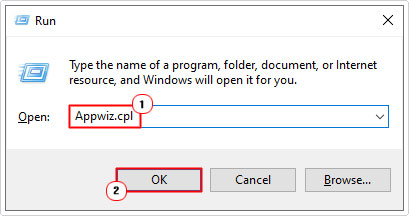
3. When Program and Features loads up, click on Steam then click on Uninstall.

Note: You may need to restart your system after the uninstallation.
4. Once Steam has been successfully removed, you can download a fresh copy from the official website: https://store.steampowered.com/about/download
Are you looking for a way to repair all the errors on your computer?

If the answer is Yes, then I highly recommend you check out Fortect.
Which is the leading registry cleaner program online that is able to cure your system from a number of different ailments such as Windows Installer Errors, Runtime Errors, Malicious Software, Spyware, System Freezing, Active Malware, Blue Screen of Death Errors, Rundll Errors, Slow Erratic Computer Performance, ActiveX Errors and much more. Click here to check it out NOW!