
| Attention Before you read this post, I highly recommend you check out my resources page for access to the tools and services I use to not only maintain my system but also fix all my computer errors, by clicking here! |
Have you recently encountered the “Windows cannot access the specified device, path or file” error while attempting to open a file or app? This can occur for a number of reasons, but in many instances it is the result of a disconnected device or file permissions.
The typical scenario reads something like this: You’re attempting to open a program (via a shortcut), open a document or access a folder, only to be confronted with the error message:
Windows cannot access the specified device, path or file. You may not have the appropriate permissions to access the item.
This error occurs quite commonly, especially for the later Windows 10/11 operating systems. The error doesn’t really point to anything specific, but generally, you’re looking at one of three possible problems:
- The file/folder you’re trying to access has been erased or moved.
- The user lacks the appropriate permissions to access the item.
- An internet security tool is blocking access to the item.
In a lot of cases, it may be something as simple as a broken shortcut – pointing to an item that no longer exists. In other situations the operating system may simply be trying to protect you from opening a potentially dangerous file.
All-in-all, this problem can be resolved. But, before we get to the solutions, let’s take a deeper dive into its potential causes.
What Causes “Windows Cannot Access the Specified Device, Path or File” Errors?
The general symptom of this error is an inability to load the app or access the file that triggered it. But, do you know why it occurred in the first place?
As with most Windows errors, there can be multiple reasons. The “Windows Cannot Access the Specified Device, Path or File” error is no exception.
Typically, you’re looking at the follow error causes:
- An inability to access the item due to it being missing, blocked (by an internet security tool) or bad sectors on the hard drive.
- The end user may lack the required permission(s) to access the device path.
- The device path is inaccessible. This could be due to it belonging to an external device that is no longer connected to the system.
- Files (the user is trying to access) have been corrupted.
These are the more common causes, however there are other possible issues that could give rise to this error such as:
- Microsoft Windows has blocked the file.
- The app or file/folder shortcut is broken.
Now that we have a general idea of what causes the error, we can now investigate the various ways you can fix it.
How to Fix It
In this section we will cover a number of methods you can use to fix the “Windows Cannot Access the Specified Device, Path or File” error.
Ultimately, the method that works for you will depend greatly on the error causes.
That said, as I always say, it’s always best to start with the simplest solutions. So to start things off, I’d recommend you considered running the app as an administrator.
In most cases you will find that the simplest solutions tend to be most effective. To run an app as an administrator is just a matter of doing the following:
1. Boot into your system with administrator rights.
2. Then, right-click on the App shortcut and select Run as administrator.
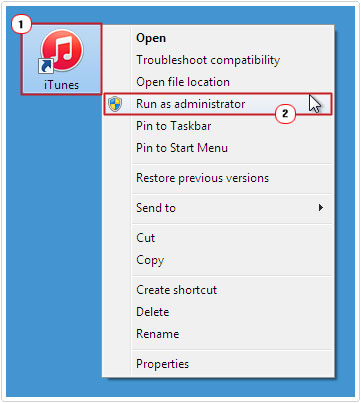
If that fails to fix the error, then you might want to consider disabling your antivirus software.
It’s possible, it’s the culprit, interfering with your ability to access the item in question.
Disabling your security tool will vary, but ultimately, you’ll want to open up its GUI (Graphical User Interface) and disable real-time scanning.
If your antivirus scanner is not to blame for this problem, then, only then do I recommend you attempt the more sophisticated solutions below:
Run Windows Repair Tool to Fix “Windows Cannot Access the Specified Device, Path or File” Errors
It’s not uncommon for us to come face-to-face with issues and errors on our computer systems over time. Most of these issues are easily resolved, with a simple system restart. However, as time progresses they can become more and more severe, forcing us to use more advanced solutions.
This brings us to the Windows repair tool.
This is a repair tool, capable of fixing a variety of issues on your system, such as game errors, app errors, BSOD, registry corruption, DLL issues, malware infections and much more.
Apart from its ability to fix errors, it’s also equally adept at enhancing the overall performance of your system. Making it an all-in-one repair and maintenance suite.
So, if that, by any chance, interests you! Then I suggest you visit the link below:
CLICK HERE TO CHECK OUT THE ADVANCED REPAIR TOOL
 The solution(s) below are for ADVANCED level computer users. If you are a beginner to intermediate computer user, I highly recommend you use the automated tool(s) above! The solution(s) below are for ADVANCED level computer users. If you are a beginner to intermediate computer user, I highly recommend you use the automated tool(s) above! |
Change File Permission(s)
As previously noted, the “Windows Cannot Access the Specified Device, Path or File” error is known to occur when an end user attempts to access a file that they do not have the appropriate permissions to access.
In situations like this, you can grant yourself the appropriate permissions.
To do that, follow the steps below:
1. First, boot into your system as an admin.
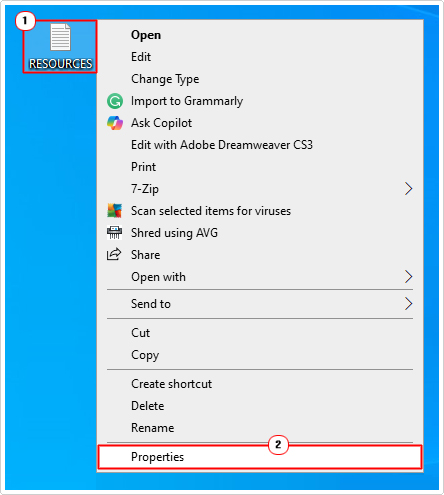
2. Now, right-click on the Problematic File and select Properties.
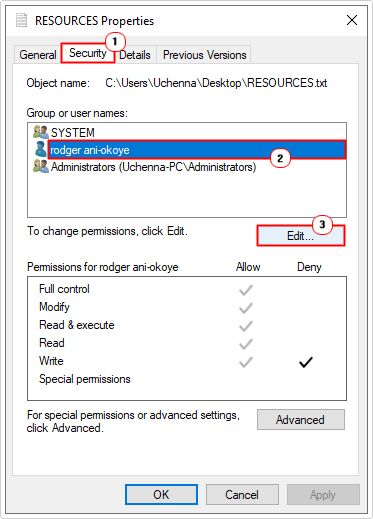
3. This will bring up the File Properties applet, from here, click on the Security Tab. Now, under Group or user names, click on your Username, then click on the Edit button.
4. A second Permissions for <filename> will appear. Click on your Username in the Group or user names box, then untick the Deny boxes in the Permissions for Username box, then click on OK.
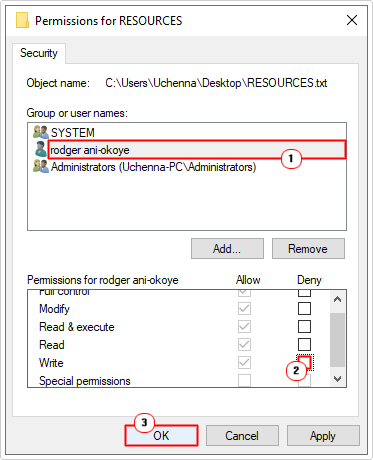
5. Now you can try reopening the file.
Check File Location
It’s possible the file you’re trying to access is either non-existent or in a different location other than its specified file path. For example, you could be trying to access a file hosted on a removable drive. However, if that drive is disconnected from your system, then the file(s) on it will become inaccessible.
For this reason, you want to ensure the accessibility of the file location. To do that, follow the steps below:
1. Boot into your system as an admin.
2. Then, right-click on the File and select Properties.
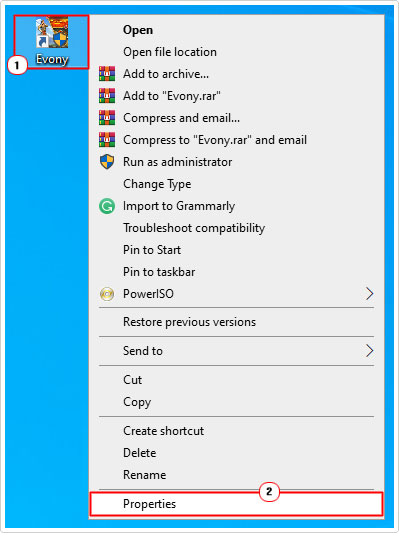
3. When the File Properties applet pops up, on the Shortcut Tab, click on Open File Location. To verify that the file path is actually available.
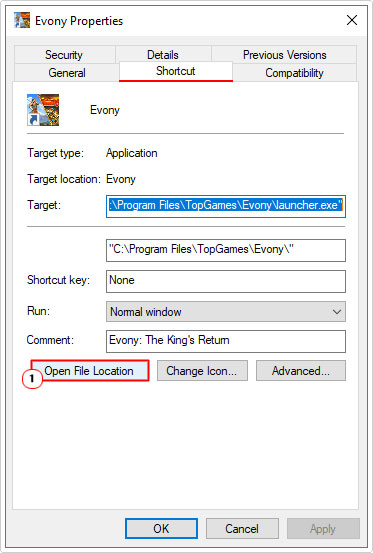
Note: If it is not, Windows will attempt to search for the file in question.
Unblock File
The “Windows Cannot Access the Specified Device, Path or File” error message may be the result of a blocked file (by the operating system). Thus, to fix it, you’ll want to unblock the file.
To do that, follow the steps below:
1. Boot into your system as an admin.
2. Then, right-click (or click if in File Explorer) on the Problematic File and select Properties.
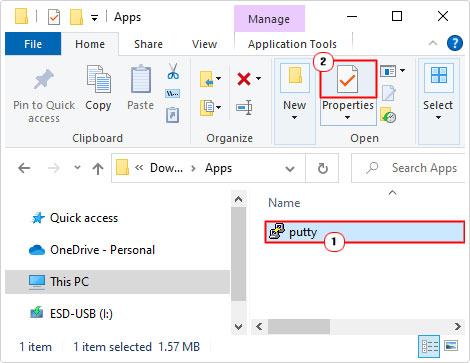
3. When the File Properties applet appears, on the General Tab, if the file has been blocked, then you will see a notification that reads:
The file came from another computer and might be blocked to help protect this computer.
Simply, click on the Unblock button, to make it accessible.
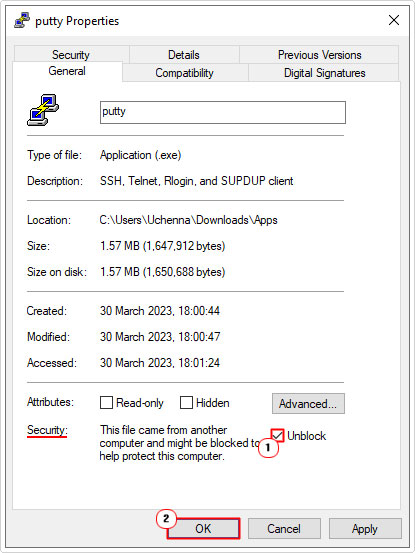
4. Now you can verify whether or not the error has been resolved.
Recreate Shortcut
It’s possible the app shortcut you’re trying to use has been broken, meaning, it points to the wrong file/location.
In situations like this, you can seek to recreate the shortcut, making the app accessible to you. To do that, follow the steps below:
1. Boot into your system as an administrator.
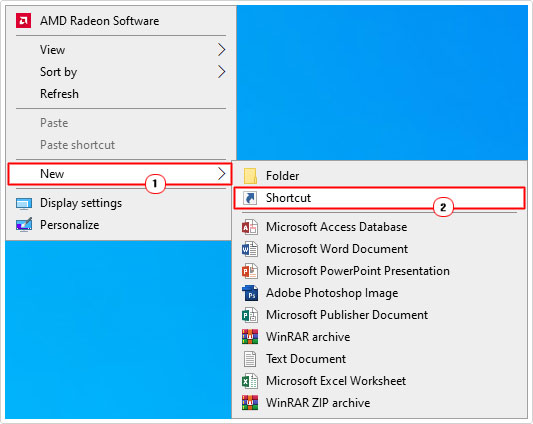
2. Then, right-click on your Desktop and select New -> Shortcut.
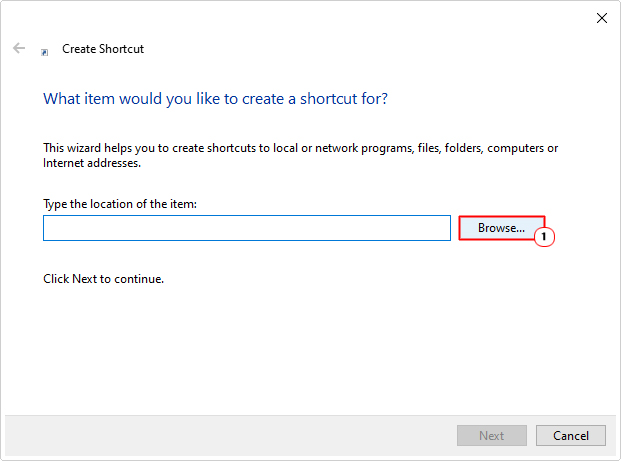
3. This will bring up the Create Shortcut applet, from here, click on Browse.
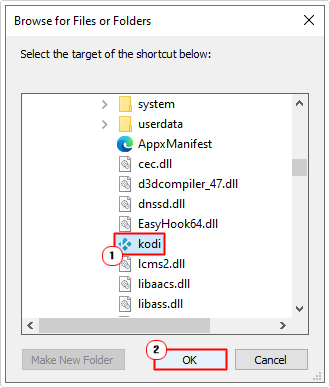
4. Now select the .exe file for the app you’re trying to access, and click on OK.
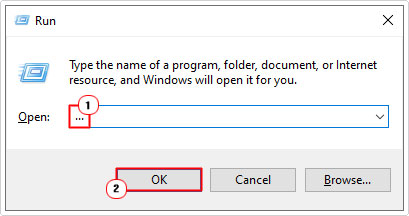
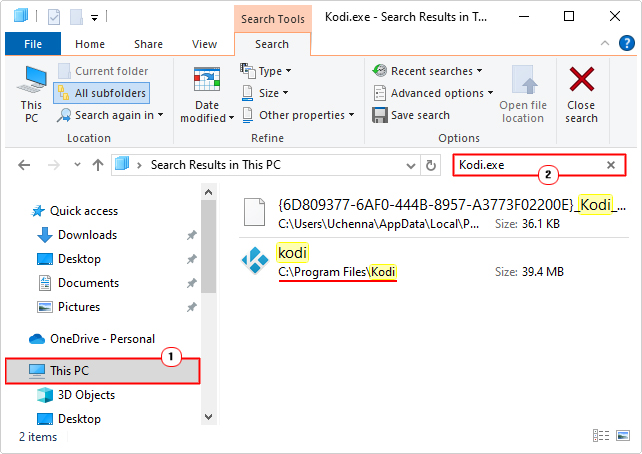
Note: If you have no idea where to find the .exe file. You can try running a search. To do that, simply press  + R, type … and click on OK.
When File Explorer loads up, click on This PC, then type the app .exe name in the Search This PC box.
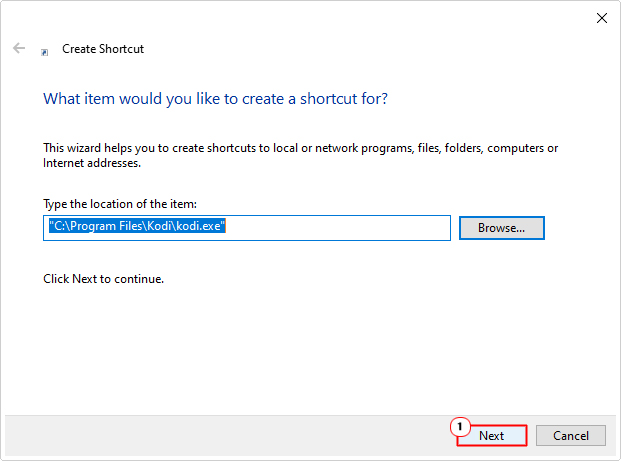
5. Now, click on Next.
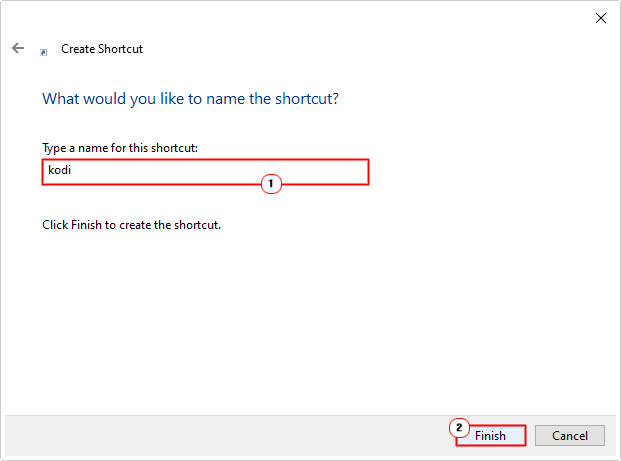
6. Type a name into the Type a name for this shortcut box, then click on Finish.
Are you looking for a way to repair all the errors on your computer?

If the answer is Yes, then I highly recommend you check out Fortect.
Which is the leading registry cleaner program online that is able to cure your system from a number of different ailments such as Windows Installer Errors, Runtime Errors, Malicious Software, Spyware, System Freezing, Active Malware, Blue Screen of Death Errors, Rundll Errors, Slow Erratic Computer Performance, ActiveX Errors and much more. Click here to check it out NOW!