

| Attention Before you read this post, I highly recommend you check out my resources page for access to the tools and services I use to not only maintain my system but also fix all my computer errors, by clicking here! |
“Something Happened and Your Pin Isn’t Available” appears when an error occurs during the initial login phase. There are a multitude of reasons why this may occur (such as, the OS rejecting your PIN), but there are equally as many methods that you can fix this problem.
The latest Windows 10/11 operating systems allows the end users to use a PIN, as opposed to a password, to login. This PIN may be comprised of a series of numbers and letter combinations. Using a PIN to log in, is more convenient, secure and fast.
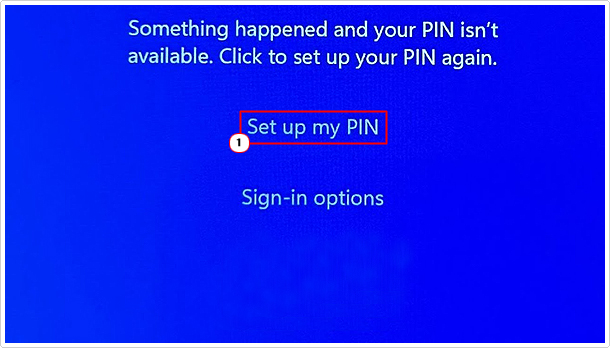
However, there are those instances when the operating system is unable to access your PIN. Windows will greet you with the following error message:
Something Happened and Your Pin Isn’t Available. Click to set up your PIN again.
Another variation of the error message may read as:
Something went wrong and your PIN isn’t available (status: 0xc000006d, substatus: 0xc0070070). Click to set up your PIN again.
Both of them refer to the same problem.
So, what can you do to fix it? Continue reading, so we can first, tackle, what exactly is causing it, and then go through a number of working solutions.
What Causes “Something Happened and Your Pin Isn’t Available” Errors?
“Something Happened and Your Pin Isn’t Available” will oftentimes occur in Windows 10/11 if an issue has occurred with the PIN service. This could be the result of:
- A corrupted/interrupted update or app installation.
- An issue has occurred with the NGC folder.
- The PIN data has been corrupted.
- Your login credentials are incorrect.
These are the most common culprits when looking at this error, as there could be more.
That said, let’s now take a look at the various ways you can fix this problem.
How to Fix It
In this part of the tutorial, we will go through a series of methods that you can use to fix the PIN issue with your Windows based system.
As always, I like to start small. So the first solution should be to reboot your system.
Simply, shut down the computer and switch it back on. There are several ways you can do this. You can, either, hold down the power button (for several seconds until the system powers down) or you can click on Windows Key -> Power -> Shut down.
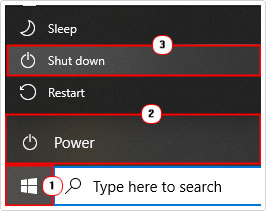
Once the reboot process has completed, you can now try signing-in again.
If that fails to fix the problem, you will need to boot into WindowsRE. Many of the solutions up to this point will require Recovery Environment to take advantage of.
To access this mode. From the login screen, simply do the following:
1. Click on Power, then click on Restart, while holding down the Shift key.
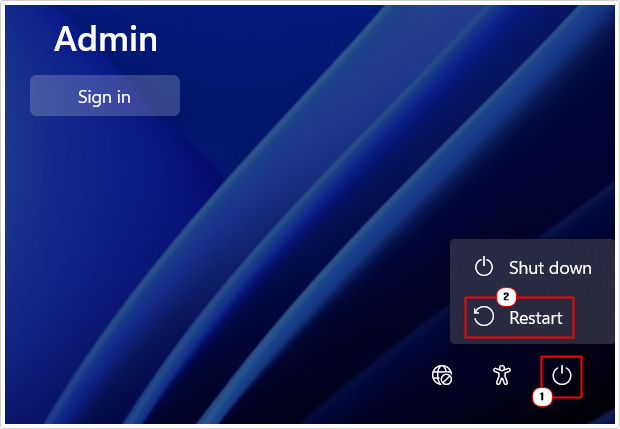
Note: If a confirmation prompt appears, click on Restart anyway. Be sure to hold the shift key down, until the system fully reboots.
Run Windows Repair Tool to Fix “Something Happened and Your Pin Isn’t Available” Errors
Before using any of the more sophisticated solutions above, you may want to consider using a Windows repair tool. However, in order to take advantage of this tool, you will need working login credentials to access Windows.
The tool I have in mind is a advanced repair solution, and it is a highly advanced tool capable of scanning, detecting and fixing a plethora of Windows issues and errors. It’s also a maintenance tool, which means it can make your system faster, as well as fix its problems.
The types of errors you can expect it to fix, include:
- Registry corruption
- Missing DLL errors
- Virus/Malware infections
- Corrupted system files
And much more…
Anyway, if any of that interests you, then I suggest you visit the link below:
CLICK HERE TO CHECK OUT THE ADVANCED REPAIR TOOL
 The solution(s) below are for ADVANCED level computer users. If you are a beginner to intermediate computer user, I highly recommend you use the automated tool(s) above! The solution(s) below are for ADVANCED level computer users. If you are a beginner to intermediate computer user, I highly recommend you use the automated tool(s) above! |
Reset Your PIN
It’s possible for you to follow the onscreen instructions to resetting your current PIN. However, you will need access to the internet, whether via Ethernet or wirelessly.
Anyway, to reset your PIN, simply do the following:
1. First, click on the Set up my PIN button.
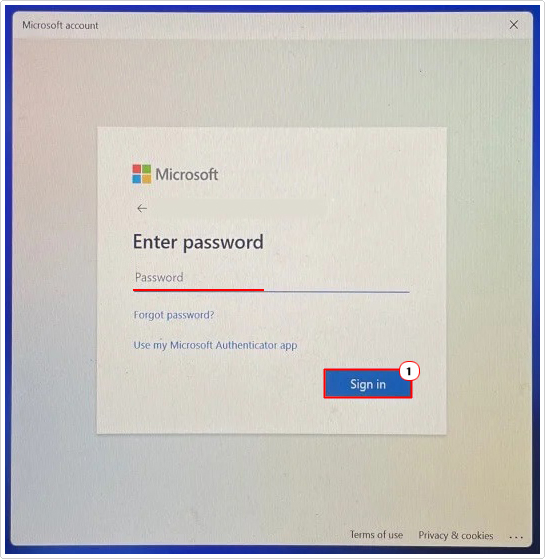
2. On the Microsoft Account screen, enter your account Username & Password.
3. Next, click on Continue.
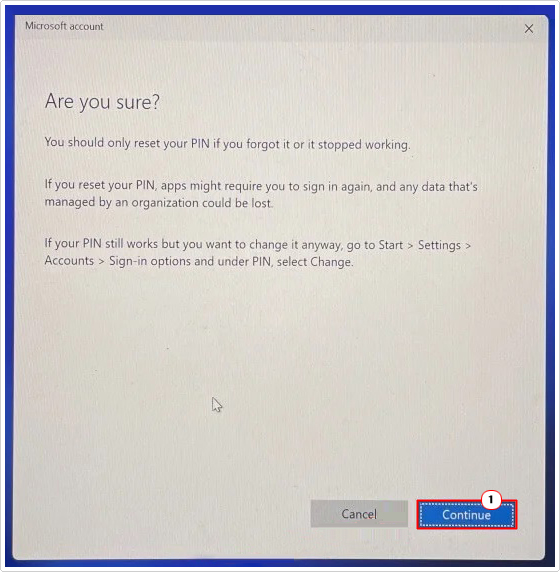
4. Now, enter a NEW PIN in the corresponding box, and click on OK.
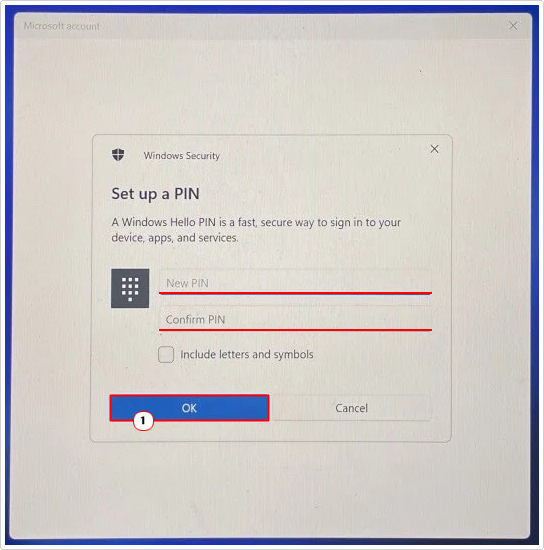
Note: Once the setup (reset) process completes, Windows will log you into Windows.
Delete NGC Folder
All PIN related data is stored in the NGC windows folder. Thus, if something were to happen to this folder, such as data corruption, it could result in the “Something Happened and Your Pin Isn’t Available” error notification. As a work around, you could try removing the folders contents, before creating a new PIN.
To alter this folder, you will need access to Windows. So, different working login credentials, should do the trick.
Anyway, once in Windows, please do the following:
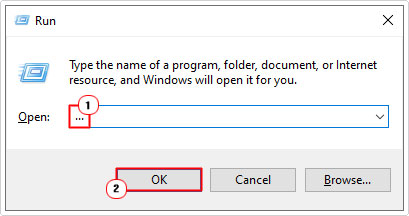
1. Press  + R, type … and click on OK.
2. This will bring up File Explorer, now, click on View, then Options.
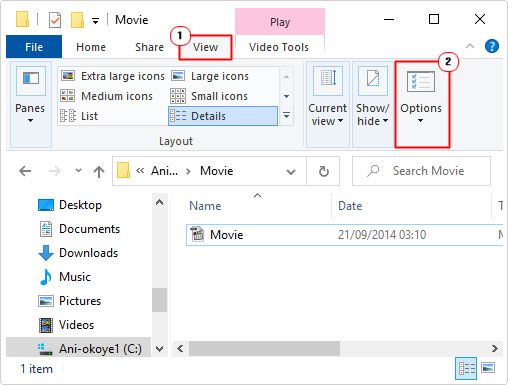
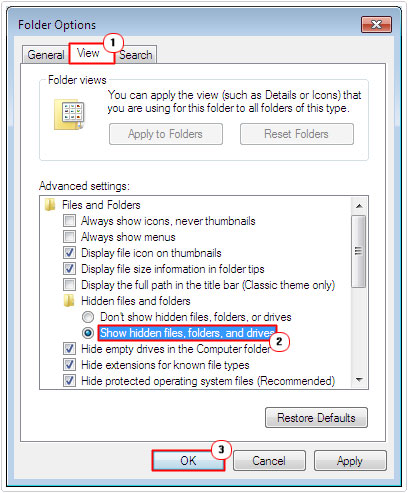
3. The Folder Options applet will appear. Click on the View Tab, then check the box for Show hidden files, folders and drives, then click on OK.
4. Now, navigate to the following path:
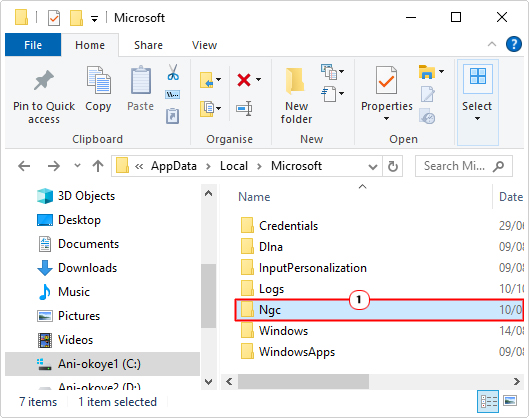
C:\Windows\ServiceProfiles\LocalService\AppData\Local\Microsoft
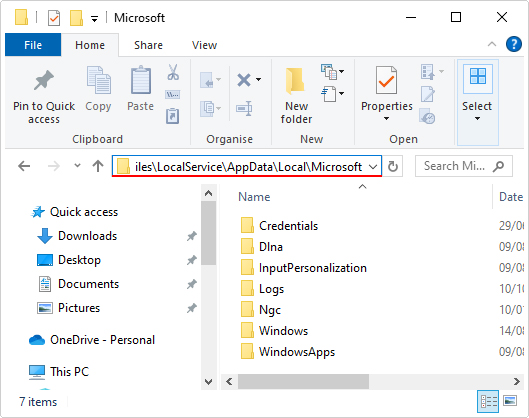
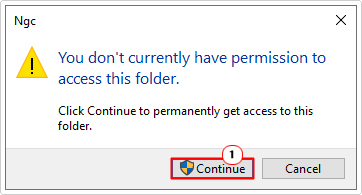
5. Double-click on the Ngc folder and an error that reads:
You don’t have permission to access this folder.
Should appear, click on the Continue button.
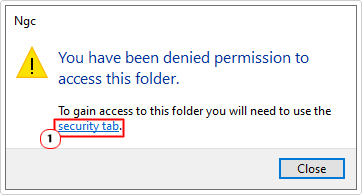
6. This will bring up another notification box that states:
You have been denied permission to access this folder.
Click on the Security Tab.
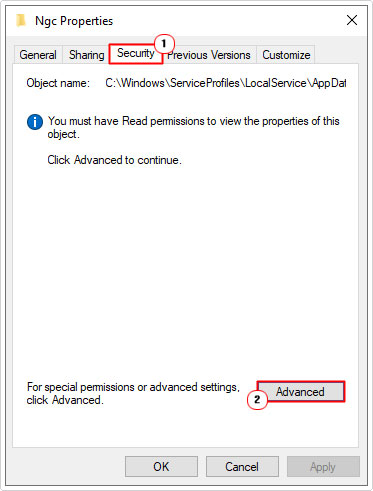
NGC Properties
7. This will bring up the Ngc Properties applet. On the Security Tab, click on Advanced.
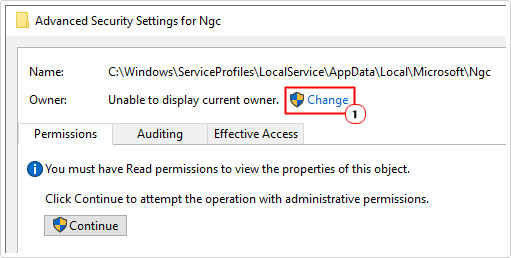
8. Advanced Security Settings for Ngc will appear. Click on Change.
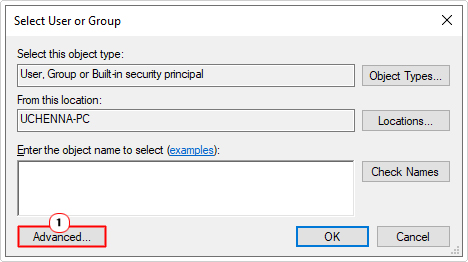
9. On the Select User or Group applet, click on Advanced.
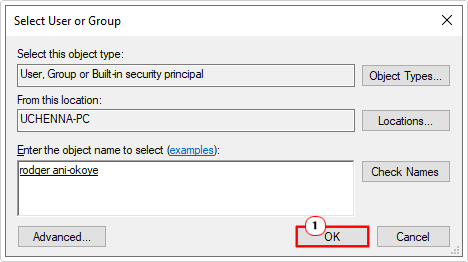
10. Now, click on Find Now and click on your Username (in the Search Results box) and select OK.
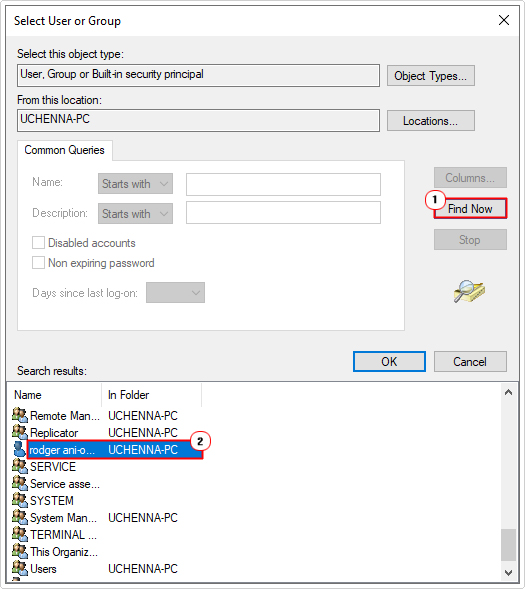
11. This will take you back to the Select User or Group box, click on OK.
12. From the Advanced Security Settings for Ngc screen, click on Apply and OK.
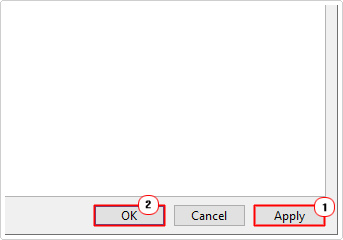
13. This will take you back to the Ngc Properties applet, click on Advanced again.
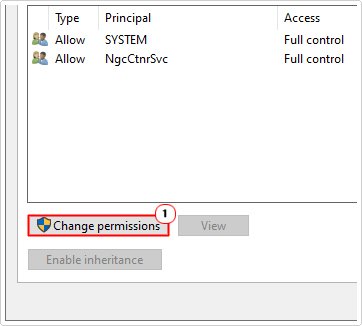
14. Back on the Advanced Security Settings for Ngc screen, click on Change permissions.
15. Then click on Enable inheritance, then click on OK.
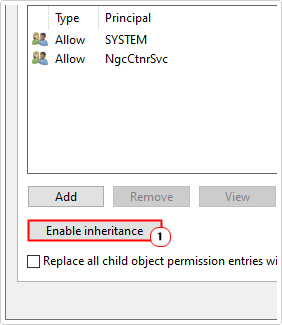
Note: Click on Yes to the confirmation box and you should now be able to access/edit the Ngc folder.
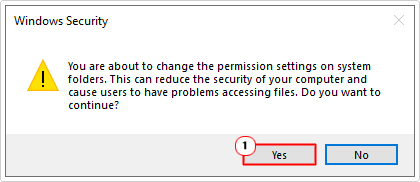
16. Now, double-click on Ngc.
17. Then select the folder contents and click on Delete.
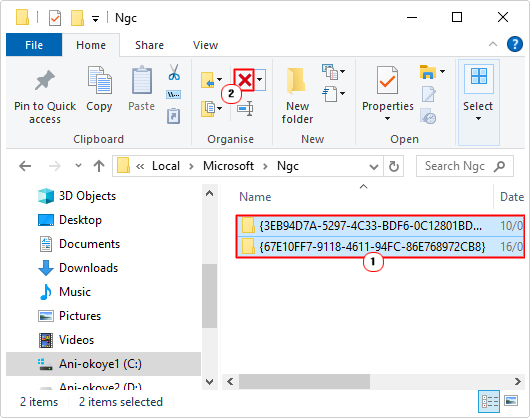
Note: Alternatively, you can simply cut and paste the folder contents to your Desktop.
Create New Hello PIN
That will erase and reset your current Windows Hello PIN. To create a new one, do the following:
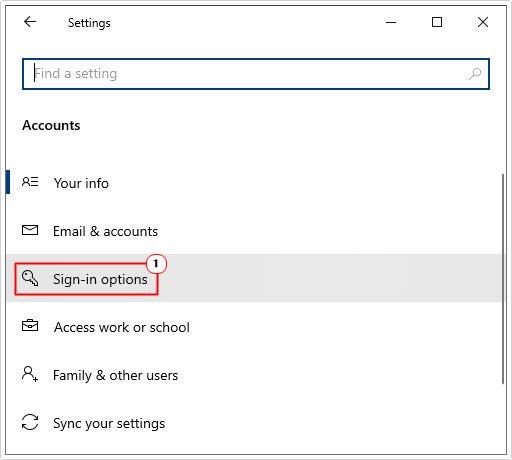
18. Press + I, then click on Accounts.
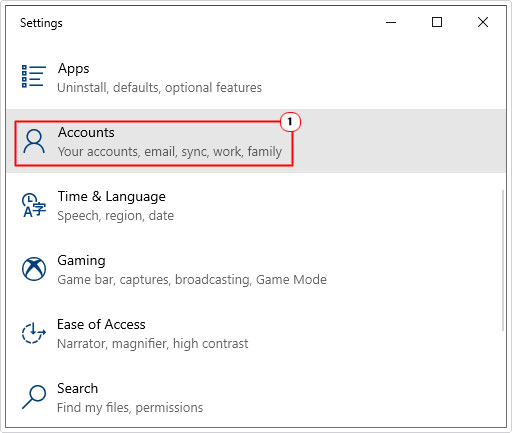
19. From the Accounts screen, click on Sign-in options.
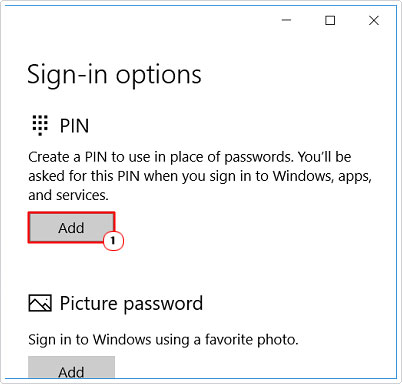
20. Lastly, click on the Add button, then follow the onscreen instructions to create a new PIN.
Run System Restore
Any time a major or significant change is made to your operating system, a restore point is created so that the effects of it can be reversed. Providing System Restore has been enabled, you should be able to access it through WindowsRE.
For instructions on how to do this, check out my post on fixing Fatal Error C0000022.
Run System Reset
System reset, does has the name states, resets your system back to (factory) default. Removing any prior configuration settings data.
However, Windows does allow you to keep your sensitive files & folders. So you needn’t worry there.
Anyway, instructions on how to use this feature can be found on my post on fixing Windows Activation error code 0xc004f211.
Alternatively, you can reset the system through WindowsRE, simply click on Reset this PC on the Troubleshoot screen. My post on fixing the “Hard Drive Not Installed” Problem, will show you how.
Are you looking for a way to repair all the errors on your computer?

If the answer is Yes, then I highly recommend you check out Fortect.
Which is the leading registry cleaner program online that is able to cure your system from a number of different ailments such as Windows Installer Errors, Runtime Errors, Malicious Software, Spyware, System Freezing, Active Malware, Blue Screen of Death Errors, Rundll Errors, Slow Erratic Computer Performance, ActiveX Errors and much more. Click here to check it out NOW!