
| Attention Before you read this post, I highly recommend you check out my resources page for access to the tools and services I use to not only maintain my system but also fix all my computer errors, by clicking here! |
Did you recently encounter a problem while attempting to open Microsoft Outlook on your computer? This is an issue that can and does occur on a wide range of system specifications. In short, users will be greeted with the following error message: “Cannot start Microsoft Office Outlook. Cannot open the Outlook window. The set of folders cannot be opened. An unexpected error has occurred.” When they try to open the app.
This error is known to occur unexpectedly, which can make it difficult to determine its root cause. Fortunately, there are ways you can tackle this problem, which we will discuss in full, further on in this tutorial.
The primary or main symptom of this error is an inability to open Microsoft Outlook. Usually, failure to open the app will occur right after the app appears to have frozen.
So, why is this error so important? Well, because Microsoft Outlook is a very important app. Used for sending and receiving mail, electronically, as well as saving contact details (such as names and phone numbers), managing a calendar, as well as keeping tabs on system projects.
Anyway, with all of that said, let’s take a deeper look into what causes this error.
What Causes “Cannot Start Microsoft Office Outlook” Errors?
Microsoft are fully aware of this error and its root cause, and thus, have narrowed it down to a corrupt navigation pane settings file (.xml). A sure sign that the file is corrupt, is if its size is 0KB. The exact reason why this may occur is still unknown. But what we do know, is that it can occur on all versions of Microsoft Outlook.
In addition to that, other causes one must consider include:
- Windows registry is corrupt.
- Microsoft Outlook was reinstalled incorrectly.
- The system has been infected with a virus.
- Trying to run Microsoft Outlook using an outdated profile file (.xml).
- Microsoft Outlook is running in compatibility mode.
Whatever is causing the error, the outcome is always the same. Followed by the error message:
Cannot start Microsoft Outlook. Cannot open the Outlook window. The set of folders cannot be opened.
That aside, variations are known to exist with the error messages themselves. So, if you’re using different iterations of Outlook, you may receive the following error messages instead:
1. Outlook 2003:
Cannot start Microsoft Office Outlook. Unable to open the Outlook window. Invalid XML, the view cannot be loaded.
2. Outlook 2007:
Cannot open your default e-mail folders. The information store could not be opened.
3. Outlook 2010:
Microsoft Outlook has encountered a problem and needs to close. We are sorry for the inconvenience.
Note: All these error notifications are essentially referring to the same problem.
How to Fix It
Now that you have a general idea of what may be preventing Microsoft Outlook from starting, let’s now focus on what you can do to fix it. In this section, you will find several methods that you can use to effectively repair this problem.
For best results, it’s recommended that you attempt the solutions in the order that they appear.
Run Windows Repair Tool to Fix “Cannot Start Microsoft Office Outlook” Errors
Although I cover a number of manual methods that you can use to fix this problem. It’s always best to start with the much simpler, yet effective methods first.
This brings us to the Windows repair tool.
This tool, as the name states, is advanced, and capable of detecting BSOD, registry, DLL, game, Windows Update and more error types.
Within a single scan, it could potentially detect and fix the root cause of this problem. Effectively saving you on a great deal of frustration.
Anyway, if any of this interests you, then visit the link below:
CLICK HERE TO CHECK OUT THE ADVANCED REPAIR TOOL
 The solution(s) below are for ADVANCED level computer users. If you are a beginner to intermediate computer user, I highly recommend you use the automated tool(s) above! The solution(s) below are for ADVANCED level computer users. If you are a beginner to intermediate computer user, I highly recommend you use the automated tool(s) above! |
Restore Navigation Pane Configuration File
As originally mentioned, the “Cannot Start Microsoft Office Outlook” error is often times the result of corruption to the Navigation Pane file. Thus, by repairing this file, you may be able to restore access to Microsoft Outlook.
To do that, follow the steps below:
1. First, boot into your system as a full administrator.
2. Then press  + R, type outlook.exe /resetnavpane and press Enter.
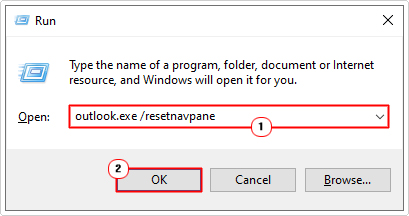
3. An attempt to fix the navigation pane file should occur. Once it has completed, you should try opening Microsoft Outlook again.
If Microsoft Outlook fails to open, greeting you with the same:
Cannot start Microsoft Outlook. Cannot open the Outlook window. The set of folders cannot be opened.
Error message, then you may want to try, erasing the Navigation Pane file manually. Which should allow Outlook to recreate a working replacement.
To do that, follow the steps below:
1. Make sure you have administrative rights.
2. Then press + R, type %appdata%\Microsoft\Outlook and click on OK.

3. This will open the Outlook folder, from here, click on Outlook.xml and click on Delete.
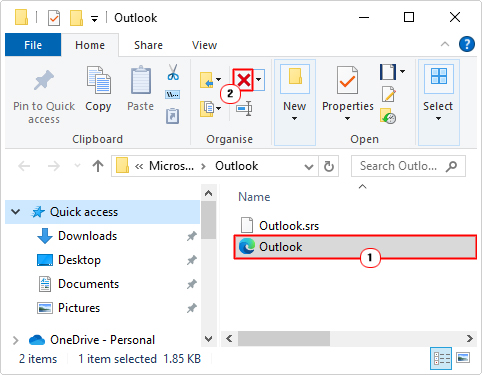
4. Once you’ve done that, you should now try launching Outlook once again.
Repair Outlook Files
An inability to open Microsoft Outlook can oftentimes be the result of a corrupted data file (.pst/.ost). The result of an incorrect or corrupted reinstallation. In the event that, that is the case, you can fix it, by restoring the data file.
To do that, follow the steps below:
1. Boot into your system as a full administrator.
2. Next, press + R, type C:\Program Files\Microsoft Office\ and click on OK.
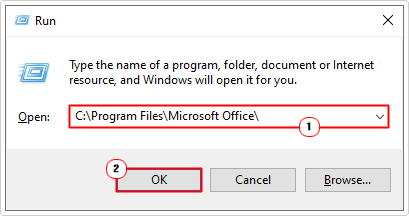
Note: If you’re on an older 32-bit OS, then you should type C:\Program Files x86\Microsoft Office\.
3. From here, depending on your Office version, double-click on the Office folder.
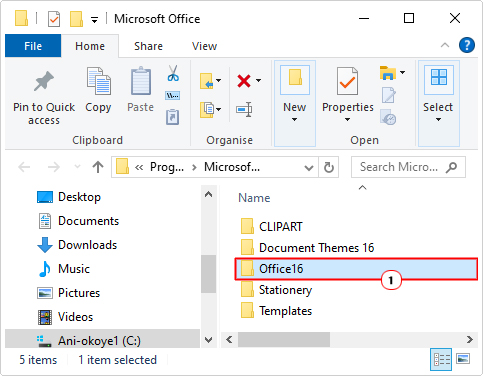
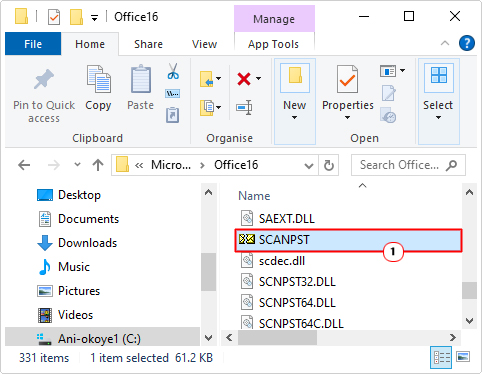
4. In the Office folder, locate and double-click on SCANPST.EXE.
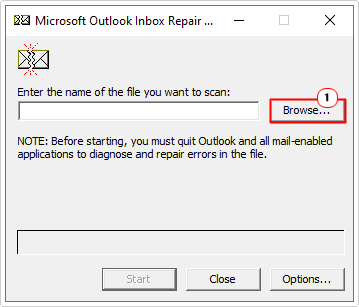
5. This will bring up Microsoft Outlook Inbox Repair. From here, click on Browse.
6. Now locate your .pst/.ost file and click on Open.
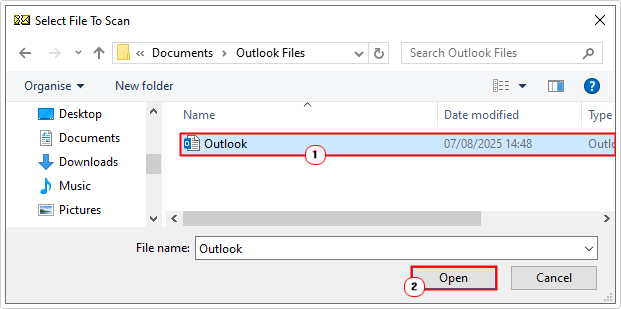
Note: You should find it in one of the follow location(s):
C:\Users\<Username>\AppData\Local\Microsoft\Outlook (Windows XP)
C:\Documents and Settings\<Username>\Local Settings\Application Data\Microsoft\Outlook (Windows 7/8)
C:\Users\<Username>\Documents\Outlook Files\Outlook.pst (Windows 10/11)
7. Lastly, for the final step, click on Start.
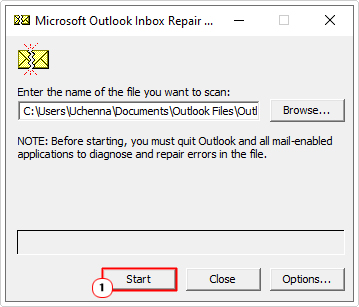
Once it’s completed, you can now try running Microsoft Outlook to evaluate whether or not the error has been fixed.
Outlook without Extensions
Starting Outlook in Safe Mode is a method used to determine whether or not an add-in is causing the app to not start or function correctly. This way you can properly pinpoint the exact cause.
Anyway, to run Outlook in Safe Mode, simply do the following:
1. Boot into your system as a full administrator.
2. Now, press + R, type outlook /safe and click on OK.

Note: As an alternative, you can type outlook.exe /noextensions.
3. This will bring up the Choose Profile applet. Select your Profile Name and click on OK.

4. If Microsoft Outlook starts in Safe Mode without issue, then you know it’s an add-in preventing the app from starting.
Thus, to get the app back to working order, you will need to disable and/or remove the problematic add-in. For step-by-step instructions on how to do this, check out my post on fixing Outlook Error 0x80040115.
Create a New Profile
All your Microsoft Outlook data is stored in your profile. However, this profile file is not infallible, as it is not uncommon for it to become corrupted. In instances like this, you can rectify the problem by creating a brand new profile.
To do that, follow the steps below:
1. Boot into Windows as an admin,
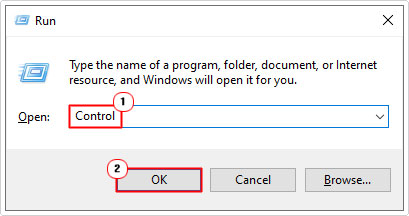
2. Now, press + R, type Control and click on OK.
3. When Control Panel loads up, type Mail into the Search Control Panel box, then click on Mail.

4. This will bring up the Mail Setup – Outlook, from here, click on Show Profiles.

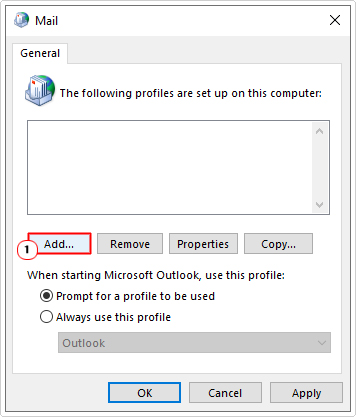
5. A Mail applet should applet should appear, now, click on Add.
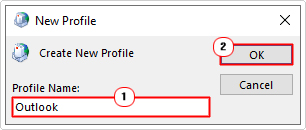
6. A New Profile applet will appear, type a Profile Name for it and click on OK.
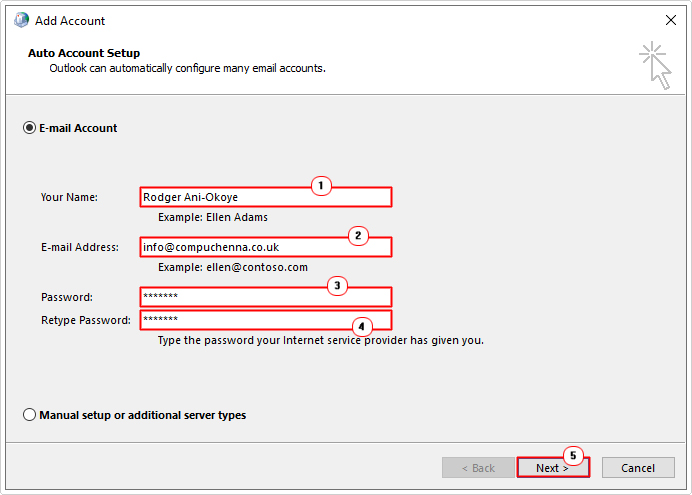
7. This will take you to the Add Account page. Follow the onscreen instructions to complete the profile.
8. Once you’re done. Click on it, then click on Always use this profile, and select Outlook (from the dropdown menu). Then click on OK.
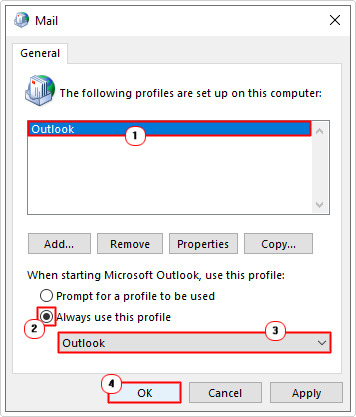
9. You can now try opening Microsoft Outlook.
Are you looking for a way to repair all the errors on your computer?

If the answer is Yes, then I highly recommend you check out Fortect.
Which is the leading registry cleaner program online that is able to cure your system from a number of different ailments such as Windows Installer Errors, Runtime Errors, Malicious Software, Spyware, System Freezing, Active Malware, Blue Screen of Death Errors, Rundll Errors, Slow Erratic Computer Performance, ActiveX Errors and much more. Click here to check it out NOW!