
| Attention Before you read this post, I highly recommend you check out my resources page for access to the tools and services I use to not only maintain my system but also fix all my computer errors, by clicking here! |
Microsoft Windows comes with a wide array of features and functions that are designed to prevent your data from being modified, renamed or erased without your consent. However, some of these features can be overzealous at times, resulting in the “You need permission to perform this action” error message. This error message may appear when attempting to open an application, erase a folder or access a simple document. In more severe circumstances, specific actions and tasks may become inaccessible, even when you have administrative access.
The series of Windows operating systems come with their own security controls that are designed to prevent unauthorised access to sensitive data; such as applications, system files, documents and folders. As previously noted, these security measures can oftentimes mistakenly protect the OS from you. Such cautious security measures are designed to prevent the user, whether knowingly or unknowingly from rendering the OS inoperable.
So, in short, the “You need permission to perform this action” error message indicates that you are attempting to alter a potentially critical file or folder. However, this error shouldn’t trigger in every circumstance, especially if you have admin access to the OS.
For example, when accessing your own personal data, installing an application or uninstalling a third-party tool, the error message, ordinarily should not appear.
The most notable actions that typically lead to the following access denied error message are as follows:
- An attempt to install a new program.
- During the copying of files or folders.
- The attempted erasure of a folder (or file).
- When changing a file or folder name.
Error Overview
Taking a deeper peek into the error message. Typically, “You need permission to perform this action” will be accompanied with another message. Indicating the action you were attempting to carry out.
These are (but not exclusively):
You require permission from Trusted Installer to make changes to this folder
You require permission from administrators to make changes to this folder
You require permission from administrators to make changes to this file
You don’t currently have permission to access this folder
When it comes to solving this particular problem, having the correct (administrative) access rights is crucial. As certain files, functions and features will be inaccessible to you ordinarily.
That said, if you’re currently having issues with this error message, then this tutorial will show you exactly how to tackle it.
What Causes “You Need Permission To Perform This Action” Errors?
Before you can properly tackle this problem, you must first have some understanding of what may be causing it, in this instances. The most common causes are as follows:
- The file or folder you are trying to modify is system protected.
- You are attempting to access certain system files (and folders) that have been reserved for applications, by the Windows File Protection component.
- The Windows operating system has been infected with a malicious file.
Of course, this can be very frustrating, especially if you are unable to delete, modify or create new files and folders, despite having the correct administrative rights. However, there are things you can do, to get around this problem.
It’s not uncommon for end users to be blocked from accessing certain areas or features of their operating system. This is because restrictions like this, could be brought about by a malware infection, corruption of system files or a disk access error.
So, what can you do to fix it? Continue reading to find out.
How to Fix It
When it comes to fixing the “You need permission to perform this action” issue, the first thing you want to ensure is that you are logged in with an account that has administrative rights.
If you’re on a standard/guest account, then rightly so, it should prevent you from carry out certain sensitive activities. So, what you want to do is ensure you have the right account type. Currently, Microsoft Windows has three different account types. They are:
- Guest: As the name states, this account type is most ideal for users that require quick, infrequent access to the system.
- Standard: This will grant the user access to most apps and media files, but with restrictions on program installations.
- Administrator: Users with this account type, have full access to the operating system, including all administrative controls.
In order to check which account type you’re currently using, please do the following:
1. First, make sure you’re actually booted into Windows.
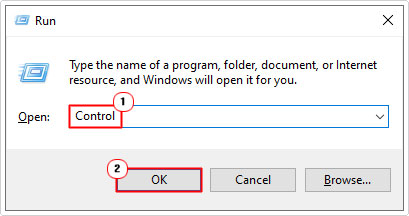
2. Then press  + R, type Control and click on OK.
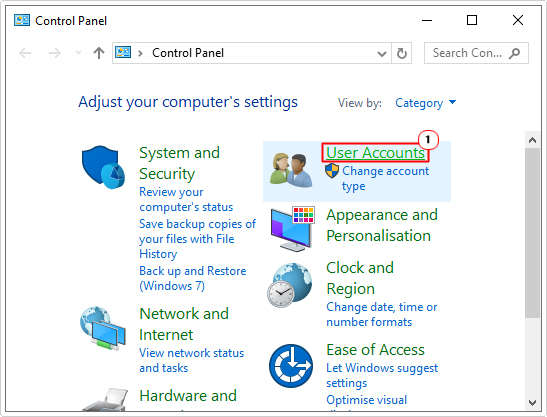
3. When Control Panel loads up, click on User Accounts.
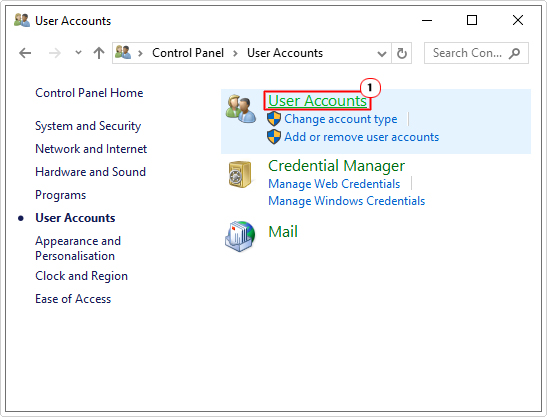
4. This will take you to the User Accounts screen, from here, click on User Accounts again.
5. On the following page, titled: Make changes to your user account. You should see the User Account you’re logged in with, along with its Account Type.
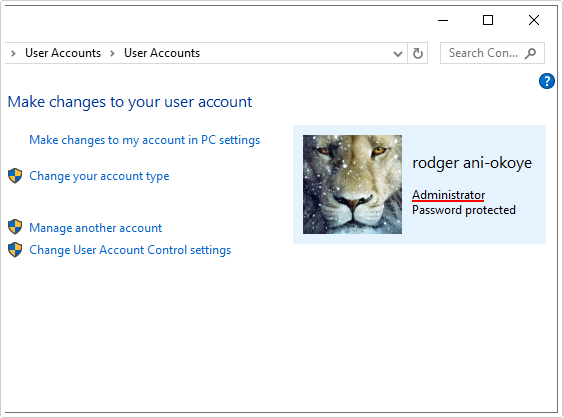
Note: You want to ensure you’re using an Administrative Account. If not, then you will need to change your User Account Type.
Check Internet Security Tool
If you are in fact logged in with an administrative account, then the next thing you want to check, is that your internet security tool isn’t interfering with the OS.
To do that, you will need to disable your internet security tool, at least temporarily. Then attempt the same action(s) that caused the “You need permission to perform this action” error.
The process of disabling your security tool will vary, but ultimately, the following method should work for the vast majority of them:
1. First, ensure you’re booted into your system with full administrative rights.
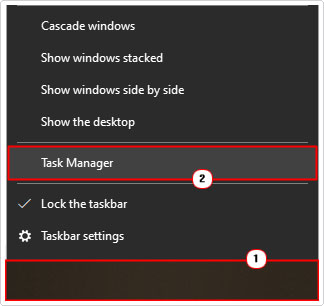
2. Then right-click on the Taskbar and select Task Manager.
3. When Task manager loads up, click on the Startup Tab, now locate your security tool and click on it and select Disable.
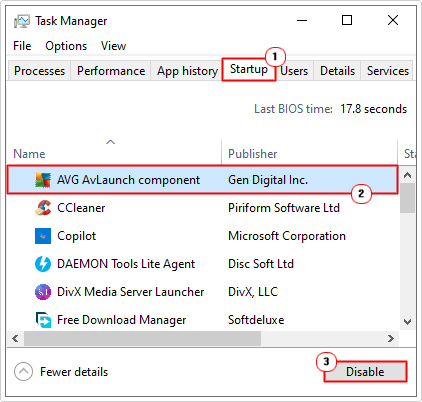
4. Now, restart your system, then check whether or not that fixed the error.
If the error no longer persists, then you may need to either update your security tool or acquire one that doesn’t conflict with the operating system.
To re-enable your security tool, follow steps 1 – 3, and select Enable then restart your system.
Use Repair Tool to Fix “You Need Permission to Perform This Action” Errors
If your system is no longer running as fast as it did at initial purchase. If it’s currently bogged down with issues and errors, like the one highlighted in this tutorial, then you should consider a full scan of your system using a Windows repair tool.
The repair tool I recommend you use is a advanced repair solution. It is a multifaceted tool, capable of detecting and fixing a wide range of Windows errors and issues, such as malware infections, sluggish system performance and data loss.
Additionally, it’s also equally adept at fixing BSOD errors, registry corruption, app errors, runtime errors, DLL errors and much more.
If this interests you by any chance, then I recommend you visit the link below:
CLICK HERE TO CHECK OUT THE ADVANCED REPAIR TOOL
 The solution(s) below are for ADVANCED level computer users. If you are a beginner to intermediate computer user, I highly recommend you use the automated tool(s) above! The solution(s) below are for ADVANCED level computer users. If you are a beginner to intermediate computer user, I highly recommend you use the automated tool(s) above! |
Disable User Account Control
Microsoft Windows has this excellent feature called User Account Control, which is designed to prevent apps from making any unauthorised changes to the operating system itself. Although, ordinarily you’d want this feature turned on. It’s not uncommon for it to cause “You need permission to perform this action” errors.
For step-by-step instructions on how to disable this feature, check out my post on fixing error 0x80070522.
Change User Account Type
One thing you can do to get around this problem is to assign the correct account type to the account(s) that you use most often. There are numerous ways that you can do this. However, the one constant is that you do it with an account that has administrative rights.
So, to change your account type, please do the following:
Using Command Prompt
1. First, boot into your system with full administrative rights.
2. Then press + R, type cmd and press CTRL + Shift + Enter.
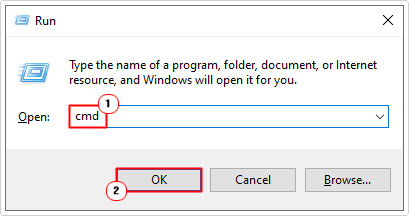
3. This will bring up Command Prompt, now, type the command below and press Enter.
Net localgroup Administrators Username /add
Note: Where Username is the name of the User Account you would like to grant administrative rights to.
4. Next, restart your system, and log into your system with your new administrative user account.
Using Control Panel
1. Now press + R, type Control and click on OK.
2. When Control Panel loads up, click on Change account type.
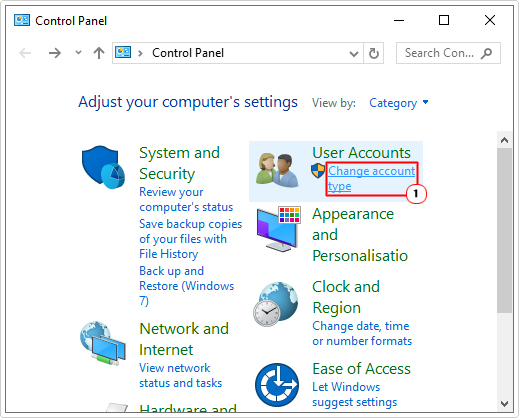
3. This will bring up a list of available user accounts. Click on the problematic account.
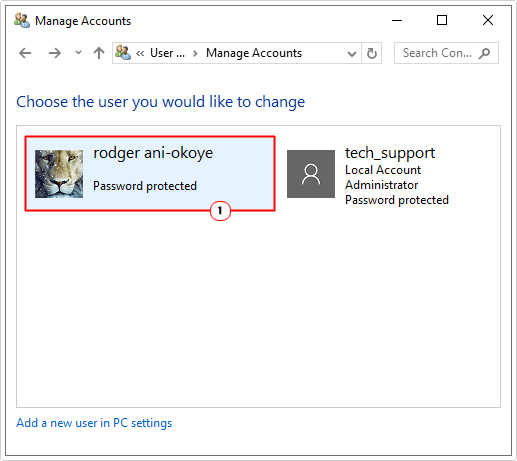
4. On the following screen, click on Change the account type.
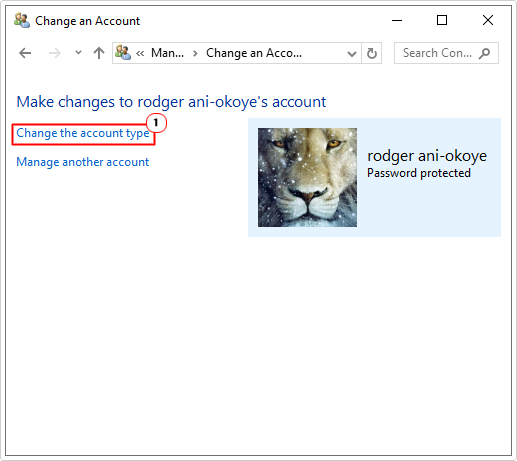
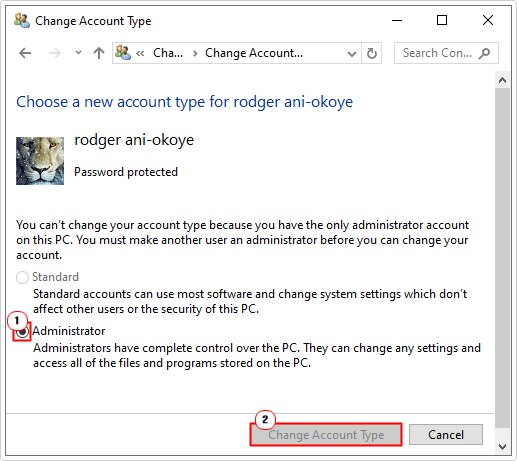
5. This will take you to the Choose a new account type page, click on Administrator then click on Change Account Type.
Activate Account
There are instances when an administrative account may be seen as a standard account type. This is because the operating system has a tendency to see all accounts as standard (by default). As a viable workaround, you should consider activating your account. This will ensure Windows is aware of the accounts administrative status.
Anyway, to do this, follow the steps below:
1. Follow steps 1 – 2 of Change User Account Type.
2. From Command Prompt, type the following command below and press Enter.
Net user administrator /active:yes
3. Lastly, restart your system.
Take Ownership of File/Folder
Certain restricted files and folders can be unrestricted by taking ownership of them. However, in certain instances, these restrictions are in place for security measures, especially when it pertains to system files. So you do it at your own risk.
Anyway, you can carry out this process by follow the steps outlined in my post on fixing error 0x80070091.
Run DISM & SFC
To verify and restore the integrity of your operating system, you have two built-in tools (SFC) System File Checker and (DISM) Deployment Image Servicing and Management that you can use.
Both work best in tandem with each other.
For step-by-step instructions on how to use these tools, check out my post on fixing D3dx9_43.dll is missing errors.
Are you looking for a way to repair all the errors on your computer?

If the answer is Yes, then I highly recommend you check out Fortect.
Which is the leading registry cleaner program online that is able to cure your system from a number of different ailments such as Windows Installer Errors, Runtime Errors, Malicious Software, Spyware, System Freezing, Active Malware, Blue Screen of Death Errors, Rundll Errors, Slow Erratic Computer Performance, ActiveX Errors and much more. Click here to check it out NOW!