
| Attention Before you read this post, I highly recommend you check out my resources page for access to the tools and services I use to not only maintain my system but also fix all my computer errors, by clicking here! |
“Failed to enumerate objects in the container” is an error message end users typically encounter while attempting to alter the security settings of a file or folder. It occurs for a multitude of reasons, but typically, incorrect permissions tends to be the root cause. In this tutorial, we will discuss, exactly what this error is, along with various methods you can use to fix this problem on Windows 10/11 systems.
One of the best ways to both fix and prevent future PC errors, is to establish a better understanding of them. “Failed to enumerate objects in the container” is a relatively common error associated with Windows permissions. As previously noted, it occurs when the user attempts to alter the security settings of a file or folder. This in turn, prohibits the end user from accessing specific files, changing file permissions and ownership.
Folder permissions are a crucial aspect of keeping your content safe and secure, however, this error demonstrates how, when things go wrong, such security measures can work against you.
Now that we have a more general understanding of what this error is, let’s take a deeper look into the various things that can cause it to occur.
What Causes “Failed To Enumerate Objects in the Container” Errors
When it comes to fixing this problem, there are several methods that you can deploy within Windows. All of which proven effective, depending on the root cause of the error.
This brings us to the most common causes outlined below:
- File permissions are corrupted.
- There is a permissions conflict.
- A security restriction exists preventing the user from making changes.
Another more general yet common reasons why you may be unable to edit the security settings of the file or folder is a virus infection. Viruses are capable of infiltrating your system and corrupted key system files which can manifest itself in a variety of ways.
That said, now we have a general idea of what may be causing the error on your system, let’s take a look at the ways you can fix it.
How to Fix It
Depending on the circumstances, many users do find solving “Failed to Enumerate Objects in the Container” errors to be relatively simple. In most cases, the user need only add themselves to the permissions list of the file or folder. Which can be done in a few different ways. All of which will be covered in this tutorial. That said, let’s start at the very beginning, with the simplest solution(s).
Ensure you have Administrative Rights
“Failed to Enumerate Objects in the Container” is primarily a permissions issue, so it’s important that, before you try anything else that you make sure your User Account has the correct administrative privileges.
This is because certain files and folders on your system may require you to be an administrative to access them. For this reason you will need to ensure your account is capable of accessing them, and if it’s not, then you should change it.
Anyway, for step-by-step instructions on how to do that, check out my post titled: You Need Permission to Perform This Action.
Use Safe Mode
This method is optional. However, if you are unable to execute the methods outlined below, then it could be because an app or service is blocking it within your Windows Environment. To get around this problem, simply open Windows in Safe Mode – as this will load, only the most essential services and drivers. My post titled: Windows Resource Protection Could Not Perform the Requested Operation, will show you how to do this.
Run Windows Repair Tool to Fix “Failed To Enumerate Objects in the Container” Errors
If after changing or signing into Windows with an account that has administrative rights, the error still persists, then you should try running a Windows repair tool.
The one I have in mind is a advanced repair tool. It’s also capable of fixing the most stubborn issues and errors on your system. Such as virus infections, BSOD errors, registry corruption, missing DLL files and much more.
Additionally, it’s capable of making your system faster, making it a repair and optimisation suite.
If that interests you by any chance, then I suggest you visit the link below:
CLICK HERE TO CHECK OUT THE ADVANCED REPAIR TOOL
 The solution(s) below are for ADVANCED level computer users. If you are a beginner to intermediate computer user, I highly recommend you use the automated tool(s) above! The solution(s) below are for ADVANCED level computer users. If you are a beginner to intermediate computer user, I highly recommend you use the automated tool(s) above! |
Take Ownership
One of the most effective ways of fixing “Failed to Enumerate Objects in the Container” errors is to take ownership of the problematic file/folder by running a series of commands through Command Prompt. However, in order to utilise this method, you must be signed in with an account that has Administrative Rights.
So, the steps are as follows:
1. First, log into your system with full administrative rights.
2. Then press  + R, type cmd and press CTRL + Shift + Enter.
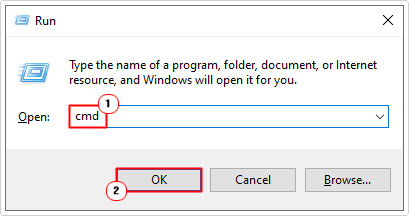
3. When Command Prompt loads up, type the following commands below, pressing Enter after each line:
takeown /F X:\FILE_PATH
takeown /F X:\FILE_PATH /r /d y
Note: You will need to replace X:\FILE_PATH with the exact location of the file or folder you which to take ownership of.
The quickest and easiest way to get the location of a file/folder is to simply right-click on it and select Properties.
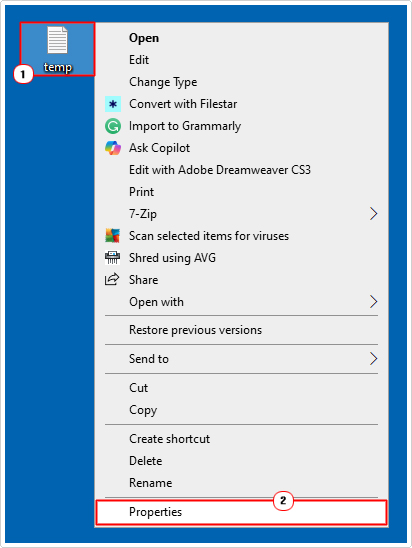
This will bring up the File/Folder Properties applet, from here, on the General Tab, look for Location:. The full file/folder location should be there.
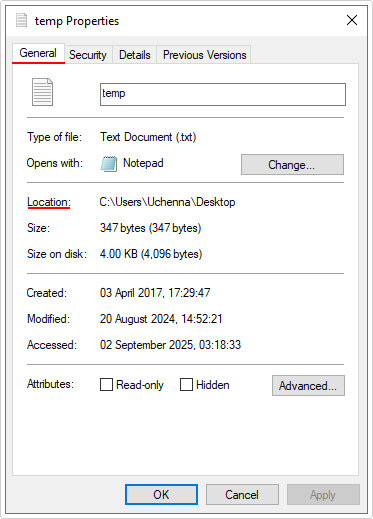
4. Now, type the following commands below, pressing Enter after each line:
icacls X:\FILE_PATH /grant Administrators:F
icacls X:\FILE_PATH /grant Administrators:F /t
Note: Same rule, make sure X:\FILE_PATH is replaced with the same File/Folder location.
5. Once that’s complete, close Command Prompt, then verify whether or not it has fixed the error.
Using File Explorer
When it comes to taking ownership of a file or folder there are in fact, more than one way that you can do it. The first, using Command Prompt (outlined above), and the second using File Explorer, which, to some, may be more convenient. Depending on your level of expertise, this may or may not be a more preferable option for you.
That said, for step-by-step instructions on how to use this method, check out my post on fixing error 0x80070091: the directory is not empty.
Disable UAC
Another viable method you can use to fix “Failed to enumerate objects in the container” errors is to temporarily disable the User Account Control (UAC) service.
For step-by-step instructions on how to disable it, check out my post on fixing error 0x80070522: a required privilege is not held by the client.
Run SFC & DISM
“Failed to enumerate objects in the container” is an error message that can occur when integral system files have been removed or corrupted. Fortunately, Windows has two built-in tools that you can use to restore the integrity of your operating system. They are DISM (Deployment Image Service and Management Tool) and SFC (System File Checker). Both of them have their pros and cons, but ideally, you’d want to run them both.
For instructions on how to run these two tools, I suggest you check out my post on fixing D3dx9_43.dll is missing errors.
Are you looking for a way to repair all the errors on your computer?

If the answer is Yes, then I highly recommend you check out Fortect.
Which is the leading registry cleaner program online that is able to cure your system from a number of different ailments such as Windows Installer Errors, Runtime Errors, Malicious Software, Spyware, System Freezing, Active Malware, Blue Screen of Death Errors, Rundll Errors, Slow Erratic Computer Performance, ActiveX Errors and much more. Click here to check it out NOW!