
| Attention Before you read this post, I highly recommend you check out my resources page for access to the tools and services I use to not only maintain my system but also fix all my computer errors, by clicking here! |
When it comes to installing Microsoft Windows, there is a strict process common amongst all iterations. Download the Windows ISO file, create a bootable (USB) drive (or burn it to disk), then run installation during boot up. However, there are instances when end users encounter the “A media driver your computer needs is missing…” error message during this process. So, what causes it and what can you do about it? Continue reading to find out.
The whole process of installing Windows has become significantly easier over the years – the result of refinement and advancements in technology. However, despite these obvious improvements, problems still do occur, such as random crashing, driver issues and the like.
The full error message looks something like the following:
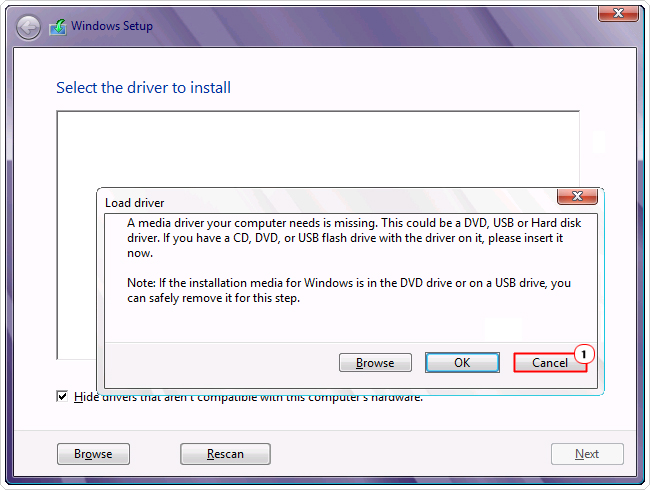
A media driver your computer needs is missing. This could be a DVD, USB or hard disk driver. If you have a CD, DVD, or USB flash drive with the driver on it, please insert it now.
It is very descriptive, indicating that a particular driver, required by the installation process is missing. Device drivers are highly integral to any computer system, as they are used by the operating system to control the various components that make up your PC.
The obvious reaction to this error should be to acquire the missing the driver. However, the error isn’t too specific on that. Making it a potentially stressful task; trying to pinpoint the problematic component.
In the next section, we’ll take a deeper look into its potential causes.
What Causes “A Media Driver Your Computer Needs Is Missing” Errors?
You’ve set everything up just right, copying the Windows 10/11 installation data over to your bootable drive. You restart your system to begin the installation process only to be interrupted by an error.
So, what exactly caused this error? Well, in truth, it could have been any one of the following:
- A USB or DVD driver is missing: It’s possible the drivers for your motherboard are either incompatible (with the new OS) or are simply outdated.
- USB port or device is malfunctioning: The USB drive may be damaged and not properly transferring the data to your system. You will need a known working system to determine whether your USB port or USB drive is at fault.
- ISO Installation media is corrupted: The ISO installation process can be corrupted if burned to disc too quickly. In other circumstances, the ISO download may have been corrupted.
- Incorrectly configured BIOS: The later operating systems are becoming more and more sophisticated, requiring an assortment of settings and features to be enabled for a successful installation.
When it comes to fixing this problem, there are a number of things you can and should try. In the next section we will go over several methods, all of which have proven effective at fixing this error.
How to Fix It
Before we delve into any of the potential fixes you can use to repair the “A media driver your computer needs is missing…” error, it’s also best to start with the very basics. In this instance, it’s the OS minimum requirements.
If you want to install Windows 10/11 to your system, then these are the minimum specification requirements that your system must meet:
| Windows 10 | Windows 11 | |
| RAM | 1GB (32-bit) or 2GB (64-bit) | 4GB or higher |
| CPU | 1GHz or faster processor (Inc. SoC) | 1GHz (64-bit) or faster with 2 or more cores |
| HDD | 16GB (32-bit) or 20GB (64-bit) | 64 GB or larger |
| GPU | DirectX 9 compatible | DirectX 12 compatible |
| Display | 800 x 600 | 720p display |
| Firmware | NA | UEFI | Secure Boot system |
| TPM Version | NA | 2.0 |
| Boot Support | NA | Secured |
So, first things first, make sure your system is up to speed and meets the requirements above. If it does not, there are numerous upgrade options available to you.
If it does meet the above requirements but still fails to install, only then do I suggest you attempt the many solutions below.
Update Device Drivers
As the error message suggests, an issue with a missing or corrupted driver occurred during the installation process.
The problem is, the error doesn’t quite explain exactly what device this driver belongs to.
Thus, if you are able to boot into your current operating system, then I’d suggest you do that, and attempt to update all your device drivers.
Sounds like a very odious task, but it is possible, either manually or more conveniently through the use of a driver automation tool.
Such a tool will automatically search the internet, locate and download the most up-to-date drivers for all the different devices and components attached to your system.
So, within a couple of clicks, your computer will have everything it needs to commence and finish the OS installation.
If for any chance that interests you, then I suggest you visit the link below:
CLICK HERE TO CHECK OUT THE DRIVER FINDER TOOL
 The solution(s) below are for ADVANCED level computer users. If you are a beginner to intermediate computer user, I highly recommend you use the automated tool(s) above! The solution(s) below are for ADVANCED level computer users. If you are a beginner to intermediate computer user, I highly recommend you use the automated tool(s) above! |
Switch USB Port
Probably more of a hack than an actual fix, but a number of end users discovered that they were able to recommence the installation process by removing the USB drive half way into the installation process and putting it into another working USB port.
This method is known to work for virtually all iterations of Windows (7, 8, 10 & 11), so you should definitely consider using it.
The steps are as follows:
1. Insert Installation Media into your system and boot up the computer.
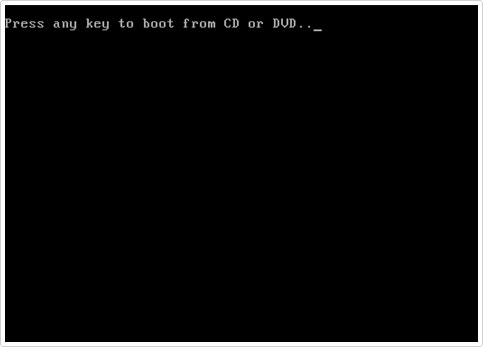
Note: Your computer will detect the media and tell you to press any key to automatically start the installation process.
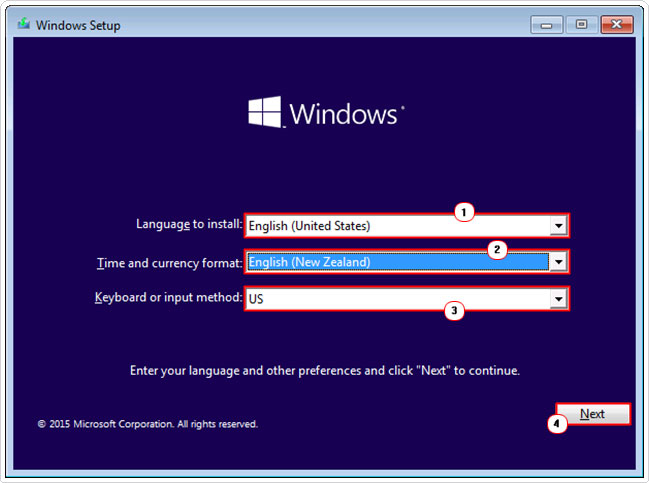
2. When the Windows Installation screen appears, select your Language to install, Time and current format & Keyboard or input method, then click on Next.
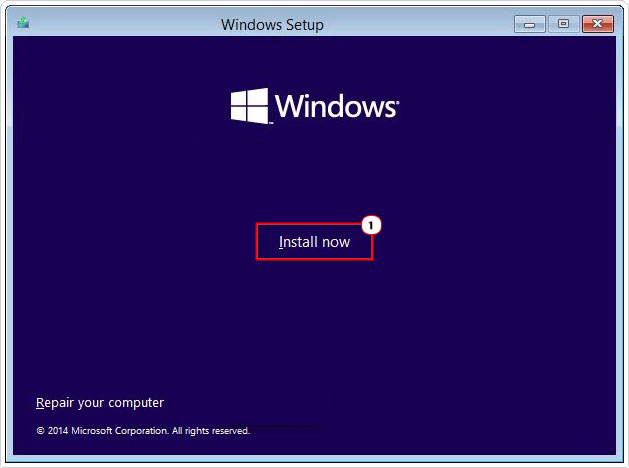
3. This will bring up the Install screen, click on Install Now.
4. The “A media driver your computer needs is missing…” error message should pop up. Click on Cancel, then remove the USB device and put it in a different port.
5. This should bring you back to the Install screen again, click on Install Now and the process should work.
Use a Virtual Drive
One method, many people are unaware of, is the ability to install Windows without using a bootable media device. Such as a DVD or USB drive (stick). Essentially, all you’re doing is mounting the ISO file to a virtual drive and installing it through that.
It’s a much simpler process that it seems. To do it, simply follow the steps below:
1. First, boot into your system as a full administrator.
2. Then, download and run the Windows Media Creation Tool from here: https://www.microsoft.com/en-gb/software-download/windows11
Note: You can get Windows 10 Media Creation Tool from here: https://www.microsoft.com/en-gb/software-download/windows10
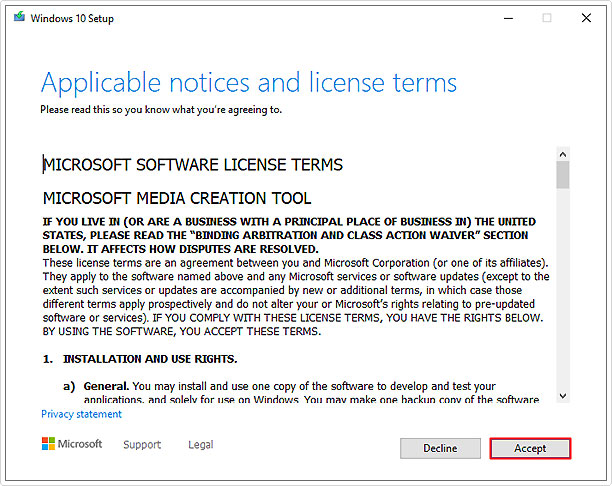
3. Run the Windows Setup and click on Accept.
4. This will take you to the Select language and edition screen. Choose your preference then click on Next.
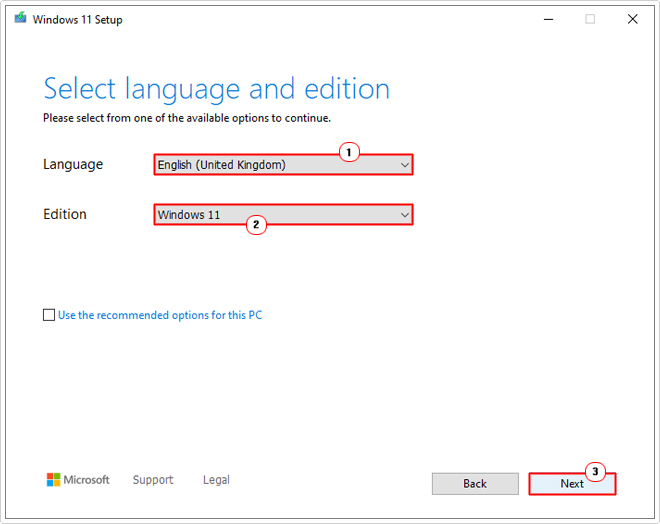
Note: If you tick the Use the recommended option for this PC box, it will automatically select the preference(s) for you.
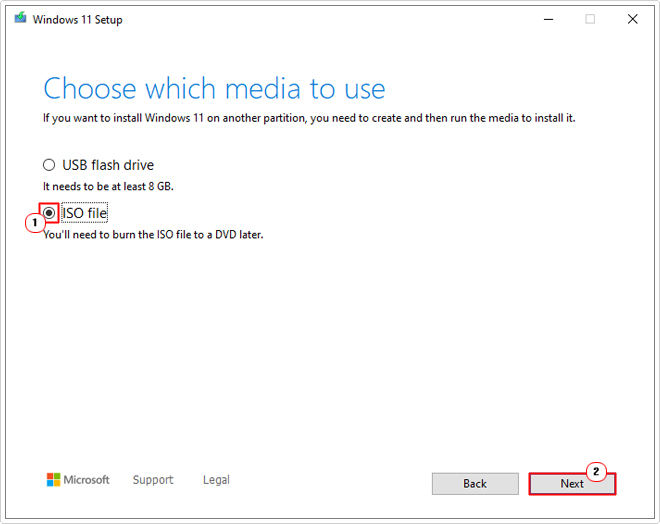
5. On the Choose which media to use screen, click on ISO file then click on Next.
6. This will bring up a Select a path applet, choose a location (ideally the Desktop), then click on Save.
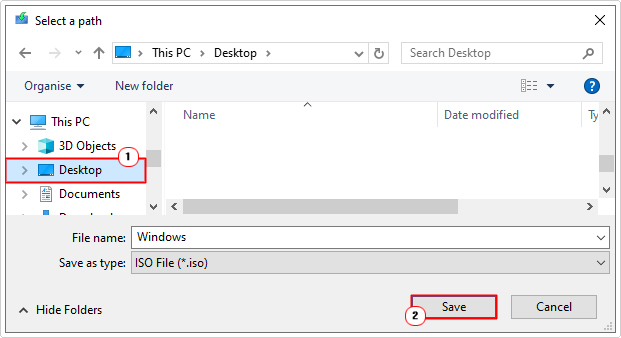
Note: Default save name is Windows.
Note: To mount the drive, you will need a Virtual Drive tool. There are an assortment to choose from, but I personally use PowerISO.
7. Now, right-click on the PowerISO taskbar icon and select Mount image to drive.
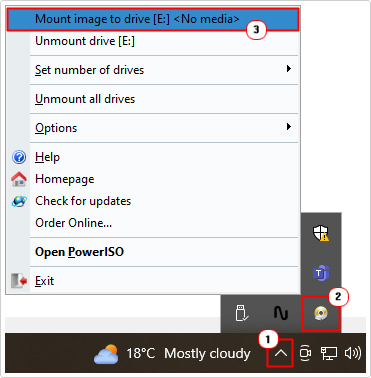
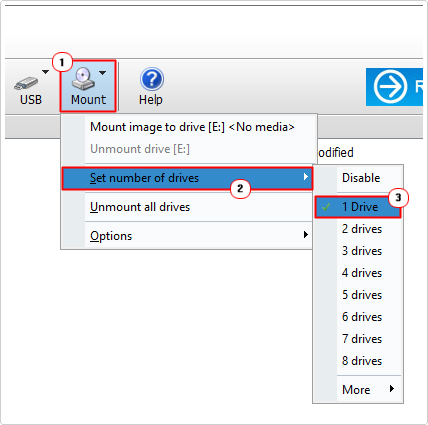
Note: You may need to create a virtual drive first. To do that, open PowerISO and select Mount -> Set number of drives -> 1 Drive.
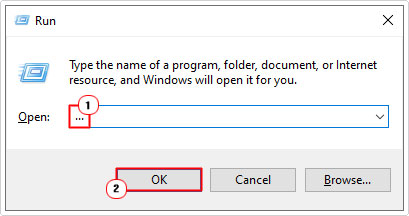
8. This will attach the Windows Installation files to a Virtual Drive on your system. Now, press  + R, type … and click on OK.
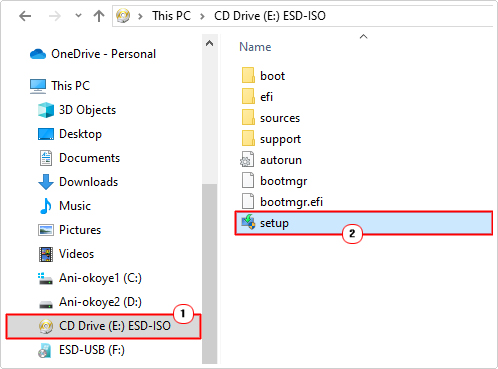
9. When File Explorer loads up, access the Virtual Drive, and double-click on Setup to begin the Windows installation process.
Tweak BIOS
Depending on the version of Windows you’re trying to install, some BIOS features may or may not need to be enabled to get it running. The BIOS is a very sensitive area of your system, so I personally do not recommend you alter any settings if you are a relative beginner.
Otherwise the settings you should look at changing are as follows:
- Make sure boot order is set to USB (if you are installing Windows via USB).
- If you’re on an older system then set SATA mode to IDE otherwise, make sure it’s on AHCI (for modern computer systems).
- Set USB to Auto instead of USB 3.0 only. An uncommon feature available on some later BIOS versions.
- If you are trying to install a 64-bit Windows version, then disable Legacy USB support and Legacy BIOS options – if available.
Once you’ve made the necessary changes, you should now be able to run and install Windows without hiccup.
Are you looking for a way to repair all the errors on your computer?

If the answer is Yes, then I highly recommend you check out Fortect.
Which is the leading registry cleaner program online that is able to cure your system from a number of different ailments such as Windows Installer Errors, Runtime Errors, Malicious Software, Spyware, System Freezing, Active Malware, Blue Screen of Death Errors, Rundll Errors, Slow Erratic Computer Performance, ActiveX Errors and much more. Click here to check it out NOW!