
| Attention Before you read this post, I highly recommend you check out my resources page for access to the tools and services I use to not only maintain my system but also fix all my computer errors, by clicking here! |
Did you recently stumble upon a Windows process called TwDsUiLaunch.exe? Are you confused as to what it is? Would you like to know whether it’s a legitimate process or a virus? How about whether or not you can or should remove it? In this post we will be going through all of these questions, examining exactly what it is and what you should do with it. So let’s begin.
What Is TwDsUiLaunch.exe?
In short, the TwDsUiLaunch.exe process is linked to your printer drivers currently in use. In the vast majority of cases, this shouldn’t be of any concern. If you currently have a printer installed and working on your system, then you should assume the connection.
To be more precise, the TwDsUiLaunch.exe process belongs to the Brother brand of printers. The process is digitally signed, which means it has been tested to be fully compatible with Windows operating systems. The primary executable file (TwDsUiLaunch.exe) can typically be found in the following location(s):
C:\Windows\twain_32\Brimm15a\Common\
C:\Windows\twain_32\Common\
The TwDsUiLaunch.exe file is an integral component of the Brother (Printer) software. Allowing for effective management and utilisation of all printer capabilities and features.
Is TwDsUiLaunch.exe Safe?
The simple answer is yes. However, it’s not uncommon for malicious files to infiltrate your system, disguised as legitimate executables like TwDsUiLaunch.exe.
Trojan horse viruses are most commonly known for doing this, as they infiltrate and alter desktop and system settings. They can also leave your system exposed to additional infiltrations. If you find the TwDsUiLaunch.exe file in any other location than those listed above, then it’s a good chance that it is a virus.
Verifying the TwDsUiLaunch.exe Process
If you are unsure as to whether or not the TwDsUiLaunch.exe file running on your system is a virus or not, there are several things you should check.
The first, is the file location (as I’ve already touched on).
If the file exists in any other location than those listed above, then you should be very suspicious.
The next thing you should look at, is CPU load.
If the TwDsUiLaunch.exe file is actually a virus, then you should see a considerable CPU load on the file itself.
This can be examined through Windows Task Manager.
1. Simply, right-click on the Taskbar and select Task Manager.
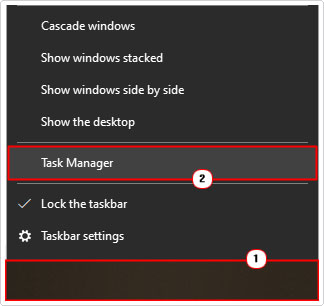
2. When Task Manager loads up, on the Processes Tab, simply click on CPU.

Note: This will arrange the processes in order of CPU usage. If the TwDsUiLaunch.exe is drawing a considerable amount of usage, it should appear around the top.
An alternative method you can use to verify the validity of the TwDsUiLaunch.exe file is to simply run a virus scan or check whether or not it has a Digital Signature:
1. First, locate the file (using the above mentioned storage location).
2. Then, click on it and select Properties.

3. When the TwDsUiLaunch.exe Properties applet pops up, click on the Digital Signature Tab.
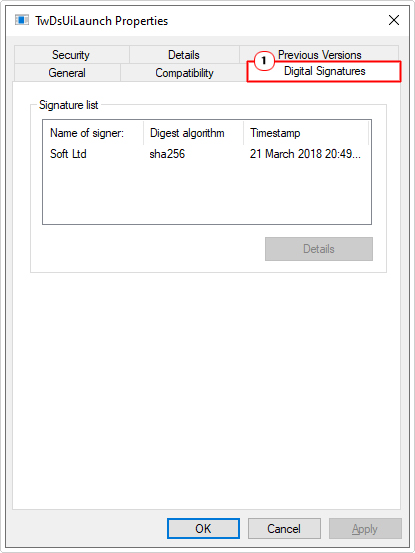
Note: You should see the Name of signer, Digest algorithm and timestamp of the signature. This all helps to verify the validity of the file. If the Digital Signature Tab doesn’t exist, then it’s possible the file is a virus, or at the very least, fake.
Run a System Scan
One of the most effective ways to safeguard your system from malicious threats (and to ensure the authenticity of TwDsUiLaunch.exe) is to simply have internet security software installed and running on your system. Fortunately, Windows comes with its own built-in solution called Windows Defender.
In the event that you do not have your own third-party solution, you can use that.
Steps on how to run a full scan are as follows:
1. Boot into your system as a full administrator.
2. Next, right-click on the Start button and select Windows PowerShell (Admin).
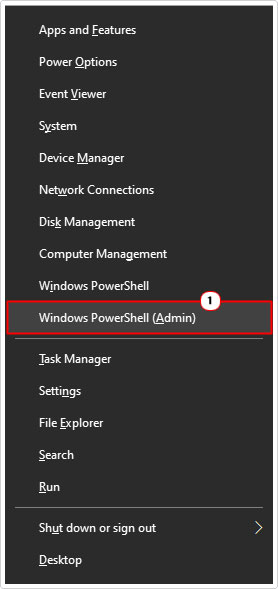
3. When PowerShell successfully loads up, type the command below and press Enter.
Start windowsdefender:
4. This will load up the Window Security app, from here, click on Virus & threat protection.
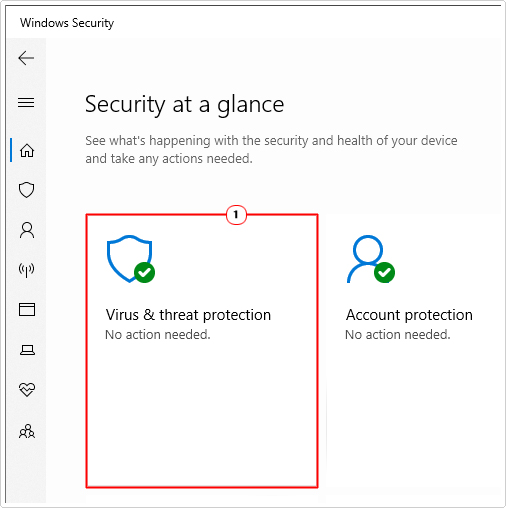
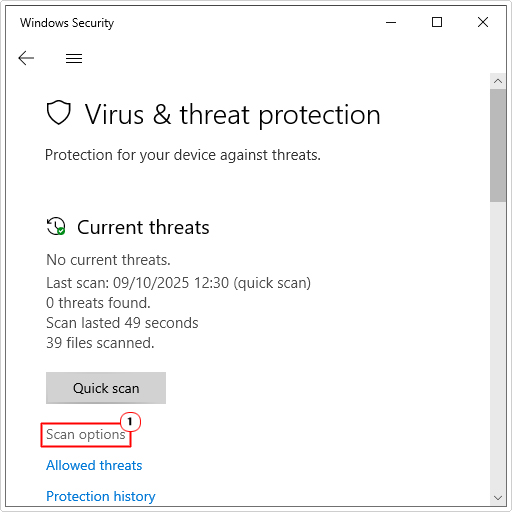
5. The Virus & threat protection page will load up, then click on Scan options.
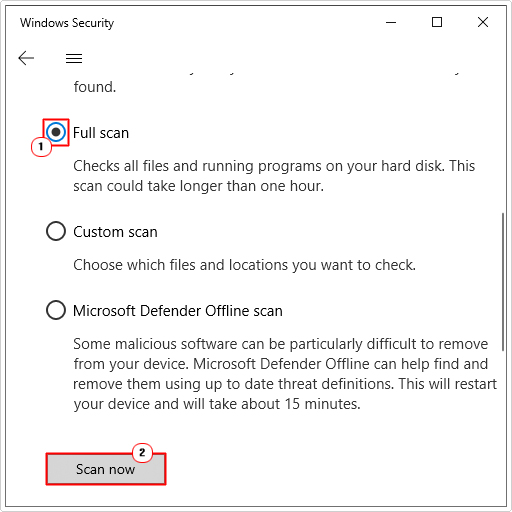
6. Lastly, click on Full scan, then select Scan now.
Repair System Files
Another method you can use to protect your system from the ill effects of a compromised TwDsUiLaunch.exe file is to carry out the appropriate security and integrity checks. This can be done through the utilisation of two built-in Windows tools SFC and DISM.
To use these two tools, it’s very simple, just follow the steps below:
1. First, boot into Windows as admin.
2. Then press  + R, type cmd and press CTRL + Shift + Enter.
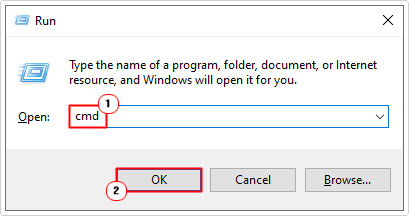
3. When Command Prompt loads up, type the following commands below pressing Enter after each line:
Sfc /Scannow
Dism /Online /Cleanup-Image /RestoreHealth
In short, if TwDsUiLaunch.exe is confirmed to be an illegitimate malicious file, then these methods should identify and replace the threat before it can do any further damage.
Use Windows Repair Tool to Identify & Fix TwDsUiLaunch.exe
If you are, for some unknown reason, experiencing problems on your system. Whether its random errors degrading system performance, then it’s probably time you considered using a Windows repair tool.
The one I have in mind is a advanced repair tool, developed by a group of professionals to fix a wide range of common Windows issues and errors. Such as BSOD errors, registry corruption, DLL errors, app errors and much more.
This tool also has built-in virus scanning capabilities, so it will be able to verify and remove TwDsUiLaunch.exe from your system if it is deemed to be a threat.
Another benefit to using this repair and maintenance suite, is its ability to speed up your computer. Restoring it from previous lagging or freezing at unexpected times.
If this, for any reason, interests you, then visit the link below:
CLICK HERE TO CHECK OUT THE ADVANCED REPAIR TOOL
Should You Remove TwDsUiLaunch.exe?
So, the next thing you might be wondering, is whether or not you can remove or disable the TwDsUiLaunch.exe process? Again, the short answer is yes. However, disabling it, will inhibit your Brother printer. Either, preventing it from working altogether or preventing you from utilising its many features.
In short, it’s probably likely you will be able to print, at least basic print jobs. But your other printer capabilities will be inaccessible to you. So you have to decide whether or not that’s a worthwhile trade-off.
How to Disable TwDsUiLaunch.exe?
To stop or disable the TwDsUiLaunch.exe process, simply do the following:
1. First, boot into your system as a full administrator.
2. Then right-click on the Taskbar and select Task Manager.
3. When Task Manager loads up, click on the Startup Tab, now locate the TwDsUiLaunch.exe file, then right-click on it and select Disable.
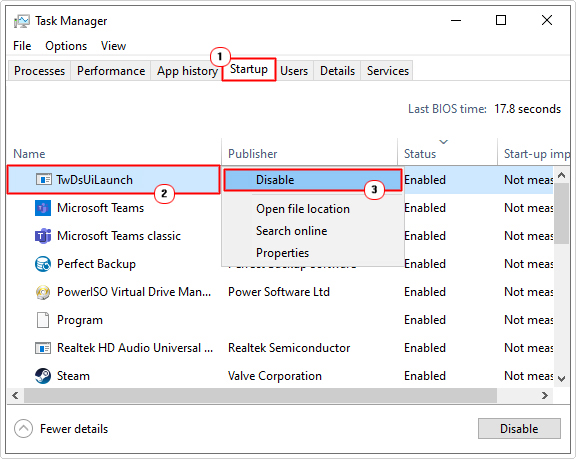
4. Lastly, restart your system.
How to Erase TwDsUiLaunch.exe?
If you determine that you no longer require the TwDsUiLaunch.exe process, then you can permanently remove it, following the steps outlined below:
1. Boot into Windows as an admin.
2. Then press + R, type Appwiz.cpl and click on OK.
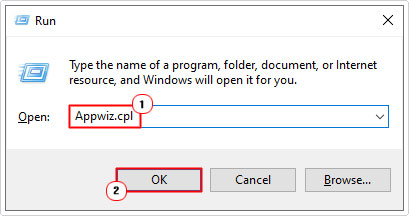
3. When Programs and Features loads up, locate Brother Utilities, click on it and select Uninstall.
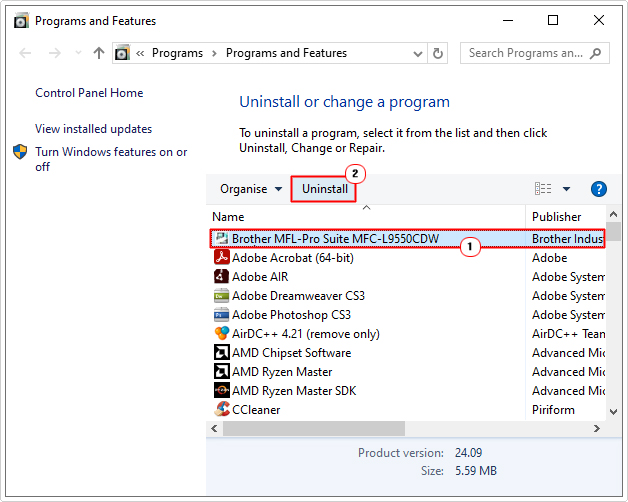
Removing “Brother Utilities” from your system will make your printers features inaccessible. However, in some instances it may prevent the printer from working altogether. However, an easy workaround is to simply install generic drivers (provided by Windows).
After you have successfully removed the software, the TwDsUiLaunch.exe process should no longer show up in Windows Task Manager. You can also verify that it is gone, by checking its storage location (highlighted above).
If you want regain access to your Brother Printer features, simply reinstall the drivers. You should be able to find working drivers on the official Brother website. Just be sure to check the model of your printer, to ensure you install the correct ones.
Are you looking for a way to repair all the errors on your computer?

If the answer is Yes, then I highly recommend you check out Fortect.
Which is the leading registry cleaner program online that is able to cure your system from a number of different ailments such as Windows Installer Errors, Runtime Errors, Malicious Software, Spyware, System Freezing, Active Malware, Blue Screen of Death Errors, Rundll Errors, Slow Erratic Computer Performance, ActiveX Errors and much more. Click here to check it out NOW!