
| Attention Before you read this post, I highly recommend you check out my resources page for access to the tools and services I use to not only maintain my system but also fix all my computer errors, by clicking here! |
Msinfo32 is a built-in system profiler that provides the end user with troubleshooting and diagnostic data related to installed software, hardware and the operating system itself. This makes it the ideal go-to tool when trying to investigate an issue. However, there are times when users are greeted with the “Can’t Collect Information” error message instead of the information that they seek.
Through this tool it’s possible to acquire information on your hardware resources, software environment and installed components. In addition, you have a system summary that provides you with crucial data on your OS name, system type, system model, BIOS mode, boot drive and much more.
The tool also provides you with a lot of usage stats, like physical memory usage and page file space. This makes it easier to identify issues affecting your Windows experience.
The most notably error associated with the msinfo32 occurs when attempting to access it. It typically resembles the following:
Can’t Collect Information
Cannot access the Windows Management Instrumentation Software. Windows Management files may be moved or missing.
This effectively blocks access to the tool.
In this tutorial, we’ll be going through a number of methods you can use to hopefully rectify this issue.
So, let us begin with its most notable causes.
What Causes Msinfo32.exe “Can’t Collect Information” Errors
Given the popularity of this tool, along with its importance, its associated errors are not uncommon to many users. But why does it occur? The most notable reasons are outlined below:
- Integral system files have been corrupted preventing certain Windows apps from working, such as Msinfo32.
- Previously installed Windows Update files are conflicting with the MSinfo32 tool.
- The Windows Management Instrumentation (WMI) service is not running.
These are the most common reasons why MSinfo32.exe may no longer be working. So what can you do about it? Continue reading to find out.
How to Fix It
When it comes to fixing any issue with your Windows based system, you always want to start with the most basic solutions. You never know, as that’s all it might take.
So to begin, consider restarting your PC. A system restart will erase all your RAM and swap file and temporary data, allowing the system to start anew.
If any of the above data was conflicting with the MSinfo32 tool, then that may be all you need to do to fix it.
However, if that didn’t do the trick, then consider disabling your internet security tool (at least temporarily).
It’s possible you have an invasive internet security tool that is blocking the MSinfo32 tool from compiling system data. Disabling the tool may do the trick. However, when it comes to doing that, the steps will vary, depending on the brand and version installed on your system.
Generally, you’ll want to:
1. Open the apps GUI, either from a Desktop icon or in the Taskbar.
2. Once in the tools menu system, look for and disable real-time scanning.
Use Windows Repair Tool to Fix Msinfo32.exe “Can’t Collect Information” Errors
If after attempting to most simplest, yet effective methods outlined above, the Msinfo32.exe tool fails to work, then you should consider using an advanced repair tool.
The tool I have in mind is capable of fixing a variety of issues on your system, from virus infections, to registry corruption, DLL errors to runtime errors. Whatever the cause, this tool has you covered.
Additionally, it’s also highly adept at making your system faster, making it an all-in-one maintenance and repair suite.
If that by any chance interests you, then visit the link below:
CLICK HERE TO CHECK OUT THE ADVANCED REPAIR TOOL
 The solution(s) below are for ADVANCED level computer users. If you are a beginner to intermediate computer user, I highly recommend you use the automated tool(s) above! The solution(s) below are for ADVANCED level computer users. If you are a beginner to intermediate computer user, I highly recommend you use the automated tool(s) above! |
Start WMI Service
Windows Management Instrumentation (WMI) is a Windows service created to act as an interface between software, hardware and the operating system. Allowing tools and programs to directly acquire system information.
MSinfo32.exe is a tool that requires the WMI service to effectively access the data it compiles and displays. So if it’s stopped for whatever reason, the MSinfo32 tool will cease to work.
Fortunately, you can turn it back on by doing the following:
1. Boot into your system as a full administrator.
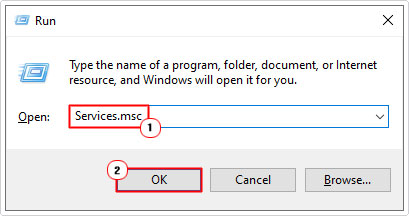
2. Then press  + R, type Services.msc and click on OK.
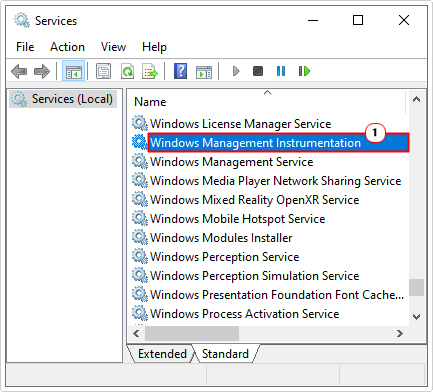
3. When Services loads up, scroll down, then double-click on Windows Management Instrumentation.
4. This will bring up the Windows Management Instrumentation Properties applet, from here, set Startup type to Automatic, click on Start, then select OK.

5. Close the applet, then restart your system.
Reset Windows Management Instrumentation Service
Windows Management Instrumentation is a crucial service required by the MSinfo32. In the event that the service is running, but MSinfo32 is still not working, it’s possible the service may have malfunctioned or crashed. In either case, resetting the service may do the trick.
So to do that, follow the steps below:
1. Boot into your system as a full administrator.
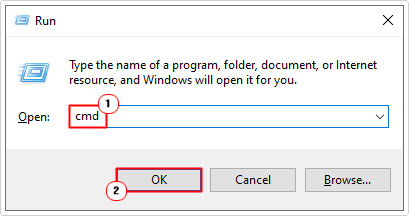
2. Then press + R, type cmd and press CTRL + Shift + Enter.
3. When Command Prompt loads up, type the commands below, pressing Enter after each line:
net stop  winmgmt
winmgmt /resetrepository
net start   winmgmt
4. Close Command Prompt, then verify whether or not it has fixed the MSinfo32 tool.
Re-Register WMI Components
As already reiterated, if an issue occurs with the Windows Management Instrumentation (WMI) service, it can prevent other applications and hardware devices from acquiring system information. This can occur if the service is not properly configured or registered. In situations like this, you can manually re-register the service by doing the following:
1. First, follow steps 1 – 2 of Reset Windows Management Instrumentation Service.
2. When Command Prompt successfully loads up, type the commands below, pressing Enter after every line:
cd /d %windir%\system32\wbem
for %i in (*.dll) do regsvr32 -s %i
for %i in (*.exe) do %i /regserver
3. Once complete, close Command Prompt, and then check whether or not it has fixed the tool.
Use SFC/DISM Tools
Microsoft Windows has two built-in tools, SFC or System File Checker and DISM (Deployment Image Servicing and Management). Both of which are designed to restore the integrity of your operating system. SFC does it by restoring or replacing corrupted or missing system files and DISM does the same by reinstalling missing or corrupted Windows files.
In the event that the Msinfo32.exe “Can’t Collect Information” error is the result of OS corruption, you may be able to fix it by using these fairly simple tools.
To use them, follow the steps below:
1. Follow steps 1 – 2 of Reset Windows Management Instrumentation Service.
2. From Command Prompt, type the command below and press Enter.
Sfc /Scannow
Note: This scan can take anywhere from 5 – 30 minutes to complete. So please be patient.
3. Once complete, type the next commands below (pressing Enter after each line):
dism.exe /Online /cleanup-image /startcomponentcleanup
dism.exe /Online /cleanup-image /restorehealth
4. Once that’s done, you can now determine whether or not it has fixed the error by running Msinfo32.exe.
Use System Restore
The last solution you may want to try, in the event that all others have failed, up to this point, is the System Restore tool. It works by using restore points to take your system back to an earlier state. In this case, before the error started to occur.
Of course, it’s not without its limitations. Meaning, you will need to have the necessary restore point on your system to use it and the number of restore points can be quite limited.
Anyway, you can find more information on what this tool is and how to use it from my post on what is a restore point.
Are you looking for a way to repair all the errors on your computer?

If the answer is Yes, then I highly recommend you check out Fortect.
Which is the leading registry cleaner program online that is able to cure your system from a number of different ailments such as Windows Installer Errors, Runtime Errors, Malicious Software, Spyware, System Freezing, Active Malware, Blue Screen of Death Errors, Rundll Errors, Slow Erratic Computer Performance, ActiveX Errors and much more. Click here to check it out NOW!