
| Attention Before you read this post, I highly recommend you check out my resources page for access to the tools and services I use to not only maintain my system but also fix all my computer errors, by clicking here! |
It’s not uncommon for an end user to stumble upon the “this app can’t run on your PC” error notification while attempting to run an app. This can occur for a multitude of reasons, but generally you’re looking at an incompatibility issue. Despite all that, there are things you can potentially do, to combat it. So continue reading for that.
This error has been around for a considerable length of time, occurring quite frequently on the older iterations of Windows (7/8/8.1). But in truth, apps that were created for older versions of Windows, are less likely to run properly, if at all, on the later Windows versions (10/11). So in most instances, you’re having to consider when the app was actually created. As attempting to run a very old app on Windows 11, for example, could result in the error message:
This app can’t run on your PC
To find a version for your PC, check with the software publisher
This error has been discussed quite extensively, because of how common its occurrence. There doesn’t appear to be any commonality between the types of apps it may occur on. So, third-party apps, Windows apps, older video games, nothing is exempt.
If you’re currently battling with this problem (which is most likely), then you need not worry. As bad as it may seem, there are things you can do to get around in. To follow, we will be discussing the various causes of this error.
What Causes “This app can’t run on your PC” Errors?
When looking at the most known and commonly associated culprits for this error, we find the following:
- Wrong app architecture: In short, the end user is attempting to run a 64-bit app in a 32-bit environment. Always make sure you download the correct version of the app you’re trying to use.
- The program download was corrupted: It’s possible the installation files were corrupted during download. To minimise this, only download from trusted sources.
- Program permission issues: Your user account make lack the necessary permissions (or privileges) to open the app.
- The system is infected with a malicious file: Malware may have infiltrated your system and corrupted key system files, resulting in the “this app can’t run on your PC” error message.
First thing to keep in mind is that the “this app can’t run on your PC” error message is not absolute. Meaning, there may still be a way to get the app to work on your system. But what are those “ways”? Continue reading to find out.
How to Fix It
The first thing you’ll want to do when encountering the “this app can’t run on your PC” error is check the apps version. You want to ensure that the app you downloaded, is compatible with your system. That means, your Windows version has the right architecture to run the app.
To quickly determine your Windows architecture, simply do the following:
1. First, boot into Windows with full administrative rights.
2. Then press  + I and click on System.
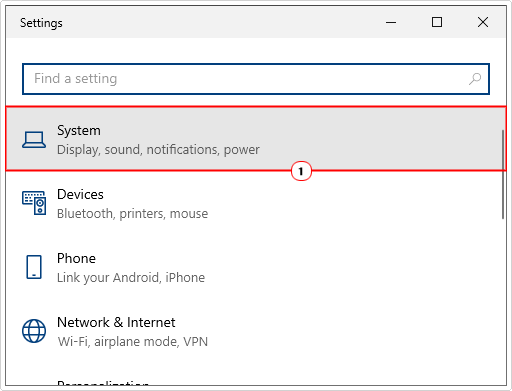
3. When System loads up, scroll down and click on About.
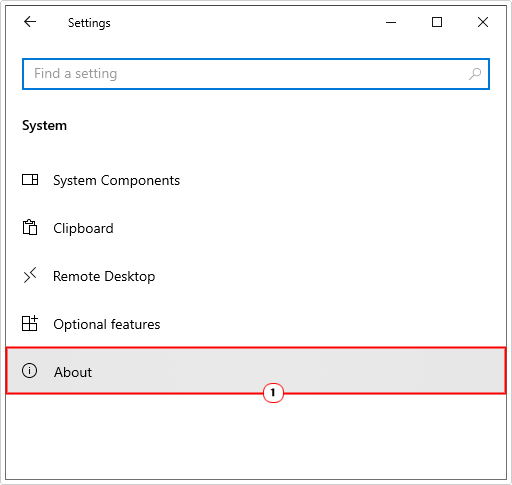
4. On the About page, scroll down to System Type to find out whether your system is 32-bit or 64-bit.

Run as Admin
Another common cause for “this app can’t run on your PC” errors is a permissions problem. It’s possible your user account lacks the appropriate rights to run the program.
To quickest way to get around this, is to do the following:
1. Make sure you’ve booted into Windows as an admin.
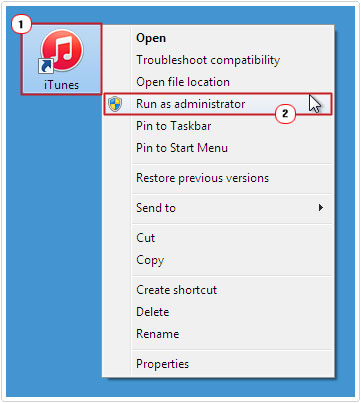
2. Then right-click on the Apps shortcut icon, then select Run as administrator.
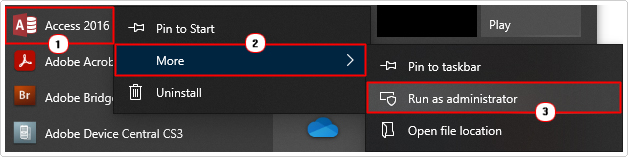
Note: To do the same through the Start menu, right-click on the App and select More -> Run as administrator.
Run Windows Repair Tool to Fix “This app can’t run on your PC” Errors
If the above fixes failed to fix the “this app can’t run on your PC” error, then you may want to try something more comprehensive, yet simpler.
That is, the use of an advanced multifaceted Windows repair tool. Such a tool can, fix a wide range of Windows issues and errors, within a single scan.
So issues such as, BSOD errors, runtime errors, fatal system errors, registry errors and much more, can be fixed with the use of such a tool.
The tool I have in mind is also capable of making your system faster as well as remove malicious files from your computer. Making it an all-in-one maintenance and repair tool.
If by any chance this interests you, then visit the link below:
CLICK HERE TO CHECK OUT THE ADVANCED REPAIR TOOL
 The solution(s) below are for ADVANCED level computer users. If you are a beginner to intermediate computer user, I highly recommend you use the automated tool(s) above! The solution(s) below are for ADVANCED level computer users. If you are a beginner to intermediate computer user, I highly recommend you use the automated tool(s) above! |
Use Compatibility Mode
If you’re attempting to install and run an old application made for an older iteration of Windows (like XP), then it’s recommended that you first, try and find a version that is actually compatible with your operating system.
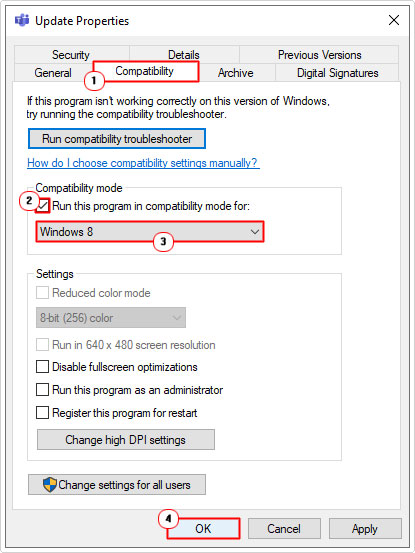
If no such version exists, then you may want to try the compatibility mode feature. It’s quite simple, just do the following:
1. Boot into Windows as a full administrator.
2. Then right-click on the Apps shortcut icon and select Properties.
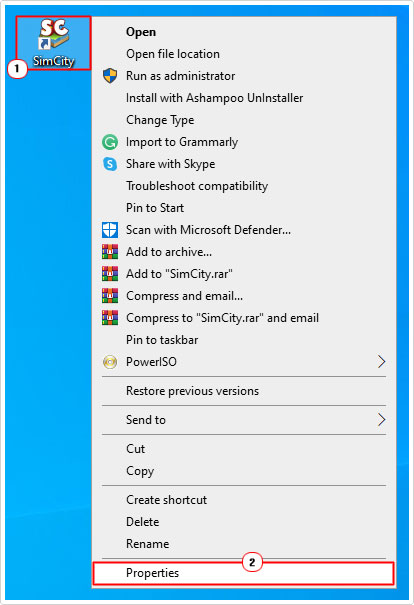
3. When the App Properties applet pops up, click on the Compatibility Tab, then tick the box for Run this program in compatibility mode for then select the OS Version the app was intended to run on and click on OK.
Use Compatibility Troubleshooter
Windows 10/11 comes with a built-in compatibility troubleshooter that is designed to examine and determine the cause of an apps inability to run. Then provide a solution if possible. To use this tool, do the following:
1. Follow steps 1 – 2 of Use Compatibility Mode.
2. Now click on the Compatibility Tab, then click on Run compatibility troubleshooter.

3. This will bring up the Program Compatibility Troubleshooter which will automatically scan the affected app. Once it has finished, click on Try recommended settings.

Try another Account
If you’re still getting the “this app can’t run on your PC” error message when attempting to open the app, then you may want to log into Windows with a different account. Make sure the additional account also has administrator rights.
The steps are as follows:
1. Click on the Start menu, then right-click on your User Profile and select Sign out.
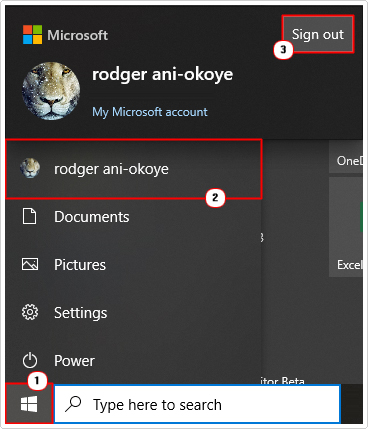
2. Now log back into Windows with your secondary account and attempt to open the app.
If it opens without issue, then you know the problem is with your main account. It may not be worth erasing your primary account, just to run one app, so you could simply log into your secondary account every time you want to use the app. Depending on how frequently you use it.
Enable Developer Mode
Windows 10/11 have a feature called developer mode, which opens up the operating system. Allowing the end user to install universal apps that are outside the Microsoft Store.
It may be worth enabling this mode, if an app refuses to run. To do that, follow the steps below:
1. Boot into Windows as a full administrator.
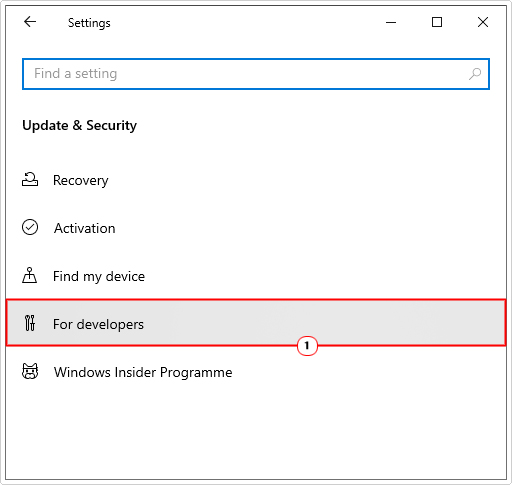
2. Then press + I and click on Update & Security.
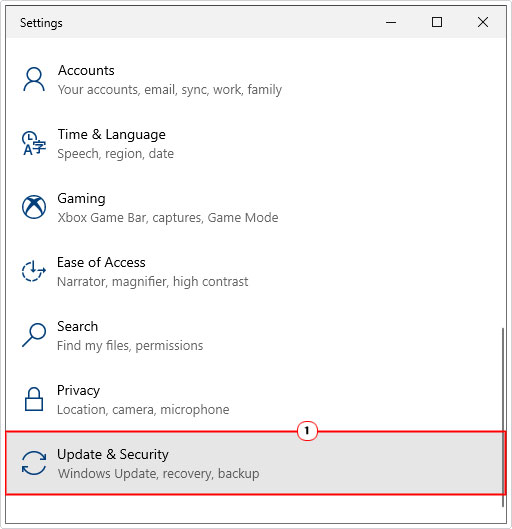
3. From the Update & Security screen, click on For developers.
4. This will bring up the For Developers screen, set Developer Mode to on.
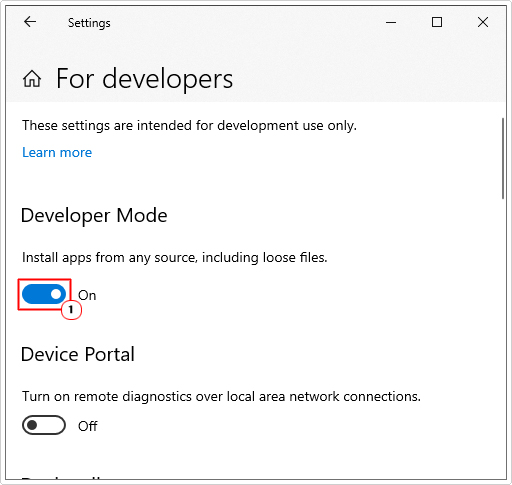
Now you can try running the app again.
Update Windows Store
The “this app can’t run on your PC” error is known to occur when the Windows Store app hasn’t been updated for a considerable length of time.
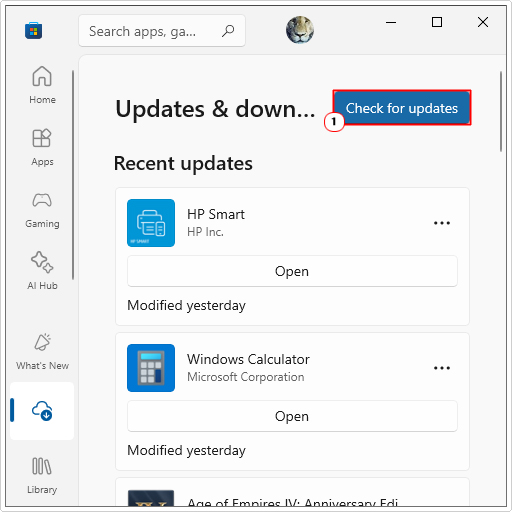
To get around this problem, simply update it by doing the following:
1. First, boot into Windows as a full admin.
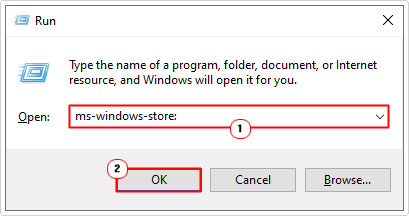
2. Then press + R, type ms-windows-store: and click on OK.
3. When the Windows Store app loads up, click on Downloads.
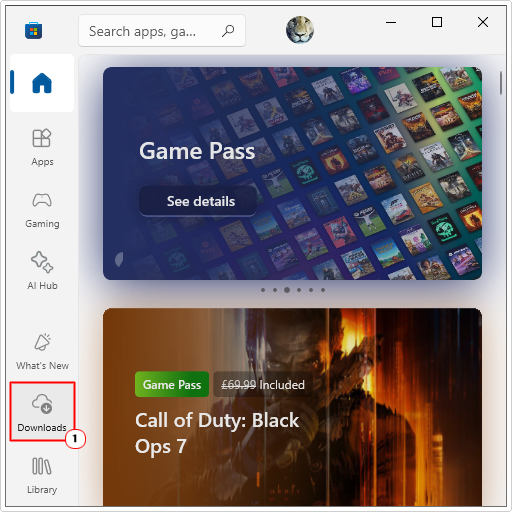
4. On the Updates & Downloads screen, click on Check for updates.
Are you looking for a way to repair all the errors on your computer?

If the answer is Yes, then I highly recommend you check out Fortect.
Which is the leading registry cleaner program online that is able to cure your system from a number of different ailments such as Windows Installer Errors, Runtime Errors, Malicious Software, Spyware, System Freezing, Active Malware, Blue Screen of Death Errors, Rundll Errors, Slow Erratic Computer Performance, ActiveX Errors and much more. Click here to check it out NOW!