
| Attention Before you read this post, I highly recommend you check out my resources page for access to the tools and services I use to not only maintain my system but also fix all my computer errors, by clicking here! |
“No Device Drivers Were Found” is an error notification end users may encounter while attempting to install, reinstall or upgrade Windows. The system is unable to find the necessary drivers to complete the installation process. These drivers may be for the most important devices such as the hard drive or disc drive (depending on your setup).
If you’re somewhat unfamiliar with how your system works, this error can seem rather confusing. So what are your drivers? Essentially, they are small pieces of software that allows your OS (operating system) to communicate with the hardware device. This can be anything, from your graphics card, to hard drive, to keyboard, monitor etc… However, when it comes to this error, in most cases the error is related to your storage device.
When it comes to fixing this error, there are a wide range of possibilities. Depending on the severity, the solution could be something as simple as using a different USB port. In other circumstances, you could be forced to recreate your installation media. Ultimately, the cause will determine the solution.
So, let’s take a look at those causes, shall we.
What Causes “No Device Drivers Were Found” Errors?
As is the case with most Windows errors, there can and typically are a multitude of reasons why it is occurring. In this case, what’s blocking you from repairing or installing Windows could be:
- An incompatible or corrupted USB driver.
- The improper connection of your storage device to your system.
- The USB port is malfunctioning.
In other instances, the error could be the result of an inactive primary partition. If you’re using a new hard drive to install Windows, then you need to ensure it has been properly formatted and setup to receive the installation media.
Now that we have the potential causes out of the way, let’s take a look at the numerous ways you can combat this issue.
How to Fix It
If you, like most people are attempting to install Windows from a USB stick, then it’s possible the “No Device Drivers Were Found” error is the result of your USB port.
Your USB port may be broken or possibly incompatible with your USB stick. Either way, consider using a different one. Ideally, a USB port positioned at the back of your system, as they tend to work better.
If that fails to fix the error, then consider checking your installation media.
It’s possible your Windows installation is corrupted. Which is likely to have occurred during setup (Media Creation Tool).
To be on the safe side, it’s recommended that you recreate your media installation. Just retrace your steps and then try the installation.
If that fails to fix the error, then I recommend you give the additional solutions below a try.
Update Device Drivers to Fix “No Device Drivers Were Found” Errors
If you’re able to access Windows, then going through the steps to manually update the drivers belonging to all the devices in your system can be a time-consuming and sometimes complex task. Thus, to eliminate the confusion and consumption of time, its best you used a driver automation tool.
Such a tool is capable of scanning your entire system, then downloading and installing all the latest drivers for all the different components attached to your system. Making a once longwinded and complex task, a very simple one.
“No Device Drivers Were Found” is a driver related error, so it’s prudent that you consider updating every driver on your system before you proceed with any other solutions.
If the use of a driver automation tool interests you, then consider clicking on the link below:
CLICK HERE TO CHECK OUT THE DRIVER FINDER TOOL
 The solution(s) below are for ADVANCED level computer users. If you are a beginner to intermediate computer user, I highly recommend you use the automated tool(s) above! The solution(s) below are for ADVANCED level computer users. If you are a beginner to intermediate computer user, I highly recommend you use the automated tool(s) above! |
Activate Partition
If none of the partitions on your new hard drive are active, then the InstallShield will not know where to install Windows. To get around this problem, you will need to activate one of these partitions.
It’s not too difficult a task, just do the following:
1. First, follow steps 1 – 3 from my post on how to fix fatal error C0000022.
2. When Command Prompt loads up, type the command below, press Enter:
Diskpart
3. This will give you access to the Diskpart Utility, from here, type the commands below, pressing Enter after each line:
List disk
Select disk X
List partition
Select partition X
Active
Note: Replace X with the disk and partition numbers.
4. Once you’ve activated the drive, close Command Prompt and restart the system. Now you should be able to install Windows.
Manually Download Drivers
If you do not have access to the system you’re attempting to install Windows on, i.e. the computer’s hard drive is empty. Then you will need a working system to download the required drivers.
Once you have that, follow the steps below:
1. First, boot into the system as an admin.
2. Then, open up your web browser and type “Intel Rapid Storage Technology driver zip” into the Search box and click on OK.

3. Click on the corresponding Intel results, then click on Download and save the .zip file to your Desktop.
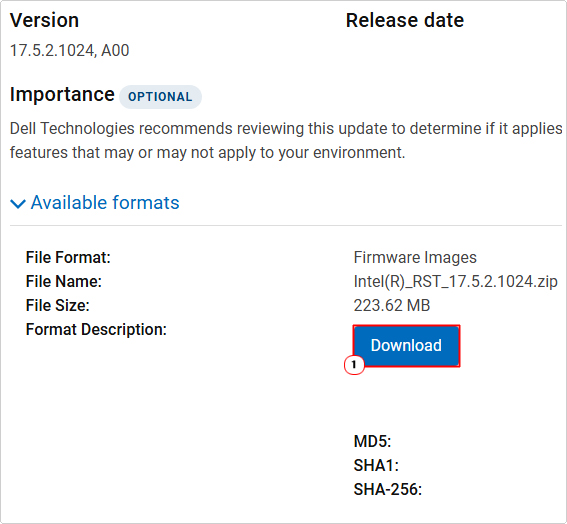
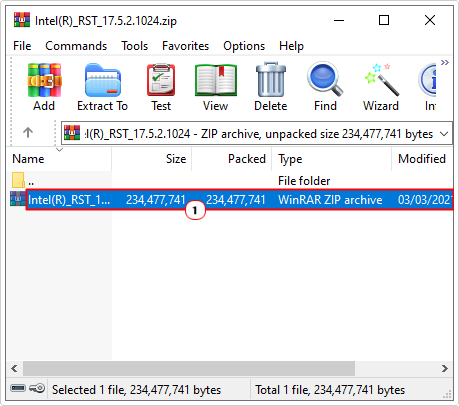
4. Next, double-click on the .zip file, then locate the .zip inside it and double-click on that.
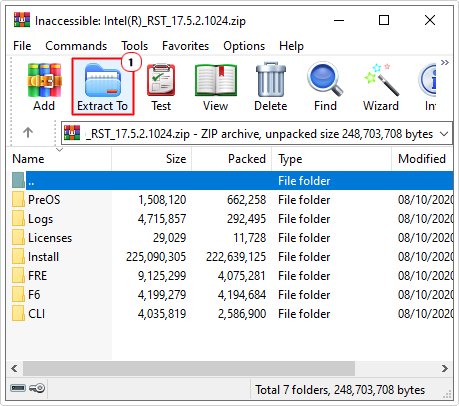
5. This should open up a second .zip folder, from here, click on Extract To.
6. This will open the Extraction path and options applet, from here, type x:\Drivers into the Destination path box and click on OK.
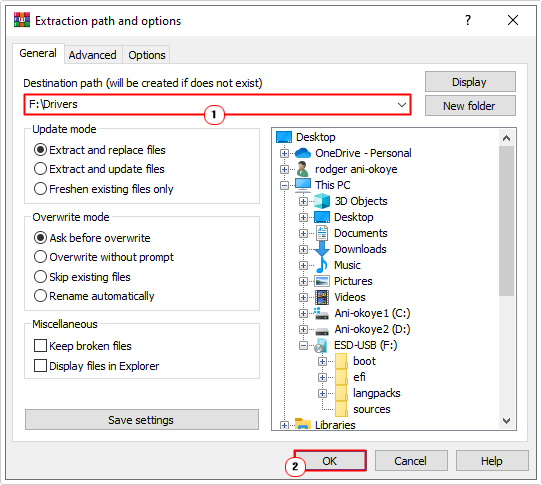
Note: X represents the drive letter of your USB stick.
7. Repeat steps 2 – 6 for “AMD Rapid Storage Technology driver”
Note: If you’re unable to locate a .zip file (On the AMD site), consider using third-party websites.
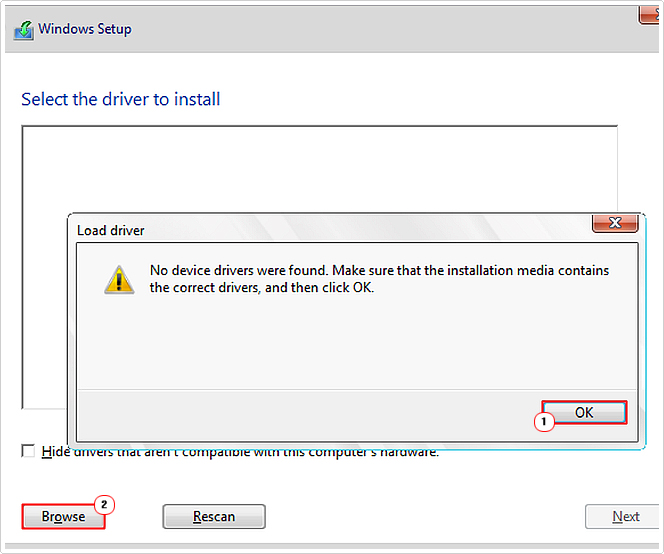
8. Now, when the “No Device Drivers Were Found” error appears, click on OK, then click on Browse and go to the Drivers folder (on your USB stick) and click on OK.
Create New Installation Media
If you’re attempting to repair or install Windows using a Windows installation media file you created some time ago, age may very well be the catalyst for this error.
Either way, you’ll want to ensure you’re using the latest installation media files, as new bug fixes and driver releases are always in motion. This ensures you get the most out of your fresh installation.
Anyway, the steps are as follows:
1. Boot into Windows as an admin.
2. Open your web browser and visit the following Microsoft page: https://support.microsoft.com/en-gb/windows/create-installation-media-for-windows-99a58364-8c02-206f-aa6f-40c3b507420d
3. Click on OS of your choice, then click on Download Windows XX.
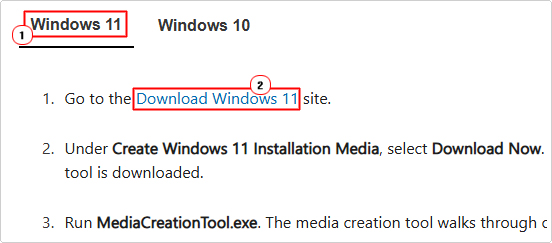
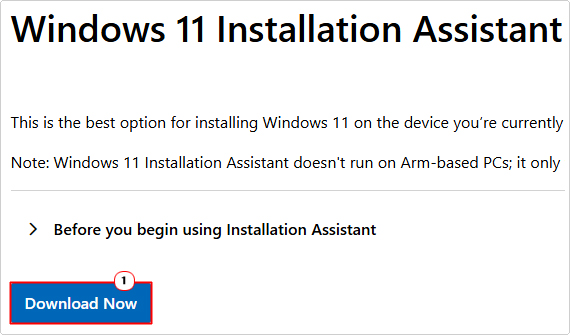
4. This will take you to the Download Windows XX page. From here, click on Download Now.
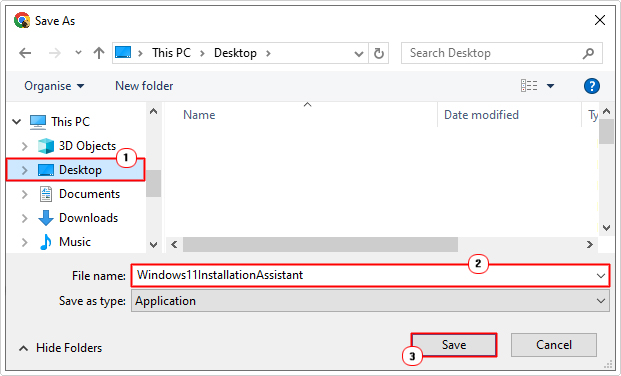
5. Save the file to your Desktop.
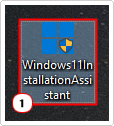
5. Lastly, double-click on the Windows Installation Assistant file and follow the onscreen instructions to create your new installation media.
Disable Secure Boot & CMS
It’s possible the CMS and Secure Boot features are preventing you from installing Windows on your hard drive. Thus, to eliminate this as a possible root cause of the error, consider disabling them; if only temporarily, until Windows is up and running.
For step-by-step instructions on how to do that, I recommend you consult the manual of your motherboard.
Try a Different HDD
If after attempting all the above solutions the error continues to persist, then I suggest you consider using a different hard drive entirely. It’s possible, due to wear and tear, the drive has or is malfunctioning. This is typically indicated by laboured performance and clicking sounds.
If you suspect your hard drive is past its shelf life, then I suggest you consider purchasing a new one and using that. Depending on your needs and wants, you have an assortment of options. Personally, I’d recommend a SSD, if you don’t already have one.
Are you looking for a way to repair all the errors on your computer?

If the answer is Yes, then I highly recommend you check out Fortect.
Which is the leading registry cleaner program online that is able to cure your system from a number of different ailments such as Windows Installer Errors, Runtime Errors, Malicious Software, Spyware, System Freezing, Active Malware, Blue Screen of Death Errors, Rundll Errors, Slow Erratic Computer Performance, ActiveX Errors and much more. Click here to check it out NOW!