
| Attention Before you read this post, I highly recommend you check out my resources page for access to the tools and services I use to not only maintain my system but also fix all my computer errors, by clicking here! |
OpenCL.dll not found errors are amongst the more common error types an end user may face. As the name states, this is an error caused by the deletion or corruption of the OpenCL.dll file. A file that is required to run apps that use the Open Computing Language standard. Essentially it provides the necessary framework for code to be run on the various processor types (CPU, GPU etc.).
OpenCL.dll was created or developed by Khronos Group and forms part of the OpenCL Installable Client Driver (ICD) program.
It is a fairly important file, as a lot of games are coded using this standard. If the OpenCL.dll file is affected in any way, then a variety of issues may occur. But the most common symptom is an inability to run corresponding apps.
OpenCL.dll is a DLL file and as such, can be found in the following location:
C:\Windows\System32
The error messages associated with this file are quite numerous. But, ultimately, they all link to the same problem:
The code execution cannot proceed because opencl.dll was not found. Reinstalling the program may fix this problem.
The program can’t start because OpenCL.dll is missing from your computer. Try reinstalling the program to fix this problem.
Cannot find OpenCL.dll
The procedure entry point OpenCL.dll
The exact error message is not important, only that the file OpenCL.dll is being highlighted in it.
So, what can you do about it? Before we get to the solutions, let’s take a closer look at its root causes.
What Causes OpenCL.dll Errors?
The error message itself, is not very descriptive. Typically, it will allude to an inability to find or access the OpenCL.dll file. Because this information is not provided, it makes it very difficult to remedy the problem on your own.
So, let’s break down the most common causes of this error:
- An outdated or incompatible version of OpenCL.dll exists on your system. Possibly the result of an installation or program update.
- A malicious file has infiltrated the system and corrupted the OpenCL.dll file.
- The Windows registry has been corrupted.
- The graphics card in your system has an outdated or incompatible driver set installed.
- OpenCL.dll was removed or modified by another application.
All of these root causes are known to occur across the entire spectrum of Windows versions (7, 8, 10 & 11)
To fix this problem, there are a wide assortment of things you can do. So let’s get to those solutions.
How to Fix It
When it comes to fixing the OpenCL.dll associated error, solutions range from updating your drivers, to uninstalling (reinstalling) the culprit app. A virus scan may also be in order, given the possibilities.
So, with that said, let us begin with the most obvious and most basic solution(s).
Reinstall the App
If you’re getting the OpenCL.dll error right after you installed and ran an app, it’s possible the installation process didn’t go through correctly.
In situations like this, you’ll want to reinstall the app (or game). Just run through the process for a second time, then verify whether or not it has fixed the error.
Update Device Drivers
OpenCL.dll related errors are more likely to occur when attempting to run computer games, this is because many game developers choose to deploy this standard given its open source/free nature.
As a result of that reality, it’s not uncommon for outdated graphics card drivers to trigger this error.
In circumstances like that, you can rectify the problem by simply downloading and installing the most up-to-date drivers for your GPU. So, go ahead and do that. You will need to know the brand and model number to ensure you acquire the right drivers for it.
Alternatively, if you lack the technical expertise to go through such a process, then you can use a driver automation tool. Such a tool will search the internet, then download and install the appropriate drivers for all your systems hardware devices.
If, by any chance that interests you, then I recommend you visit the link below:
CLICK HERE TO CHECK OUT THE DRIVER FINDER TOOL
Run a Virus Scan
As already noted, it’s possible the OpenCL.dll is missing error may be the result of a virus infection. Viruses are able to infiltrate our systems through websites, apps and USB sticks.
For this reason, it’s important that you have an antivirus scanner installed and running on your system at all times. However, the real-time scanning capabilities of any virus scanner is not fool proof, as viruses can and oftentimes are able to get through them. In circumstances like this, running a full scan of your system is a must to locate and remove these threats.
When it comes to scanning your system, I’d personally have to recommend System Mechanic. Why? Because it’s the very best at what it does. Able to locate and remove a plethora of virus types, from browser hijackers to adware, to Trojan horses etc…
Thus, if that interests you, then click the link below:
CLICK HERE TO CHECK OUT SYSTEM MECHANIC
Alternatively, if you’re using the built-in Windows Defender, you can find instructions on how to run a full scan on it, from my post on fixing MSVCR120.dll is missing errors.
 The solution(s) below are for ADVANCED level computer users. If you are a beginner to intermediate computer user, I highly recommend you use the automated tool(s) above! The solution(s) below are for ADVANCED level computer users. If you are a beginner to intermediate computer user, I highly recommend you use the automated tool(s) above! |
Install OpenCL.dll
If updating your device drivers and scanning your operating system (for viruses) failed to fix the OpenCL.dll error, then you may want to try manually installing the file. This method is most helpful in circumstances were the file has been corrupted or erased.
Anyway, the process is as follows:
1. First, boot into Windows as a full administrator.
2. Then download the appropriate OpenCL.zip file, from the following links:
32-bit: https://www.mediafire.com/file/fd2hjxj5o1okkz4/opencl+32.zip/file
64-bit: https://www.mediafire.com/file/oen3wd949fgm0sg/opencl+64.zip/file
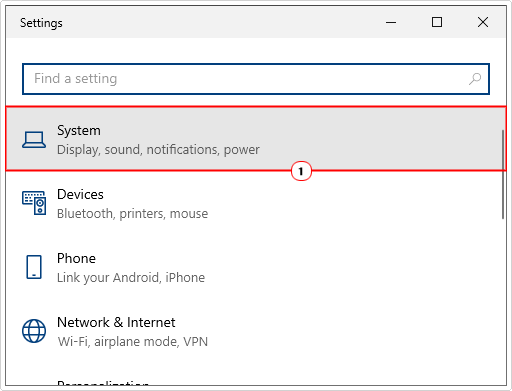
Note: If you don’t know whether your OS is 32-bit or 64-bit, you can find out by pressing  + I, and clicking on System.
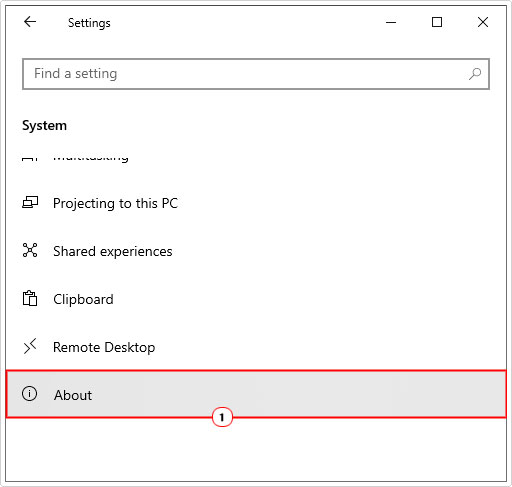
When the System applet pops up, click on About.
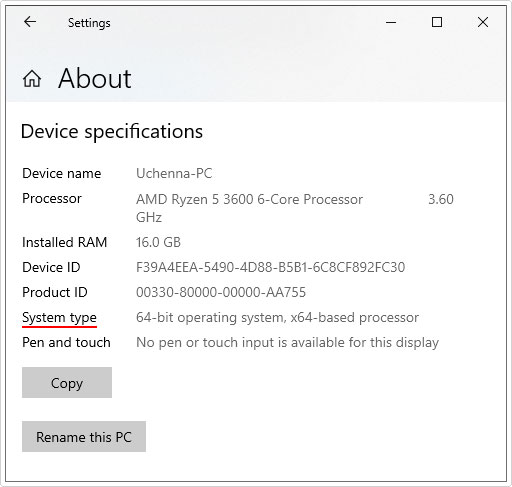
Your OS Architecture will be listed next to System Type.
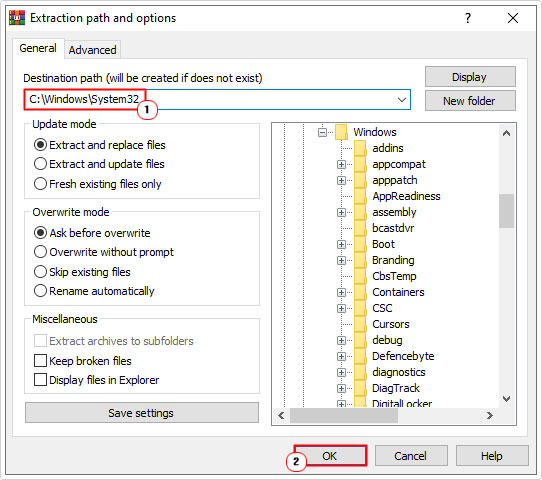
3. Once you’ve downloaded the right OpenCL.zip file, open it, and then click on Extract To.

4. This will bring up the Extraction path and options applet. Type C:\Windows\System32 into the Destination path box and click on OK.
5. Now, press + R, type cmd and press CTRL + Shift + Enter.
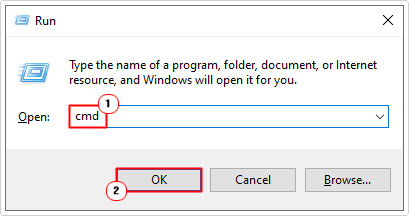
6. When Command Prompt loads up, type the commands below and pressing Enter after each line.
regsvr32 /u opencl.dll
regsvr32 /i opencl.dll
7. Lastly, close Command Prompt and restart your system.
You can now check whether or not it fixed the error.
Update Windows
It’s possible the OpenCL.dll may be an OS bug, conflict or incompatibility. In circumstances like this, updating your operating system may do the trick.
There are several ways you can update Windows, but the most comprehensive (in Windows 7, 8, 10 & 11), is as follows:
1. Boot into Windows as an admin.
2. Now press + I, and click on Update & Security.
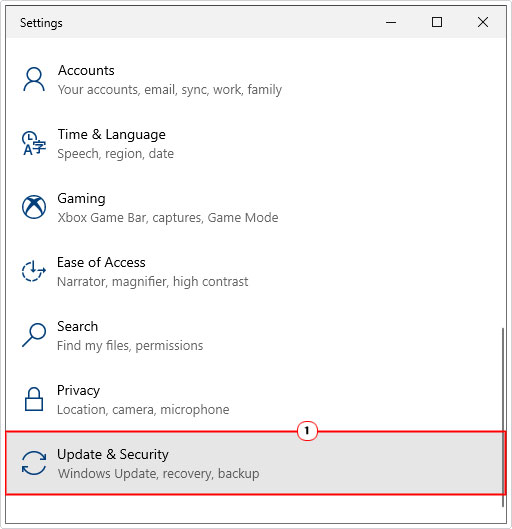
3. When Update & Security loads up, click on Windows Update.

4. This will bring up Windows Update, now click on Check for updates.

Use System Restore
If the OpenCL.dll error continues to appear, even after attempting all the solutions above, then you may want to try the System Restore feature. Essentially, it works by reverting your system back to a previous state. In this instances, before the error ever happened.
Of course, the Windows State or Restore Point needs to exist for it to work.
Anyway, you can find step-by-step instructions on how to use this feature from my post titled what is a restore point.
Run SFC & DISM
SFC and DISM are two built-in OS restoration tools. Designed to repair and/or replace missing or corrupted Windows files. Of course, OpenCL.dll is not an OS file. However, if the root cause of the error is OS corruption, then this method will certainly come in handy.
For additional details and step-by-step instructions on how to use these two tools, check out my post on fixing D3dx9_43.dll is missing errors.
Are you looking for a way to repair all the errors on your computer?

If the answer is Yes, then I highly recommend you check out Fortect.
Which is the leading registry cleaner program online that is able to cure your system from a number of different ailments such as Windows Installer Errors, Runtime Errors, Malicious Software, Spyware, System Freezing, Active Malware, Blue Screen of Death Errors, Rundll Errors, Slow Erratic Computer Performance, ActiveX Errors and much more. Click here to check it out NOW!