
| Attention Before you read this post, I highly recommend you check out my resources page for access to the tools and services I use to not only maintain my system but also fix all my computer errors, by clicking here! |
EMP.dll is a DLL file that belongs to a large number of applications end users may install on their systems. The ArcGIS Engine Runtime is one example of a notable app engine that the EMP.dll file belongs to. ArcGIS is used in the development of ArcObjects. However, EMP.dll is also commonly associated with cracked software (specifically in computer games).
When an end user is playing Hogwarts Legacy, Red Dead Redemption 2, Assassin’s Creed Valhalla or a whole host of other popular titles today, they may come across the following error message:
HogwartsLegacy.exe – System Error
The code execution cannot proceed because EMP.dll not found. Reinstalling the program may fix this problem.
If you see this error message when attempting to launch a game title, it typically indicates an issue with the EMP.dll file, either it has been erased or moved. The error may appear during game launch or while playing the game.
That said, when it comes specifically to game titles, the EMP.dll file is oftentimes indication of a cracked title. Instances of EMP.dll will usually be flagged by your internet security tool, which will either quarantine (move) the file or delete (erase) the file. So it’s possible you purchased the game from a non-reputable source.
Either way, to follow will be a more in-depth look into its more commonly associated causes, along with numerous methods you can use to fix this problem.
What Causes EMP.dll Errors?
Given the nature of the EMP.dll file, associated errors may and do occur in a number of different circumstances. However, for the sake of clarity, we will only focus on the most common cause. These are as follows:
- Your graphics card drivers are outdated.
- The EMP.dll file was mistakenly or correctly flagged and quarantined by your internet security software.
- EMP.dll was erased or moved by a third-party app.
- The associated app was pirated (or cracked).
So, what can you do to get around this problem? Well, unsurprisingly, quite a lot. To follow are a number of solutions that you can deploy right now.
How to Fix It
The first thing you’ll want to do, before anything else is reinstall the Redistributable Package. Although the EMP.dll file isn’t a part of the package, game-related errors are oftentimes the result of an outdated or corrupted Visual C++ Redistributable Package.
So, to eliminate this as a possible cause, go ahead and download the most up-to-date version, and install it. You can find instructions on how to do this, from my post on fixing MSVCP100.DLL is missing errors.
Next thing to consider is the possibility that the EMP.dll file is a possible threat to your system. While, DLL files in general are most certainly not harmful, EMP.dll is known to be associated with cracked (pirated) software. This means, the file could be spyware, adware or any other form of malware that could compromise and expose your system.
For that reason, it’s recommended that you start with the following solution:
Use Windows Repair Tool to Fix EMP.dll Errors
If the first solution above failed to fix the problem, then I’d suggest you attempted something more holistic. Like, the use of a Windows repair tool.
The tool I have in mind is multi-faceted, capable of scanning, detecting and fixing a wide range of issues on your system.
From DLL errors, to BSOD errors, to registry corruption to virus infections. Such problems can be detected and fixed all within a single scan.
This tool is also capable of optimising your systems performance, making it an all-in-one maintenance and repair suite.
If, by any chance that interests you. Then I suggest you visit the link below:
CLICK HERE TO CHECK OUT THE ADVANCED REPAIR TOOL
Update Device Drivers
If you encounter the “The code execution cannot proceed because EMP.dll was not found” error, while attempting to launch a game, it’s possible the error may be the result of an outdated graphics card (GPU) driver set. To get around this problem, you will need to update it.
To update your graphics card drivers, you have two options.
The first, is to go to the website of your GPU manufacturer and download the latest drivers off there, then install it. To do that, you will need to know the make and model number of your card.
The second option involves using a driver automation tool to do it for you. Simply, download, install and run it, and it will search the internet and download the latest drivers for all your attached hardware devices.
Depending on your circumstances and level of expertise, the driver tool may best suit you. If that’s true, then please visit the link below, for more information:
CLICK HERE TO CHECK OUT THE DRIVER FINDER TOOL
 The solution(s) below are for ADVANCED level computer users. If you are a beginner to intermediate computer user, I highly recommend you use the automated tool(s) above! The solution(s) below are for ADVANCED level computer users. If you are a beginner to intermediate computer user, I highly recommend you use the automated tool(s) above! |
Reinstall Game
This is one of the more obvious solutions and one you may have already tried. But if you haven’t, then I suggest you attempt a reinstallation of the affected game title.
Depending on the circumstances, this may or may not work. If the game was acquired legitimately, then a reinstallation should eliminate the error message. Otherwise, I’d suggest you purchased the game from a more reputable source.
Restore EMP.dll
Sometimes the EMP.dll file may be flagged and quarantined by your security solution by mistake. In instances like this, any apps that require or depend on the file will cease to work. Fortunately, it is possible to get the file out of quarantine. The instructions however will vary.
If you use Windows Defender (the built-in security solution), then you can do it by following the steps below:
1. First, boot into Windows as an admin.
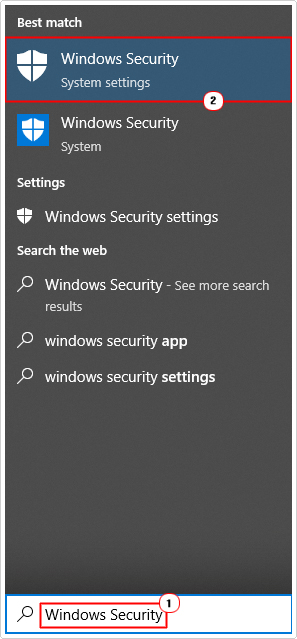
2. Next, type Windows Security into the Type here to search box and click on Windows Security.
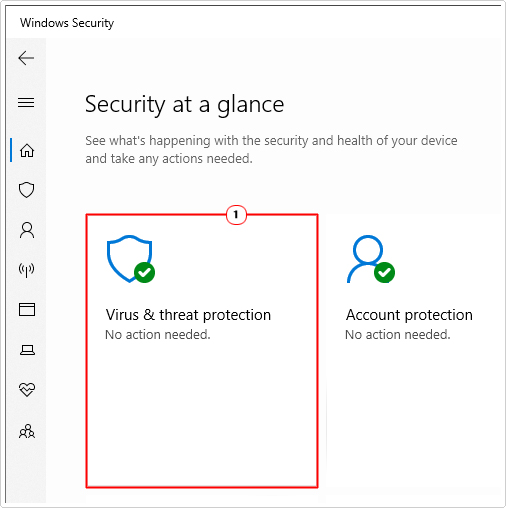
3. When Windows Security loads up, click on Virus & threat protection.
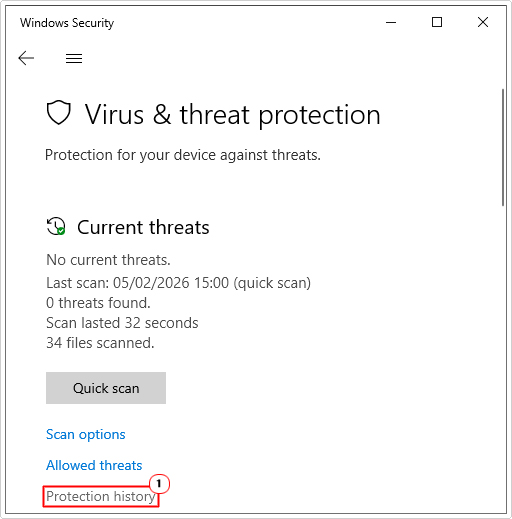
4. This will bring up Virus & threat protection, from here, click on Protection history.
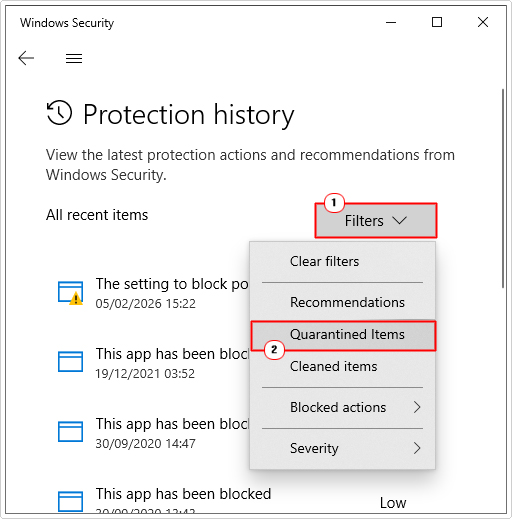
5. Next, click on Filters, then click on Quarantined Items.
6. Now, click on EMP.dll, then select Actions then click on Restore.
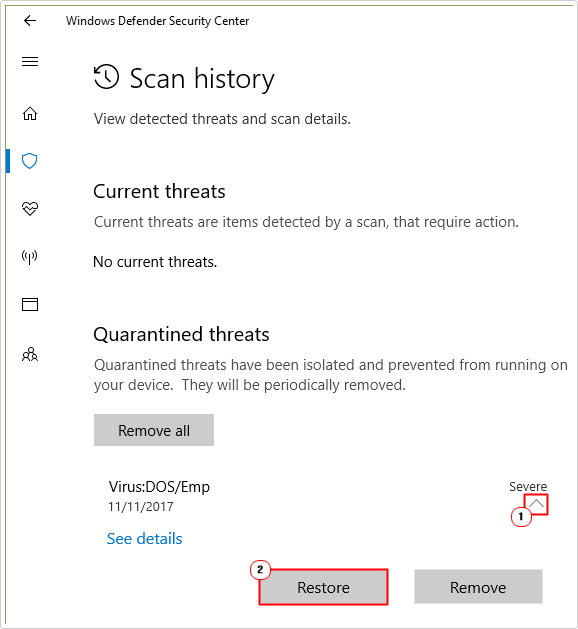
Now that you’ve restored the file, you can now retry the associated app.
Verify Game File Integrity
If the EMP.dll file makes up a legitimate part of games library of files (thus, not a crack), then you can restore the file, by verifying the integrity of these game files. This is a feature built into Steam and other digital distribution platforms.
Anyway, the instructions on how to use this feature can be found on my post on fixing Steam_api64.dll is missing.
Re-Register EMP.dll
Its possible important data belonging to the EMP.dll file was removed from the Windows registry. Without such data, Windows may be unable to locate the file.
Fortunately, such data can be reset or restored by using the re-register command.
The instructions are as follows:
1. Boot into Windows as an administrator.
2. Then press  + R, type cmd and press CTRL + Shift + Enter.
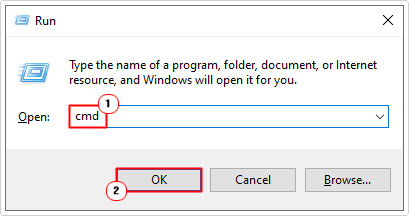
3. When Command Prompt loads up, type the commands below, pressing Enter after each line:
regsvr32 /u EMP.dll
regsvr32 EMP.dll
4. Lastly, close Command Prompt, then retry the problematic app.
Install EMP.dll
Another method you can try, involves manually downloading and installing the missing EMP.dll file. The problem is, that EMP.dll is a generic DLL file, meaning, there are many apps that use it, for many different purposes, as in the case of the ArcGIS Engine Runtime.
The file used in this specific tutorial belongs to EasternGraphics GmbH. Which means, it’s only applicable for such associated app(s).
Anyway, the instructions are as follows:
1. Boot into Windows an administrator.
2. Then download the EMP.dll file from the following link: https://www.mediafire.com/file/dczvquuvv3p52x6/emp.zip/file
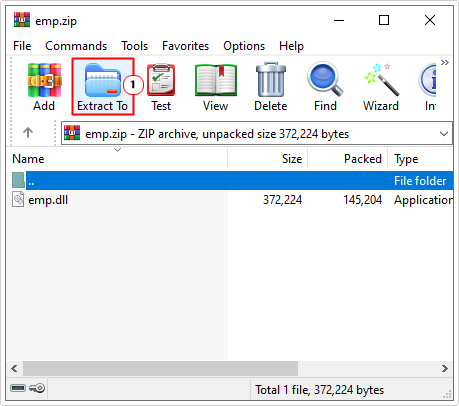
3. Next, open EMP.zip and click on Extract To.
4. This will bring up Extraction path and options. Next, type C:\Windows\System32 into the Destination path and click on OK.
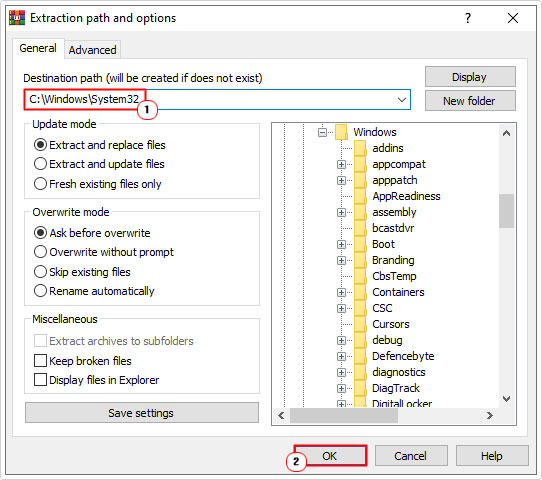
5. Repeat steps 3 – 4 and type C:\Windows\sysWOW64 into the Destination path and click on OK.
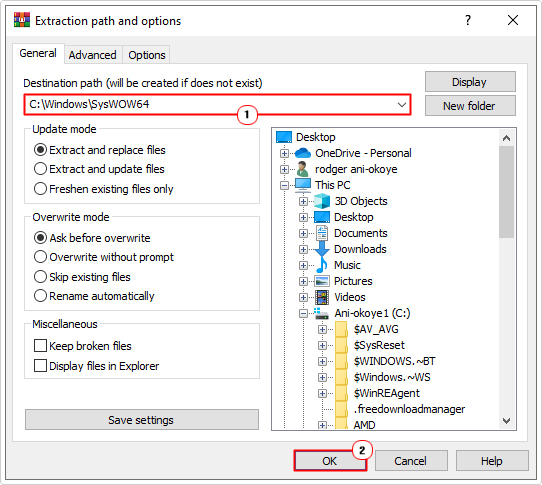
6. Lastly, restart Windows and retry the app.
Use Windows Restore
If the problem only recently occurred, then it may be possible to restore it using Windows Restore, providing you act quickly.
Windows Restore is designed to restore your system back to earlier states. However, it cannot restore erased (or deleted) files.
Anyway, for additional information on this tool and how to use it, check out my post titled what is a restore point.
Are you looking for a way to repair all the errors on your computer?

If the answer is Yes, then I highly recommend you check out Fortect.
Which is the leading registry cleaner program online that is able to cure your system from a number of different ailments such as Windows Installer Errors, Runtime Errors, Malicious Software, Spyware, System Freezing, Active Malware, Blue Screen of Death Errors, Rundll Errors, Slow Erratic Computer Performance, ActiveX Errors and much more. Click here to check it out NOW!