
| Attention Before you read this post, I highly recommend you check out my resources page for access to the tools and services I use to not only maintain my system but also fix all my computer errors, by clicking here! |
Xapofx1_5.dll not found is a particular error message end users may encounter while attempting to launch some game titles. This issue can and typically does occur on all iterations of Microsoft Windows. So, what exactly is it, and what can you do about it? Continue reading to find out.
Xapofx1_5.dll belongs to the Microsoft DirectX library of files, used specifically for handling Cross-platform audio processing objects or audio effects (to be short) in multimedia apps and PC games.
Depending on the app or game title, usually the Xapofx1_5.dll will come as part of the installation package. But there are cases when the app or game may not include the Xapofx1_5.dll file, which ultimately results in the proceeding error message. A wide assortment of .DLL files comes jam-packed with Microsoft Windows by default. However, certain situations, such as random crashing or system updates can corrupt important files, which can manifest themselves in the error we are currently discussing.
This specific Xapofx1_5.dll not found error can, ultimately apply to any program that uses Microsoft DirectX, however, in the vast majority of cases it is seen in PC games. Whether it’s in an app or game title, the error most commonly manifests itself during title launch, but can also occur during the installation phase, or when there is an attempt to verify or update DirectX files.
Games such as Dead Island and Counterstrike are just a few most notable examples of titles known to encounter the Xapofx1_5.dll error. But any game title that uses DirectX could, theoretically encounter this error.
What Causes Xapofx1_5.dll Not Found Errors?
After thoroughly researching this particular error, I was able to draw up a couple of its most frequent causes. They are as follows:
- Microsoft DirectX is corrupted or outdated.
- The app (or game title) files have been corrupted.
- The game title is buggy and needs updating.
- Your system has been infected with a malicious file.
These are just some of a wide number of possible causes. Ultimately, these are the things you must be aware of, if you want to fix this problem.
Now, let’s take a look at the various solutions you can deploy, right now.
How to Fix It
A very important DirectX audio .DLL file is not present on your system, this in turn, prevents the game (that requires it) from starting.
If you’ve gotten this far into the tutorial, then it’s fair to assume, that this is the scenario you’re currently battling with. So, what can you do about it? First of all, you can try:
Updating DirectX
The most common cause of this Xapofx1_5.dll not found error, is in the error message. The file is not found or not present on your system. In situations like this, a reinstallation of said file should be in order.
If, every time you try to play a game, you stumble upon this error message, then you should be able to fix the error by downloading and installing DirectX. This is a fairly simple process.
Just acquire the DirectX End-User Runtime Web installer from the following link: https://www.microsoft.com/en-gb/download/details.aspx?id=35
Downloading it to your Desktop, then double-click on it to begin the installation process.
Reinstall Game (or App)
Another possible cause of the Xapofx1_5.dll error is a corrupted or incomplete installation of said program. To eliminate this as a root cause, I suggest a reinstallation.
Just run through the same installation process and it should replace or complete any missing or corrupt program files.
Use Windows Repair Tool to Fix Xapofx1_5.dll Not Found Errors
If the two simple solutions outlined above failed to fix the Xapofx1_5.dll not found (or missing) error, then you should scan your system using a Windows repair tool.
The tool I have in mind is highly advanced, multifaceted, and capable of detecting and fixing a wide range of problems on your system. It’s highly adept at fixing Windows corruption, virus and malware infections, DLL errors, runtime errors, game errors, update errors and much more.
With that said, if this tool interests you, then visit the link below:
CLICK HERE TO CHECK OUT THE ADVANCED REPAIR TOOL
 The solution(s) below are for ADVANCED level computer users. If you are a beginner to intermediate computer user, I highly recommend you use the automated tool(s) above! The solution(s) below are for ADVANCED level computer users. If you are a beginner to intermediate computer user, I highly recommend you use the automated tool(s) above! |
Install Pending Updates
One fairly nifty way of fixing Xapofx1_5.dll errors is by installing any and all pending updates available through Windows Update.
Depending on the circumstances that led up to the error, it’s possible that completing your pending Windows Updates, may provide the OS with the required file(s) to alleviate or fix the Xapofx1_5.dll not found issue.
Anyway, to access and complete pending updates, simply do the following:
1. First, boot into Windows as a full administrator.
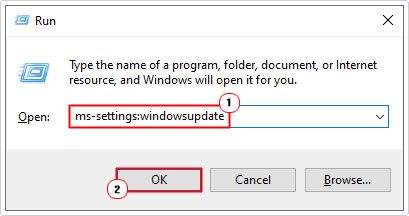
2. Then press  + R, type ms-settings:windowsupdate and click on OK.
3. This will bring up the Windows Update applet, from here, click on Check for updates.
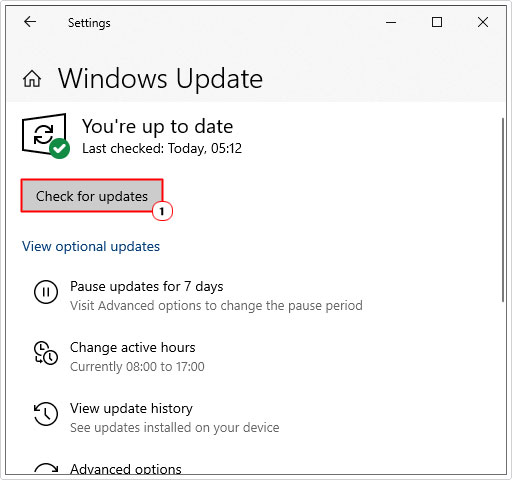
Depending on the number of pending updates you have, the OS may be required to restart. If it does, be sure to come back to the Windows Update applet, to complete the process. Installing every update.
Once you have finished, you can now try running the game (or app) to see whether or not the error has been fixed.
Install Xapofx1_5.dll
If the Xapofx1_5.dll not found error continues to persist, even after attempting the highly effective methods above, then you may want to try installing the Xapofx1_5.dll file manually to your Windows operating system.
To do this, follow the steps below:
1. First, boot into Windows as an admin.
2. Next, download the appropriate Xapofx1_5.dll file from the following links:
64-bit: https://www.mediafire.com/file/bqcwl64aig59lv9/xapofx1_5+64.zip/file
32-bit: https://www.mediafire.com/file/dr6nvz2j87xldek/xapofx1_5+32.zip/file
3. Now, open the Xapofx1_5.zip file and click on Extract To.
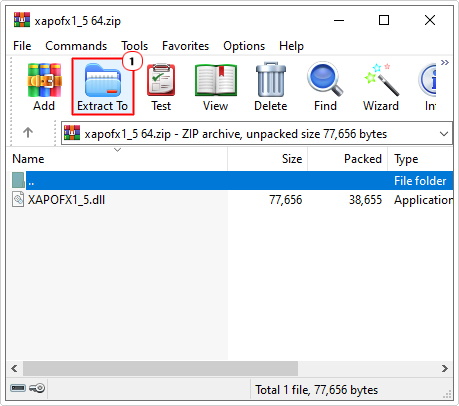
Note: In this tutorial, we are using WinRAR.
4. This will bring up the Extraction path and options applet. Simply type C:\Windows\SysWOW64 (for 64-bit systems) or C:\Windows\System32 (for 32-bit systems) into the Destination path box and click on OK.
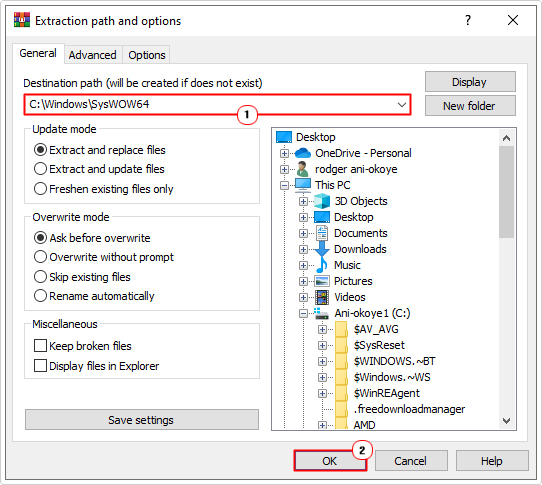
Note: If you don’t know whether or system is 32-bit or 64-bit, you can find out, by following the steps outlined in my post on fixing Microsoft Store error code 0x80073CF3.
5. Once you have done that, restart your system. Then retry the app (or game).
Run SFC
SFC or System File Checker is a built-in Windows tool designed to scan, check and repair (or replace) missing or corrupted system files. If the Xapofx1_5.dll not found error is the result of OS corruption, then this tool may be able to fix it.
For more information on this tool, along with the necessary steps on using it, check out my post titled how to run SFC Scannow.
Are you looking for a way to repair all the errors on your computer?

If the answer is Yes, then I highly recommend you check out Fortect.
Which is the leading registry cleaner program online that is able to cure your system from a number of different ailments such as Windows Installer Errors, Runtime Errors, Malicious Software, Spyware, System Freezing, Active Malware, Blue Screen of Death Errors, Rundll Errors, Slow Erratic Computer Performance, ActiveX Errors and much more. Click here to check it out NOW!