
| Attention Before you read this post, I highly recommend you check out my resources page for access to the tools and services I use to not only maintain my system but also fix all my computer errors, by clicking here! |
Have you recently encountered an ffmpeg.dll not found error? The ffmpeg.dll error will oftentimes occur when attempting to launch an app that requires it. In most cases, the error is the result of a missing or corrupt ffmpeg.dll file (as the error states). In this tutorial we will be discussing, what this file is, and how you can fix its associated error(s).
Ffmpeg.dll is a DLL or Dynamic Link Library file. This means it is a file created to be used by more than one application. Such files are designed for efficiency sake, so Windows runs faster and more optimally. Ffmpeg.dll is a relatively important file, used primarily by messaging apps (or tools).
As previously stated, error messages stating that the ffmpeg.dll file cannot be found will oftentimes occur when attempting to launch an app. However, they can also occur during the installation phase, when Windows is booting up or when surfing the web. Corruption of integral system files is known to cause issues with the ffmpeg.dll file, but that is a generalised cause, that can result in many error types. The apps this file is most associated with are WhatsApp, Microsoft Teams, Discord and Skype.
The ffmpeg.dll error message can manifest itself in more than one way. However, the most common is as follows:
The program can’t start because ffmpeg.dll is missing from your computer. Try reinstalling the program to fix this problem.
The code execution cannot proceed because ffmpeg.dll was not found. Reinstalling the program may fix this problem.
Now that we have that out of the way, let’s take a closer look at the root causes of this error.
What Causes Ffmpeg.dll Is Missing Errors?
Ffmpeg.dll is an important file, most especially because of the popularity of the apps that depend on it. So, what most commonly is the cause of its associated errors? From my research it is the following:
- The Windows operating system has been corrupted.
- The ffmpeg.dll file was not installed along with the app that required it.
- Ffmpeg.dll has been erased or corrupted.
Typically, when an app is being installed, it will include all key files required for it to run. In this case, if the file requires the ffmpeg.dll file, then it would be included in the apps installation package. However, there are instances when an app may be updated, and the developers forget to include the ffmpeg.dll file.
So, what can you do about all this? Continue reading to find out.
How to Fix It
First things first, you’ll want to ensure that your system is up-to-date, that means, all the latest drivers and OS updates are installed and running on your system. If you are certain that is the case, then power your system down.
The best way to do this is by pressing down the power button for several seconds until the system powers down.
Now, wait a couple of seconds and turn the system back on.
Now you can check whether or not the problem has been resolved. If it has not, then I recommend you attempt the many solutions below, ideally in the order that they appear:
Use Windows Repair Tool to Fix Ffmpeg.dll Is Missing Errors
The fastest, easiest and most efficient way of fixing an ffmpeg.dll is missing error is to use a Windows repair tool. The tool I have in mind is multifaceted, capable of scanning, detecting and fixing DLL errors.
But not only DLL errors, it can also fix runtime errors, app errors, BSOD errors and much more.
Another excellent feature of this tool is its ability to make your system faster. Making it your ideal repair and maintenance tool.
It’s very easy to use, just download and install and the tool will do the rest.
If that by any chance interests you, then visit the link below:
CLICK HERE TO CHECK OUT THE ADVANCED REPAIR TOOL
 The solution(s) below are for ADVANCED level computer users. If you are a beginner to intermediate computer user, I highly recommend you use the automated tool(s) above! The solution(s) below are for ADVANCED level computer users. If you are a beginner to intermediate computer user, I highly recommend you use the automated tool(s) above! |
Clear App Cache
Caching is used by apps as a way of enhancing its overall performance. Making it quicker to access and more responsive. However, if these cache files get corrupted, it can cause errors, such as ffmpeg.dll is missing, to occur.
To get around this problem, the user will need to delete these cache files. To do that, follow the steps below:
1. First, boot into your system as a full administrator.
Note: If you’re already booted into Windows, then close the problematic app.
2. Next, press  + R, type %AppData% and click on OK.
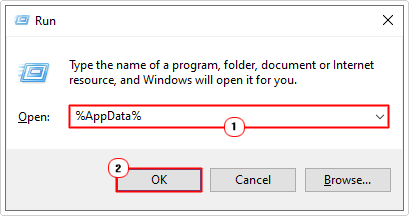
3. This will bring up the AppData folder, from here, double-click on the brand of the app. In this case I’m removing the cache data for Microsoft Teams, so I choose the Microsoft folder.
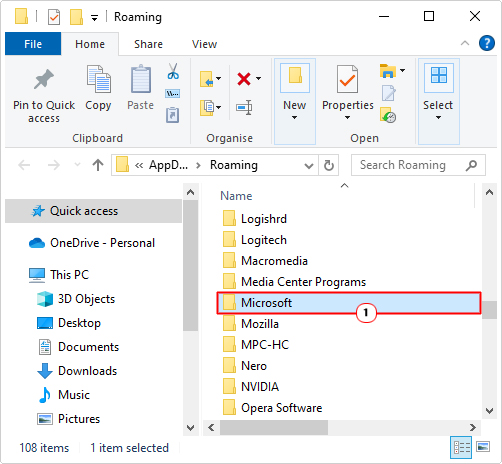
4. This will bring up the Microsoft folder, with all its apps currently installed on your system. Now, double-click on Teams.
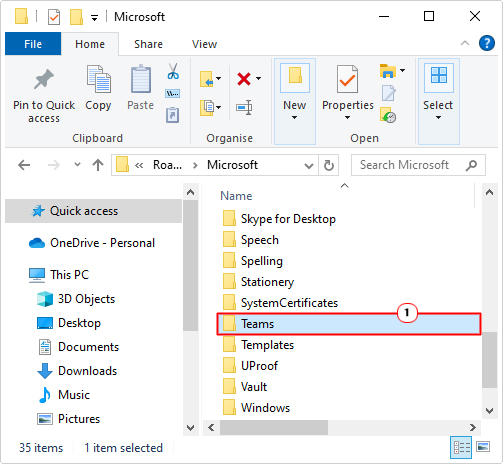
5. You should now be in the Teams, from here, you’ll want to erase the data in the following folders:
Cache
Code Cache
DawnCache
GPUCache
tmp
Note: Essentially, you’re looking for any folder(s) with cache or tmp in the name.
6. Simply, double-click on the folder.
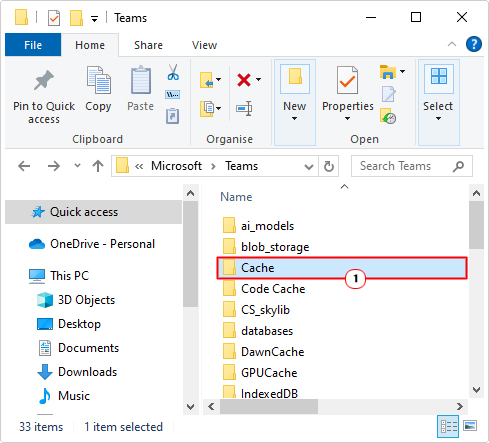
7. Then click on Select All and lastly Delete.
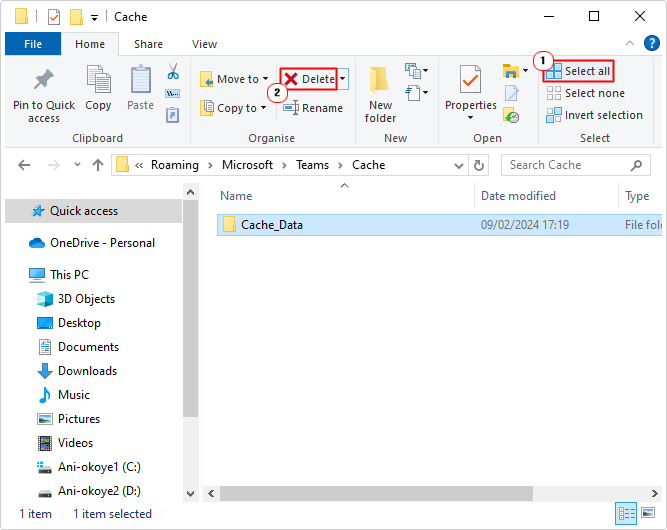
Now you can check whether or not it has fixed the ffmpeg.dll errors.
Install Ffmpeg.dll
Assuming the ffmpeg.dll file is not present on your system, then you can get around this problem by manually installing it yourself.
To do this, you will need a copy of the file which you can obtain by following the steps below:
1. First, boot into your system as a full administrator.
2. Then download the corresponding file from the link(s) below:
32-bit: https://www.mediafire.com/file/0m7reepo80wcyx2/ffmpeg+32.zip/file
64-bit: https://www.mediafire.com/file/yfn0prcq3u395r2/ffmpeg+64.zip/file
Note: If you’re on a 64-bit OS (which is most likely), then download the 64-bit version of the file. Otherwise, for older operating systems, download the 32-bit version.
3. Next, double-click on the ffmpeg.zip file and select Extract To.
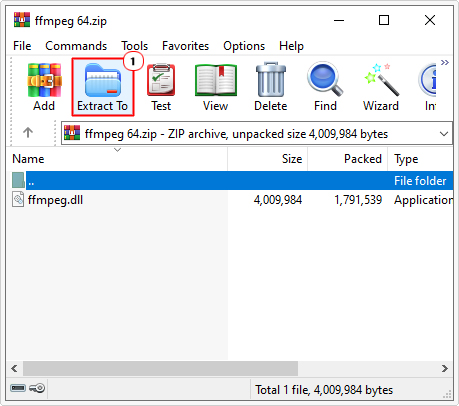
Note: In this tutorial, I am using WinRAR.
4. This will bring up the Extraction path and options box, simply type C:\Windows\System32 into the Destination path box and click on OK.
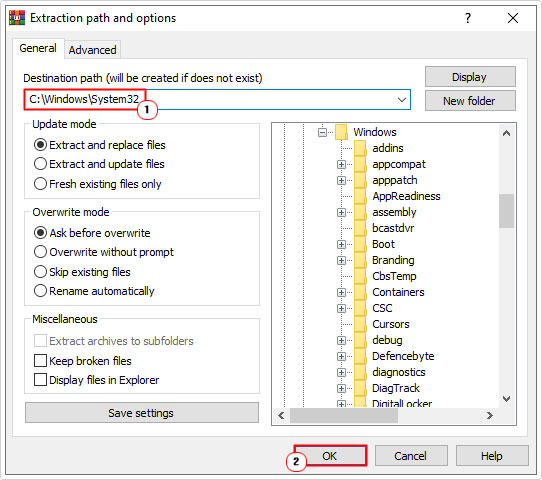
5. Lastly, restart Windows, then verify whether or not this has fixed the error.
Copy Data to New App Folder
If you attempted to reinstall an app and do not remove all remnants of the previous installation, it can cause a duplication of the app folder. This means, two folders on your system with the same name.
In situations like this, you’ll want to copy the data from the old folder to the new one. To do that, follow the steps below:
1. First, copy steps 1 – 3 of Clear App Cache.
Note: For this tutorial, we’ll be looking at a duplication issue with Microsoft Teams, but this method can be applied to Discord, WhatsApp etc…
2. Next, in the Microsoft Folder, double-click on Teams (the original installation folder).
Note: if there is a duplication of Microsoft Teams, the new folder may have a name similar to: Teams–S1.
3. Now, click on Select All and then Copy.
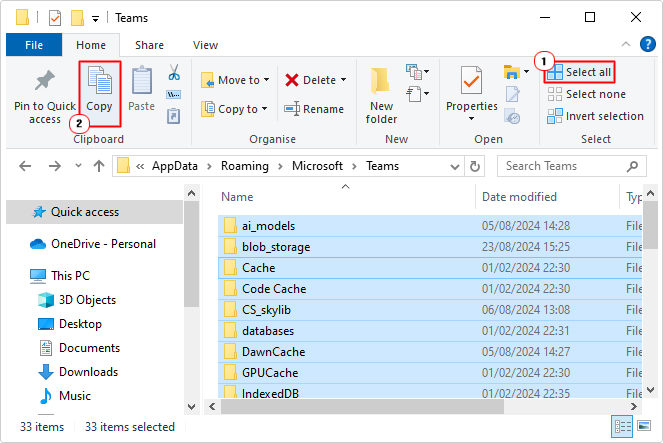
4. Then go back and double-click on Teams-S1.
6. Lastly, click on Paste and close the folder.
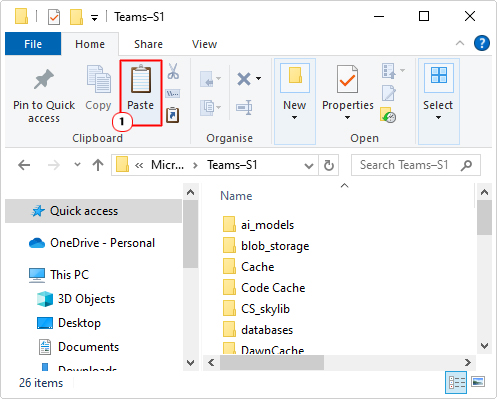
Now try opening the app to verify whether or not the issue has been fixed.
Reinstall App
If the ffmpeg.dll is missing error still hasn’t been fixed, even after attempting all the solutions above, you may want to try a reinstallation.
This is a fairly simple process, just do the following:
1. First, boot into Windows as an admin.
2. Then press + R, type Appwiz.cpl and click on OK.
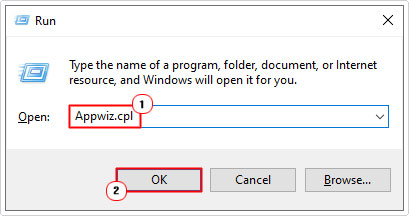
3. This will bring up Programs and Features. Simply, click on Microsoft Teams, then click on Uninstall.
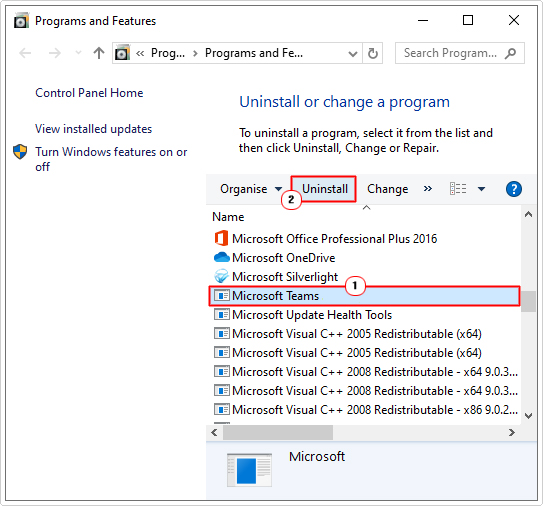
4. Once that’s complete, press + R, type %localappdata% and click on OK.
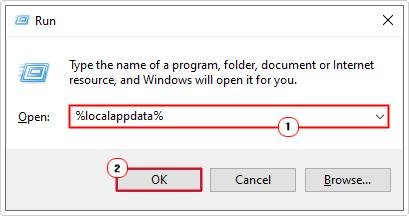
5. This will bring up the AppData folder. Now double-click on Microsoft.
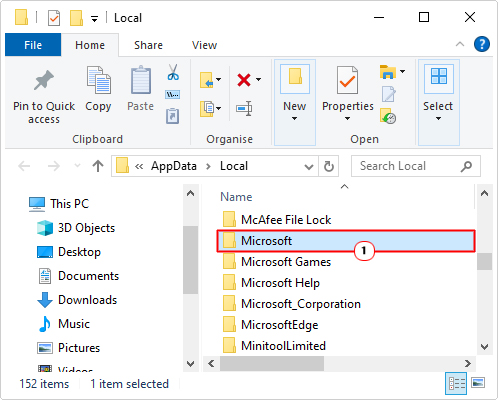
6. In the Microsoft Folder, click on Teams and select Delete.
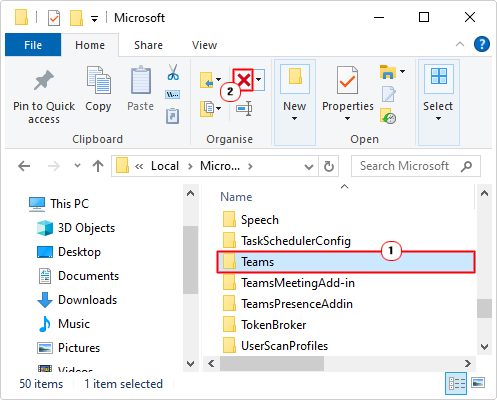
7. Now, restart your system, and install Microsoft Teams again.
Use System File Checker
One of the known causes of ffmpeg.dll missing errors is the corruption of important system files. Fortunately SFC of System File Checker is a built-in tool designed to replace corrupted or missing system files.
For instructions on how to use this tool, I suggest you check out my post titled how to run SFC Scannow.
Are you looking for a way to repair all the errors on your computer?

If the answer is Yes, then I highly recommend you check out Fortect.
Which is the leading registry cleaner program online that is able to cure your system from a number of different ailments such as Windows Installer Errors, Runtime Errors, Malicious Software, Spyware, System Freezing, Active Malware, Blue Screen of Death Errors, Rundll Errors, Slow Erratic Computer Performance, ActiveX Errors and much more. Click here to check it out NOW!