
| Attention Before you read this post, I highly recommend you check out my resources page for access to the tools and services I use to not only maintain my system but also fix all my computer errors, by clicking here! |
Vulkan-1.dll missing errors occur when the operating system is unable to find the respective file while launching an application. Vulkan-1.dll is one of a series of files used for rendering 3D graphics, which means associated errors oftentimes occur when playing PC games.
The Vulkan-1.dll file may have been erased, or modified unexpectedly resulting in the corresponding error. The most common error messages resemble the following:
The program can’t start because Vulkan-1.dll is missing from your computer. Try reinstalling the program to fix this problem
The code execution cannot proceed because Vulkan-1.dll was not found. Reinstalling the program may fix this problem.
Vulkan-1.dll is a DLL or Dynamic Link Library file that is required specifically for the Vulkan 3D graphics API. This allows for a more efficient GPU performance while playing games and applications (that require 3D acceleration). It also doubles as a loader, for your GPUs drivers, often causing the “not found” error message if your current graphics card drivers are corrupted, missing or outdated.
There are a plethora of games that this error is known to occur when end users attempt to launch it. These can range from more notable classic titles like Doom or Wolfenstein, to the latest games today. Essentially, there’s no specific game that is more susceptible to this problem.
What Causes Vulkan-1.dll Is Missing Errors?
Experts agree that there are a number of factors that can and do contribute to this error. In certain cases, it could be the result of an incomplete installation of the Vulkan driver set.
Whereas in other situations it could be one of the following:
- The Vulkan-1.dll file is corrupt – This may be the result of an overzealous security tool like Windows Defender blocking and/or quarantining the file.
- Your system suffered a power failure – When the power to your system suddenly goes off, it can and oftentimes does causes data corruption. In this case, the Vulkan-1.dll file may have fallen victim to this situation.
- Your system has been infiltrated by a malicious file – A virus, worm or Trojan horse may have infiltrated your system and corrupted key Windows files.
- GPU drivers are outdated – When was the last time you updated the drivers for your graphics card? It is possible outdated or buggy drivers could be causing the Vulkan-1.dll error.
- Vulkan-1.dll didn’t come with the driver set – It’s possible the Vulkan-1.dll file was specifically or accidently omitted from your GPUs driver set. Or it could simply have been installed to the wrong directory.
These are some of the more common culprits when looking at Vulkan-1.dll related errors. However, there may be more. That aside, to follow is a series of solutions that you can use to rectify this problem right now.
How to Fix It
Before we get to any of the heavy solutions, I always recommend you start with the basics. So, restart your system. Sometimes certain files fail to load during a boot up.
If the restart doesn’t fix the error, then I suggest a reinstallation of the problematic software. The best approach is to uninstall the app first, and restart your system. Then go through the installation process for a second time.
Install Vulkan
Vulkan-1.dll is associated with the Vulkan loader, as a result, it is possible to download and install the appropriate file (Vulkan-1.dll) as a package bundle. To do that, you will need to acquire the Vulkan Runtime Installer. You can find that from the following link: https://vulkan.lunarg.com/sdk/home?fbclid=IwAR3uPe0tJMTAdnaDAELcT-wI44vKlvv1hEfzokwyLIQuOAgOI6D7qh_HjnA
The link will take you to the LunarXchange page, from here, download the latest SKD Installer for your operating system by clicking on the appropriate .exe link.
Save the .exe file to your Desktop, then double-click on it to begin the installation process.
Once complete, restart your system, and then verify whether or not this has fixed the error.
Update GPU Drivers
It’s possible your GPU drivers are missing, corrupt or outdated. In situations like this, downloading and installing the latest drivers for your card should do the trick.
To do that, you will need to know what GPU you currently have installed in your system. Then visit the website of the manufacturer and download the drivers off there.
Alternatively, if you lack this information or the expertise to install new drivers, then I suggest you use a driver automation tool. Such a tool will search the internet, download and install all the latest drivers for the various hardware devices attached to your system.
If the driver tool suits you better, then visit the link below:
CLICK HERE TO CHECK OUT THE DRIVER FINDER TOOL
Run Virus Scan
As previously noted, it’s possible a malicious file got onto your system and corrupted integral system files. It does this (corruption), by adding additional data (code) to these files. This may be done for a number of different purposes, from providing backdoor access, to stealing sensitive data.
Either way, the best approach is to run a full scan of your system using an internet security tool. So if you have one, then I suggest you go ahead and use it.
Alternatively, you could use System Mechanic. Which is the very best antimalware tool out there. Able to scan, detect and remove a wide range of virus types. If you don’t have a virus scanner or you’d just like to try something more comprehensive, then I recommend you visit the link below:
CLICK HERE TO CHECK OUT SYSTEM MECHANIC
Use Windows Repair Tool to Fix Vulkan-1.dll Is Missing Error
If all the solutions above fail to fix the Vulkan-1.dll missing error, then you may want to try a Windows repair tool.
The tool I have in mind is advanced, multifaceted, and capable of detecting and fixing a wide range of error types, including DLL errors. This tool can also fix corrupted Windows files, remove malicious files from your system and much more.
If, such a tool interests you, then I suggest you visit the link below for more information:
CLICK HERE TO CHECK OUT THE ADVANCED REPAIR TOOL
 The solution(s) below are for ADVANCED level computer users. If you are a beginner to intermediate computer user, I highly recommend you use the automated tool(s) above! The solution(s) below are for ADVANCED level computer users. If you are a beginner to intermediate computer user, I highly recommend you use the automated tool(s) above! |
Reinstall GPU Drivers Using DDU
The Vulkan-1.dll typically will come with your driver set, if it has been corrupted, erased or moved, then you should be able to resolve the related error by reinstalling your graphics card drivers.
DDU (Display Driver Uninstaller) is a tool used to uninstall your graphics card drivers before reinstallation. This is a crucial part of the process, if you want to ensure all new files including the Vulkan-1.dll file is reinstalled on your system. Anyway, the instructions are as follows:
1. First, boot into your system as a full administrator.
2. Then download the drivers for your graphics card. You will need to know the exact brand and version of GPU you have to ensure you acquire the appropriate drivers.
3. Next, visit the following link and download the DDU: https://www.guru3d.com/download/display-driver-uninstaller-download/
4. Save the [Guru3D]-DDU.zip file do your Desktop and open it. Now, double-click on the DDU.exe file.
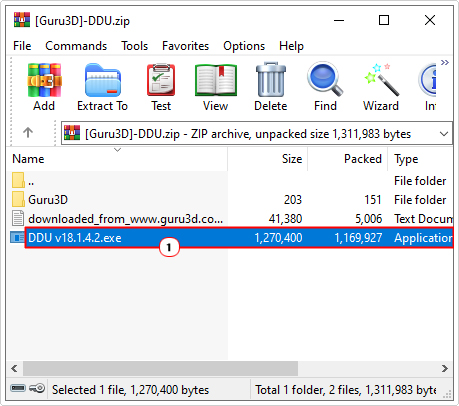
5. This will bring up the Self-extracting archive applet. Type C:\Users\Username\Desktop in the Extract to box and click on Extract.
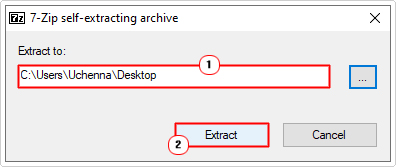
Note: Replace Username with your LOGIN USERNAME.
6. This should create a DDU folder on your Desktop. Double-click on it, then double-click on Display Driver Uninstaller.exe and follow the onscreen instructions.
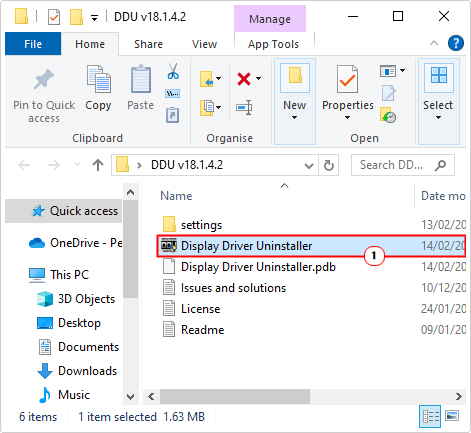
7. Once it has completed, you should be asked to restart your system. Do that, then install the GPU drivers that you originally downloaded.
After completion, you can now check whether or not the error has been fixed.
Re-Register Vulkan-1.dll
Another method you can use involves re-registering the Vulkan-1.dll. Essentially, you’re updating the Windows registry on the “whereabouts” of the Vulkan-1.dll file. To do that, follow the steps below:
1. Boot into Windows as a full administrator.
2. Then press  + R, type cmd and press CTRL + Shift + Enter.
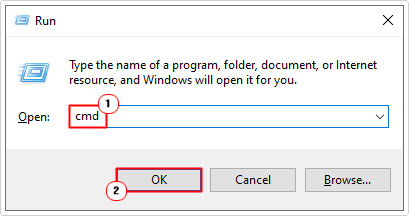
3. When Command Prompt loads up, type the command below and press Enter.
REGSVR32 Vulkan-1.dll
4. Once completed, close Command Prompt and restart your system.
You can now verify whether or not the Vulkan-1.dll error has been fixed.
Run System File Checker
System File Checker (SFC) is a built-in Windows tool designed to detect and replace missing or corrupted system files. If the Vulkan-1.dll error is the result of OS corruption, then this tool may be able to fix it.
For more details on this tool, along with instructions on how to use it, check out my post on how to run SFC Scannow.
Update Windows
Sometimes the simplest of solutions can prove to be the most effective. The Vulkan-1.dll error could be the result of an outdated system. In circumstances like this, a simple check for updates may be all that’s needed to bring your system back up to speed.
For instructions on how to do this, check out my post on fixing Xapofx1_5.dll not found errors.
Are you looking for a way to repair all the errors on your computer?

If the answer is Yes, then I highly recommend you check out Fortect.
Which is the leading registry cleaner program online that is able to cure your system from a number of different ailments such as Windows Installer Errors, Runtime Errors, Malicious Software, Spyware, System Freezing, Active Malware, Blue Screen of Death Errors, Rundll Errors, Slow Erratic Computer Performance, ActiveX Errors and much more. Click here to check it out NOW!