
| Attention Before you read this post, I highly recommend you check out my resources page for access to the tools and services I use to not only maintain my system but also fix all my computer errors, by clicking here! |
Software issues and errors is a common liability of the Windows operating system. It disturbs workflow, and causes frustration resulting in productivity loss. One fairly common error many uses encounter relates specifically to the mfc100.dll file. In this tutorial, we will be discussing, exactly what mfc100.dll is, and the various ways you can fix its associated errors.
Mfc100.dll is a DLL (Dynamic Link Library) file used by a wide assortment of apps. As an essential Windows file, it is most associated with Microsoft Visual Studio. Mfc100.dll is made up of a series of instructions and functions that ensure the programs that require it, work.
The mfc100.dll file features as part of the Microsoft Visual C++ 2010 Redistributable package. This is a standalone package that users need to install (and update) in order to run certain apps coded using Visual C++. Mfc100.dll is just one of hundreds of accompanying files.
When an end user attempts to run an app or game that requires the redistributable package, it will cycle through all its files to ensure everything is intact. In the event that a required file is corrupted or missing, the user may be greeted with a “not found” error.
When it comes to DLL files like mfc100.dll, its associated errors typically come in a number of variants. But they all refer to the same thing. That the file is corrupted, missing or erased.
Some of the error messages you may encounter include the following:
The program can’t start because mfc100.dll is missing from your computer.
Cannot find mfc100.dll.
Failed to load mfc100.dll.
Now that we’ve got that out of the way, let’s take a look at its various root causes.
What Causes Mfc100.dll Errors?
DLL errors can be quite generic, in that their error causes tend to be quite similar across the board. However, when it comes to the mfc100.dll file, we’re looking at the following potential root causes:
- An issues with the Redistributable Package: It’s possible an issue occurred during the installation of the Microsoft Visual C++ Redistributable Package. A failed installation can result in the corruption of key package files.
- The system has been infected with a malicious file: Malicious files infiltrate systems and typically target the most impactful files of the operating system. This can be for a variety of reasons, like system instability, system hijacking etc…
- Hardware failure: An old dodgy hard drive with bad sectors is enough to cause the corruption of key system files. Additionally, it could be a faulty memory module (RAM) that the OS is attempting to copy the file(s) onto.
- One or more apps are conflicting: The wrong app/program can inadvertently result in the erasure of DLL files. Two conflicting apps can also cause data corruption, especially if they require the same DLL files to run.
Now that we have a general idea of what causes this error, let’s look at the different ways you can fix it.
How to Fix It
If you are currently bogged down with an mfc100.dll is missing error, then the first thing you want to ensure is that you or an app didn’t mistakenly erase the file. To do that, I’d suggest you checked your Recycle Bin. Simply double-click on it, and if you find the file in there, click on it, then click on Restore the selected items.
In most cases, the error message will suggest that you reinstall the problematic app, but this is a generic notification told across all DLL not found errors.
As a result, a reinstallation may not be an effective solution. Despite that reality, I would still suggest a quick reinstallation – so…run through the installation process a second time.
However, if the error still persists, then I recommend the following solutions below:
Download Microsoft Redistributable Package
This probably goes without saying. The Microsoft Visual C++ Redistributable Package is where you typically will find the mfc100.dll file. As a result, an installation (or reinstallation) of this package should result in the repair or replacement of the mfc100.dll file on your system.
The steps are simple. Just visit the following website: https://learn.microsoft.com/en-us/cpp/windows/latest-supported-vc-redist?view=msvc-170
Now, click on Latest support Redistributable version.
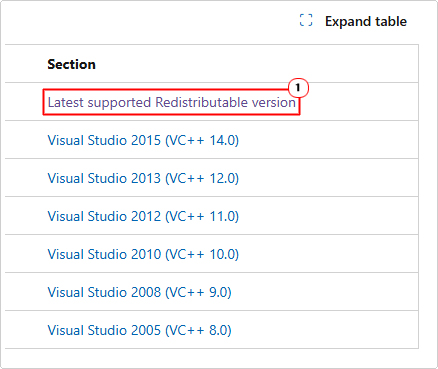
This will take you to the latest supported redistributable version section. Simply click on the corresponding version: X86 or X64.
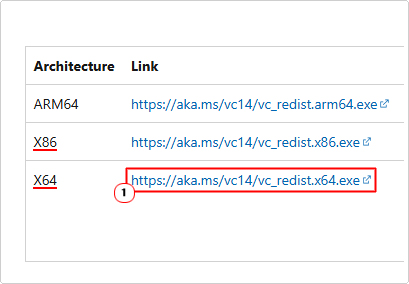
Note: X64 is for 64-bit operating system (which is most systems today) and X86 is for 32-bit operating systems.
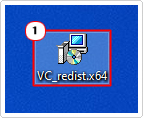
Save the VC_redist file to your Desktop, then double-click on it to begin the installation process.
Use Windows Repair Tool to Fix Mfc100.dll Errors
If the solutions above fail to fix the mfc100.dll error, then you may want to try something more holistic.
For the novice to intermediate PC user, you may want to consider the use of a Windows repair tool.
The tool I have in mind is capable of detecting and fixing a variety of error types, such as BSOD, DLL, app, Windows Update, game and much more.
It’s also capable of optimising your systems performance. Making it both a repair and maintenance suite.
If by any chance that interests you, then visit the link below:
CLICK HERE TO CHECK OUT THE ADVANCED REPAIR TOOL
 The solution(s) below are for ADVANCED level computer users. If you are a beginner to intermediate computer user, I highly recommend you use the automated tool(s) above! The solution(s) below are for ADVANCED level computer users. If you are a beginner to intermediate computer user, I highly recommend you use the automated tool(s) above! |
Run CHKDSK
One notable cause of mfc100.dll errors is hard drive corruption. It’s possible, data was stored on a sector of the hard drive that has gone bad with time. The operating system typically is unable to read data on bad sectors of the drive. However, with CHKDSK it is possible to attempt a recovery of this data. To do that, simply follow the steps below:
1. First, boot into Windows as a full administrator.
2. Then press  + R, type cmd and press CTRL + Shift + Enter.
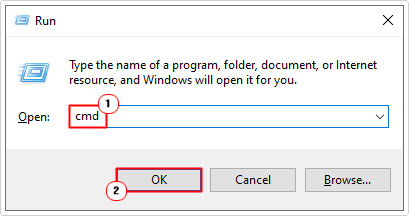
3. When Command Prompt loads up, type the command below and press Enter.
Chkdsk C: /f
4. This will run the check disk feature. If it’s unable to run, it will ask you if you would like to schedule it to run on the next system restart. Simply type Y and press Enter.
Install Mfc100.dll
If the mfc100.dll error still hasn’t been fixed, then you may want to try manually adding the file to your operating system (assuming it has been erased or corrupted). To do that, follow the steps below:
1. Boot into Windows as an admin.
2. Now, download the appropriate mfc100.dll file from the following links:
64-bit version: https://www.mediafire.com/file/6kdv3g3fjduij9g/mfc100+64.zip/file
32-bit version: https://www.mediafire.com/file/y2mvdcheq6fgogy/mfc100+32.zip/file
Note: For most modern systems (Windows 10/11), you need only download the 64-bit version.
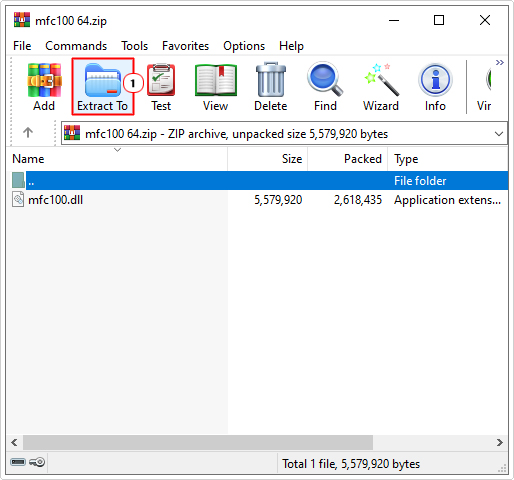
3. Save the mfc100.zip file to your Desktop, then open it. Once it is open, click on Extract To.
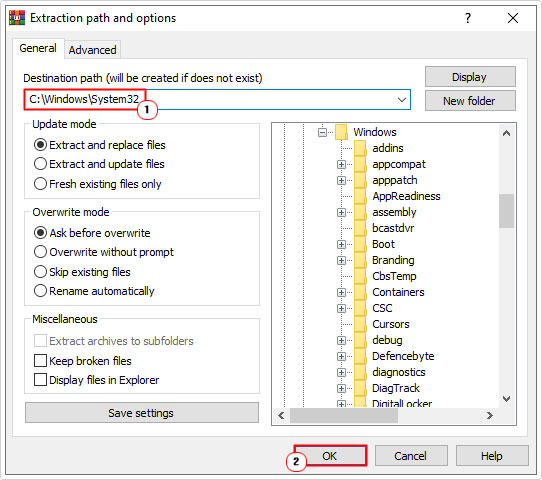
4. This will bring up the Extraction path and options applet. Simply type C:\Windows\System32 into the Destination path box, then click on OK.
5. Now, press + R, type cmd and press CTRL + Shift + Enter.
6. This will bring up Command Prompt, type the command below and press Enter.
Regsvr32 mfc100.dll
7. Close Command Prompt and restart your system.
Now you can check whether or not it has fixed the error.
Use System Restore
Another tool you can use, to possibly fix the mfc100.dll error is the Windows System Restore tool. This feature has limited restoration abilities. But essentially, it works by restoring your system back to a previous state. In order for it to do this, it must create periodic restore points. Whether or not these restore points exist on your system, depends on whether the feature has been enabled.
Anyway, you can find out more about this tool, as well as how to use it, from my post on what is a restore point.
Are you looking for a way to repair all the errors on your computer?
If the answer is Yes, then I highly recommend you check out Fortect.
Which is the leading registry cleaner program online that is able to cure your system from a number of different ailments such as Windows Installer Errors, Runtime Errors, Malicious Software, Spyware, System Freezing, Active Malware, Blue Screen of Death Errors, Rundll Errors, Slow Erratic Computer Performance, ActiveX Errors and much more. Click here to check it out NOW!