
| Attention Before you read this post, I highly recommend you check out my resources page for access to the tools and services I use to not only maintain my system but also fix all my computer errors, by clicking here! |
A Dynamic Link Library (DLL) file contains data that is used amongst various different applications and tools. These files are pivotal to the smooth functionality of those apps. DLL errors are very common and typically manifest themselves in the same way. An end user may be attempting to open an app, only to be greeted with an api-ms-win-crt-runtime-l1-1-0.dll is missing error notification. So what can you do about it? Continue reading to find out.
You can find the api-ms-win-crt-runtime-l1-1-0.dll file in the following locations on your system:
C:\Windows\System32
C:\Windows\SysWOW64
DLL files were created for efficiency sake, as they prevent software developers from having to create files containing the same code (and functions) across different apps that require the same resources. The api-ms-win-crt-runtime-l1-1-0.dll file is an integral Windows file, as it belongs to Microsoft’s Redistributable Package.
The accompanying error message end users are likely to encounter typically looks something like the following:
The program can’t start because api-ms-win-crt-runtime-l1-1-0.dll is missing from your computer. Try reinstalling the program to fix this problem.
It’s a generic error message consistent with most DLL error types. The suggestion of reinstallation, in some cases does fix the problem. However, oftentimes, end users will comply, only to encounter the same error message again, as they attempt to launch the app.
If you are one of those individuals that tried a reinstallation, but to no avail, then you need not worry, as the solution is likely to be contained in this tutorial. So, before we get to the solutions, let’s take a more in-depth look into the general causes of this error.
What Causes Api-ms-win-crt-runtime-l1-1-0.dll Errors?
For those of you who have encountered an api-ms-win-crt-runtime-l1-1-0.dll is missing error, it can be frustrating and confusing. Typically, the causes outlined below tend to be the most common:
- Virus infection: A malicious file may have infiltrated and corrupted key DLL files, preventing the app from launching.
- The installation didn’t complete: If the system crashed during installation, then all app files may not have successfully copied over to your system.
- An app altered your OS: Sometimes a newly installed app can make changes to your system, whether it’s overwriting an already existed file, or changing a Windows setting.
- Software incompatibility: The Redistributable package on your system may require updating.
Now that we have a general understanding of what causes theses errors, let’s take a look at the various ways you can resolve it.
How to Fix It
Any error you encounter on your Windows based system can have its own ramifications for the end user, however, in the vast majority of cases, there is almost always more than one way to tackle the problem. So, let’s take a look at the most tried and tested solutions.
Update or Repair Microsoft Redistributable Files. Before anything else, you want to ensure that you have the latest working version of Microsoft’s Redistributable package installed on your system. To do this, you can use its Repair feature and/or you can download the latest version from the internet. For, step-by-step instructions on how to repair your redistributable files, check out my post on fixing ucrtbased.dll not found errors.
You can also find additional instructions on how to download and install the latest redistributable files from my post on fixing Mfc100.dll errors.
As previously noted, it’s possible a recently install app made alterations to your OS that is preventing the app from running. Thus, as a next solution, I’d recommend you uninstalled the most recently installed app.
This is a simple process, just do the following:
1. Boot into Windows as a full administrator.
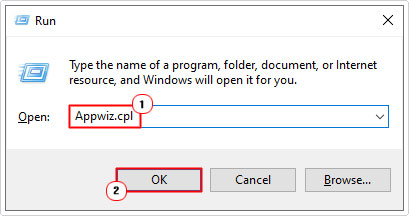
2. Then press  + R, type Appwiz.cpl and click on OK.
3. When Program and Features loads up, click on Installed On, then select the App at the top and click on Uninstall.
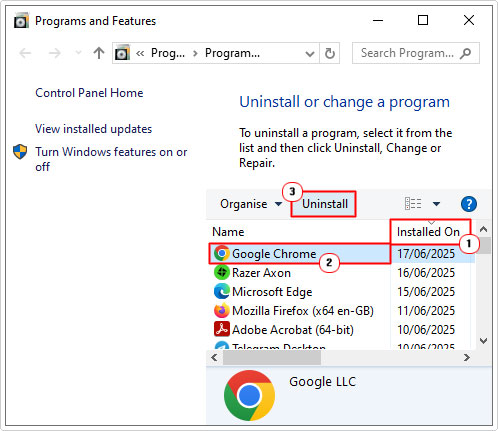
Note: Clicking on Installed On will arrange the apps in order of installation date.
Use Windows Repair Tool to fix api-ms-win-crt-runtime-l1-1.0.dll is missing
If none of the solutions above succeed in fixing the api-ms-win-crt-runtime-l1-1.0.dll is missing error, then you may want to try using a specialised Windows repair tool.
The tool I have in mind is multifaceted, capable of scanning, detecting and fixing a wide range of DLL errors as well as other known computer issues.
Within a single scan, you can expect it to fix registry corruption, BSOD errors, virus infections and much more.
It’s also capable of making your system run after, making it both a repair and optimisation tool.
If, by any chance this interests you, then visit the link below:
CLICK HERE TO CHECK OUT THE ADVANCED REPAIR TOOL
 The solution(s) below are for ADVANCED level computer users. If you are a beginner to intermediate computer user, I highly recommend you use the automated tool(s) above! The solution(s) below are for ADVANCED level computer users. If you are a beginner to intermediate computer user, I highly recommend you use the automated tool(s) above! |
Install api-ms-win-crt-runtime-l1-1.0.dll
If the above solutions were unable to fix the api-ms-win-crt-runtime-l1-1.0.dll is missing error, then you may want to try manually installing a working version of the file to your system.
To do this, just follow the steps outlined below:
1. Boot into Windows as an admin.
2. Then download the appropriate version of api-ms-win-crt-runtime-l1-1.0.dll to your system:
64-bit Version: https://www.mediafire.com/file/rqcj60xj7tue63k/api-ms-win-crt-runtime-l1-1-0+64.zip/file
32-bit Version: https://www.mediafire.com/file/q0pq74wsuni6yoe/api-ms-win-crt-runtime-l1-1-0+32.zip/file
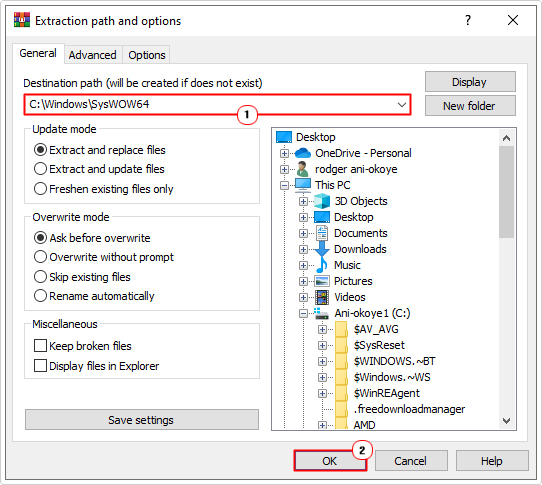
3. Open the api-ms-win-crt-runtime-l1-1.0.zip file, then click on Extract To.
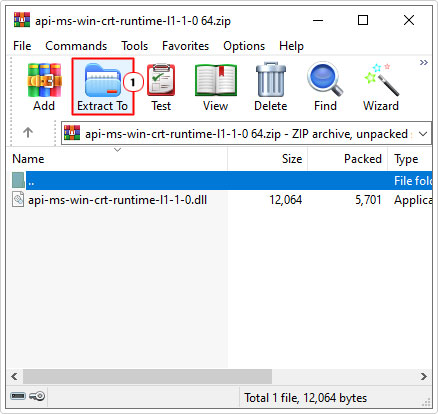
Note: For this tutorial, I am using WinRAR.
4. Now, type C:\Windows\System32 into the Destination path and click on OK.
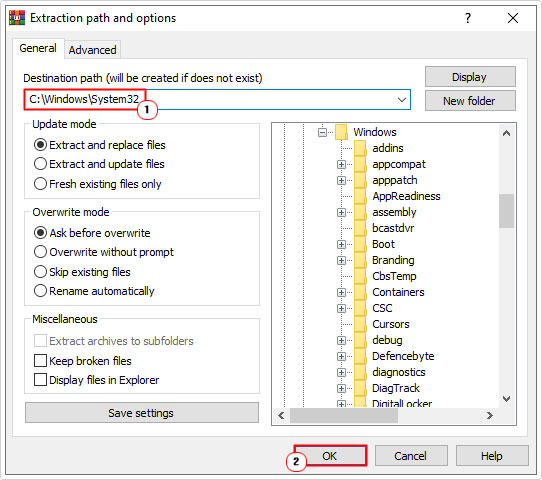
5. Repeat steps 3 – 4, only type C:\Windows\SysWOW64 into the Destination path this time, and click on OK.
Register api-ms-win-crt-runtime-l1-1.0.dll
Now that you have copied the api-ms-win-crt-runtime-l1-1.0.dll file to your system, the next type is to re-register the api-ms-win-crt-runtime-l1-1.0.dll file to your Windows registry. This can be done by doing the following:
6. Press + R, type cmd and press CTRL + Shift + Enter.
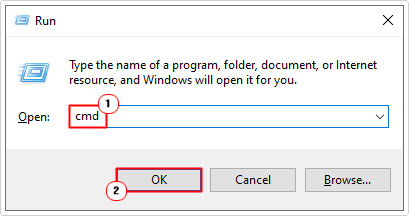
7. When Command prompt loads up, type the command below and press Enter.
Regsvr32 api-ms-win-crt-runtime-l1-1-0.dll
8. Lastly, restart your computer, and then retry the problematic app.
Update Software
Another possible cause of the api-ms-win-crt-runtime-l1-1.0.dll is missing error is an outdated application. It’s possible the application is incompatible with your version of Windows or with a feature now present on the OS. Ultimately, it could be a multitude of things preventing the app from working. This is where updates come into the equation. To determine whether or not an update is available for the software you will need to visit the developer’s website.
Go through the site and see if you can find an update or patch to the problematic program.
Reinstall App
This is probably the first thing you tried, but in the event that it wasn’t, then you may want to consider a reinstallation of the app. When it comes to reinstallations the most important part of the process is the uninstallation. You want to ensure that all remnants of the program is no longer on your system before you begin the installation.
For step-by-step instructions on how to do this, check out my post on fixing ucrtbased.dll errors.
Use SFC & DISM Tools
If a key DLL file is deleted or corrupted, it can cause a series of issues on your system. From broken Windows features to apps no longer working. To get around this problem, you have many viable options (as listed above). However, in the event that they all fail, you can always try these two built-in features.
The first is SFC of System File Checker. This tool works by scanning and replacing where applicable Windows key system files. DISM (Deployment Image Servicing and Management) will attempt to restore the integrity of your OS, by replacing corrupted or missing Windows (OS) files. For instructions on how to use these tools, check out my post on fixing D3dx9_43.dll is missing errors.
Are you looking for a way to repair all the errors on your computer?

If the answer is Yes, then I highly recommend you check out our 24/7 Live Support Service.
Which is the leading Online Support Service that is able to help you cure your system from a number of different ailments such as Windows Installer Errors, Runtime Errors, Malicious Software, Spyware, System Freezing, Active Malware, Blue Screen of Death Errors, Rundll Errors, Slow Erratic Computer Performance, ActiveX Errors and much more. Click here to check it out NOW!