
| Attention Before you read this post, I highly recommend you check out my resources page for access to the tools and services I use to not only maintain my system but also fix all my computer errors, by clicking here! |
The “Nvidia graphics card not detected” has become all too common for many Windows 10/11 users out there. This is a punitive error that typically occurs due to outdated/corrupt drivers or a physical fault on the GPU. In this tutorial, we will be going through a number of verifiable solutions you can use now to fix this graphics card detection problem.
There’s nothing worse than playing a video game on your PC only for it to be suddenly interrupted by a black screen or a random system restart. Nvidia is amongst the most popular GPUs today and that’s because of its performance and wide range of features. However, despite its many pluses, issues like this can really dampen its reputation and make people have second thoughts about whether or not its purchase was a sound investment.
Whether you’re getting no signal on your display or the graphics card isn’t showing up in the BIOS or Device Manager (in Windows), this situation can seem quite catastrophic given the circumstances. The good news is that this problem can be fixed, and in most cases, is the result of several common issues.
Common Symptoms
The most common symptom of this error is sluggish GPU performance with some of the more graphics-intensive apps (such as video games) not running properly.
This error can occur in a variety of circumstances. The most common of which, reported by the end user are the following:
- Graphics card not showing in BIOS: If the BIOS does not report the graphics card, then it could be the result of a compatibility issue, typically resolved with a BIOS update.
- No graphics card in Device Manager: This oftentimes will occur when an issue occurred during the GPU installation phase.
- Driver update failed to detect graphics card: Sometimes this issue can arise from a corrupted driver update. Simply rolling back the drivers may resolve this problem.
Now with that out of the way, let’s take a closer look at the common causes of this error.
What Causes Nvidia Graphics Card Not Detected Errors?
When your Nvidia GPU abruptly halts, preventing you from playing the game you were currently enjoying, this is oftentimes the result of the following causes:
- App conflict: It’s possible a conflict exists between the app (game title) and the Nvidia drivers. Recent OS updates and upgrades are also capable of causing incompatibility issues.
- Issues with the driver(s): The driver’s job is to facilitate communication between the graphics card and the operating system. If the drivers were not installed correctly, then it can result in the OS being unable to find the GPU.
- BIOS setting problem: Depending on the GPU, the age of it along with the motherboard, a BIOS update may be in order, if one device is significantly older than the other.
- Hardware issues: There could be a physical fault on the card itself (maybe it was dropped) or the cable(s) may not be properly fastened in its slots. On the flip side, there could be a problem with the PCI-E slot.
Now that we have a general idea of the kinds of things that can cause this error, let’s take a look at the various ways you can fix it.
How to Fix It
When you experience an “Nvidia graphics card not detected” error, the fault itself is typically derived from a number of causes (all of which have been outlined above). Having a clear understanding of these causes is crucial when it comes to fixing the problem, as it gives you a general understand of what to tackle.
That aside, I will begin with the simplest and most effective solutions first, then work my way down to the more sophisticated solutions.
Update Graphics Card Drivers
If the drivers for your Nvidia graphics card are corrupted or outdated, then you will need to update them to fix the “Nvidia graphics card not detected” error.
When it comes to updating the drivers, you have two options. The first is to download the drivers manually, from the Nvidia website and install them. Depending on the age of your card, you may or may not need to know the name and model number of your card. Typically, Nvidia provides an all-in-one installer for their range of newer cards, available to download straightaway. For older cards, you will be required to specify to get the correct drivers.
The second option is to use a driver automation tool. This tool will do the heavy lifting for you. It will search the internet and download and install the latest drivers for not just your GPU but all your hardware devices.
For more information on this powerful tool, check out the link below:
CLICK HERE TO CHECK OUT THE DRIVER FINDER TOOL
Use Windows Repair Tool to Fix “Nvidia Graphics Card Not Detected” Errors
If your computer is no longer running as fast as it did when you first purchased it or you’re experiencing a wide range of annoying issues during your Windows sessions. Then you need to use a Windows repair tool.
These particular tools are specifically designed by PC professionals to fix the most common errors on your system.
All that is required on your end is to download the tool and run it. It will carry out a thorough scan of your system and apply the necessary fixes where applicable.
This could result in the resolution of update, registry, Game, BSOD and more error types.
If by any chance that interests you, then visit the link below:
CLICK HERE TO CHECK OUT THE ADVANCED REPAIR TOOL
 The solution(s) below are for ADVANCED level computer users. If you are a beginner to intermediate computer user, I highly recommend you use the automated tool(s) above! The solution(s) below are for ADVANCED level computer users. If you are a beginner to intermediate computer user, I highly recommend you use the automated tool(s) above! |
Enable GPU
If the solutions above didn’t fix the “Nvidia graphics card not detected” error, then you may want to check whether the card has been disabled in Device Manager.
If so, then you should enable it by doing the following:
1. First, boot into Windows as a full administrator.
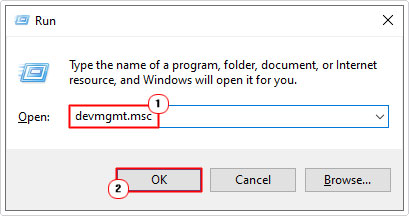
2. Then press  + R, type devmgmt.msc and click on OK.
3. When Device Manager loads up, click on the > icon next to Display adapters and right-click on your GPU and select Enable device.
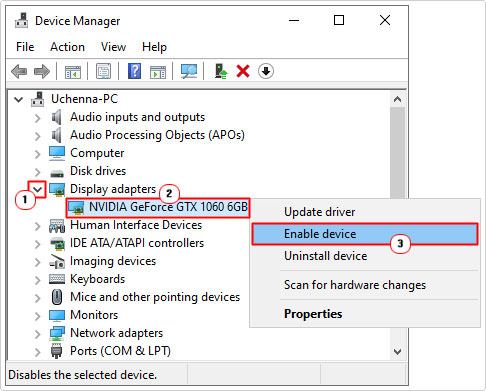
This ultimately, should fix the error, if it was originally disabled.
Uninstall Update(s)
There are instances when an error can occur as the result of a Windows update. In situations like this, you can get around the problem by uninstalling the most recently installed update.
For step-by-step instructions on how to do that, do the following:
1. Boot into Windows as an admin.
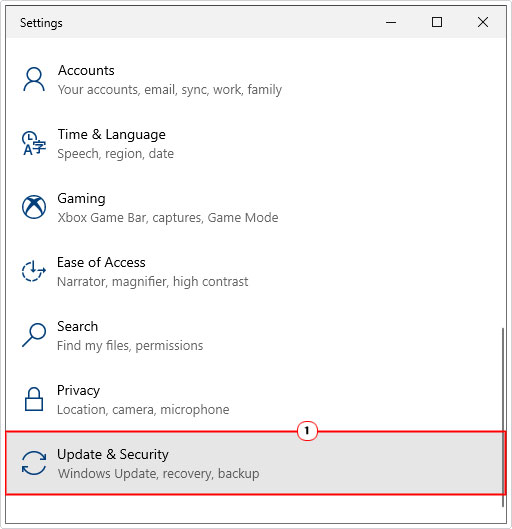
2. Next, press + I and click on Update & Security.
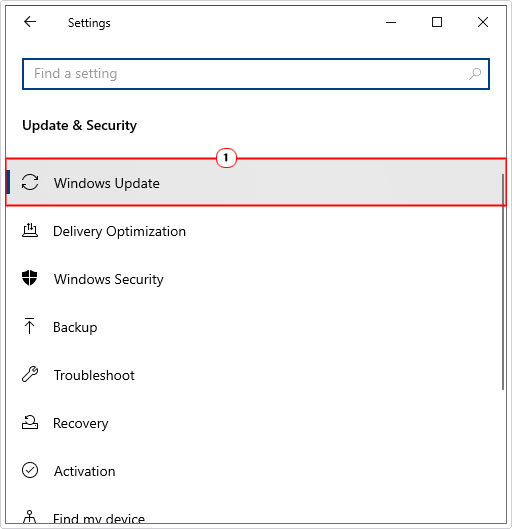
3. When Update & Security loads up, click on Windows Update.
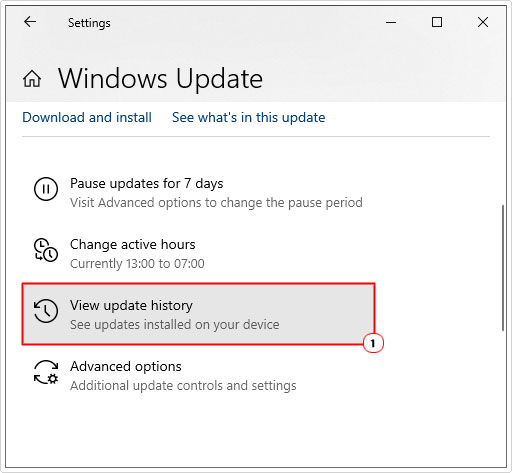
4. On the Windows Update page, click on View update history.
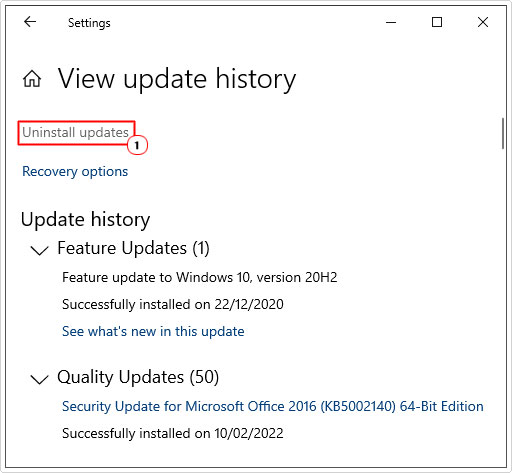
5. This will load up the View update history applet. Next, click on Uninstall updates.
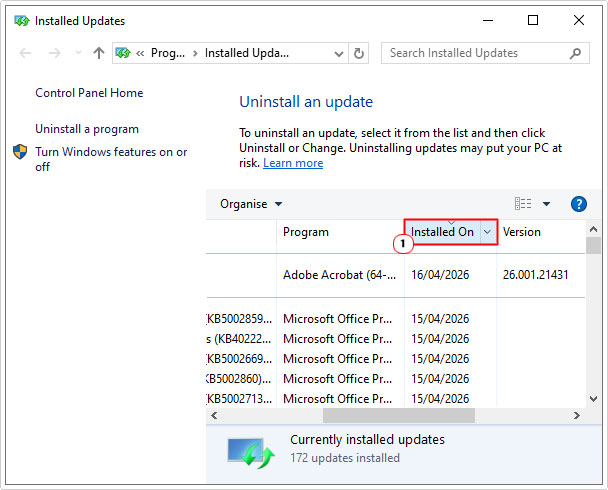
6. Installed Updates should load up, make sure you click on Installed On, to arrange the updates by Installed Date.
7. Now, click on the most recent update, and select Uninstall. Follow the onscreen instructions then restart your system.
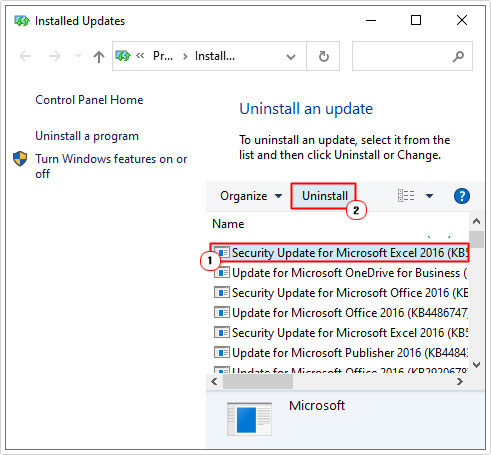
You can now check whether or not it resolved the error.
Reseat GPU
If the graphics card wasn’t properly seated in the PCIe slot, then it can result in the intermittent “Nvidia graphics card not detected” error. This is further exacerbated by vibrations (from the Fan) when the GPU is running at maximum capacity (such as when playing a video game).
So, as a next solution, I recommend you turn off your PC, then remove the GPU.
Take some time to inspect it, just to ensure it’s not damaged.
Then go through the installation process again. Ensuring the GPU is probably seated in its slot(s).
The retention tab should click in, this indicates the GPU is secure and in the slot correctly.
This is an issue that most commonly affects the bigger GPUs, which can be quite difficult to align and install at times.
In the event that the problem persists, you can also try a different PCIe slot. But that all depends on the motherboard and availability of slots.
You should also ensure your PCs power supply has a high enough rating to power the card. You want you’re PSU (Power Supply Unit) to be, at least the recommended rating for your card.
Update BIOS
If your motherboard BIOS is very old, then it could have issues detecting the latest GPUs, specifically the one you’re trying to install in it right now. In situations like this, you should consider a BIOS update as a possible fix.
Updating to the latest BIOS for your motherboard, will ensure its compatibility for the latest hardware in the marketplace.
For more information on how to update the BIOS, I recommend you consult your motherboard manually. The BIOS is a very important and sensitive area of your system. Which means, if this process isn’t done correctly, it could completely brick your system.
Are you looking for a way to repair all the errors on your computer?
If the answer is Yes, then I highly recommend you check out our 24/7 Live Support Service.
Which is the leading Online Support Service that is able to help you cure your system from a number of different ailments such as Windows Installer Errors, Runtime Errors, Malicious Software, Spyware, System Freezing, Active Malware, Blue Screen of Death Errors, Rundll Errors, Slow Erratic Computer Performance, ActiveX Errors and much more. Click here to check it out NOW!