
| Attention Before you read this post, I highly recommend you check out my resources page for access to the tools and services I use to not only maintain my system but also fix all my computer errors, by clicking here! |
A typical scenario may entail an end user recently upgrading their Windows 10/11 based system, with everything working fine in the beginning. However, after putting their system into sleep mode the previous day, they turn the system on, only to be greeted with the bad pool header error. This blue screen error forces the end user to restart their system, only to be greeted with a follow-up system crash or freeze during the Startup sequence. So, what can you do about it? Continue reading to find out.
Bad Pool Header is a Blue Screen of Death (BSOD) error that is typically accompanied by the error code 0x00000019. It occurs when the system has encountered a critical issue that it is unable to recover from. Of the numerous BSOD errors you may encounter on your system, the Bad pool header is amongst the most common and frequent, halting your system and forcing a system restart.
The bad pool header error indicates that the system is facing a memory allocation problem, as the error is most associated with a corrupt pool header and Windows memory allocation issue(s).
Like most BSOD errors, this error will force the user to restart the system to gain access to it again. In the error message itself, it should indicate that it was forced to shut down to protect the system from further damage.
For those of you currently bogged down with this bad pool header issue, you have come to the right place.
In this tutorial, we will be discussing exactly what causes it, along with verifiable solutions you can use right now, to fix it.
What Causes Bad Pool Header Errors?
Bad Pool Header errors occur on all iterations of Windows, but most commonly occur on Windows 10. There are a plethora of reasons why you may experience this problem. It could be a software fault, or a faulty hardware device.
Below is a rundown of the most common causes of this error.
- Memory module(s) are faulty.
- One or more Windows system file(s) has been corrupted.
- Device drivers are corrupted or outdated.
- Your internet security software is adversely effecting your Windows experience.
These are just some of a wide range of possible causes.
Now that we have those out of the way, let’s go over the various solutions you can and should consider deploying today.
How to Fix It
If you want to fix the bad pool header error on your system, there are a wide variety of solutions you can try. However, for complexity sake, we’re going to start with the most simplest and obvious solutions.
So to begin, you should first consider removing all external devices. If you have any external devices, other than the obvious Keyboard and Mouse, connected to your system, then you should disconnect it and restart your system.
This is because the error could be the result of a corrupted external device, like a hard disc drive with damaged sectors or a damaged connection port.
If that fails to fix the error, then I suggest you attempt the additional solutions below.
Use Windows Repair Tool to Fix Bad Pool Header Errors
In the earlier iterations of Windows (XP/7/8) bad pool header errors were relatively uncommon, but overtime, the frequency of this errors occurrence started to increase.
If disconnecting your external device(s) failed to fix the error, then you should definitely try using a Windows repair tool. This specific solution, is a highly advanced repair tool, capable of detecting and fixing a plethora of problems on your computer.
This tool will fix a wide range of errors, such as BSOD, registry, game, DLL, runtime and much more. It can also fix corrupted or inaccessible system files, while optimising your systems performance in the process.
If by any chance this interests you, then visit the link below:
CLICK HERE TO CHECK OUT THE ADVANCED REPAIR TOOL
Use a Different Antivirus Tool
Another noted cause of the bad pool header error is an incompatible antivirus tool installed on your system. As a solution, you may need to consider disabling it.
To do that, you will need to uninstall it. Which is a fairly simple process. Just do the following:
1. Boot into Windows as an admin.
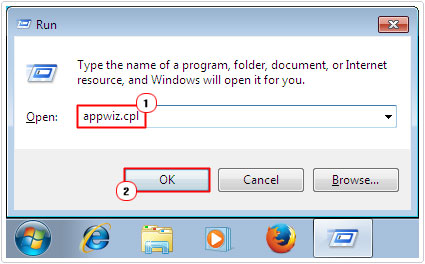
2. Then press  + R, type Appwiz.cpl and click on OK.
3. When Programs and Features loads up, simply click on the Antivirus Software, then click on Uninstall.
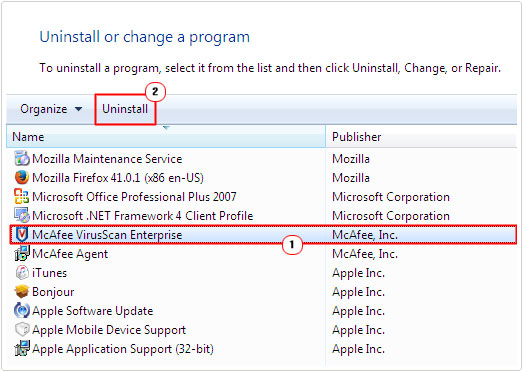
Note: Once the Antivirus software has been removed from your system, you will be forced to restart to complete the process.
Once that’s done, you can use the built in Windows Defender as your security solution, or you can try something better, like System Mechanic. Which is one of the best antivirus solutions in the marketplace today.
If System Mechanic interests you, then visit the link below:
CLICK HERE TO CHECK OUT SYSTEM MECHANIC
For Windows Defender, it should enable automatically.
Update Device Drivers
Another common cause of just about every BSOD error (not just Bad Pool Header) is a faulty, outdated or corrupt device driver.
The most difficult part about this cause, is pinpointing the exact driver that is causing the error.
This is when driver automation tools come most handy. As they are able to scan your system and locate and download the most up-to-date drivers for all the different devices on your system.
All within a couple of clicks.
If by any chance that interests you, then I recommend you visit the link below:
CLICK HERE TO CHECK OUT THE DRIVER FINDER TOOL
 The solution(s) below are for ADVANCED level computer users. If you are a beginner to intermediate computer user, I highly recommend you use the automated tool(s) above! The solution(s) below are for ADVANCED level computer users. If you are a beginner to intermediate computer user, I highly recommend you use the automated tool(s) above! |
Test RAM
The Bad Pool Header could also be the result of faulty memory modules installed in your system. Fortunately, you can use the built in Windows Memory Diagnostic tool to determine whether or not your memory modules are in fact at fault.
To use this tool, just do the following:
1. First, boot into Windows as an admin.
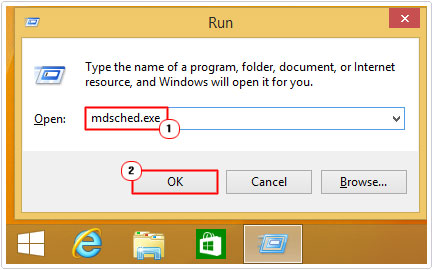
2. Then press + R, type mdsched.exe and click on OK.
3. This will bring up the Windows Memory Diagnostic tool, simply click on Restart now and check for problems (recommended).
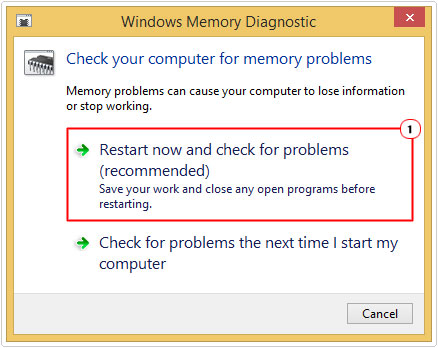
4. Follow the onscreen instructions to test your memory modules.
Disable Fast Startup
If not fully supported by your motherboard, it can cause your system to randomly crash. This, in some instances could lead to Bad Pool Header errors. To rectify situations like this, you can simply disable the feature.
To do that, follow the steps below:
1. Boot into Windows as an administrator.
2. Then press + R, type powercfg.cpl and click on OK.
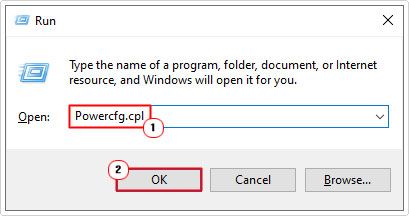
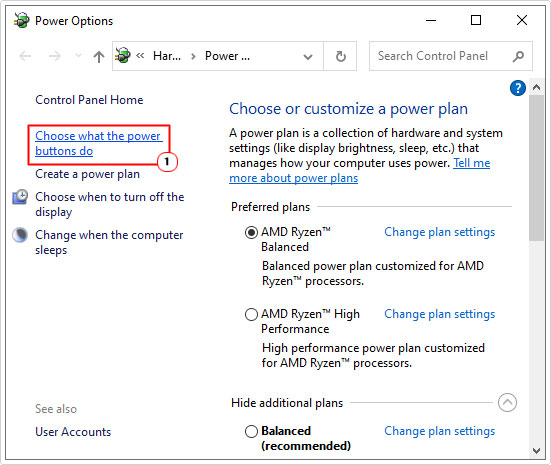
3. This will bring up the Power Options screen, click on Choose what the power buttons do.
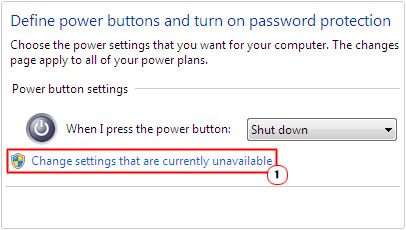
4. Next, click on Change settings that are currently unavailable.
5. Now, un-tick the box for Turn on fast start-up then click on Save changes.
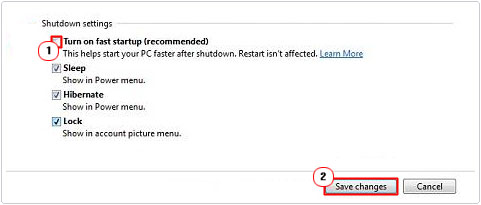
6. Lastly, restart your system.
Disable Indexing Service
If the Bad Pool Header error is the result of a faulty or corrupt hard disc drive, then you can sometimes get around this problem by disabling the Indexing Service.
To do that, follow the below steps:
1. Boot into Windows as an admin.
2. Then press + R, type Services.msc and click on OK.
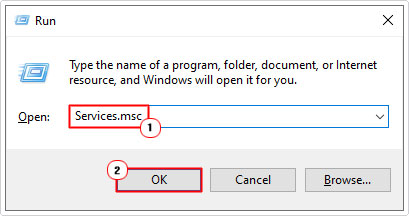
3. When Services loads up, double-click on Windows Search.
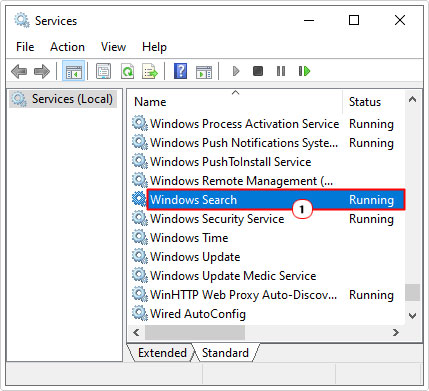
Note: On older iterations of Windows the service will be called Indexing Service.
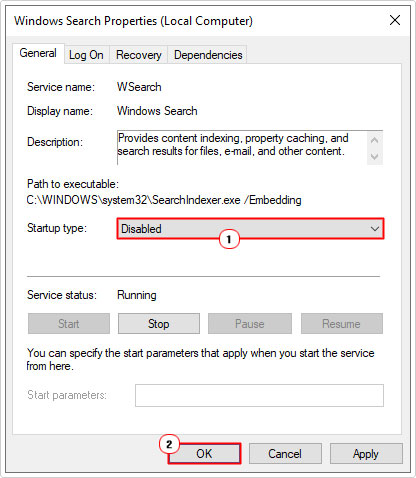
4. This will bring up the Windows Search Properties applet, from here, set Startup type to Disabled and click on OK.
5. Lastly, restart your system for the changes to take effect.
Use Chkdsk
Bad sectors on a hard disc drive are capable of causing Bad Pool Header errors. Depending on the brand and the capabilities of your hard drive, it may have some early warning feature to notify you of your drives health.
Either way, the best way to determine your hard drives status is to simply run the built-in Check Disk tool.
Depending on the size of your drive, this can take several minutes to several hours.
For more information on how to use this tool, check out my post on fixing Mfc100.dll errors.
Are you looking for a way to repair all the errors on your computer?
If the answer is Yes, then I highly recommend you check out our 24/7 Live Support Service.
Which is the leading Online Support Service that is able to help you cure your system from a number of different ailments such as Windows Installer Errors, Runtime Errors, Malicious Software, Spyware, System Freezing, Active Malware, Blue Screen of Death Errors, Rundll Errors, Slow Erratic Computer Performance, ActiveX Errors and much more. Click here to check it out NOW!