
| Attention Before you read this post, I highly recommend you check out my resources page for access to the tools and services I use to not only maintain my system but also fix all my computer errors, by clicking here! |
BSOD or Blue Screen of Death errors are, undoubtedly the most alarming errors, as they appear suddenly and halt any Windows activity you may be engaged in. IO1 Initialization Failed is just one of many BSOD errors end users may encounter. It contains the error code 0x00000069 and indicates that there was a failure of the I/O system to initialise. This, in the vast majority of cases is the result of a misconfiguration or failed setup routine.
The actual blue screen that accompanies the error message (halting all Windows activity) is designed to protect your system from any additional damage.
The error can occur in a wide variety of circumstances, such as, during the boot up phase, when installing new drivers or when attempting to install a new application. The error itself can trigger various scenarios, such as start-up errors or boot-loops or the complete crash of your operating system. Despite all of this, there are things you can do to tackle it. In this tutorial, I will outline a number of tried and tested solutions that you can use today.
However, before we get to those much desired solutions, we will first go into more depth on the most common causes of the IO1 Initialization Failed error.
So continue reading for more on that.
What Causes IO1 Initialization Failed Errors?
Like with most BSOD errors, there are so many things that can trigger them. But, for this specific (IO1 Initialization Failed) error, you’re looking at the following:
- An unstable BIOS.
- A damaged (or corrupted) Windows registry.
- Drivers belonging to one or more devices being outdated or corrupted.
- Certain settings having been unexpectedly altered.
Additionally, downloading unauthorised (stolen) apps and movie files can oftentimes trigger a BSOD error. Bad sectors on a hard disc drive may also be the culprit.
Since, it’s very difficult to pinpoint the exact cause of a BSOD errors, you’re best approach is always to attempt as many working solutions as possible.
How to Fix It
When it comes to fixing IO1 Initialization Failed errors, there are a number of options available to you.
But first things first. You’re ability to access Windows may be spotty in situations like this, for this reason you may be better off accessing Windows via Safe Mode.
If you don’t know how to access this mode, you can find instructions on my post on fixing Windows Resource Protection Could Not Perform the Requested Operation.
Now that we have that out of the way, I do recommend that you attempt the solutions in the order that they appear. For the sake of ease and effectiveness.
Update Device Drivers
As already noted, IO1 Initialization Failed errors can occur as a result of outdated or corrupted device drivers. In such circumstances, the only viable solution is to update your drivers.
The primary issue here is that it can be difficult to pinpoint exactly which driver is at fault. So for efficiency sake, it’s best to update everything (motherboard, GPU, CPU, etc…). However, this can be time-consuming, and quite complicated, depending on your level of expertise.
This brings up to the driver automation tool. A tool, capable of scanning your system, then locating and downloading the most up-to-date drivers for all the devices inside your system.
Making a complicated task, a very simple one.
If you’re interested in the driver automation tool, then visit the link below:
CLICK HERE TO CHECK OUT THE DRIVER FINDER TOOL
Use Windows Repair Tool to Fix IO1 Initialization Failed Errors
Although, it’s most likely the solution outlined above will fix the IO1 Initialization Failed error. However, in the event that a corrupted or outdated driver is not the cause of the error, then you may want to consider using a Windows repair tool.
The tool that I’m talking about, was professionally made, from the ground up, by experts in the field. This is a tool designed for the beginner, as it is easy to handle and easy to get to grips with.
All you need to do is download and run the tool, and it will, within a single scan identify and repair the causes of Windows update, BSOD, registry, game, DLL and more such errors.
It will also optimise your systems performance in the process, making it run and perform like new.
If by any chance this interests you, then visit the link below:
CLICK HERE TO CHECK OUT THE ADVANCED REPAIR TOOL
 The solution(s) below are for ADVANCED level computer users. If you are a beginner to intermediate computer user, I highly recommend you use the automated tool(s) above! The solution(s) below are for ADVANCED level computer users. If you are a beginner to intermediate computer user, I highly recommend you use the automated tool(s) above! |
Enable Useplatformclock
Many end users have discovered that by enabling the High Precision Event Timer (HPET) they were able to fix the IO1 Initialization Failed error. Ordinarily this feature would be disabled, as the OS uses the CPU’s built-in Time Stamp Counter (TSC) for the same function.
However, if you’re bogged down with this problem, then you may want to consider this solution.
The instructions are as follows:
1. First, boot into Windows as a full administrator.
2. Then press  + R, type cmd and press CTRL + Shift + Enter.
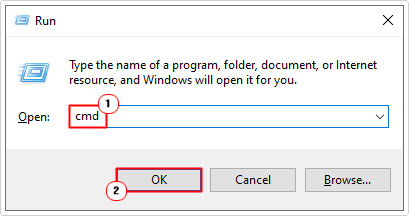
3. When Command Prompt loads up, type the command below and press Enter.
bcdedit /set useplatformclock true
4. Once that’s done, type the command below and press Enter, to determine whether or not useplatformclock has been set to true.
bcdedit /enum
5. If everything is done correctly, then restart your system and verify whether or not that fixed the IO1 Initialization Failed error.
Change Disk Controller Mode
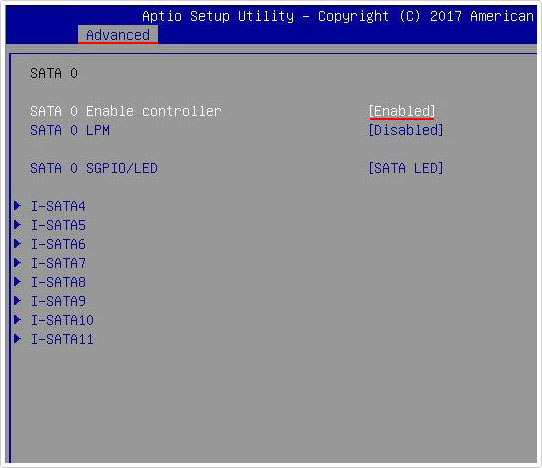
If you set your HDD controller to RAID or AHCI mode without the appropriate drivers, it can randomly trigger the IO1 Initialization Failed error. As a working solution, it’s recommended that you set the controller to SATA.
To do that, you will need to access the BIOS, then find the settings in Advanced Mode. The exact steps will be outlined in your motherboard manual. So I suggest you consult that for further information.
Rebuild BCD
Another method you can use to fix the IO1 Initialization Failed error involves rebuilding the BCD or Boot Configuration Data. This data is used primarily during the boot up phase of Windows. So if the error occurs most commonly during start-up, then this is your solution.
For instructions on how to rebuild the Boot Configuration Data, check out my post on fixing bootmgr is missing errors.
Run CHKDSK
Another mentioned cause of the IO1 Initialization Failed error are damaged sectors on your hard disc drive. If you’re still using an older magnetic (mechanical) hard drive, then this may be the solution for you.
Essentially, you’re running a built-in Windows tool called Check Disk, which will scan your hard drive for damaged sectors and flag them, so that the OS doesn’t store data in them, in the future.
To utilise this tool, just do the following:
1. Follow steps 1 – 2 of Enable Useplatformclock.
2. When Command Prompt loads up, type the follow command below, and press Enter:
chkdsk /r c:
Note: This command will run a thorough scan on your C: drive. If you have more drives installed in your system, then I suggest you scan them too. Just switch C: with the letter of your additional drive(s) and press Enter.
Run SFC and DISM
These are two additional built-in tools designed to restore the integrity of your operating system. SFC works by restoring missing or corrupt system files, and DISM attempts to restore missing or corrupt Windows OS files.
Both work best in tandem with one another.
For step-by-step instructions on how to use them, check out my post on fixing MSVCR71.dll missing errors.
Use System Restore
If you can recall the exact day the IO1 Initialization Failed error started to occur, it’s possible the error is the result of a configuration change.
As a possible solution, you may want to consider using the Windows tool System Restore. It works by restoring your system back to previous states using restore points that are saved in a reserved area of your hard drive.
If you would like to learn more about this tool and how you can use it, check out my post titled, what is a restore point.
Are you looking for a way to repair all the errors on your computer?
If the answer is Yes, then I highly recommend you check out our 24/7 Live Support Service.
Which is the leading Online Support Service that is able to help you cure your system from a number of different ailments such as Windows Installer Errors, Runtime Errors, Malicious Software, Spyware, System Freezing, Active Malware, Blue Screen of Death Errors, Rundll Errors, Slow Erratic Computer Performance, ActiveX Errors and much more. Click here to check it out NOW!