
| Attention Before you read this post, I highly recommend you check out my resources page for access to the tools and services I use to not only maintain my system but also fix all my computer errors, by clicking here! |
How do you react when the screen on your Windows based system suddenly turns blue and you’re confronted with an error message that reads NMI_HARDWARE_FAILURE? NMI_HARDWARE_FAILURE (Non-Maskable Interrupt) is typically the result of a hardware issue. This BSOD or Blue Screen of Death error is usually accompanied by the error code 0x00000080. As is typically the case (with errors), they can and will occur in a multitude of circumstances. In this tutorial, we will be covering every possible way of rectifying this problem.
This is an old error that can occur on virtually every iteration of Windows. On Windows 8 NMI_HARDWARE_FAILURE can occur because of a hardware failure, but also by pressing the NMI switch on your (server) system.
When the error occurs, the exact error message will oftentimes resemble the following:
The NMI_HARDWARE_FAILURE bug check has a value of 0x00000080. This bug check indicates that a hardware malfunction has occurred.
The particulars of the error will be saved to a memory dump file, followed by a forced system restart.
Over the years, with each new iteration of Windows, the circumstances and the behaviour of the NMI has changed. In much older versions of Windows (such as Server 2008 R2 and 7), the NMI error was oftentimes the result of a misconfiguration of the NMICrashDump registry value.
Now that we have a general understanding of what this error is, let’s take a closer look at its root causes.
What Causes NMI_HARDWARE_FAILURE Errors?
The NMI (in the BSOD error) stands for Non-Maskable Interrupt and usually, but not always, is the result of a hardware problem. This particular hardware issue differs from other interrupt BSOD errors, as it can be traced directly to the CPU.
There are two possible reasons why the NMI error may be occurring. The first, is, as previously reiterated, a hardware problem, but the other is a WATCHDOG TIMER problem.
If the error is the result of a hardware failure, then it means, you may be forced to change or upgrade the culprit component on your system. If it’s a WATCHDOG TIMER problem, then it means the error is the result of a Windows problem, maybe a misconfiguration or data corruption.
All-in-all, you’re looking at the following potential causes for this error:
- One or more components inside your computer has overheated (typically the CPU or GPU).
- You’re RAM memory modules are faulty.
- The Windows registry has been corrupted.
- One or more drivers (installed in your system) is conflicting with one another.
- A device driver needs reinstalling or upgrading.
- Windows has been incorrectly configured.
Now that we have a firmer understanding of what may be causing NMI_HARDWARE_FAILURE, on your system, let’s look at the various ways you can fix this problem.
How to Fix It
If you’re seeing the NMI_HARDWARE_FAILURE error more times than you would like, then you’ve already dealt with the drawbacks, such as the drop in productivity, and the general instability that comes with an error that won’t go away.
In this section, I have gone through all the various ways that you can fix this problem. But like always, I prefer to start simple.
So, the first thing you should try (if you haven’t already), is a full system restart.
One of the most effective ways of fixing an error on your system, is to simply restart it. If you are one of those individuals, that never shuts down your system. Preferring to put it into Sleep Mode, at night. Then maybe it’s time you considered a restart.
Remove External Devices
Another simple solution that you can apply right now, is to disconnect any external devices you have connected to your system. This includes printers, flash drives, external hard drives, game controllers etc… Sometimes the error may be the result of an outdated or corrupted driver belonging to an external device.
Removing the device means the system will stop loading its drivers, preventing the error from reoccurring.
It’s very important that you keep all your drivers up-to-date that means, going through the inconvenience of updating them when a new update becomes available.
Remove Recently Installed Program(s)
If the NMI_HARDWARE_FAILURE error started to occur right after you installed a new tool, app or program, then you should consider removing it.
Removing or uninstalling an app is a fairly simple task, but if you need help doing it, you can find the necessary instructions on my post on fixing MSVCR71.dll missing errors.
Update Windows Drivers
NMI_HARDWARE_FAILURE errors oftentimes are the result of an outdated, incompatible or corrupted device driver. For this reason, you want to ensure the drivers on your system are always kept up-to-date.
To update a driver, you need to know the device (that you would like to update), along with its model number, using that information, you can visit the device manufacturer’s website and download the appropriate drivers off there.
This can prove to be a longwinded and complex task, if you’ve never done it before. Fortunately, there is a viable workaround, and that is to use a driver automation tool.
Such a tool, will scan your system to identify all the different devices in and connected to your system, then it will run a search (on the internet) for all the available and most up-to-date drivers for them. Once it’s done that, it will install them, at your request.
It’s up to you, but if you prefer the automated solution, then I recommend you visit the link below:
CLICK HERE TO CHECK OUT THE DRIVER FINDER TOOL
Use Windows Repair Tool to Fix NMI_HARDWARE_FAILURE Errors
Another viable solution available to you, involves the use of a Windows repair tool to fix the BSOD NMI_HARDWARE_FAILURE error. The tool I personally recommend is very powerful, capable of repairing a plethora of error types within a single scan of your system.
It’s ultimately a repair and optimisation suite, designed to identify the root causes of DLL errors, registry corruption, virus infections and much more, then fix them.
If the advanced solutions below prove too taxing, then this repair tool may be the right solution for you.
You can learn more from the link below:
CLICK HERE TO CHECK OUT THE ADVANCED REPAIR TOOL
 The solution(s) below are for ADVANCED level computer users. If you are a beginner to intermediate computer user, I highly recommend you use the automated tool(s) above! The solution(s) below are for ADVANCED level computer users. If you are a beginner to intermediate computer user, I highly recommend you use the automated tool(s) above! |
Roll Back Device Drivers
If you’re unable to find more up-to-date drivers for your CPU or GPU device. Then you may want to consider using the rollback function.
This feature works by setting your device driver back to its previous drivers.
The instructions are as follows:
1. Boot into Windows as a full administrator.
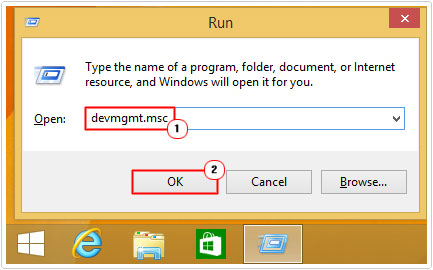
2. Then press  + R, type devmgmt.msc and press Enter.
3. When Device Manager loads up, click on the > icon next to Display adapters, then double-click on your GPU.

Note: This method can apply for any faulty device on your system.
4. When the GPU Properties applet pops up, click on the Driver Tab, then click on Roll Back Driver.
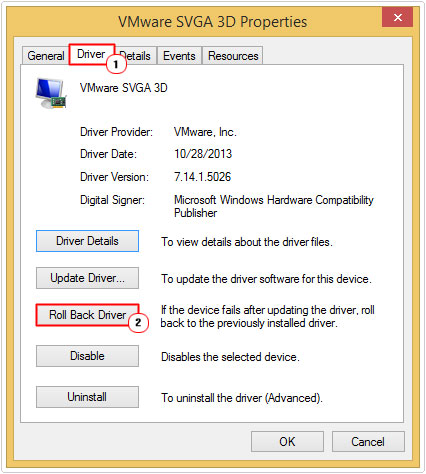
Note: This feature only works if a previous driver exists on your system.
Check Memory Modules
A common cause for the NMI_HARDWARE_FAILURE error is faulty or improperly installed RAM memory modules.
To determine whether your RAM is working as it should, you can use the Windows Memory Diagnostic Tool. It’s very easy to access, just do the following:
1. Boot into Windows as an admin.
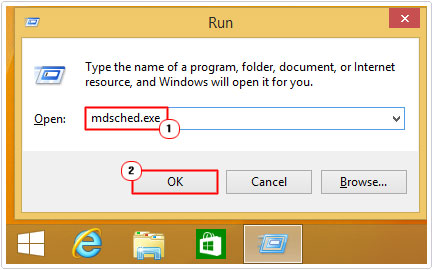
2. Then Press + R, type mdsched.exe and click on OK.
3. When Windows Memory Diagnostic pops up, click on Restart now and check for problems.
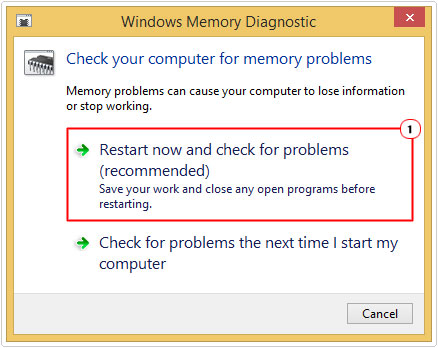
4. Follow the onscreen instructions.
If the diagnostic tool finds that there is no identifiable issue(s) with your memory modules, you may want to consider stress testing it. As the problem could be due to overheating.
To do that, you will need to use tools such as MemTest86. For more information on this, check out my post on using stress testing tools.
Use SFC
SFC or System File Checker is a built-in Windows tool, designed to identify and replace missing or corrupt system files. If the NMI_HARDWARE_FAILURE error is OS related, then it is almost certainly the result of missing or corrupt Windows system files.
Thus, as a possible solution, consider using SFC.
It’s very simple to use, just check out my post on how to run SFC Scannow for step-by-step instructions.
Remove New Hardware
It’s not uncommon for a NMI_HARDWARE_FAILURE error to occur right after installing a new hardware component. If you recently upgraded your system, then the error is most likely an incompatibility issue.
Consider removing the component and buying a replacement that is actually compatible with your system.
Check RAM Setup
Another common cause of the NMI_HARDWARE_FAILURE error is having unmatched memory modules installed on your system.
For example, if you have two 8 GB RAM modules installed on your system, but they have different speeds (MHz) and timing (CL) settings then that can cause them to malfunction when under stress.
Whenever buying RAM, it’s always best to buy them in pairs and its best practice to use the same brand, just to mitigate any future issues.
So, if you made the mistake of doing this, then consider buying new RAM, for now, you can use one memory module.
Are you looking for a way to repair all the errors on your computer?
If the answer is Yes, then I highly recommend you check out our 24/7 Live Support Service.
Which is the leading Online Support Service that is able to help you cure your system from a number of different ailments such as Windows Installer Errors, Runtime Errors, Malicious Software, Spyware, System Freezing, Active Malware, Blue Screen of Death Errors, Rundll Errors, Slow Erratic Computer Performance, ActiveX Errors and much more. Click here to check it out NOW!