
| Attention Before you read this post, I highly recommend you check out my resources page for access to the tools and services I use to not only maintain my system but also fix all my computer errors, by clicking here! |
A significant portion of PCs out there are run on AMD graphics cards. However, this popularity is not without its drawbacks as many end users report experiencing issues where the AMD driver keeps crashing, making the screen go black. This is a common symptom that indicates that there is a problem with your GPU.
In the PC GPU world, both AMD and Nvidia rule the nest. AMD hosts a large assortment of graphics cards tailored to many different PC types, whether they be business users, personal users or hardcore gamers. AMD is oftentimes referred to as the more budget-friendly option, as it tends to deliver the most performance for your penny, especially around the mid-range of GPUs.
However, neither brand is better than the other, it simply boils down to how much money you’re willing to spend. If you’re looking for the most performance, irrespective of money, then Nvidia is your go-to, however, if you want consistent value for your money, then AMD is the clear winner here.
Crashing AMD drivers is a fairly common issue that usually results in a game crash, system freezing or the screen going black. This issue can occur due to a multitude of reason, which we will discuss next.
What Causes The AMD Driver To Keep Crashing?
As is the case in most Windows errors, there are more than one thing you need to consider when the AMD driver continuously crashes your system:
- You have an unstable GPU overclock.
- The cables, either the HDMI or GPU power cables are damaged.
- Your GPU is dirty, due to the build-up of dust inside your case. That has led to overheating issues.
- The GPU drivers are conflicting with another driver or app running on your system.
Aside from the common causes, typically, end users report, when their AMD driver keeps crashing, that one action results in the following symptoms:
The GPU driver crash results in a black screen: Oftentimes this may be the result of your drivers being outdated. In most cases this symptom occurs while playing video games.
While playing a video game, the AMD driver causes the game to crash (stop): As previously reiterated, this particular error occurs most oftentimes while gaming, as drivers, and driver compatibility are crucial when playing the latest games.
The AMD drivers causes the system to crash while streaming (YouTube): When the end user attempts to watch a video on YouTube, the video freezes and crashes the browser.
Now that we have a general idea of this error, let’s take a look at the different solutions available to you.
How to Fix It
The AMD driver keeps crashing in many different circumstances, as shown above. But one of the most common symptoms is when watching a stream. So, I’ll start with that.
First thing you should consider is disabling your browser extensions. Many end users have discovered that there are more than a few extensions that are known to conflict with your AMD drivers. So, consider disabling them, then run your browser again.
If you don’t know how to disable your extensions, then check out my post on fixing ERR_FILE_NOT_FOUND errors.
Use the Driver Updater Tool If the AMD Driver Keeps Crashing
As it says in the name, this is purely a driver-related issue. For that reason, you’ll want to consider updating the drivers for your specific AMD GPU.
However, to do that, you will need to know the model number of your device, that way, you can ensure you install the correct drivers.
However, a feasible workaround to that painstaking task, is to simply use a driver automation tool. Such a tool, will, scan, detect and download the most up-to-date drivers for all the different devices connected to your system.
If by any chance, that interests you, then visit the link below:
CLICK HERE TO CHECK OUT THE DRIVER FINDER TOOL
 The solution(s) below are for ADVANCED level computer users. If you are a beginner to intermediate computer user, I highly recommend you use the automated tool(s) above! The solution(s) below are for ADVANCED level computer users. If you are a beginner to intermediate computer user, I highly recommend you use the automated tool(s) above! |
Roll Back the GPU Drivers
The AMD driver keeps crashing right after you updated them? If that sounds anything like your scenario, then you may want to consider rolling back to your previous working drivers.
If you don’t know how to do this, then check out my post on fixing NMI_HARDWARE_FAILURE errors for step-by-step instructions.
Reinstall AMD Drivers
When you reinstall your drivers, you are essentially doing a full replacement or your previous outdated, incompatible or corrupted drivers. The most crucial part of this process is the removal of the previous drivers before installing the latest ones. This ensures remnants of your old drivers don’t interfere with your new install.
Anyway, the process is as follows:
Note: It’s recommended that you access Safe Mode before using this tool. You can find instructions on how to do that on my post on fixing Windows Resource Protection Could Not Perform the Requested Operation.
Additionally, you should know the model number of your GPU, just to make things easier when acquiring new drivers.
1. First, boot into Windows as a full administrator.
2. Next, download DDU or Display Driver Uninstaller from the following link: https://www.guru3d.com/files-details/display-driver-uninstaller-download.html
3. Now, double-click on the [Guru3D]-DDU.zip file then click on Extract to.
![click on extract to for [Guru3D]-DDU.zip](https://www.compuchenna.co.uk/wp-content/uploads/2026/06/AMD-Driver-Keeps-Crashing-1.jpg?x10933)
Note: I’m using WinRAR for this tutorial.
4. When the Extraction path and options applet pops up, click on OK.
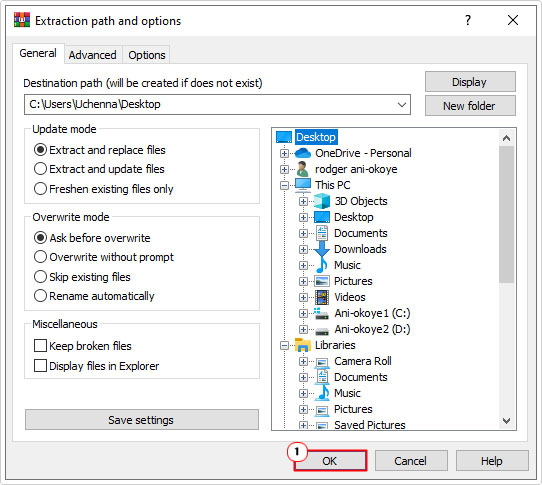
Note: The folder will be extracted to the same location as the .zip file.
5. Open the [Guru3D]-DDU folder, then double-click on DDU vXX.exe.
![double-click on DDU vXX.exe in [Guru3D]-DDU](https://www.compuchenna.co.uk/wp-content/uploads/2026/06/AMD-Driver-Keeps-Crashing-3.jpg?x10933)
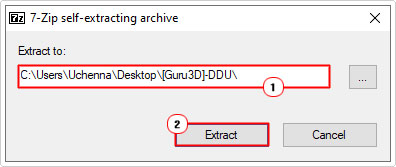
6. A self-extracting archive applet will pop up, click on Extract.
7. Now, go back to the [Guru3D]-DDU folder, and double-click on the DDU vXX folder.
![double-click on DDU vXX in [Guru3D]-DDU folder](https://www.compuchenna.co.uk/wp-content/uploads/2026/06/AMD-Driver-Keeps-Crashing-5.jpg?x10933)
8. Next, double-click on Display Driver Uninstaller to open the app.
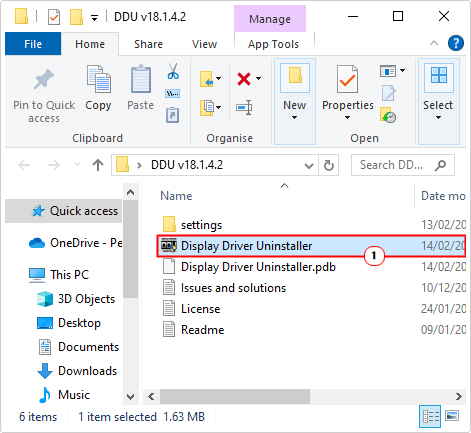
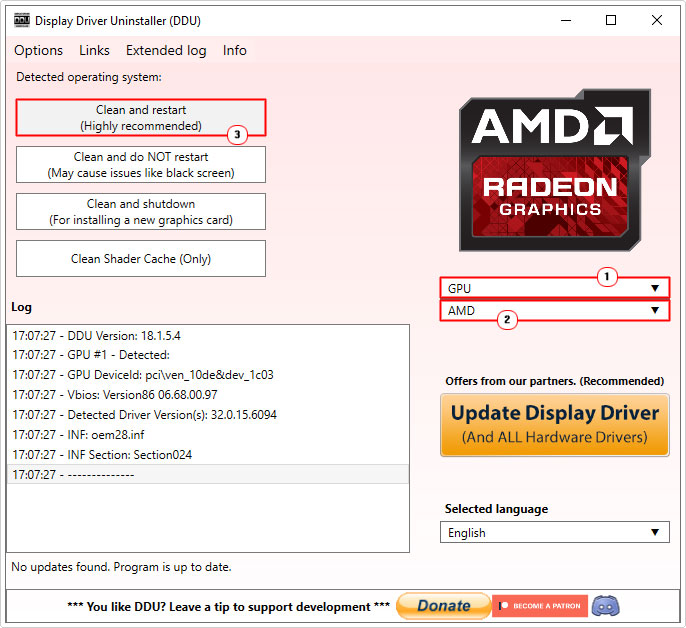
9. Simply select the GPU and Brand from the dropdown menu, then click on Clean and restart.
10. Once you have successfully removed the drivers, you can install new ones. Simply visit the AMD website, and download the latest ones from there.
Disable Multiplane Overlay
When the AMD driver keeps crashing the system, end users have discovered that they are able to fix it, by reducing GPU load by disabling a crucial feature.
To do this, simply follow the steps below:
WARNING: The Windows registry is a vital area of the operating system, thus, any wrong modifications to it, can render your system inoperable.
1. Boot into Windows as an admin.
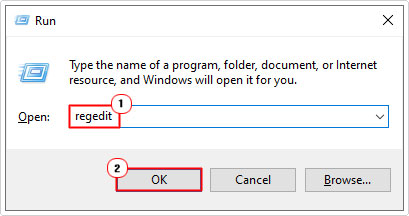
2. Then press  + R, type regedit and click on OK.
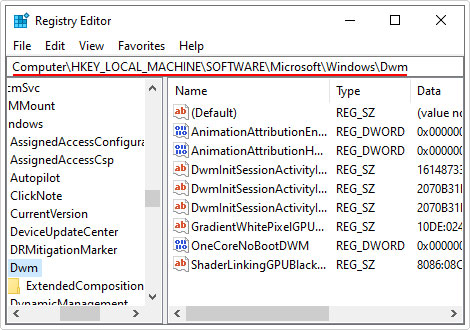
3. When Registry Editor loads up, navigate to the following path:
HKEY_LOCAL_MACHINE\SOFTWARE\Microsoft\Windows\Dwm
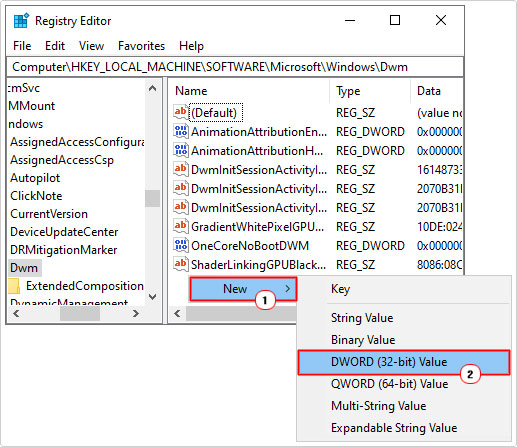
4. Now, in the right pane, right-click and select New -> DWORD (32-bit) Value.
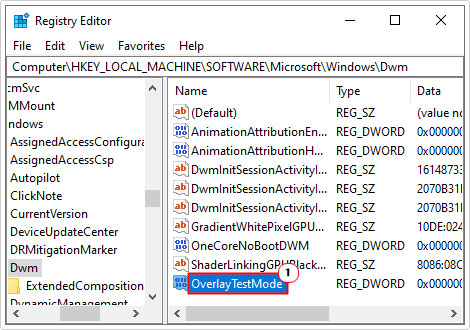
5. Name that new DWORD OverlayTestMode and double-click on it.
6. This will bring up the Edit DWORD (32-bit) Value applet, simply type 5 into the Value data box, then click on OK.
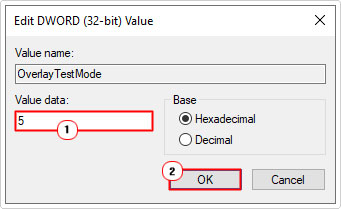
7. Lastly, close Registry Editor and restart your system.
You can now verify whether or not it has fixed the error.
Alter the TdrDelay Value
TdrDelay is the amount of time the Windows operating system will wait before attempting to access your GPU. If the GPU fails to respond in the allotted time, then the system will crash. Thus, as a possible solution, you may want to consider increasing the delay time. To do that, follow the steps below:
WARNING: This solution also requires the end user to access the Windows registry. So do tread with caution, as you do not want to destroy your operating system.
1. Follow steps 1 – 2 of Disable Multiplane Overlay.
2. When Registry Editor loads up, go to this path:
HKEY_LOCAL_MACHINE\System\CurrentControlSet\Control\GraphicsDrivers
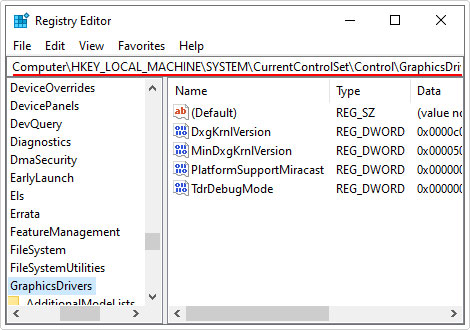
3. Now, right-click on the right pane and select New -> DWORD (32-bit) Value.
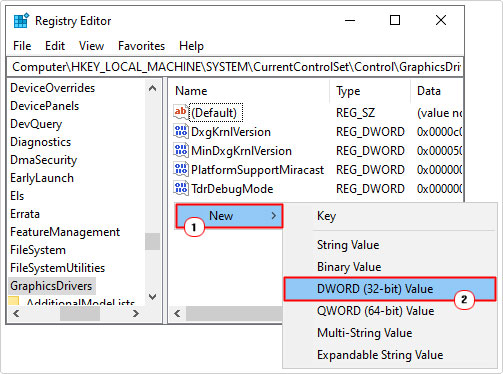
Note: If the DWORD TdrDelay already exists, then just double-click on it.
4. Name the new DWORD TdrDelay, then double-click on it.
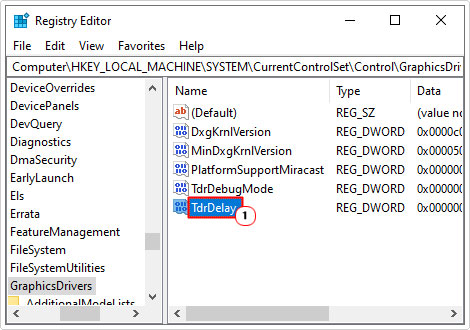
5. This will bring up the Edit DWORD (32-bit) Value applet, type 10 into the Value data box and click on OK.
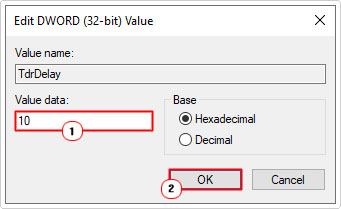
Note: 10 indicates the number of seconds. Anywhere between 10 – 20 seconds should be good.
6. Close Registry Editor, and restart your system.
Now check whether or not this fixed the problem.
Disable Overclock
If you put an overclock on your GPU, then it may be safe to assume that it is unstable. For that reason, you should consider removing it. To do that, you will need to access the BIOS (the same way you did before) and remove the overclock.
Alternatively, you could lower the overclock down.
Repair Windows System Files
The driver display error could be the result of missing or corrupt Windows system files. Fortunately, there is a built-in Windows tool called System File Checker (SFC) that is capable of fixing this problem.
Simply run the tool, and it should do the rest.
For step-by-step instructions on how to do that, check out my post on how to run SFC Scannow.
Are you looking for a way to repair all the errors on your computer?
If the answer is Yes, then I highly recommend you check out our 24/7 Live Support Service.
Which is the leading Online Support Service that is able to help you cure your system from a number of different ailments such as Windows Installer Errors, Runtime Errors, Malicious Software, Spyware, System Freezing, Active Malware, Blue Screen of Death Errors, Rundll Errors, Slow Erratic Computer Performance, ActiveX Errors and much more. Click here to check it out NOW!