
| Attention Before you read this post, I highly recommend you check out my resources page for access to the tools and services I use to not only maintain my system but also fix all my computer errors, by clicking here! |
Did you recently stumble upon the HAL_INITIALIZATION_FAILED error while using your Windows based system? Would you like some direction on what to do next? If you answered yes to any one of these questions, then you’ve come to the right place. In this tutorial, we will be going through a number of solutions that you can utilise right now to fix this problem.
HAL_INITIALIZATION_FAILED with the error code 0x0000005C is a Blue Screen of Death (BSOD) error. HAL_INITIALIZATION_FAILED errors are fairly common, and are typically caused by driver issues, Windows data corruption, hardware incompatibility and a whole host of other potential causes – that we will touch on later. If no action(s) are taken to address this problem, it can worsen over time, potentially impairing work productivity and corrupting sensitive data.
This error is known to affect all of the latest iterations of Windows (11, 10, 8.1, 8 & 7), and most commonly occurs when an end user attempts to wake their system up from a sleep state.
There are many end users out there that prefer to put their system into Sleep (Hibernation) Mode overnight (instead of shutting it down). In such scenarios, HAL_INITIALIZATION_FAILED errors can occur, given the right circumstances. As previously stated, there are a number of potential causes for you to consider and look out for.
In this tutorial, I hope to guide you through a number of solutions you can use on your Windows based system to fix the HAL_INITIALIZATION_FAILED error. But before we get to the solutions, let’s go into more depth on its potential causes.
What Causes HAL_INITIALIZATION_FAILED Errors?
Before we delve into the solutions, it’s always best to get a firm grasp on what could be causing the error. This is important, as the solution most likely to work, will be tied to a specific cause.
With that said, the most likely causes are as follows:
- The hard disc drive may be damaged or corrupted.
- You have outdated or corrupt device drivers on your system.
- The Windows registry has been corrupted.
- A hardware device is faulty.
Now that we have a general idea of what may be causing the HAL_INITIALIZATION_FAILED error, let’s go through the various working solutions.
How to Fix It
In the vast majority of cases, you can gain access to the system (after the HAL_INITIALIZATION_FAILED error), by simply rebooting the computer. However, this does not fix problem. As continuous attempts to use Sleep Mode results in the same outcome. So what do you do? There are several things you can and should do; all of which are outlined below in order of effectiveness and efficiency.
Update Device Drivers
In a lot of instances, BSOD errors (such as HAL_INITIALIZATION_FAILED) are caused by driver issues, whether it’s outdated, incompatible or corrupted. Thus, that’s one of the first things you’ll want to consider. Maybe your GPU drivers are at fault.
As a first solution, I’d recommend you downloaded the latest (working) drivers for your GPU card. This can be done by going to the manufacturer’s website and downloading the drivers off there. To do this effectively, you will need to know the Brand and Model of your device.
Alternatively, you can adopt the automated approach through the use of a driver finder tool.
This tool will essentially do all the heavy lifting for you. It will identify the different devices in and connected to your system. Then search the internet and download and install the latest drivers for all of them.
If the automated solution is more to your liking, then visit the link below:
CLICK HERE TO CHECK OUT THE DRIVER FINDER TOOL
Use Windows Repair Tool to Fix HAL_INITIALIZATION_FAILED Errors
If the solution above failed to fix the error, then you may want to consider using a Windows repair tool.
This is an all-in-one, highly advanced repair solution that comes with a wide range of capabilities and features. Within a single scan, you can expect it to identify and fix registry errors, BSOD errors, game errors, DLL errors and much more.
It’s also equally adept at making your system perform faster. So if you’re system has become sluggish over time (due to continuous use), then this is your solution.
You can learn more from the link below:
CLICK HERE TO CHECK OUT THE ADVANCED REPAIR TOOL
Run a Malware Scan
It’s possible a malicious file infiltrated your system and caused the HAL_INITIALIZATION_FAILED error. For this solution, it’s recommended that you run a full scan of your system using whatever internet security solution you have.
However, if you do not have an internet security tool or you would just like to try something better, then I recommend you give System Mechanic a try, and that’s because of its efficiency and reputation.
You can learn more about this tool and how it can help you, from the link below:
CLICK HERE TO CHECK OUT SYSTEM MECHANIC
 The solution(s) below are for ADVANCED level computer users. If you are a beginner to intermediate computer user, I highly recommend you use the automated tool(s) above! The solution(s) below are for ADVANCED level computer users. If you are a beginner to intermediate computer user, I highly recommend you use the automated tool(s) above! |
Check Hardware
Another common cause of the HAL_INITIALIZATION_FAILED error is faulty or incompatible hardware. So for you, you’ll want to ensure your hardware device(s) are working as advertised. To do that, there are several approaches you can take. They are as follows:
- If the error occurred, right after you installed a new hardware device, then you should consider removing it to determine whether or not it is the cause.
- Make sure your hardware device(s) are running the latest firmware. You should have a Hardware Compatibility List for your motherboard. Make sure the device(s) you acquired is on it.
- Consult your motherboard manual or the support team at the manufacturer’s website for more help.
Of the different hardware devices, the one that is most likely to go “bad” are the RAM modules. The good news is that there are several ways you can test them – to see if they are working optimally.
The most common method is to use the built-in Windows Memory Diagnostic tool. It comes as part of Microsoft Windows, and will run a test on your Memory to determine whether or not they are “working” correctly.
To access this tool, simply do the following:
1. Boot into Windows as an admin.
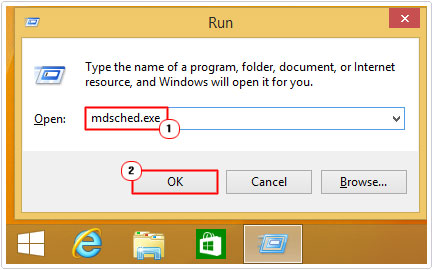
2. Next, press  + R, type mdsched.exe and click on OK.
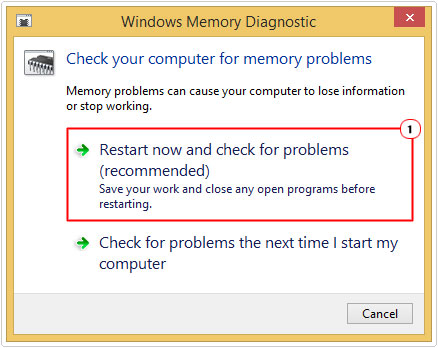
3. When the Windows Memory Diagnostic applet pops up, click on Restart now and check for problems to get started.
Enable Useplatformclock
This is another effective way of fixing the HAL_INITIALIZATION_FAILED error. As previously mentioned, the error typically happens right after waking from a sleep state. For that reason, you may want to consider enabling the High Precision Event Timer (HPET).
To learn more about this feature, including how it can help you and how to enable it, check out my post on fixing IO1 INITIALIZATION FAILED BSOD errors.
Run CHKDSK
A faulty hard drive is also capable of causing the HAL_INITIALIZATION_FAILED error. Whether it be the result of corrupted data or damaged sectors, you’ll need to use the CHKDSK feature to find out.
To use this tool, follow the steps outlined below:
1. First, boot into Windows as a full administrator.
2. Then press + R, type cmd and press CTRL + Shift + Enter.
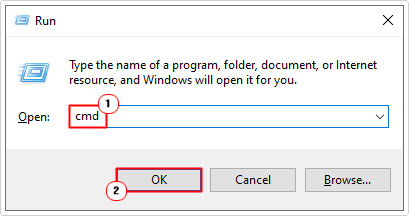
3. When Command Prompt loads up, type the command below and press Enter:
Chkdsk c: /r
Note: if you have more than one drive installed on your system, then you will need to carry out step 3 for all of them. Just change the C: with the letter of your other drives.
After the process has finished, restart your system and verify whether or not it has fixed the error.
Are you looking for a way to repair all the errors on your computer?

If the answer is Yes, then I highly recommend you check out our 24/7 Live Support Service.
Which is the leading Online Support Service that is able to help you cure your system from a number of different ailments such as Windows Installer Errors, Runtime Errors, Malicious Software, Spyware, System Freezing, Active Malware, Blue Screen of Death Errors, Rundll Errors, Slow Erratic Computer Performance, ActiveX Errors and much more. Click here to check it out NOW!