

| Attention Before you read this post, I highly recommend you check out my resources page for access to the tools and services I use to not only maintain my system but also fix all my computer errors, by clicking here! |
Did you recently encounter a DRIVER_IRQL_NOT_LESS_OR_EQUAL Blue Screen of Death (BSOD) error during the boot up phase of your system? If so, then you need not worry. Yes, it can be daunting, and at times, challenging to overcome, but, throughout this tutorial, we will be discussing exactly what it is, along with verifiable methods you can use to overcome it. To start things off, we will go into greater detail on what this error actually represents.
In the vast majority of cases, the DRIVER_IRQL_NOT_LESS_OR_EQUAL error is the result of an issue with the ndis.sys file, and will occur when the system driver attempts to access memory using the wrong address.
DRIVER_IRQL_NOT_LESS_OR_EQUAL is a BSOD or STOP error, which means, it will halt or prevent access to your system when it occurs. The error is an indication that an incorrect IRQL (Interrupt Request Level) was accessed (or an attempt to access such) through a memory address. The IRQL is used for the management of hardware interrupts. Which are signals sent to specific hardware components to request immediate attention.
When a system driver makes an attempt to access a memory address that’s at a higher IRQL, the immediate effect is a system crash.
In other situations, the error could be the result of corrupted network driver. In this instance, the error may be referred to as a netio.sys error or same-driver incorrect memory address error. Which, as previously reiterated, occurs when the driver attempts to create or access a memory address that is inaccessible.
Fixing BSOD errors can be quite time-consuming. This is because it can be difficult to pinpoint the exact cause. Fortunately, this tutorial has outlined a number of possible solutions. But before we get to them, let’s take a deeper look into its root causes.
What Causes DRIVER_IRQL_NOT_LESS_OR_EQUAL Errors
As is the case with most Windows errors, several factors could be contributing to the DRIVER_IRQL_NOT_LESS_OR_EQUAL error. Understanding exactly what is causing it, will put you in a good position when it comes to solving it.
With that said, the most common causes are as follows:
- Hardware fault: It’s possible one or more components (such as the hard disc drive, RAM, GPU) is triggering the error. A diagnostic check may be in order to verify the working functionality of said components.
- Corrupted, incompatible or outdated system drivers: Drivers that are outdated or incompatible can cause a plethora of problems in your OS, ultimately resulting in the DRIVER_IRQL_NOT_LESS_OR_EQUAL error. For this reason, ensuring all your system’s drivers are up-to-date is crucial.
- Unstable overclock: When overclocking your GPU or CPU you must always factor stability into the equation. There are specific software designed for that exact purpose. In the short term, resetting these components back to their default settings will solve the problem.
- The system is infected with a malicious file: Malware or viruses are capable of infiltrating and corrupting your Windows files. This can result in driver corruption at the very least. Regularly scanning/checking your system for viruses is very important for this reason.
Now that we have a good idea of what may be causing this error, let’s take a look at the numerous working solutions you can adopt right now.
How to Fix It
You should have a good or clear understanding of what to look out of when it comes to the DRIVER_IRQL_NOT_LESS_OR_EQUAL error. So, let’s start with the simplest solution(s):
Hardware Issues
One of the first things to consider, when getting this BSOD error, is that an external (or internal) hardware device is at the root cause.
Thus, you should take the following steps:
- Disconnect any external USB sticks or hard drives.
- If you installed a new hardware component, then consider removing it.
- Make sure all the components in your system are working, i.e. CPU fan is spinning.
- Reseat your RAM memory modules.
- Disconnect any additional external devices, such as printers, game controllers etc…
If this hardware check doesn’t resolve the issue, then you should consider the next solution.
Run a Virus Scan
It’s possible that a malicious file infiltrated your system and corrupted crucial Windows files, resulting in the DRIVER_IRQL_NOT_LESS_OR_EQUAL error.
If so, then you’ll want to scan your system using your antivirus scanner. Which will identify and remove (or quarantine) the file(s).
Alternatively, if you do not have an antivirus scanner or you’re on the lookout for something better, than I’d recommend you gave Bitdefender a try.
You can learn more about this tool and the many ways it can help you, from the link below:
CLICK HERE TO CHECK OUT BITDEFENDER
Update Device Drivers to Fix DRIVER_IRQL_NOT_LESS_OR_EQUAL Errors
A corrupted, outdated or incompatible driver is also capable of causing the DRIVER_IRQL_NOT_LESS_OR_EQUAL error.
Thus, for this solution, you’ll want to update the drivers for all the different devices connected to your system, whether internal or external.
To do that, you will need to know the make and model of these different devices, then visit the manufacturer’s website and download the drivers off there.
This can be a fairly arduous and painstaking process. Which is why the use of a driver automation tool is your next best option.
This tool, when run, will scan your system, identify all the different devices connected to the system, then download all the relevant drivers for it.
All within a couple of mouse clicks.
If, by any chance, that interests you, then visit the link below:
CLICK HERE TO CHECK OUT THE DRIVER FINDER TOOL
 The solution(s) below are for ADVANCED level computer users. If you are a beginner to intermediate computer user, I highly recommend you use the automated tool(s) above! The solution(s) below are for ADVANCED level computer users. If you are a beginner to intermediate computer user, I highly recommend you use the automated tool(s) above! |
Run Windows Memory Diagnostic Tool
It’s possible your RAM memory modules are faulty. Unfortunately, there is no way to make that determination by physically examining them.
Fortunately, however, Windows has a built in tool called Windows Memory Diagnostic. It will run a test on your memory module(s) to determine whether or not they are working as they should.
Accessing this tool is a fairly simple process. Just follow the steps on my post on fixing bad pool header errors.
Check Software
If the DRIVER_IRQL_NOT_LESS_OR_EQUAL error only occurs when you attempt to run a specific program, then you may want to consider reinstalling it.
Additionally, you may want to consider reinstalling the follow programs:
Once you’ve done that, you can retry the app – to see whether or not it fixed the error.
Note: Reinstalling the recommended programs should be done first – before the app.
Disable Startup Programs
A start-up program, is as the name states, a program that starts when the operating system starts up. Many or most of these programs are essential, but there are many that are luxury, which overtime can prove to be more of a drain on system resources than a benefit.
For those apps, you may want to consider removing/disabling them.
To do that, follow the steps below:
1. Boot into Windows as a full administrator.
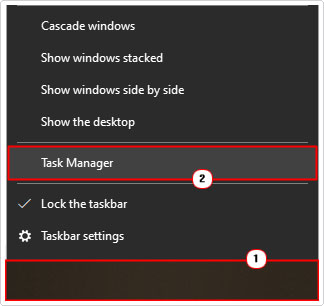
2. Next, right-click on the Taskbar and select Task Manager.
3. When Task Manager loads up, click on the Startup Tab, then select the program and click on Disable.
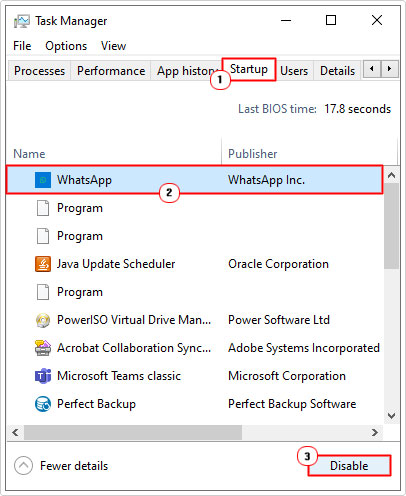
Note: If you don’t know which programs you can disable, I recommend you type the exact app name into the Search Engine to find out.
Reset Windows
If the DRIVER_IRQL_NOT_LESS_OR_EQUAL error still hasn’t been resolved up to this point, then you may want to try resetting the operating system.
This is basically a totally reinstallation of all Windows files, while keeping all your sensitive files intact (potentially).
For step-by-step instructions on how to use this feature, check out my post on fixing Windows activation error code 0xc004f211.
Are you looking for a way to repair all the errors on your computer?
If the answer is Yes, then I highly recommend you check out Fortect.
Which is the leading registry cleaner program online that is able to cure your system from a number of different ailments such as Windows Installer Errors, Runtime Errors, Malicious Software, Spyware, System Freezing, Active Malware, Blue Screen of Death Errors, Rundll Errors, Slow Erratic Computer Performance, ActiveX Errors and much more. Click here to check it out NOW!