
| Attention Before you read this post, I highly recommend you check out my resources page for access to the tools and services I use to not only maintain my system but also fix all my computer errors, by clicking here! |
INTERNAL_POWER_ERROR is just one of many Blue Screen of Death (BSOD) errors you may encounter while using your Windows based system. These errors appear unexpectedly and halt your Windows experience, forcing you to restart to regain access to your computer. A BSOD error indicates a critical issue, and occurs, to protect your system from any potential further damage. Such errors occur as the result of a hardware or software problem.
Looking specifically at the INTERNAL_POWER_ERROR, this error notification oftentimes indicates a corrupt or incorrectly configured GPU driver. This particular error was first introduced around 2015 when Microsoft released an update for Windows 10. The update caused a conflict between the GPU (Nvidia/AMD) drivers and the operating system.
The specific error code for INTERNAL_POWER_ERROR is 0x000000a0. BSOD error messages are fairly generic, with only minor differences between them. This leaves the user with very little to go on.
If you’re currently bogged down with this error, then you’ve come to the right place. To follow, will be a breakdown of its most common causes, along with several solutions that have all proven successful at fixing this problem.
What Causes INTERNAL_POWER_ERROR Errors?
As is the case with most errors you may encounter in Windows, INTERNAL_POWER_ERROR can and does occur due to a multitude of reasons. Having some understanding of the why, will naturally put you in a better position when it comes to fixing it.
Below is the most common causes for INTERNAL_POWER_ERROR:
- Windows Hibernation files have been corrupted.
- The drivers for your GPU are conflicting with Windows.
- One or more hardware components is malfunctioning.
- A software conflict exists on your system.
Now that we have a general idea for what to look out for, let’s get to the solutions.
How to fix it
There are a number of solutions available to you, all of which are capable of fixing this problem. Ultimately, you’ll probably want to focus on your GPU drivers being at fault, but as you’ve seen by the many causes, that isn’t always the case.
Note: If you’re system has become increasingly unstable, due to the INTERNAL_POWER_ERROR, you may want to boot into Safe Mode. This should give you a more stable environment to carry out the solutions outlined below.
Update GPU Drivers
As has been pointed out, the INTERNAL_POWER_ERROR is oftentimes the result of a driver issue. Whether it’s because they are outdated or incompatible with your current OS version. You need to consider updating them as a possible first solution.
To do this, you will need to visit the website of your GPU manufacturer and download the drivers off there.
Note: You will need to know the make and model of your card, to ensure you acquire the correct driver set.
Then simply install them – the installation process should be very simple to go through.
Alternatively, if you are unable to locate these drivers or you simply lack the expertise to carry out this process, then you can use a driver automation tool.
Such a tool will scan your system, identify the components inside it, then locate and download the most up-to-date drivers for them.
It’s a much simpler process that will ensure your systems drivers are always the latest.
Anyway, if the tool interests you, then visit the link below:
CLICK HERE TO CHECK OUT THE DRIVER FINDER TOOL
Run a Virus Scan
A BSOD error (such as INTERNAL_POWER_ERROR) can occur when a system has been infected by malicious files. These files are capable of infiltrating and corrupting the most crucial parts of your operating system, effectively, making it more and more unstable over time.
As a viable solution, you may want to consider running a full scan of your system, using your current antivirus solution.
That said, if you don’t have an antivirus scanner or you’re interested in trying something new, something verified to do the trick, then I suggest you give System Mechanic a try. It is a highly effective and efficient malware removal tool.
You can learn more about it, from the link below:
CLICK HERE TO CHECK OUT SYSTEM MECHANIC
Use Windows Repair Tool to Fix INTERNAL_POWER_ERROR Errors
This next solution, is probably one of your most comprehensive, as it involves the use of a Windows repair tool to fix the error.
The tool I recommend is highly adept at fixing registry corruption, BSOD errors, DLL errors, appcrashes, Windows Update issues and much more. It’s also capable of removing malware and making previously inaccessible files, accessible.
If for any reason, this tool interests you, then I suggest you visit the following link for more information:
CLICK HERE TO CHECK OUT THE ADVANCED REPAIR TOOL
 The solution(s) below are for ADVANCED level computer users. If you are a beginner to intermediate computer user, I highly recommend you use the automated tool(s) above! The solution(s) below are for ADVANCED level computer users. If you are a beginner to intermediate computer user, I highly recommend you use the automated tool(s) above! |
Set HD Timer To 0
One method that has proven highly successful at fixing the INTERNAL_POWER_ERROR, involves setting the sleep timer for your hard drive to 0. When this feature has been enabled, the operating system will put the hard drive into a sleep state when it has been idle for a specified time. The objective is to conserve energy. However, there are instances when the hard drive may fail to wake from this sleep state, effectively causing the BSOD error.
As a workaround, you can simply disable this feature. To do that, follow the steps below:
1. First, boot into Windows as a full administrator.
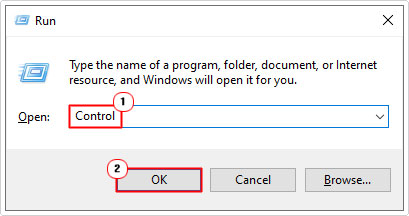
2. Next, press  + R, type Control and click on OK.
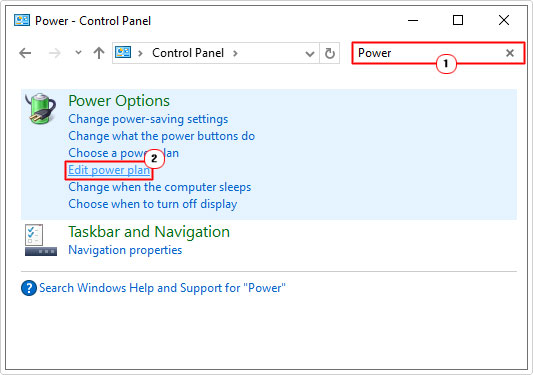
3. When Control Panel loads up, type Power into the Search Control Panel box, then click on Edit power plan.
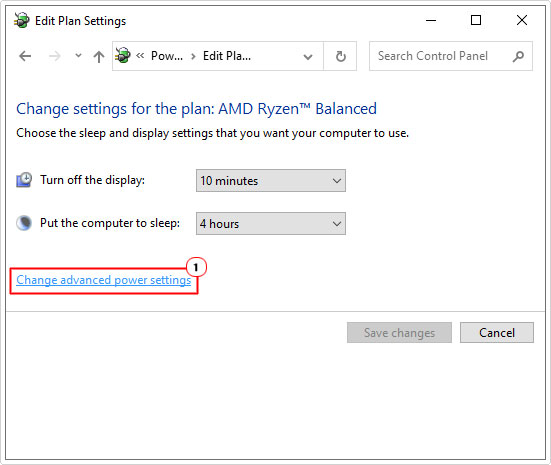
4. This will bring up the Edit Plan Settings page, click on Change advanced power settings.
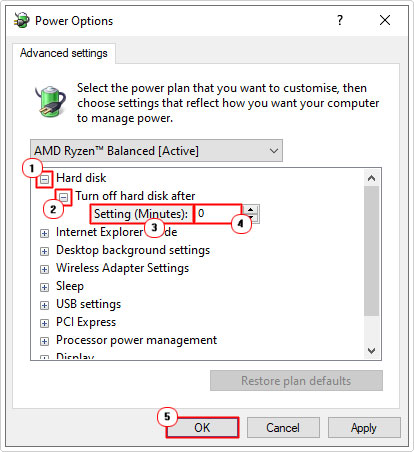
5. The Power Options applet should appear, click on + next to Hard disk, and then Turn off hard disk after. Now click on Settings (Minutes) and set the value to 0, then click on OK.
Increase Hibernation File Size
If the error continues to persist, then you may want to try increasing the size of the hibernation file. The hibernation file size is, by default, set to 75% of your RAM. However, you can try setting it to 100%, in an attempt to increase system stability by ensuring there is enough available reserved space to save all required data when entering hibernation mode.
To do that, follow these steps:
1. Boot into Windows as a full administrator.
2. Then press + R, type cmd and press CTRL + Shift + Enter.
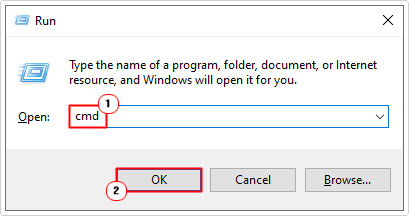
3. When Command Prompt loads up, type the command below and press Enter:
powercfg /hibernate /size 100
4. Lastly, close Command Prompt and restart your system.
You can now check whether or not it has fixed the INTERNAL_POWER_ERROR error.
Use Memory Diagnostic Tool
It’s possible the INTERNAL_POWER_ERROR is due to a hardware fault. In this case, it’s likely to be the RAM memory modules. However, to determine whether or not that is the case, you will need to run the built-in Windows memory tool.
For step-by-step instructions on how to access and run this tool, check out my post on fixing Bad Pool Header errors.
Check Hard Drive
Data corruption is another possibility when it comes to the INTERNAL_POWER_ERROR. Fortunately, this is a lot simpler to resolve. Just run the built-in Check Disk tool and it will scan, locate and fix data corruption on your hard drive.
You can find the appropriate instructions on how to use this tool from my post on fixing HAL_INITIALIZATION_FAILED errors.
Use System File Checker
System File Checker or SFC is another Windows tool that is designed to locate and replace missing or corrupt system files. If the INTERNAL_POWER_ERROR is due to OS corruption, then this tool may come in handy.
It does have its limitations, but it’s definitely worth using. My post titled how to run SFC Scannow will show you how to use it.
Are you looking for a way to repair all the errors on your computer?
If the answer is Yes, then I highly recommend you check out our 24/7 Live Support Service.
Which is the leading Online Support Service that is able to help you cure your system from a number of different ailments such as Windows Installer Errors, Runtime Errors, Malicious Software, Spyware, System Freezing, Active Malware, Blue Screen of Death Errors, Rundll Errors, Slow Erratic Computer Performance, ActiveX Errors and much more. Click here to check it out NOW!