
| Attention Before you read this post, I highly recommend you check out my resources page for access to the tools and services I use to not only maintain my system but also fix all my computer errors, by clicking here! |
Sometime in the past, there was a Windows Update that resulted in a significant number of end users being unable to access the web via Wi-Fi. The Wi-Fi symbol in the Taskbar had just disappeared. Later it was discovered that it was as a result of the Intel Wireless AC 9560 not working, with the OS displaying an error code 10 in Device Manager.
Intel Wireless AC 9560 is a Bluetooth adaptor that supports 2×2 dual-band at speeds of up to 1.73 Gbps. Its sole responsibility is to grant you wireless connectivity to the internet. However, issues can occur that can prevent this device from working.
Typical symptoms is an inability to access the internet wirelessly and the Device Manager showing a Yellow exclamation mark next to the device.
Like with most devices, it’s not uncommon for them to suddenly stop working. For that reason, a number of solutions have built up over time in rectifying this problem.
Depending on the circumstances, it may be something as simple as updating your drivers, but we’ll get to that later in this tutorial. For now, let’s take a deeper dive into its many root causes.
So continue reading for that.
What Causes “Intel Wireless AC 9560 not working” Issues
Typically, when the Intel Wireless AC 9560 wireless device stops working, it is indicated in Device Manager, with the Code 10. But what are the general reasons why that may be:
- The drivers (for the device) are corrupted: Many end users were able to overcome this problem by reinstalling or updating the device drivers.
- Bluetooth drivers are corrupted: The Bluetooth drivers come as part of the motherboard drivers. So a reinstallation of them may do the trick.
- Outdated operating system: Maybe the device drivers are no longer supported on your version of Windows, an update may be in order.
Other known causes of this error include, power to the wireless device being interrupted, wrong DNS and a misconfigured device.
Additionally, this error can also be the result of a BIOS setting, where wireless connectivity has been disabled.
How to Fix It
If you’ve recently discovered that the Intel Wireless AC 9560 is not working on your system, then the first thing you’ll want to do is perform a hard shutdown.
Note: This will force the system to shutdown entirely, erasing any stored cache data. Essentially, causing a fresh system boot up.
Many users have confirmed that they were able to fix the error code 10, simply by carrying out this process. So how do you do it? Well…by following the steps below:
1. Simply hold down the power button (on your laptop or PC) until the system physically shuts down.
Note: Once power has been cut to the system, continue to hold the power button down for another 10 seconds.
2. Now, disconnect the power cord from the plug socket and wait another 10 seconds, then reconnect it.
3. Power on the PC (or laptop) and check whether or not it fixed the problem.
Use Ethernet
Another solution or hack rather, many people discovered, is to connect to the internet via their Ethernet port. You will need the necessary Ethernet cable to do this, but if you have it, then I suggest you give it a try. See if it results in the wireless device re-enabling.
Update Device Drivers
If you haven’t updated the drivers for the various devices on your system for a long while, then it may be time you do so. It’s possible the Intel Wireless AC 9560 not working is the result of an outdated or corrupt driver. To update it, you have several options.
The first is to go to the website of your motherboard (or laptop) manufacturer and download the necessary drivers off there. You will need to know the Brand and Model No. to do this.
The second option involves using a driver automation tool to search the internet and locate, then download the necessary drivers for, not just the wireless device, but all the devices connected to your system.
The driver tool is the obvious easier option, so if you lack the expertise to do it manually, you may want to think about this.
For more information on the tool, check out the link below:
CLICK HERE TO CHECK OUT THE DRIVER FINDER TOOL
Intel Wireless AC 9560 Not Working? Use the Windows Repair Tool
If Intel Wireless AC 9560 is still not working even after attempting the solutions above, then you may want to try using a specialised Windows repair tool.
The tool I have in mind is highly advanced, capable of scanning, detecting and fixing a plethora of problems on your system. It’s also equally adept at optimising your systems performance, making it your ideal maintenance and repair suite.
After a single scan, you can expect it to identify and fix Windows registry corruption, malware infections, DLL errors and much more.
If the use of this repair tool interests you, then visit the link below:
CLICK HERE TO CHECK OUT THE ADVANCED REPAIR TOOL
 The solution(s) below are for ADVANCED level computer users. If you are a beginner to intermediate computer user, I highly recommend you use the automated tool(s) above! The solution(s) below are for ADVANCED level computer users. If you are a beginner to intermediate computer user, I highly recommend you use the automated tool(s) above! |
Re-enable Intel AC 9560
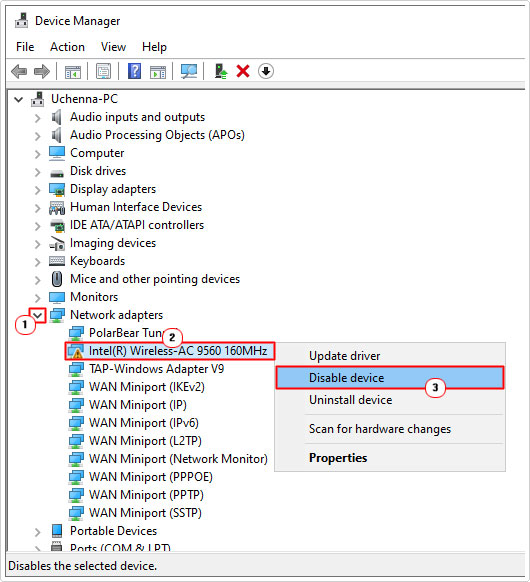
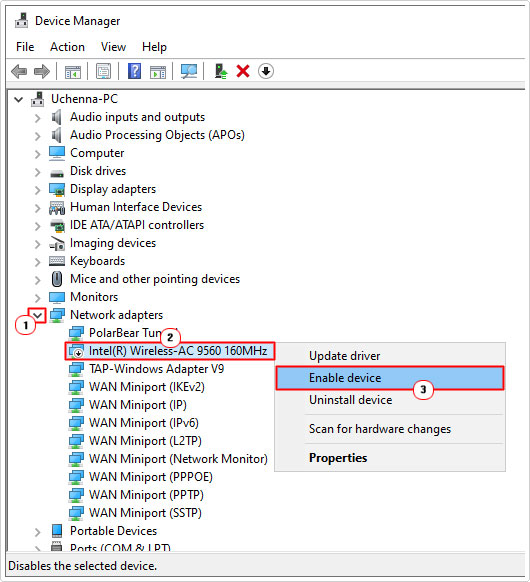
It’s possible the Intel AC 9560 adapter crashed during regular operation, in situations like this, it’s possible to regain access to the device by restarting it via Device Manager. Simply, disable, then enable it again.
Steps to completing this task are as follows:
1. First, boot into Windows as an admin.
2. Next, press  + R, type devmgmt.msc and click on OK.
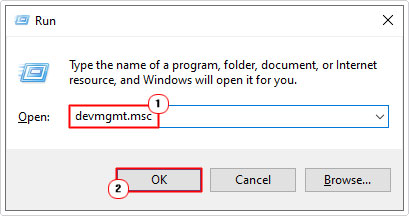
3. Now click on the > icon next to Network adapters, then right-click on Intel Wireless-AC 9560 and select Disable device.
4. Repeat step 3 and click on Enable device.
5. You can now check whether it fixed the device issue.
Enable WLAN AutoConfig
The purpose of this particular Windows service is to control Wi-Fi connectivity. Thus, if this service has crashed for whatever reason, it can result in the Intel Wireless AC 9560 not working. To get around this issue, make sure the service is enabled and running.
To do that, follow the steps below:
1. Boot into Windows as an admin.
2. Then press + R, type Services.msc and click on OK.
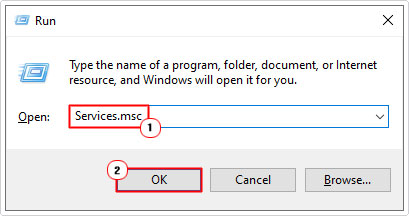
3. When Services loads up, scroll down and double-click on WLAN AutoConfig.
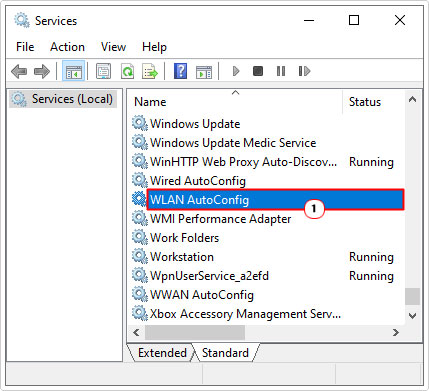
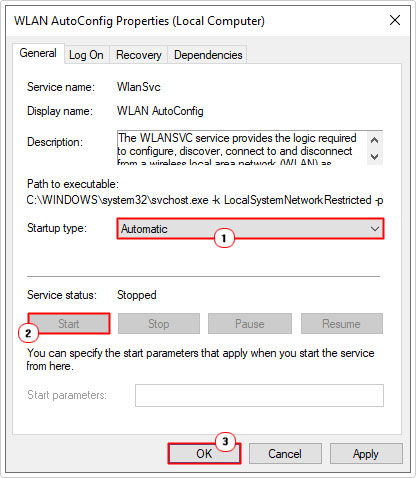
4. This will bring up the WLAN AutoConfig Properties page, from here, set Startup type to Automatic, then click on Start (if the option is made available). Lastly, click on OK.
5. Now you can check if it fixed the problem.
Reset Network
If the Intel Wireless AC 9560 device continues to not work, then you may want to try a network reset. This process involves flushing the DNS cache and resetting the Winsock.
Note: If, in the past, you have made any manual configuration changes to your network, a reset will remove these changes.
The steps are as follows:
1. Boot into Windows as an admin.
2. Then press + R, type cmd and press CTRL + Shift + Enter.
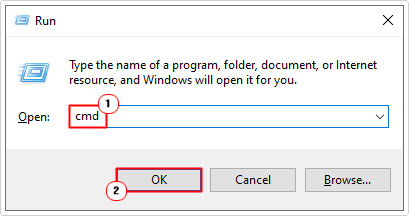
3. This will load up Command Prompt, now, type the commands below, pressing Enter after each line:
Ipconfig /flushdns
Netsh winsock reset
4. Once complete, restart your system. Then verify whether or not the device is working again.
Check System Corruption
A problem with your wireless adapter could indicate an issue with the overall integrity of your operating system. Thus, as a result, you may want to consider running the built in Windows tools SFC (System File Checker) and DISM (Deployment Image Servicing and Management).
Essentially, they are tools designed to restore your Windows integrity, by replacing missing or corrupt files.
For step-by-step instructions on how to use these tools, check out my post on fixing MSVCR71.dll missing errors.
Update Windows
An outdated operating system can also cause the Intel Wireless AC 9560 to stop working. Microsoft is constantly releasing new bug fixes and updates for their operating system, so it’s possible a solution already exists, and all you need to do is download it.
For instructions on how to use Windows Update, check out my post on fixing MSVCP120.dll is missing errors.
Enable Wireless Connectivity (BIOS)
Another scenario in which an end user may encounter an issue with their wireless device is if it was disabled in the BIOS. This can only happen if someone actively entered the BIOS and made the changes themselves, so please bear that in mind.
Disabling your wireless device via the BIOS will prevent it from working entirely, within a Windows session.
If you think there is any possibility that this did happen, then I suggest you enter the BIOS and attempt to make the necessary changes.
The specific instructions for this will vary, depending on the BIOS and its version. So, for clarity sake, I would recommend you sought the manual of your motherboard. It should provide you with the instructions on how to make the necessary modification(s).
Alternatively, you should be able to find the manual online, on the motherboard manufacturer’s website.
Use an External Wireless Device
It’s possible the Intel Wireless AC 9560 device is physically damaged, in which case, your only alternative will be to use an external USB wireless device to access the internet.
Though, many users have reported that their Intel Wireless AC 9560 device started to work, right after they installed a separate external wireless device.
So this is more of a hack, that you should definitely consider trying. USB wireless devices are cheap and plentiful, so you shouldn’t have much problems getting a hold of one.
Note: If a wireless device is not a viable option, then you can always use a wired (Ethernet) connection.
Are you looking for a way to repair all the errors on your computer?

If the answer is Yes, then I highly recommend you check out our 24/7 Live Support Service.
Which is the leading Online Support Service that is able to help you cure your system from a number of different ailments such as Windows Installer Errors, Runtime Errors, Malicious Software, Spyware, System Freezing, Active Malware, Blue Screen of Death Errors, Rundll Errors, Slow Erratic Computer Performance, ActiveX Errors and much more. Click here to check it out NOW!