

| Attention Before you read this post, I highly recommend you check out my resources page for access to the tools and services I use to not only maintain my system but also fix all my computer errors, by clicking here! |
Code 0x8007041d is specifically a Windows Update error that occurs when attempting to download and install updates. The error, occurs in a wide variety of circumstances, as the result of many different things, such as an overzealous internet security tool, OS corruption and much more. The error code 0x8007041d can allude to a number of different error types, but for this tutorial, we will be talking about the Windows Update variant.
A Windows Update error 0x8007041d occurs when the operating system is unable to complete the Windows Update process, ultimately resulting in a failure to install a specific update or updates. Depending on the severity of the issue, it could prevent you from updating your system altogether.
This particular error, is typically accompanied by the following message:
There were some problems installing updates, but we’ll try again later. If you keep seeing this and want to search the web or contact support for information, this may help: (0x8007041d)
In addition to the inability to update Windows, the following symptoms may also play out:
- Sluggish system performance.
- Unresponsive keyboard and/or mouse.
- System freezing and crashing.
So what can you do about it? Continue reading to find out.
What Causes Windows Update Error 0x8007041d?
Before attempting any of the solutions below, it’s always best to get a general understanding of what may be causing the error.
The most common causes are as follows:
- Windows system files have been corrupted: Windows update errors are oftentimes the result of OS corruption.
- Corruption due to the installation and uninstallation of apps: This could also be defined as registry corruption. But the constant installation and removal of apps does leave a small residue of data behind that can ultimately corrupt the Windows registry.
- Windows configuration issue: It’s possible the error is the result of an incorrect setting, common example is the wrong time & date.
The error 0x8007041d does not allude to a virus, however, it is possible that a malicious file infiltrated your system and caused the corruption, whether it’s in the registry or Windows files. For this reason, a full internet security scan is recommended.
What is the typical severity of this error? In the vast majority of cases, not much. Error 0x8007041d is most often tied to the corruption of your operating system, rather than an actual hardware fault. For this reason, the error can, in the vast majority of cases, be fixed by utilising the many solutions outlined below.
How to Fix It
Because the error can, and oftentimes does prevent you from updating Windows altogether, it’s important that you make attempts to fix it. A Windows operating system that hasn’t been updated in a while is usually very unstable and vulnerable to malicious threats.
So what are the options available to you? Well, the first thing you’ll want to do, is restart your system.
Additionally, because it is a download issue, the error could be caused by a weak or intermittent internet connection. For this reason, restarting your router may also be a good idea.
Disable Antivirus Software
As I previously pointed out, an overzealous internet security tool is also a common cause for error 0x8007041d. For this reason, you may want to consider disabling your security tool – at least temporarily. Just to be sure that it isn’t the culprit.
To do that, you will need to open the Windows Security app, and locate Real-Time Scanning/Protection and Disable it.
Note: The exact instructions will vary depending on the brand and version of your security software.
Use Windows Repair Tool to Fix Windows Update Error 0x8007041d
Depending on your level of expertise, the manual option(s) outlined below, may or may not be to your liking. For this reason, I must first recommend that you give the Windows repair tool a try. As it is an advanced repair solution, capable of scanning, detecting and fixing a plethora of issues on your system.
Usage is fairly straightforward, no special skills or expertise is required, just download, install and run. It will scan through your system and identify key problematic areas and apply the necessary fixes at your discretion.
Additionally, it will optimise your system, making it run faster. This makes it double as both a maintenance and repair tool.
If by any chance this interests you, then visit the link below:
CLICK HERE TO CHECK OUT THE ADVANCED REPAIR TOOL
 The solution(s) below are for ADVANCED level computer users. If you are a beginner to intermediate computer user, I highly recommend you use the automated tool(s) above! The solution(s) below are for ADVANCED level computer users. If you are a beginner to intermediate computer user, I highly recommend you use the automated tool(s) above! |
Set Correct Time & Date
If you’re time and date settings are incorrect, then it will prevent Windows from properly authenticating new updates. Fortunately, you can fix this common cause, simply by resetting your time and date.
To do that, follow the steps below:
1. First, boot into Windows as a full administrator.
2. Next, press  + I, and click on Time & Language.

3. This will bring up the Time & Language page, from here, click on Date & Time.

4. On the Date & Time page, click on Change.

Note: Set the time automatically must be off, before you can change the time.
5. The Change the date and time page will appear, set the current date and time, and click on OK.

Run Relevant Services
Windows Update requires a number of services to be running, at the time of the update, in order for it to be successful. Failure for a relevant service to run, can sometimes result in Windows Update errors. As a possible workaround, you may want to consider manually starting these services, then running Windows Update again.
The steps are as follows:
1. Boot into Windows as an admin.
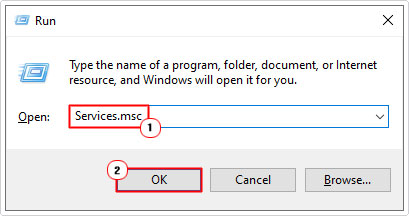
2. Then press + R, type Services.msc and click on OK.
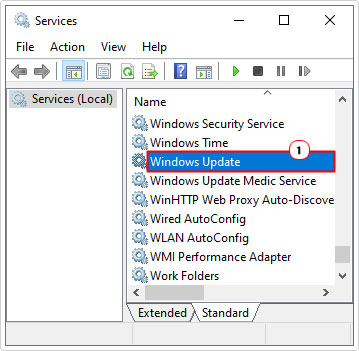
3. Next, scroll down and double-click on Windows Update.
4. When the Windows Update Properties applet appears, click on Start, then click on OK.

5. Complete steps 3 – 4 for the following additional services:
Background Intelligent Transfer Service (BITS)
Cryptographic Services
6. Now you can try running Windows Update again.
Reset Windows Update
This is more of a holistic approach to fixing the Windows Update error 0x8007041d. Essentially, you want to reset all the various components (which there are many) belonging to the Windows Update feature.
That means, clearing the SoftwareDistribution folder, resetting specific components and restarting certain services.
The steps to carrying out a successful Windows update reset can be found in my post on fixing Update Error 0x8024a206.
Use SFC
SFC stands for System File Checker and it is a built-in repair tool, designed to scan your Windows folder and locate and replace missing or corrupt system files.
It does have its limitations, as it ONLY replaces system files, however, if the Windows Update error is a result of OS corruption, then this tool just might do the trick.
Running this tool is very simple, just do the following:
1. Boot into Windows as an admin.
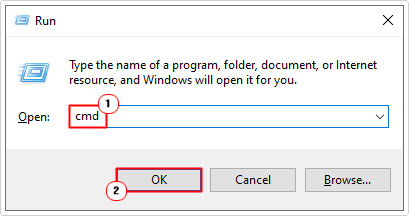
2. Then press + R, type cmd and press CTRL + Shift + Enter.
3. When Command Prompt loads up, type the command below and press Enter.
sfc /scannow
4. Close Command Prompt and retry Windows Update.
Alternatively or additionally, you may want to try the DISM (Deployment Image Servicing and Management) tool. It’s similar to the SFC tool, only it restores all the files in your Windows folder.
For instructions on how to use DISM, check out my post on fixing MSVCR71.dll missing errors.
Manual Windows Update
If, after attempting all the solutions above, you are still unable to update your OS, you may want to try a manual update. If error 0x8007041d is isolated to a specific update, then the manual approach is your best option.
To carry out a successful manual update, you will need to know the KB number of the specific update. This can be found in the View update history page. But ultimately, it should be displayed next to the failed update in the status area of Windows Update.

Anyway, the instructions to carrying out this process can be found on my post on fixing Windows Update error 0x80246019.
Are you looking for a way to repair all the errors on your computer?

If the answer is Yes, then I highly recommend you check out Fortect.
Which is the leading registry cleaner program online that is able to cure your system from a number of different ailments such as Windows Installer Errors, Runtime Errors, Malicious Software, Spyware, System Freezing, Active Malware, Blue Screen of Death Errors, Rundll Errors, Slow Erratic Computer Performance, ActiveX Errors and much more. Click here to check it out NOW!