
| Attention Before you read this post, I highly recommend you check out my resources page for access to the tools and services I use to not only maintain my system but also fix all my computer errors, by clicking here! |
It’s not uncommon for end users to encounter “The application was unable to start correctly (0xc0000102)” error notification while attempting to open an application. As is typically the case, there are a wide range of reasons why this may occur. Identifying the exact cause is crucial when it comes to solving this problem.
In the vast majority of cases, end users will encounter the error 0xc0000102 when attempting to open third-party apps (such as VLC Player, Mozilla Firefox, Adobe Photoshop, etc.) this may occur during the boot up sequence, when the OS attempts to load the apps in its Startup list or when the user tries to open a specific program within a Windows session.
On the surface, the problem may be as simple as an insufficient resource problem, especially if you have a significant number of services, tools and apps running at the same time. In such scenarios, the solution could be as simple as closing unused programs.
Problems are most likely to occur for outdated programs, as developers are constantly releasing new updates, bug fixes etc. to prevent issues and errors from manifesting.
If you are one of those unfortunate souls, battling with an error 0xc0000102 issue, then you’ve come to the right place. But before we get to the solutions, let’s take a deep dive into its most commonly known causes.
What Causes Error 0xc0000102?
After carrying out extensive research on this particular error, I can firmly stand on a number of causes that are known culprits for this problem.
The gist of it can be found below:
- Corrupt Windows registry: It’s possible the registry was corrupted, maybe due to a malicious file or the product of time.
- Insufficient User Rights: If you encounter this error while attempting to open MMC apps (such as Services, Event Viewer, and Device Manager, etc.) then it could be the result of a user rights issue.
- Lack of System Resources: Too many programs running at the same time, can result in a 0xc0000102 error message. If you’re system lacks the necessary resources to load the program, it will not load the program.
- Corrupt BCD Data: In some rarer cases, a corrupt Boot Configuration Data (BCD) is known to cause “The application was unable to start correctly (0xc0000102)” error.
Other things for you to consider include, an outdated or incompatible application, program conflict, a corrupt app (user) profile. Some apps, such as Google Chrome, utilise user profiles, which, when corrupted can inhibit your user experience. Resetting or deleting such profiles, oftentimes will resolve this problem.
That said, in the vast majority of cases, you can resolve this problem, simply by rebooting your system. However, if that fails, then you’re next options are listed below.
How to Fix It
When looking at viable solutions for “The application was unable to start correctly (0xc0000102)” error, there are a wide variety of things available to you. The severity of the error will determine what works and what does not.
So, let’s get to it.
Close Background Apps
If “The application was unable to start correctly (0xc0000102)” error occurs while you have several other apps running (at the same time), it’s possible the error was triggered by a resource (memory) shortage. In this particular scenario, you can fix it, by disabling nonessential apps.
The most effective way of doing this is by doing the following:
1. Ensure you’ve booted into Windows with administrator rights.
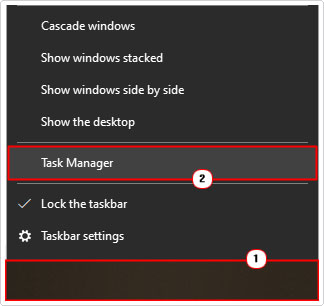
2. Then, right-click on the Taskbar and select Task Manager.
3. When Task Manager loads up, on the Processes Tab, click on the Memory column (this will arrange the apps in order of memory resource usage). Now, right-click on the top app and select End task.
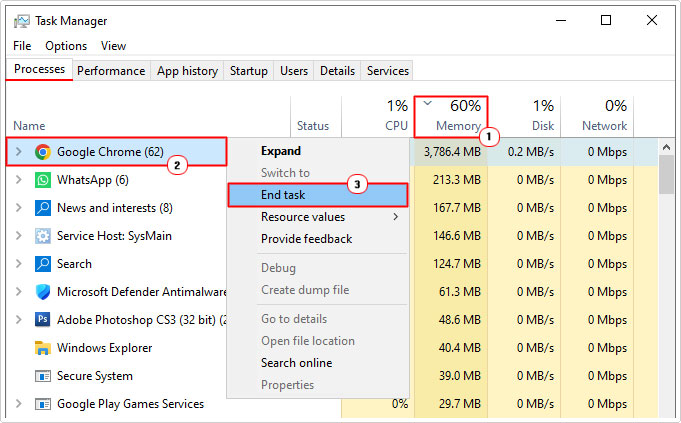
Note: You may have one or several apps consuming a considerable amount of resources. Either way, you should look to close any nonessential programs.
Use Windows Repair Tool to fix the application was unable to start correctly (0xc0000102) Error
The next viable and convenient solution available to you, involves using my recommended trusted Windows repair tool to fix it.
This particular tool is highly advanced, capable of scanning, detecting and fixing a wide range of issues and errors on your system. Within a single scan you can expect it to identify the root cause of registry corruption, virus infections, BSOD errors, DLL errors, etc., and administer the necessary fix for it.
This tool doubles as both a maintenance and repair suite, making it most ideal for all Windows users.
If by any chance, this interests you, then visit the link below:
CLICK HERE TO CHECK OUT THE ADVANCED REPAIR TOOL
 The solution(s) below are for ADVANCED level computer users. If you are a beginner to intermediate computer user, I highly recommend you use the automated tool(s) above! The solution(s) below are for ADVANCED level computer users. If you are a beginner to intermediate computer user, I highly recommend you use the automated tool(s) above! |
Run App in Compatibility Mode
Another possible cause of “The application was unable to start correctly (0xc0000102)” error is an incompatibility issue. Maybe the app is old, designed to run on an older platform or version of Windows.
If you don’t want to sit and wait for the developers to release a patch for the app, then you can try the compatibility mode feature. Which will attempt to run the app in an older Windows environment.
The steps are quite simple, you can find the step-by-step instructions on my post on how to fix “This app can’t run on your PC”.
Reinstall App
Probably one of the first things you should try, if an app refuses to run, then you should consider a reinstallation. Whether or not this solution will work, depends greatly on what is causing “The application was unable to start correctly (0xc0000102)” error.
Anyway, reinstallation is as so:
1. Boot into Windows as an admin.
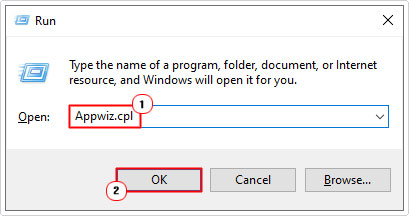
2. Then press  + R, type Appwiz.cpl and click on OK.
3. When Program and Features loads up, click on the Problematic Program and select Uninstall.

4. Follow the onscreen instructions to successfully uninstall the app. Once you’ve done that, restart your computer.
5. Lastly, visit the website of the app and download it again.
6. Once the download has finished, run the setup and install the program again.
Note: It’s important that you restart your system after the uninstallation and download new installation files from the apps official website.
App Conflict Fix
As already stated, it’s possible the app refuses to run because it’s conflicting with another running program. To determine whether or not this is the case, you will need to adopt this trial and error methodology.
The steps are as follows:
1. Boot into Windows as an admin.
2. Then right-click on the Taskbar and select Task Manager.
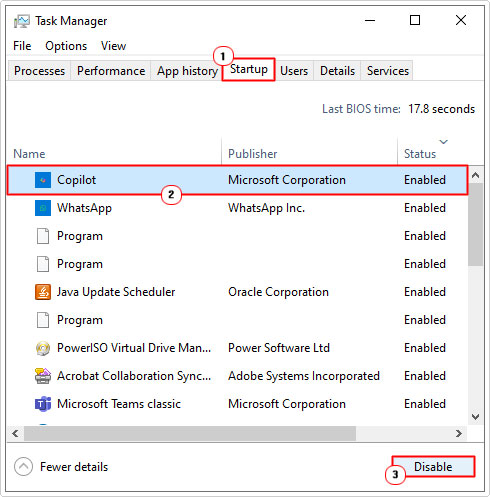
3. When Task Manager loads up, click on the Startup Tab, then click on the first app (on the top) and select Disable, then restart your system.
4. When Windows successfully boots up, you can try running the app again.
5. If the app refuses to run, then follow steps 3 – 4 again, until you pinpoint the culprit app.
Note: If you disable every start-up program and the app still refuses to run, then you know the error is not due to a software conflict.
Rebuild BCD Data
In some uncommon circumstances a corrupt Boot Configuration Data (BCD) has been known to cause “The application was unable to start correctly (0xc0000102)” error.
In situations like this, you can fix the error by rebuilding this crucial piece of Windows data.
Anyway, the steps to carrying out this procedure can be acquired from my post on fixing Bootmgr Is Missing Error.
Enable Admin Approval Mode policy
If you encounter the 0xc0000102 error when attempting to run MMC apps, such as diskmgmt.msc (Disk Management), eventvwr.msc (Event Viewer) and devmgmt.msc (Device Manager), you can fix this problem by providing your user account with the necessary administrative rights.
The steps to carrying this out are as follows:
1. Ensure you have booted into Windows as a full administrator.
2. Next, press + R, type secpol.msc and click on OK.

Note: I understand that secpol.msc is an MMC app, so if you’re unable to run it, then you will need to access Safe Mode. The steps to doing that, can be found here.
3. When Local Security Policy loads up, navigate to the following path:
Local Policies > Security Options
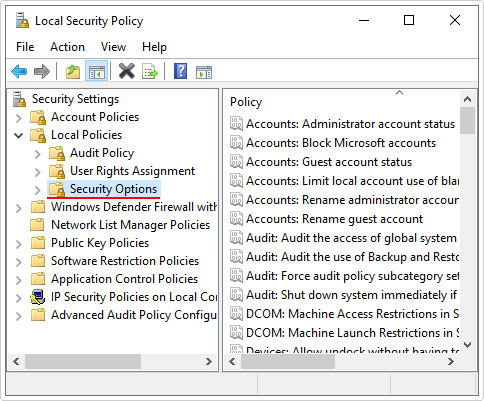
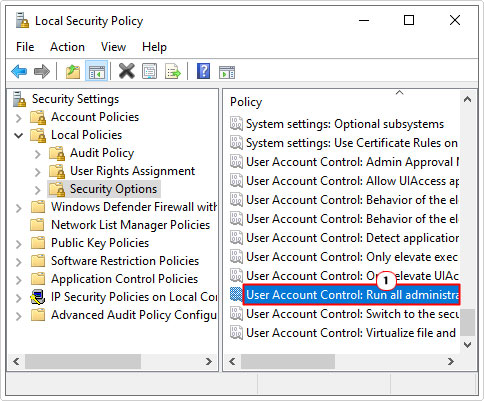
4. In the right-pane, scroll down and double-click on User Account Control: Run all administrators in Admin Approval Mode.
5. This will bring up the User Account Control: Run all administrators in Admin Approval Mode applet, on the Local Security Setting Tab, click on Enabled and click on OK.
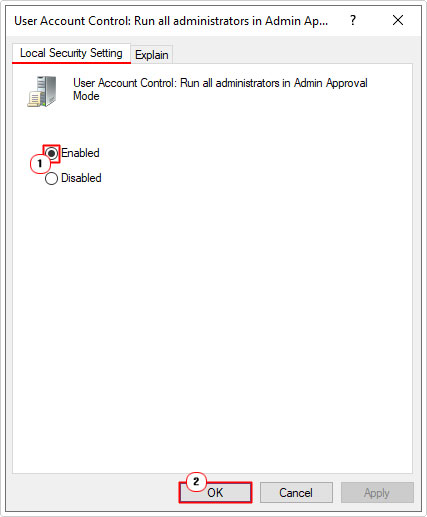
6. Lastly, restart your computer and the problem should be resolved.
Are you looking for a way to repair all the errors on your computer?

If the answer is Yes, then I highly recommend you check out Fortect.
Which is the leading registry cleaner program online that is able to cure your system from a number of different ailments such as Windows Installer Errors, Runtime Errors, Malicious Software, Spyware, System Freezing, Active Malware, Blue Screen of Death Errors, Rundll Errors, Slow Erratic Computer Performance, ActiveX Errors and much more. Click here to check it out NOW!