

| Attention Before you read this post, I highly recommend you check out my resources page for access to the tools and services I use to not only maintain my system but also fix all my computer errors, by clicking here! |
This is an all too common occurrence, an end user attempts to update their operating system (using the Windows Update feature) only to be greeted with an error, such as 0x800706ba, with next to no explanation. So what does it mean? In short, it means the RPC or Remove Procedure Call server was/is unavailable. This is an indication of a communication breakdown between the user’s machine and the update servers. In this tutorial, we’ll explain exactly what you can do to remedy this problem.
Error 0x800706ba is like a plethora of Update issues you may encounter during your Windows lifecycle. The error indicates an issue with the RPC server, which may or may not be the case.
The Remote Procedure Call or RPC is the method in which the operating system requests a service to carry out a specific action. The “Remote” doesn’t necessarily refer to the internet, as the vast majority of the RPCs remain within Windows itself. In this particular instance, nothing was there to carry out the action that was requested.
There is no indication that error 0x800706ba is linked to any specific file update. Which means, the error is holistic, the result of an issue with Windows Update itself, rather than that specific update file you’re trying to install.
With that said, let’s take a look into its many known causes.
What Causes Windows Update Error 0x800706ba?
In the vast majority of cases, it’s found that error 0x800706ba is the result of OS corruption or missing system files. There are a number of ways you can tackle this problem, which I will explain further on in this tutorial.
But for now, let’s do a rundown of its additional known error causes:
- Required Windows Update services have been disabled.
- Internet connection is intermittent.
- The RPC service has been blocked by your firewall.
- The DCOM permissions have been altered/misconfigured.
In other circumstances, error 0x800706ba may occur when the OS is attempting to sync iCloud with Microsoft Outlook, during a system image restoration or certificate enrolment. This is because all of these tasks require the RPC communication protocol.
As a result of that, there are variations of the error that one may encounter. All of which highlight the same issue:
The RPC server is unavailable Error 0x800706ba
SCCM 0x800706ba
How to Fix It
0x800706ba is, ultimately an error related to the RPC server. This means it can show up in a number of different circumstances, such as, during a failed backup, Windows Update or app synchronisation. In this section, we will highlight a number of working solutions you can adopt right now.
So, first things first. Consider disabling your Firewall, as it could be blocking the RPC from carrying out its typical function(s). The steps to doing that will vary depending on your firewall program (if you have one at all).
However, if you use the built-in Windows Defender Firewall, then you can disable it by following the step-by-step instructions outlined in my post on fixing error code 0x8007003b.
The next thing or probably the first thing you should do is check your internet connection.
Load up your web browser and attempt to surf the web.
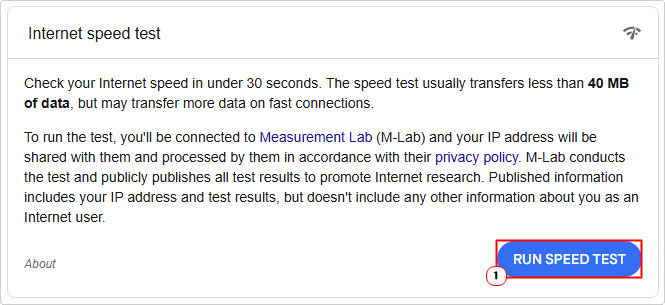
If you want to go a little further, then you can run a speed test. Just type that into the Search Engine, click on the RUN SPEED TEST button and follow the onscreen instructions.
Use Windows Repair Tool to Fix Error 0x800706ba
If the relatively simple yet effective solutions above failed to fix the error 0x800706ba, then you should definitely consider using this Window repair tool.
This specific tool is highly proficient in fixing Windows Update errors, by attacking and remediating the root cause of the problem (missing or corrupt system files). All you need to do is download and run it, and it will do the rest.
In addition, this tool is also capable of fixing registry corruption, DLL errors, BSOD errors, system performance issues and much more.
It doubles as both a maintenance and repair suite, making it your ideal all-in-one solution.
If by any chance this interests you, then visit the link below:
CLICK HERE TO CHECK OUT THE ADVANCED REPAIR TOOL
 The solution(s) below are for ADVANCED level computer users. If you are a beginner to intermediate computer user, I highly recommend you use the automated tool(s) above! The solution(s) below are for ADVANCED level computer users. If you are a beginner to intermediate computer user, I highly recommend you use the automated tool(s) above! |
Enable Update Service(s)
For Windows Update to work, there are several critical services that should be accessible to the operating system. These are Windows Update, Background Intelligent Transfer Services, Cryptographic Services, Windows Modules Installer and Workstation.
Fortunately, you can manually check and enable (if applicable) these services.
The instructions are as follows:
1. Boot into Windows as an admin.
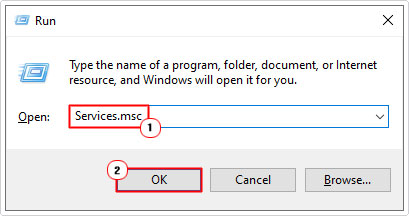
2. Then press  + R, type Services.msc and click on OK.
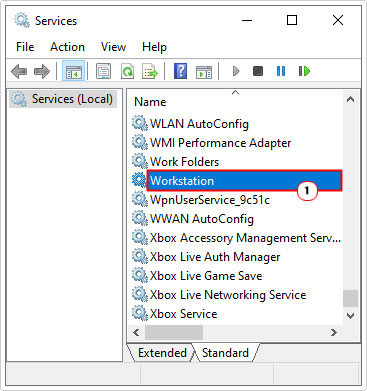
3. When Services loads up, scroll down and double-click on Workstation.
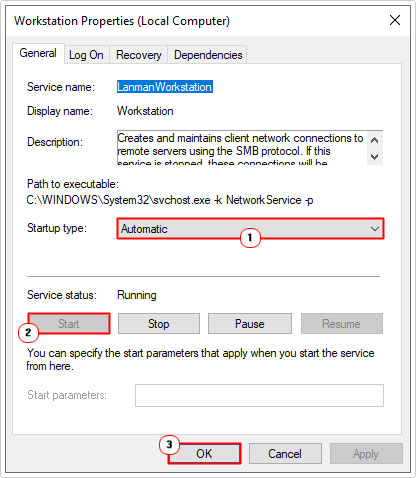
4. When the Workstation Properties applet loads up, make sure Startup type is set to Automatic, then click on Start, and click on OK.
5. Repeat steps 2 – 4 for:
Windows Update
Background Intelligent Transfer Services
Cryptographic Services
Windows Modules Installer
Use Command Prompt
If you have the expertise, then you may want to consider doing the same through Command Prompt instead. Setting these specific services to Automatic ensures they start during system boot up.
Anyway the steps to using Command Prompt are as follows:
1. Boot into Windows as a full administrator.
2. Then press + R, type cmd and press CTRL + Shift + Enter.
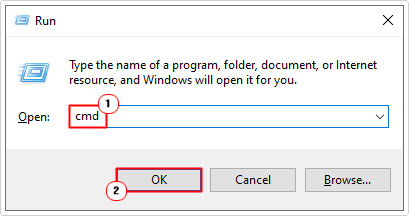
3. When Command Prompt loads up, type the commands below pressing Enter after each line:
sc config wuauserv start= auto
sc config bits start= auto
sc config cryptsvc start= auto
sc config trustedinstaller start= auto
sc config lanmanworkstation start= auto
4. Lastly, close Command Prompt and restart your computer.
Use Group Policy Editor
When Windows is unable to carry out a requested action, an unavailable error message will appear. This is because a number of options and features may be disabled or misconfigured on your operating system.
One of them is the Automatic Updates feature in the Group Policy Editor.
The steps to ensuring the correct configuration option is set is as follows:
1. Boot into Windows as a full administrator.
2. Then press + R, type gpedit.msc and click on OK.
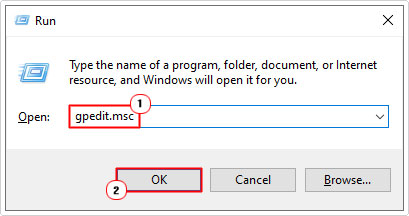
3. When Group Policy Editor loads up, navigate to the following path:
Administrative Templates > Windows components > Windows Update
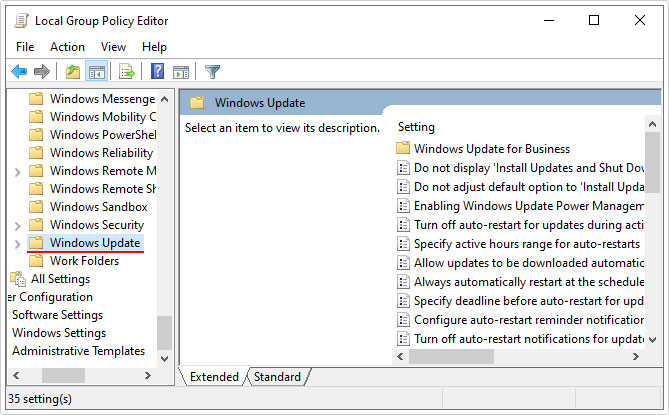
4. On the right-pane, double-click on Configure Automatic Updates.
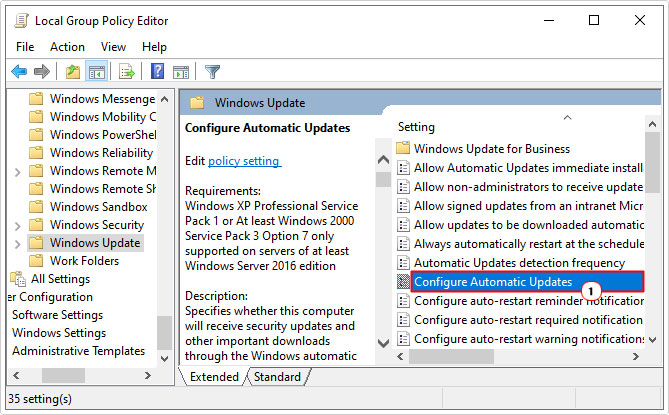
5. This will bring up Configure Automatic Updates, set it to Not Configured and click on OK.
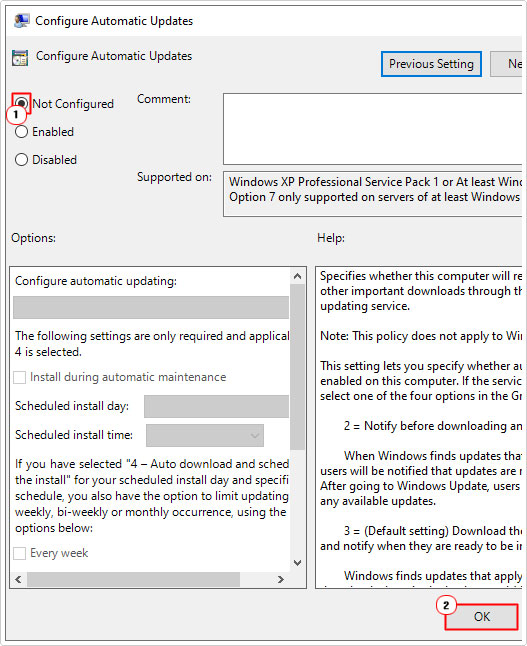
6. Now you can verify whether or not it fixed the error 0x800706ba.
Reset Windows Update
The purpose of this method is to reset all the core services belonging to the Update feature. This is most helpful when the error is the result of data corruption, i.e. an incomplete download.
The steps to resetting this component can be found on my post on fixing Update Error 0x8024a206.
Manual Update
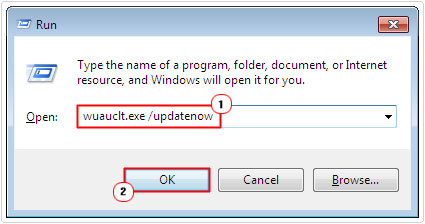
Through this method, the end user attempts to initiate a successful Windows Update. Using an old run command it is possible to force the component to run an update.
The steps are rather simple, just do the following:
1. Boot into Windows as an admin.
2. Then press + R, type wuauclt.exe /updatenow and click on OK.
Use SFC and DISM to Fix Update Error 0x800706ba
The corruption of key system files can oftentimes prevent the RPC service from initiating a successful Windows Update. Fortunately, Windows comes with two built-in tools designed to restore the system and OS files.
Instructions on how to use these two tools can be found in my post on fixing MSVCR71.dll missing errors.
Download Update
This is not exactly a fix, essentially, you are downloading the update and installing it outside of the Windows Update component. If it is imperative that you install this update, then this method may be to your liking. To do this, you will need to know the KB number of the update, then simply search for it in the Microsoft Update Catalog page.
The step-by-step instructions can be found in my post on fixing Windows Update error 0x8007041d.
Are you looking for a way to repair all the errors on your computer?
If the answer is Yes, then I highly recommend you check out Fortect.
Which is the leading registry cleaner program online that is able to cure your system from a number of different ailments such as Windows Installer Errors, Runtime Errors, Malicious Software, Spyware, System Freezing, Active Malware, Blue Screen of Death Errors, Rundll Errors, Slow Erratic Computer Performance, ActiveX Errors and much more. Click here to check it out NOW!