

| Attention Before you read this post, I highly recommend you check out my resources page for access to the tools and services I use to not only maintain my system but also fix all my computer errors, by clicking here! |
If you want to ensure your Windows experience remains smooth and secure, then you need to keep it up-to-date. The fatal error C0000034 naturally disrupts this process, as it occurs precisely during an update. However, this error, as the name states is “fatal” which means, in most instances, it will prevent the end users from booting back into Windows. This issue is most prevalent on the older iterations of Windows, but is not exclusive to them. So, what can you do about it? Continue reading to find out.
Installing the latest updates can come with a number of improvements, benefits and new features. These updates are crucial for your operating system, which is why the end user must act, when they are unable to carry out this vital process.
The fatal error C0000034 occurs most commonly when the operating system is attempting to updating itself. Usually during a Service Pack installation. However, instead of the system restarting after a successful installation, it instead just shuts down. There are a number of reasons why this may occur, which I will touch on later in this tutorial.
So, if you are bogged down with this error, trying to figure out, how to regain access to your system, you have come to the right place. But, before we tackle those solutions, let’s take a closer look at its general causes.
What Causes Fatal Error C0000034?
After my own thorough investigation, I learnt that there are a series of known causes for this error. Some more common than others, of course. But generally, you’re looking at the following culprits:
- Driver Conflict: In certain situations, the fatal error C0000034 has known to occur due to a driver conflict or, the end user updating their device with an incompatible generic driver. Fortunately, reverting back to the old driver(s) is possible.
- HDD has Damaged/Bad Sectors: If you use a traditional mechanic HDD, then it’s not uncommon for it to fail after extended use. If Windows refuses to boot up, after the failed update, then a hard drive scan may be in order, to identify and isolate those bad sectors.
- Corrupt Update File(s): It’s possible the update files Windows downloaded were corrupted, either prior to the download or during the download process.
- Windows Corruption: Your operating system may be corrupt. This could have occurred before the initial update attempt. Either way, restoring the integrity of Windows may be a viable fix.
Now that we have outlined a number of common causes for the fatal error C0000034, let’s dive into the various ways that you can fix this problem.
How to Fix It
In the vast majority of cases, fatal error C0000034 will prevent you from booting back into Windows. So, you’re first action should be to utilise Windows Recovery to re-establish access to your operating system. To do that, follow the steps below:
1. First, follow the steps 1 – 4 on my post fixing bootmgr is missing errors.
2. On the Advanced Options screen, click on Command Prompt.

3. From Command Prompt, type the command below and press Enter:
%windir%\system32\notepad.exe
4. This will bring up Notepad, from here, click on File -> Open.
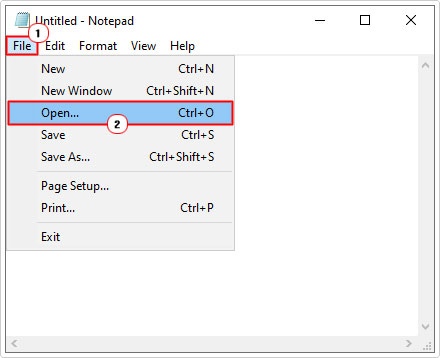
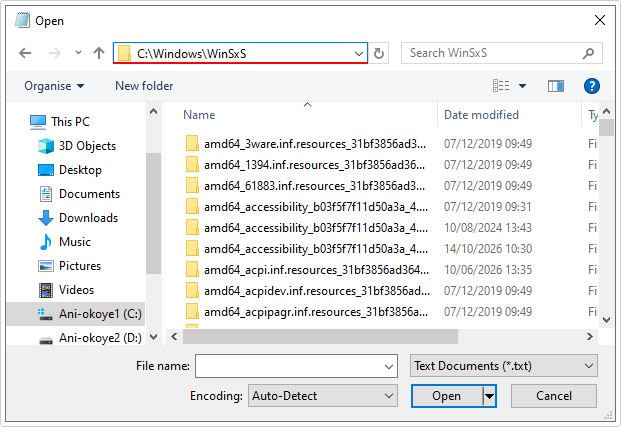
5. Now, navigate to the following path:
C:\Windows\Winsxs
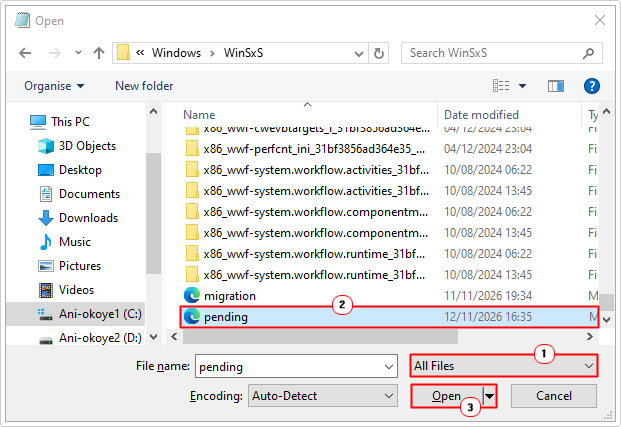
6. Next, scroll down and set it to All Files, then open the pending.xml file, by clicking on it and selecting Open.
7. From within the file, locate the following text and delete it.
<Checkpoint/>

<DeleteFile path="\SystemRoot\WinSxS\FileMaps\_0000000000000000.cdf-ms"/>

<MoveFile source="\SystemRoot\WinSxS\Temp\PendingRenames\e56db1db48d4cb0199440000b01de419._0000000000000000.cdf-ms" destination="\SystemRoot\WinSxS\FileMa\_0000000000000000.cdf-ms"/>
Note: Depending on the circumstances of the error, your pending.xml file may not have ALL three <Checkpoint/>, <DeleteFile/> & <MoveFile/> sections. Just be sure to remove any that you find, specifically any that refer to 0000000000000000.cdf-ms.
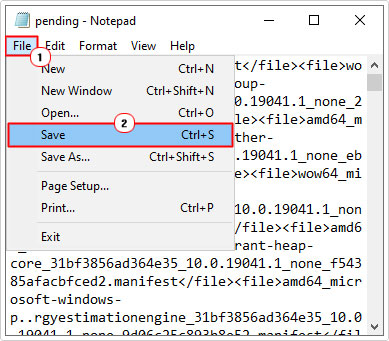
8. Once you’ve done that, click on File -> Save.
9. Now, restart your system, to regain access to it.
Use System Restore
You may be able to use System Restore to set your system back to the period, prior to the Windows Update. However, that depends on several variables, such as, whether or not System Restore has actually been enabled on your system, and whether or not the restore point(s) exist to use.
Anyway, the steps to using this feature are as follows:
1. Follow steps 1 – 4 of fixing bootmgr is missing error.
2. Now, click on System Restore.
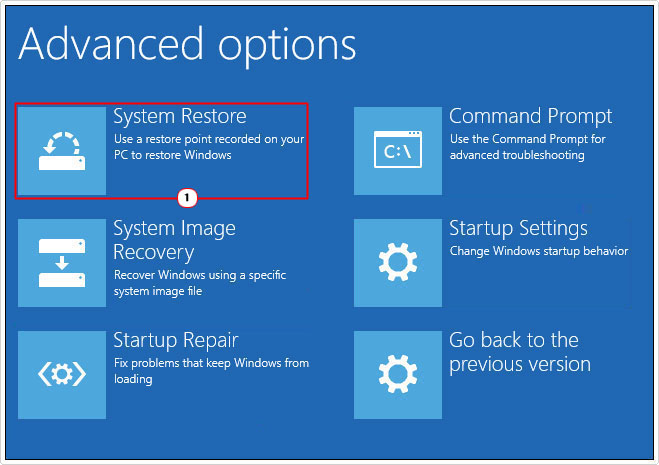
3. This will bring up the System Restore applet, click on Next.

4. On the following screen, it will list all the available Restore points on your system. Click on the Most Recent (Critical Update) Restore Point, then click on Next.

Note: Critical Update indicates that the Restore Point was created prior to the update.
5. This will take you to the final screen, now click on Finish.

This will start the restoration process, once complete, it should boot you back into Windows.
Use Windows Repair Tool to Fix Fatal Error C0000034
Once you have regained access to Windows, your next step is to ensure the error doesn’t reoccur. Of course, if you run the same update, there is a strong chance the same error will reappear, to ensure that doesn’t happen, it’s recommended that you scan your system with this advanced repair tool.
This is a highly advanced Windows repair tool, developed by several industry professionals, designed to fix registry errors, Update errors, appcrashes, BSOD errors, DLL errors and much more.
A single scan should result in it, identifying and fixing the corrupt data in your system, whether it’s due to a malicious file (virus) or poor system maintenance.
Anyway, if this tool interests you, then visit the link below:
CLICK HERE TO CHECK OUT THE ADVANCED REPAIR TOOL
Reset Windows Update Components
It’s possible the fatal error C0000034 was due to the corruption of the Windows Update components themselves. This is not uncommon. In circumstances like this, you may want to consider resetting all the Windows services and features belonging to Windows Update.
The process is quite extensive.
For step-by-step instructions on how to do this, check out my post on fixing Update error 0x8024a206.
Use DISM
DISM stands for Deployment Image Servicing and Management and is a built-in Windows feature designed to restore the integrity of your operating system. If the fatal error C0000034 occurred due to OS corruption, then besides the Windows repair tool, this is your go-to solution.
To run this tool, simply follow the simple steps below:
1. First, boot into Windows as a full administrator.
2. Then press  + R, type cmd and press CTRL + Shift + Enter.
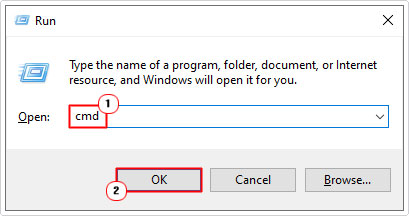
3. When Command Prompt loads up, type the command below and press Enter.
DISM /Online /Cleanup-Image /RestoreHealth
Note: Depending on your system, this can take anywhere from a few minutes to an hour to complete.
Use SFC
Additionally, you may want to use System File Checker. Which, like DISM is designed to repair your operating system, only this one is restricted to your System Files. It’s equally as simply to use, and works best when used in tandem with DISM.
Anyway, steps on how to use it can be found on my post on how to run SFC Scannow.
Are you looking for a way to repair all the errors on your computer?
If the answer is Yes, then I highly recommend you check out Fortect.
Which is the leading registry cleaner program online that is able to cure your system from a number of different ailments such as Windows Installer Errors, Runtime Errors, Malicious Software, Spyware, System Freezing, Active Malware, Blue Screen of Death Errors, Rundll Errors, Slow Erratic Computer Performance, ActiveX Errors and much more. Click here to check it out NOW!