

| Attention Before you read this post, I highly recommend you check out my resources page for access to the tools and services I use to not only maintain my system but also fix all my computer errors, by clicking here! |
Error 0xc1900201 occurs when the end user attempts to install the most up-to-date upgrade(s) for their Windows based system (typically on Windows 10 and 11). For Windows 11 users, this is known to occur on versions 22H2, 23H2 and 24H2. When the operating system inevitably fails, the end user may be greeted with an error message that states: “We couldn’t update the system reserved partition”. If you would like to know exactly how to combat this issue, then continue reading.
Updating your operating system, is an integral part of its usage. You need to ensure you have the latest features, security patches and known vulnerabilities plugged up, to ensure you don’t experience any unfortunate mishaps during general use. However, there are instances when the upgrade process fails, resulting in a litany of different error types. This particular error has the code 0xc1900201 and occurs during the installation phase of the update process.
On Windows 10 systems, the error is known to occur when upgrading past Version 1709. Repeated attempts to update oftentimes results in the same error.
In this particular tutorial, you will find a wide range of solutions, all proven effective at fixing the particular error. If you are bogged down with error 0xc1900201 on Windows 10 or 11, then continue reading to find out what you can do about it.
However, before we get to the solutions, let’s take a look at its general root causes.
What Causes Windows Update Error 0xc1900201?
The most common cause of error 0xc1900201 is when the SRP or System Reserved Partition becomes full (according to the error message). The purpose of the SRP is to store Windows boot data in its own reserved partition on your hard drive.
In addition to the above mentioned cause, other possible causes include the following:
- One or more of the components belonging to Windows Update have been corrupted or blocked by a third-party internet security tool.
- The SRP has incorrect font files stored in it.
- A Windows Installer conflict has occurred while upgrading from an older iteration of Windows to a later one.
When it comes to fixing any issue, knowing its root cause is crucial to ensuring the right solution(s) is deployed.
With that said, continue reading for those much desired solutions.
How to Fix It
As shown from its known causes, there are a couple of things for you to keep in mind. Corruption of Windows Update components can, be caused by a number of things, in this case, possible faulty memory modules.
Thus, to rule out faulty RAM as the cause, it’s recommended that you run the Windows Memory Diagnostic Tool.
Fortunately, it’s a very simple tool to get up and running, just do the following:
1. Boot into Windows as an admin.
2. Then press  + R, type mdsched.exe and click on OK.

3. This will bring up the Windows Memory Diagnostics applet, simply click on Restart now and check for problems (recommended).

Use Windows Repair Tool to Fix Update Error 0xc1900201
Depending on your level of expertise, following the manual solution(s) may prove too complex or time-consuming. This is where the Windows repair tool comes into the equation. As a tool designed to fix a litany of issues on your system, it should be your first go-to.
We’re talking about a highly advanced repair tool capable of scanning, detecting and fixing a wide variety of issues on your computer.
Within a single scan you expect it to identify and fix the root causes of your Windows Update error, registry corruption, BSOD error, Appcrashes and more.
It also doubles as an optimisation suite, making it your all-in-one repair and maintenance tool.
If you would like to know more, visit the link below:
CLICK HERE TO CHECK OUT THE ADVANCED REPAIR TOOL
 The solution(s) below are for ADVANCED level computer users. If you are a beginner to intermediate computer user, I highly recommend you use the automated tool(s) above! |
Extend System Reserved Partition
If the Windows Update error 0xc1900201 is followed by a message that says “We couldn’t update the system reserved partition” or some variety of this, it could be an indication of low disk space or font data corruption. In situations like this, it is possible for you to manually free up space and remove the offending data.
To do that, follow the steps below:
1. Boot into Windows as an admin.
2. Now, Press + R, type cmd and press CTRL + Shift + Enter.
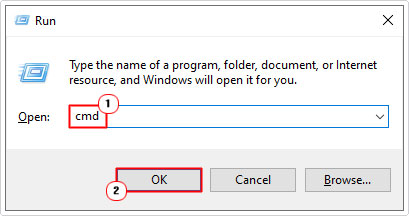
3. When Command Prompt loads up, type the commands below pressing Enter after each line:
Diskpart
List disk
Note: Look next to the GPT column, if there is an * next to the disk, then it means it is a GPT partition. If it is blank, then it is an MBR partition.
GPT Partitions
1. Ensuring you have admin privileges, press + R, type cmd and press CTRL + Shift + Enter.
2. When Command Prompt loads up, type the following and press Enter:
mountvol a: /s
3. Next, type the following, pressing Enter after each line:
a:
cd EFI\Microsoft\Boot\
rmdir /s /q "font"
4. Type Y and press Enter, if asked for confirmation.
5. Now you can verify whether error 0xc1900201 has been fixed.
MBR Partitions
1. Press + R, type diskmgmt.msc and click on OK.

2. Right-click on the System Reserved partition and select Change Drive Letter and Paths.
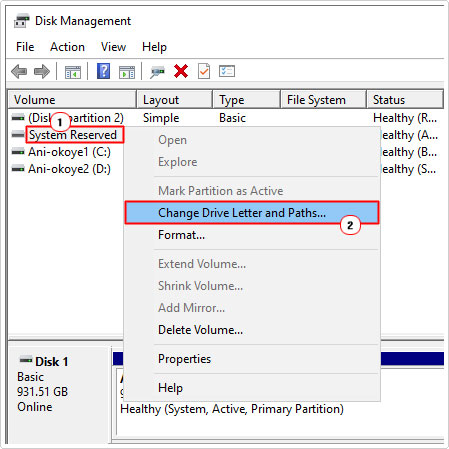
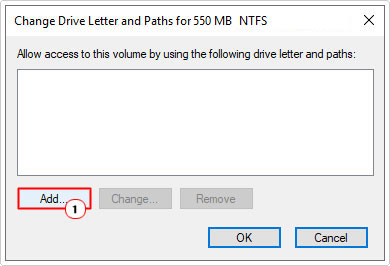
3. This will bring up the Change Drive Letter and Paths applet, click on Add.
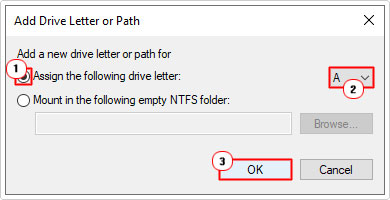
4. On the Add Drive Letter or Path applet, on the Assign the following drive letter option, select A and click on OK.
5. Now press + R, type cmd and press CTRL + Shift + Enter.
6. When Command Prompt loads up, type the following commands below pressing Enter after each line:
cd Boot\Fonts
takeown /d y /r /f .
icacls a:\* /save %systemdrive%\BKPER.txt /c /t
Note: If you’re ensure what your Username is, type whoami and press Enter.
icacls . /grant :A /t
del *.*
Note: Type Y and press Enter if asked to confirm your actions.
Once you have successfully erased the contents of the “Fonts” folder, you can restore the partitions original permissions by typing the following (pressing Enter after each line):
icacls a:\ /restore %systemdrive%\BKPER.txt /c /t
icacls . /grant system:a /t
icacls a: /setowner “SYSTEM” /t /c
7. Lastly, go back to Disk Management, and right-click on the System Reserved Partition and select Change Driver Letter and Paths.
8. When the Change Drive Latter and Paths applet pops up, click on the A: and select Remove, then click on OK.
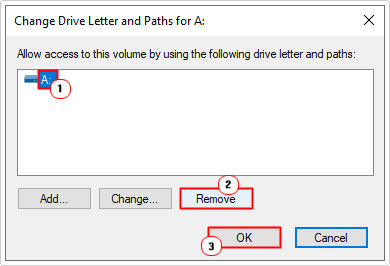
9. You can close Disk Management, then verify whether or not it fixed the Windows Update error.
Reset Windows Update
In many instances, the failure of Windows to update may be the result of corruption within the corresponding components. To potentially fix this problem, you should attempt a reset of these components.
The instructions to doing this can be found on my post on fixing Update Error 0x8024a206.
Use SFC and DISM
Both SFC (System File Checker) and DISM (Deployment Image Servicing and Management) are built-in Windows tools designed to restore the integrity of your operating system. SFC works by restoring missing or corrupt system files. While DISM works by attempting to restore missing or corrupt Windows folder files.
Both work best when used in tandem.
You can find step-by-step instructions on how to use these tools from my post on fixing Msinfo32.exe “Can’t Collect Information” errors.
Run a Windows Reset
If you are still battling the Windows Update error 0xc1900201, up to this point, then you may want to consider resetting your operating system.
Windows has a built in feature that allows you to reset it, while either, preserving your sensitive data or erasing everything from your hard drive. Which method you choose is totally up to you.
The objective is to remove any issue(s) within the OS that could not be corrected by the various solutions above.
Anyway, you can find instructions on how to access and use this feature from my post on fixing Windows Update error 0x800703f1.
Are you looking for a way to repair all the errors on your computer?
If the answer is Yes, then I highly recommend you check out Fortect.
Which is the leading registry cleaner program online that is able to cure your system from a number of different ailments such as Windows Installer Errors, Runtime Errors, Malicious Software, Spyware, System Freezing, Active Malware, Blue Screen of Death Errors, Rundll Errors, Slow Erratic Computer Performance, ActiveX Errors and much more. Click here to check it out NOW!