

| Attention Before you read this post, I highly recommend you check out my resources page for access to the tools and services I use to not only maintain my system but also fix all my computer errors, by clicking here! |
In this particular tutorial, I will show you how to effectively fix the Windows Update error 0x80070661. The error 0x80070661 occurs when end users attempt to update the Windows Subsystem for Linux on their systems. Why it occurs may vary, what you can do about it, is quite numerous. So, if you would like to know where you stand, in this situation, continue reading.
Windows has been around for decades as one of the most popular operating systems. This is due primarily to its wide range of capabilities and features, making it ideal for almost any task. One of the many features users can discover is the Windows Subsystem for Linux (WSL). It is a compatibility layer that grants the end user the ability to run Linux apps in a Linux environment within Windows – without the need of having both operating systems installed on the same computer.
This error occurs on Windows 10 and 11 systems primarily, and is accompanied by the following error message:
Windows Subsystem for Linux Update – X.XX.XXX.X
Install error – 0x80070661
Additionally, if the end user attempts to install the update via Command Prompt, then they may encounter the following error message:
The installation package is not supported by this processor type. Contact your product vendor.
The error message referencing your processor type, is indicating an incompatibility issue between WSL and your processor. This is likely a sudden occurrence, as WSL most probably was working without issue before.
As applications are updated, they can sometimes become incompatible with other apps, devices and components (such as your CPU).
For example, the WSL version you are attempting to install (or update to) may have outgrown your current iteration of Windows, causing the obvious error message.
If you are someone who uses Linux, then the WSL software (and update) are vital to ensuring continued access to this OS and its many applications.
So, what can you do to fix it? Continue reading to find out. But before we go to those solutions, let’s take a more in-depth look into its many identifiable causes.
What Causes Windows Update Error 0x80070661
There is no official support article provided by Microsoft for this particular error code. However, from research, we can deduce the following common causes:
- The Windows Update component has been damaged (or corrupted).
- The feature (or files) that allows the WSL to properly determine the processor architecture of the system attempting to install it, has been accidently erased.
- Your Windows Operating system is too outdated for the WSL update you are trying to install.
These are the main causes, but there are other things like general OS corruption, app conflict(s) for you to consider also.
Now that we have a basic idea of what to look out for, let’s get to those much desired solutions.
How to Fix It
Microsoft is constantly pushing out new updates and fixes to eliminate and plug up known bugs. However, as has already been established, it’s not uncommon for these updates to fail to install, leading to the error 0x80070661.
So, what can you do about it? A whole host of things, fortunately. Below is a rundown of the most popular solutions, arranged in order of effectiveness and ease of execution.
Use Windows Repair Tool to Fix Windows Update Error 0x80070661
Microsoft Windows has a habit of running slower over time, as a result of continued use. This means constant errors, system freezing and random Windows restarts.
The advanced Windows repair tool I recommend, works by fixing a wide variety of issues on your system, whether it’s registry corruption, a virus infection, missing or damaged system files and much more.
All of these issues are known causes of larger errors (like 0x80070661), making this multifaceted tool your ideal go-to when in situations like this.
If by any chance, this interests you, then visit the link below:
CLICK HERE TO CHECK OUT THE ADVANCED REPAIR TOOL
 The solution(s) below are for ADVANCED level computer users. If you are a beginner to intermediate computer user, I highly recommend you use the automated tool(s) above! |
Temporarily Disable Antivirus Tool
If you have a third-party antivirus solution installed on your system, it is possible the Program Guard is blocking the Windows Update component from properly accessing Microsoft’s update servers. To eliminate this, as a possible cause of the error, it’s best that you temporarily disable your internet security solution.
To do that, follow the steps below:
1. First, ensure you have booted into Windows as a full administrator.
2. Then double-click on your Security Tools icon, usually located in the Taskbar (in the bottom-right hand corner of the screen).
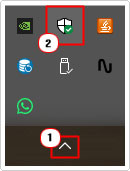
3. When the Security Tool loads up, look for a Virus and/or Protection Settings and disable Real-time Scanning.

Download WSL Update Manually
Probably, the most effective way to fix or counter this error is by manually installing it via Microsoft’s Update Catalog.
To do that, follow the steps below:
1. First, boot into Windows as a full admin.
2. Then, open up your Web Browser go to the following web page: https://catalog.update.microsoft.com/Home.aspx
3. Once there, in the Search box, type WSL and press Enter.
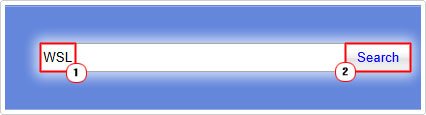
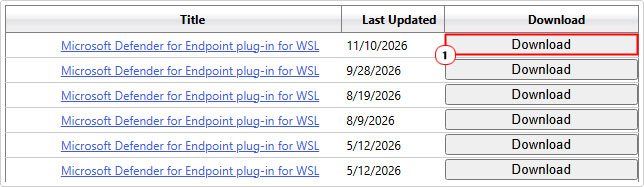
4. This will bring up a list of Microsoft Defender for Endpoint plug-in for WSL updates, click on Download for the most recent one (which should be at the top).
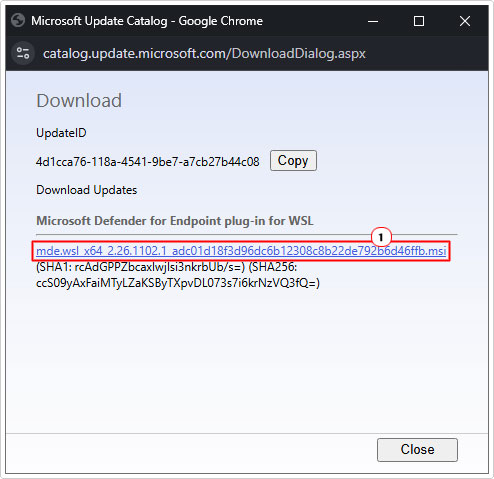
5. This should bring up a Microsoft Update Catalog applet, click on the .msi link.
6. When the Save As dialog box pops up, click on Desktop, then click on Save.
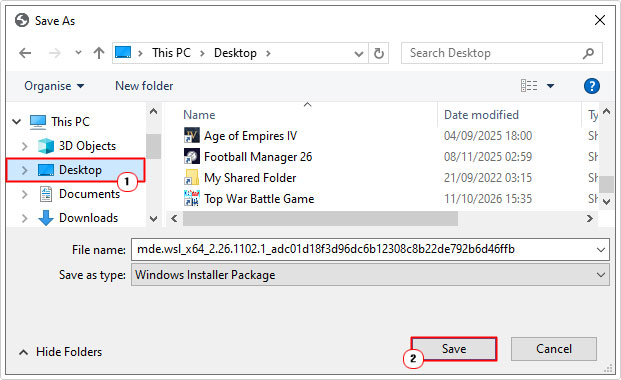
7. Double-click on the Windows Installer Package on your Desktop to begin the update process.
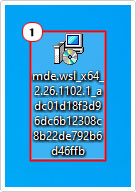
8. If it completes successfully, then the error should now be a thing of the past.
Reset Windows Update
In order for Windows Update to work on your system, there are a number of components and services that must be working and accessible to the operating system. These are:
Background Intelligent Transfer Service (BITS)
Windows Update Service (wuauserv)
Cryptographic Services (CryptSvc)
If there is any issue with these components then any Windows Update will inevitable fail to complete. Thus, to ensure all the appropriate Windows services are working as they should, you can and should consider resetting them.
Of course, these are just the most crucial components, there’s also certain .DLL files and an update download folder (SoftwareDistribution) that also needs to be accessible.
Anyway, you can find step-by-step instructions on how to safely reset this feature on my post on fixing Windows Update error 0x80070020.
Run SFC and DISM
The corruption of key system files is capable of causing issues with the Windows Update component. Fortunately, Windows has two built-in tools capable of fixing both the corrupted or missing system files (via SFC) and Windows files (via DISM).
For instructions on how to use these two tools, check out my post on fixing MSVCR71.dll missing errors.
Try Again Later
If you attempted all the solutions above and the error 0x80070661 still continues to persist, it’s possible the error is due to a bug in the WSL Update package…causing it to misidentify your CPU, for example.
In this particular case, you should wait several days for Microsoft to resolve the issue.
Are you looking for a way to repair all the errors on your computer?

If the answer is Yes, then I highly recommend you check out Fortect.
Which is the leading registry cleaner program online that is able to cure your system from a number of different ailments such as Windows Installer Errors, Runtime Errors, Malicious Software, Spyware, System Freezing, Active Malware, Blue Screen of Death Errors, Rundll Errors, Slow Erratic Computer Performance, ActiveX Errors and much more. Click here to check it out NOW!