
| Attention Before you read this post, I highly recommend you check out my resources page for access to the tools and services I use to not only maintain my system but also fix all my computer errors, by clicking here! |
“A D3D11-Compatible GPU is required to run the engine” is a relatively common game-related error message that appears in both Windows 10 and 11 systems. Typically it’ll rear its ugly head when the end user attempts to run a game. The error will in turn prevent the affected game from starting.
So, what exactly is D3D11? Well, D3D is short for DirectX and the 11 part, refers to the eleventh iteration of DirectX. DirectX is a series of protocols (or APIs) that are used for rendering multimedia (such as games and videos). If the operating system is unable to find a D3D11-compaitabilble graphics card, then it will display the following error message and prevent the game from starting.
This particular error is common to a number of scenarios, such as:
- Windows not having DirectX 11 or above installed on it.
- The graphics card not supporting a DirectX level above 10.
- DirectX being corrupted.
- The graphics card having outdated drivers.
The GPU error is especially common to PC gamers, as it occurs quite frequently on the most popular title, such as CS2, Valorant etc.
For those of you bogged down with this issue, you’ve come to the right place. Now, let’s talk about the things that are most responsible for its occurrence.
What Causes “A D3D11-Compatible GPU is required to run the engine” Errors?
There are a number of scenarios that may apply when this error occurs. However, that’s not all. Below is a more fleshed out list of the things most responsible for “A D3D11-Compatible GPU is required to run the engine” errors:
- Your Windows operating system has been corrupted.
- Visual C++ is not installed or requires an update.
- The graphics card is malfunctioning or requires a driver update.
- An outdated version of DirectX is still installed on the operating system.
- You have an outdated/old internal graphics card that is currently active.
These are just some of the more common reasons why this error message may occur. But in truth, the most obvious reason may be because your system does not meet the minimum system requirements of the game.
So do make sure your computer is able to run the game before anything else. Depending on where you purchased the title, it should give you a specs requirement. Make sure it lines up with what you’re currently running.
And if it does, but it’s still not working, then you should definitely try the solutions below.
How to Fix It
When dealing with “A D3D11-Compatible GPU is required to run the engine” errors, the first thing you want to ensure, is that you have the correct version of DirectX running on your system.
An older version of DirectX may still linger on your system. To determine whether or not this is the case, do the following:
1. Boot into your system as an administrator.
2. Next, press  + R, type dxdiag and click on OK.
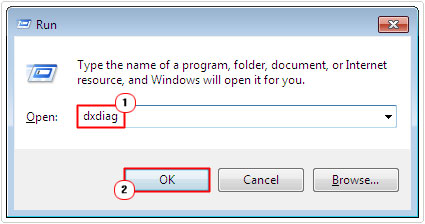
3. This will bring up the DirectX Diagnostic Tool, now, check besides DirectX Version and it should tell you what you’re running.

If you’re running a version of DirectX that’s below 11, then you will need to update it. Simply visit the following Microsoft Link for more information: https://www.microsoft.com/en-gb/download/details.aspx?id=35
If the DirectX version is 11+ and thus, not the cause of the error, then I suggest you attempt the additional solutions outlined below:
Update GPU Drivers
In many instances, end users have found that they were able to fix “A D3D11-Compatible GPU is required to run the engine” errors, simply by updating the drivers for their graphics card.
To do that, you’ll need to visit the website of your GPU manufacturer and download the drivers off there.
Alternatively, if you don’t know your graphics card, its manufacturer and version (information required to download the correct drivers), then you can use a driver automation tool.
The one I have in mind is amongst the very best. Simply download, install and run it, and it’ll do the rest: locate drivers, download drivers, and install drivers.
Anyway, for more information about this driver automation tool, visit the link below:
CLICK HERE TO CHECK OUT DRIVER AUTOMATION TOOL
Run Windows Repair Tool to Fix “A D3D11-Compatible GPU is required to run the engine”
If the game-related error message is the result of OS corruption, then you can’t go wrong with a Windows repair tool.
The tool I have in mind is highly advanced, amongst the very best in its field. Able to detect, scan and fix a wide range of Windows issues and errors.
The vast majority of system errors can be fixed with this tool. As it is rated to tackle BSOD errors, app errors, DLL errors, game errors and much more.
Just download and run it, and it’ll do the rest.
Anyway, if that interests you, then you should definitely visit the link below:
CLICK HERE TO CHECK OUT THE ADVANCED REPAIR TOOL
 The solution(s) below are for ADVANCED level computer users. If you are a beginner to intermediate computer user, I highly recommend you use the automated tool(s) above! The solution(s) below are for ADVANCED level computer users. If you are a beginner to intermediate computer user, I highly recommend you use the automated tool(s) above! |
Disable Internal GPU
Do you have an integrated discrete graphics card, as part of your motherboard? If so, then you want to ensure the internal card has been disabled, so that it doesn’t interfere with your dedicated GPU.
To do that, you will need to access Device Manager and manually disable it. For steps on how to do that, follow below:
1. Boot into your system as an admin.
2. Then press + R, type devmgmt.msc and click on OK.
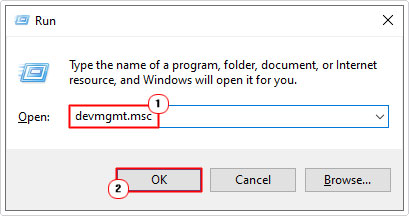
3. When Device Manager loads up, click on the > icon besides Display adapters, then right-click on your Internal GPU and select Disable device.
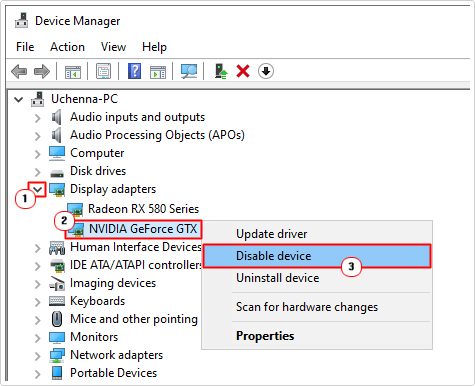
Note: If you don’t know which GPU is your internal one, consult the manual of your motherboard.
Repair Visual C++ Redistributable
It’s possible that the Visual C++ Redistributable packages (which is a series of runtime libraries that are required by apps that were developed in Visual Studio) have been corrupted.
Fortunately it comes with a built-in restoration feature. To access it, simply follow the steps below:
1. Boot into your system as a full administrator.
2. Then press + R, type Appwiz.cpl and click on OK.
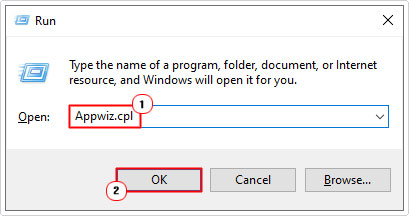
3. This will bring up Programs and Features, scroll down to Microsoft Visual C++ 2015-2022 Redistributable (xXX) and click on Change.
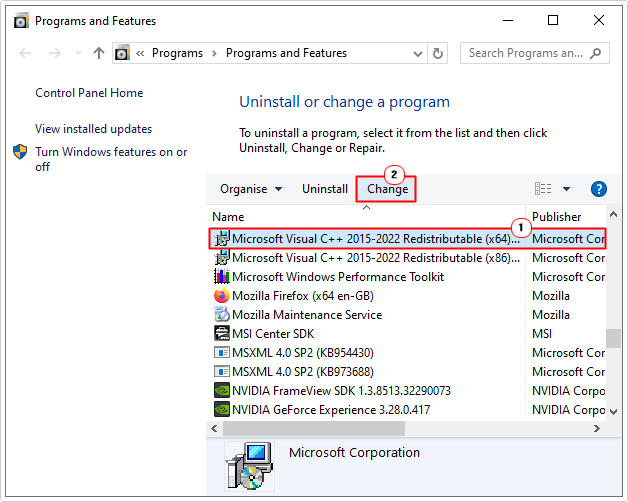
Note: You should see two versions: x64 (for 64-bit) and x86 (for 32-bit).
4. This will bring up the Microsoft Visual C++ 2015-2022 Redistributable (xXX) Modify Setup applet, simply click on Repair.
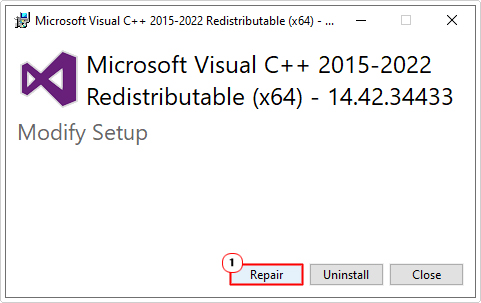
5. Repeat steps 3 – 4 for both x64 & x86.
6. Lastly restart your system.
Note: If you are unable to find Microsoft Visual C++… on your system, then you will need to download it. You can find the redistributable files from the following Microsoft link: https://visualstudio.microsoft.com/downloads/
Launch In DirectX 11 Mode
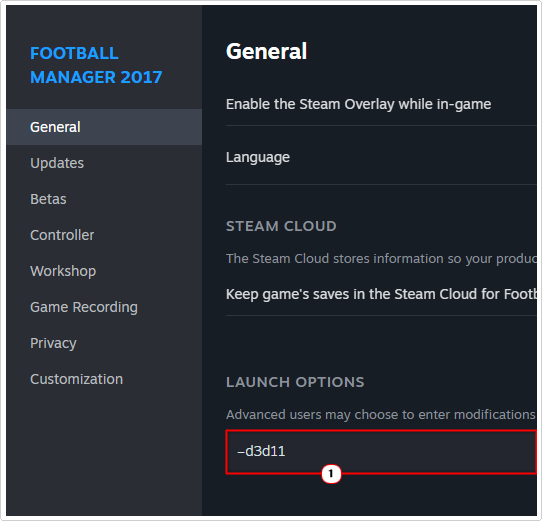
Another method you can use, if the “A D3D11-Compatible GPU is required to run the engine” error notification continues to persist, is to force the select title to run in DirectX 11 mode. You can do this by adding a launch parameter to the game.
For this example, I’ll be using Steam (the most popular digital distribution service), but it can also be done in other services, such as Epic Games.
Anyway, the instructions are as follows:
1. First, boot into your system as a full admin.
2. Then, load up Steam.
3. When Steam starts up, click on Library, then right-click on the game and select Properties.
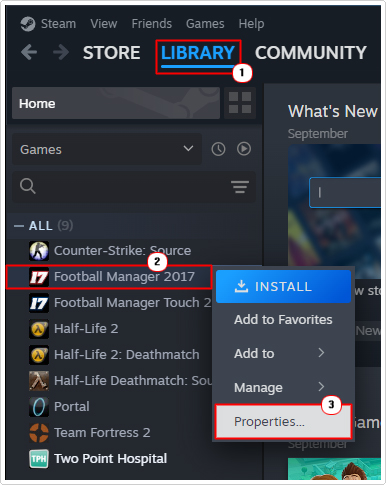
4. This will bring up the Game Properties applet, type –d3d11 into the LAUNCH OPTIONS box, then close the applet.
Update Windows
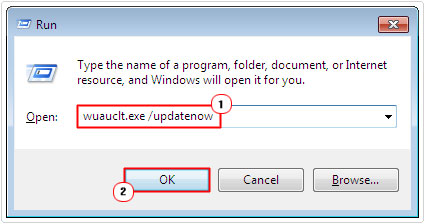
The last available option to you, in the event that all other solutions fail. Is to ensure you’re operating system is up-to-date with the latest patches.
The quickest way to do this is to simply use the command below:
1. Ensure you’re booted in as an admin.
2. Then press + R, type wuauclt /updatenow and click on OK.
Are you looking for a way to repair all the errors on your computer?

If the answer is Yes, then I highly recommend you check out Advanced System Repair Pro.
Which is the leading registry cleaner program online that is able to cure your system from a number of different ailments such as Windows Installer Errors, Runtime Errors, Malicious Software, Spyware, System Freezing, Active Malware, Blue Screen of Death Errors, Rundll Errors, Slow Erratic Computer Performance, ActiveX Errors and much more. Click here to check it out NOW!