
| Attention Before you read this post, I highly recommend you check out my resources page for access to the tools and services I use to not only maintain my system but also fix all my computer errors, by clicking here! |
ACPI_BIOS_ERROR is a BSOD error that can occur in many different circumstances. Typical symptom(s) of these errors is a random reboot or system crash. In this particular tutorial, we will be going through exactly what this error is, along with the situations it’s likely to occur in. So, continue reading if you would like to find out more.
ACPI_BIOS_ERROR is related to the APM (Advanced Power Management) and hardware communication. The ACPI part of the error refers to the Advanced Configuration and Power Interface. Its sole purposes is to allow the operating system communicate with the systems BIOS or Basic Input Output System. When the OS detects that the BIOS is unable to meet the ACPI requirements, it triggers the ACPI_BIOS_ERROR error to protect the system from damage.
The basic features and functions of the ACPI are:
- To control or regulate the clock speed based on the requirements of an app.
- To conserve system power consumption by optimising power distribution to the various devices on your motherboard.
- Determine when the computer should be turned off or on.
- Ensure the system is still functioning during a low power consumption state (Hibernation Mode).
- In laptops it will switch the device to a low power consumption mode when the battery is nearly depleted.
These are some of the primary functions of this component of your system.
However, ACPI_BIOS_ERROR occurs most often in the following circumstances:
- When the end user is attempting to install a fresh copy of Windows.
- During a typical Windows boot up.
- After the system has awaken from hibernation mode.
The ACPI_BIOS_ERROR is not exclusive to any brand of system or device or iteration of Windows. So, it can and will oftentimes occur on all the brands that you are most familiar with, whether it be Sony, HP, Dell, etc.
What Causes ACPI_BIOS_ERROR?
Like with most BSOD errors, the ACPI_BIOS_ERROR can and will occur in a variety of circumstances. However, when it comes to the causes, we’re typically looking at two primary culprits. The first is the data on your memory (RAM) modules being altered during the systems sleep state (Hibernation Mode). The second is the ACPI of your operating system not being (fully) compliant with the BIOS ACPI.
In addition to that, you’re looking at these other potential causes:
- The system was infected with a malicious file.
- Your hard disc drive is faulty.
- The Windows registry has been corrupted, likely due to a recent software change.
- The drivers for one or more devices in your system is outdated.
- Your BIOS is incompatible and requires an update.
- A hardware device installed in your system is not compatible with your BIOS.
Now that we have a general understanding of what causes ACPI_BIOS_ERROR, let’s take a look at the different ways you can fix it.
How to Fix It
When it comes to tackling any Windows error, you must take a streamlined approach to it. The solution you adopt must reflect the cause. However, that isn’t always possible, as the cause can oftentimes be difficult to identify. In situations like this, it’s recommended you take a more holistic approach.
With that said, I have arranged the solutions in order of ease and effectiveness. So I recommend you attempt them in the order they appear.
Use Windows Repair Tool to Fix ACPI_BIOS_ERROR
Before attempting any of the more complex solutions below, it’s recommended that you adept the more automated approach through the use of a Windows repair tool. The one I have in mind is highly effective at fixing BSOD errors.
Through the use of this tool, you can fix a wide range of errors with very limited expertise. Just download, install and run the tool and it will automatically scan and carry out repairs where applicable.
It will fix any issues it finds within your Windows registry while enhancing the overall performance of your system in the process.
If by any chance that interests you, then visit the link below:
CLICK HERE TO CHECK OUT THE ADVANCED REPAIR TOOL
Update Device Drivers
BSOD or Blue Screen of Death errors oftentimes occur when a system has incompatible or outdated drivers installed on it. In the case of the ACPI_BIOS_ERROR, this is oftentimes the case.
Thus, as a verifiable fix, you may want to consider updating your device drivers. In this case, the drivers for the most important devices attached to your system. Simply, visit the website of your device manufacturer and download and install the latest drivers from there.
Alternatively, if you don’t know the brand and model number of the different devices installed in your system or if you simply lack the expertise, then you can use a driver automation tool. This tool will carry out this same process all within a couple of clicks. Requiring next to no expertise on your part.
If this tool interests you, then visit the link below:
CLICK HERE TO CHECK OUT THE DRIVER FINDER TOOL
 The solution(s) below are for ADVANCED level computer users. If you are a beginner to intermediate computer user, I highly recommend you use the automated tool(s) above! The solution(s) below are for ADVANCED level computer users. If you are a beginner to intermediate computer user, I highly recommend you use the automated tool(s) above! |
Update BIOS
As previously touched on, the ACPI_BIOS_ERROR is a BIOS version related error, so one of the most effective ways of fixing it is to update the BIOS. To do that, you will need to visit the website of your motherboard manufacturer and download the latest BIOS (for your motherboard) off there.
Please bear in mind that the BIOS is a very sensitive area of your system, and if done incorrectly, can render your motherboard completely inoperable.
For that reason I recommend you consult your motherboard manual for more information on how to carry out this process correctly. Installation steps can and typically do vary, depending on brand (of motherboard) and version of BIOS.
Reinstall Microsoft ACPI-Compliant Control Method Battery
This is a solution that is only applicable to laptop computers, as it involves reinstalling Microsoft ACPI-Compliant Control Method Battery in Device Manager.
So, if you’re getting the ACPI_BIOS_ERROR on your laptop computer, one way to tackle it, is to do the following:
1. First, boot into your system as a full administrator.
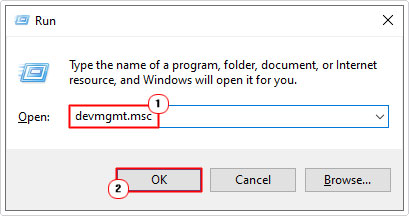
2. Next, press  + R, type devmgmt.msc and click on OK.
3. When Device Manager loads up, click on the > icon next to Batteries then right-click on Microsoft ACPI-Compliant Control Method Battery and select Uninstall device.
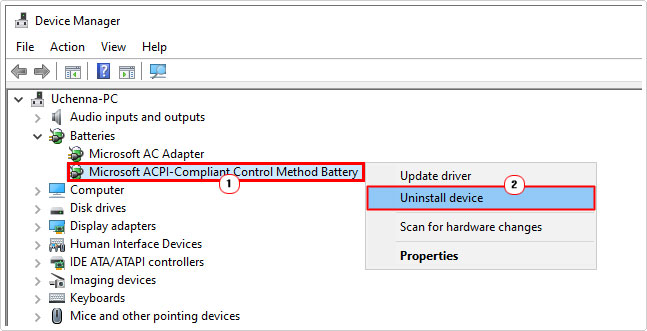
4. Once the device has been removed, click on the Scan for hardware changes icon and wait.

5. It should find and install the Microsoft ACPI-Compliant Control Method Battery device. Once it has finished, restart your system.
Disable AHCI Mode
AHCI or Advanced Host Controller Interface is an interface standard that enables communication between a hard disc drive and your motherboard (& OS). This standard is applicable to both SSDs and SATA devices.
Research has shown, that sometimes the ACPI_BIOS_ERROR can be fixed, simply by disabling this feature. However, this will come at a drawback, which, given the circumstances may not be worth it.
Anyway, essentially, you’ll want to find SATA Mode in the advanced section of your BIOS and disable it.
Once that’s done, save the changes and exit, to apply.
Remove Overclock
The purpose of an overclock is to make your CPU run faster than it was initially intended. The ability to overclock a device is dependent on the CPU (or GPU) model, generally giving anywhere from a 1% to 25% speed increase.
It’s possible your CPU is struggling to operate at the clock timings you have set for it (in the overclocking settings), and that’s triggering the ACPI_BIOS_ERROR.
As a possible solution, you may want to consider removing the overclock. Nowadays this is made much simpler as most motherboards have an Overclocking section in the BIOS. Just go there and remove the settings and save the changes and exit.
Replace CMOS Battery
The CMOS is essentially a memory chip which contains sensitive data, such as configuration info and clock settings. As a result, this chip is always kept on, through a small battery on your motherboard. In the event that this battery is removed or runs dry, the information in the CMOS will be lost. A dead CMOS battery typically manifests as your systems clock settings resetting every time you turn off your computer.
If you shut down your system, and unplug it from the mains, then turn it back on, and your clock time (in Windows) has been reset, then it means the CMOS battery is dead.
In this situation, you will need to change the battery. To do this, you will be required to open your PC and locate the small, circular flat battery. Remove it, and install a replacement.
Use System Restore to Fix ACPI_BIOS_ERROR
Windows System Restore is a built in feature that allows the end user to set their system back to an earlier state. In this situation, before the ACPI_BIOS_ERROR started to occur.
However, in order for it to work, the necessary restore point(s) must be present on your system. Restore points are created automatically and take up a set amount of hard drive space (depending on settings).
If System Restore interests you, then I suggest you visit my post on what is a restore point, for more information.
Are you looking for a way to repair all the errors on your computer?

If the answer is Yes, then I highly recommend you check out our 24/7 Live Support Service.
Which is the leading Online Support Service that is able to help you cure your system from a number of different ailments such as Windows Installer Errors, Runtime Errors, Malicious Software, Spyware, System Freezing, Active Malware, Blue Screen of Death Errors, Rundll Errors, Slow Erratic Computer Performance, ActiveX Errors and much more. Click here to check it out NOW!