
| Attention Before you read this post, I highly recommend you check out my resources page for access to the tools and services I use to not only maintain my system but also fix all my computer errors, by clicking here! |
If you, like a large percentage of PC users use an Adobe application, then you may have noticed the background process CCXProcess.exe. I’m guessing, you’ve seen it and would like clarification on exactly what it is. In some instances, it can consume a considerable amount of CPU resources, effectively hampering system performance. In this tutorial, I will be discussing what it is, how to determine if the file on your system is legitimate, and what to do next.
CCXProcess.exe stands for Creative Cloud Experience process, it belongs to the Adobe Creative Cloud Desktop app, which when installed on your system, should launch at start-up. When running, it has been known to make many instances of ConHost.exe and Cscript.exe.
Through the Adobe Creative Cloud app, end users can utilise a wide assortment of Adobe applications, such as Lightroom, InDesign and Dreamweaver. CCXProcess.exe can exist as part of any of these Adobe applications.
The main function of CCXProcess.exe is to provide for a wide range of features and functions, such as the ability to seamlessly move between Adobe apps, access to tutorials, filters and much more.
The default location for the CCXProcess.exe file is:
C:\Program Files\adobe\Adobe Creative Cloud Experience
File size varies from 100KB up to 190KB.
Is CCXProcess.exe Safe?
The short answer is yes. CCXProcess.exe is a legitimate Adobe process that works in tandem with the Adobe Creative Cloud app, which I have already explained. However, there are instances when more than one CCXProcess.exe process may appear in Task Manager.
Although, multiple instances of the CCXProcess.exe file is normal, it can, in some instances lead to a considerable amount of system resources (both memory and CPU) being consumed, which would naturally adversely affect system performance.
Moreover, if you don’t have any Adobe app on your system and you are seeing this process, then you should be worried.
It’s not uncommon for hackers to create malicious files (like Trojans and worms) using the name of legitimate processes like CCXProcess.exe. For this reason, you’re only safe option is to verify the legitimacy of the file.
The quickest way is by simply, right-clicking on the CCXProcess.exe file (in Task Manager) and selecting Open file location. You want to ensure, each instance of CCXProcess.exe has the same file location.
If there are any discrepancies, then disable the dodgy instance, by selecting End task.
How to Check If CCXProcess.exe Is Malware
If you want to ensure the CCXProcess.exe file on your system is legitimate, then there are several things you can and should look out for:
- No Adobe app installed on your system: As I previously mentioned, if there are no adobe programs on your system, then it’s most likely the CCXProcess.exe file is malicious.
- An instance of CCXProcess.exe was located in the wrong location: Through Task Manager it’s possible for you to find the storage location of the process. If it is not in its default location (as mentioned above), then it’s most likely illegitimate.
- Your antivirus software flagged the file: If you suspect foul play on your system, then you should run a virus scan. If you’re antivirus software flags the CCXProcess.exe file, then you know its malware.
- System performance issues: Spyware, worms, Trojan horses etc. are all capable of consuming a considerable amount of system resources. This in turn can cause your system to frequently freeze, run slower than usual and crash. If you notice any of these symptoms, then your instance of CCXProcess.exe could be a virus.
How to Check the Files Authenticity
If you have the file running on your system and you want to determine whether or not the file is legitimate, belonging to the Adobe Creative Cloud app. To do that, simply follow the steps below:
1. First, ensure you’ve booted into Windows as a full administrator.
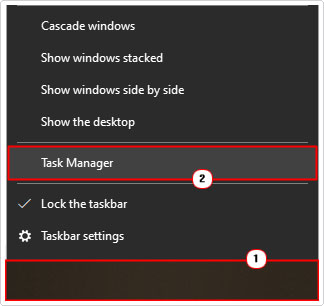
2. Then, right-click on your Taskbar and select Task Manager.
3. Right-click on the CCXProcess.exe and select Open file location.
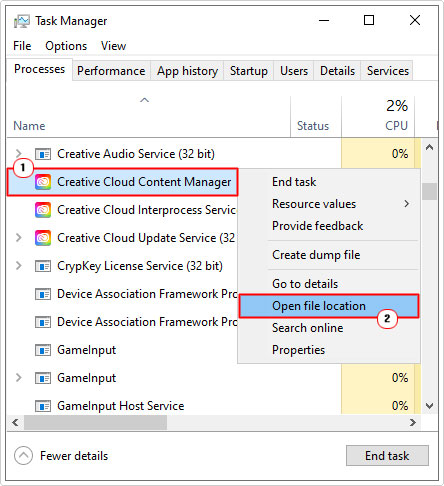
Note: The CCXProcess.exe file is the Creative Cloud Content Manager on the latest iterations of the app and Windows.
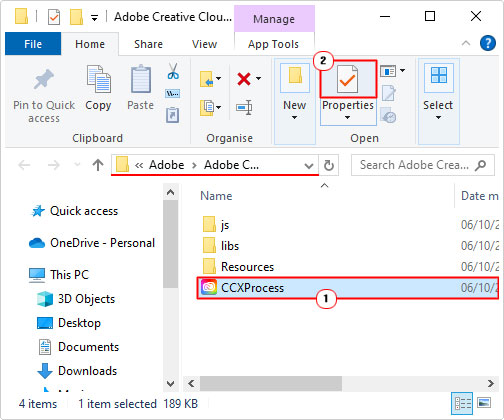
4. This should bring up the C:\Program Files\Adobe\Adobe Creative Cloud Experience folder. Now, click on CCXProcess.exe and select Properties.
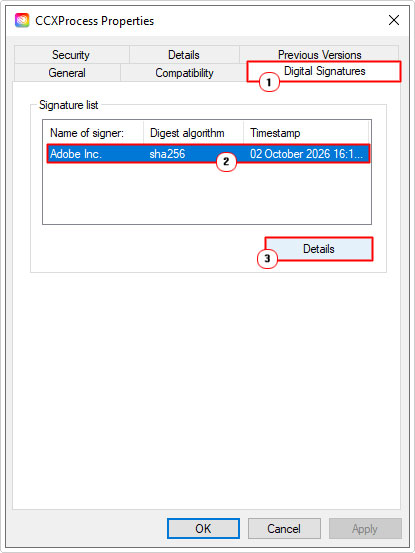
5. When the CCXProcess.exe Properties applet pops up, click on the Digital Signatures Tab, then click on the Name of signer and select Details.
6. This will bring up the Digital Signature Details applet, click on View Certificate.

7. When the Certificate applet pops up, check the Issued to, Issued by and Valid from information to determine its authenticity.
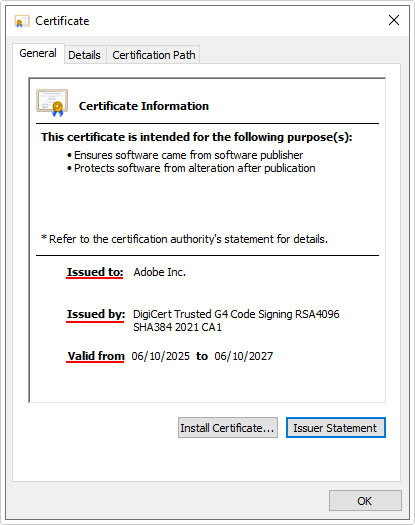
If the information is incorrect, then you should have cause for concern. In which case, I’d recommend you carried out a full scan of your system, with whatever security solution you have. However, if you do not have an antivirus scanner or, you’re on the lookout for something better, then I’d have to recommend System Mechanic. Which is a highly reputable antimalware tool. You can learn more about it, from the link below:
CLICK HERE TO CHECK OUT SYSTEM MECHANIC
How to Treat CCXProcess.exe
You use Adobe apps, and the certificate is legitimate, then you have no cause for concern, you should leave everything as is.
The CCXProcess.exe file is legitimate, but you rarely use the app, then you should consider disabling it at start-up. Re-enable it, if your work schedule changes, and you find yourself using it more frequently.
It is in the correct file location with a valid certificate, but it regularly consumes a considerable amount of memory and CPU resources, then you should consider updating it or reinstalling it, if an update is not available.
The CCXProcess.exe file is in the wrong location, without a valid certificate, with no Adobe apps installed on your computer. Then, as previously highlighted, it is a virus, which means a virus scan should be in order.
How to Disable It
There are several ways that you can disable the CCXProcess.exe process. For this tutorial, we will focus on the more practical methods.
Use Adobe Creative Cloud
1. Simply open Adobe Creative Cloud.

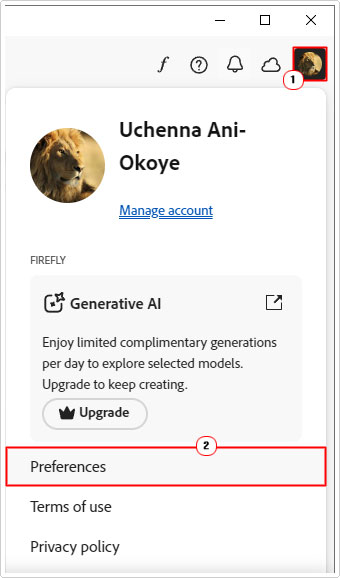
2. Now, click on your Profile Icon and select Preferences.
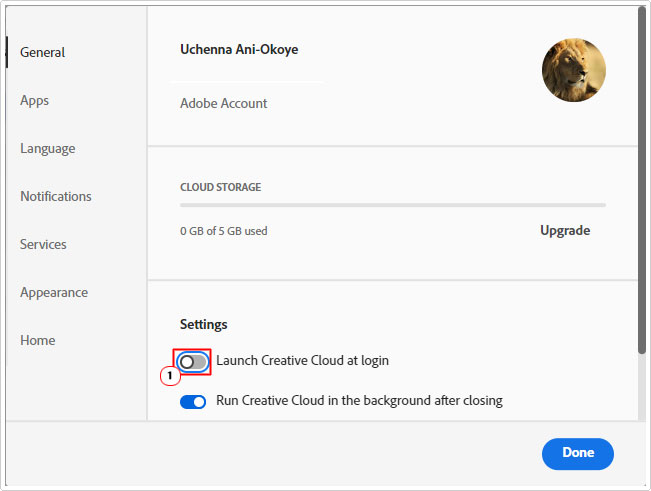
3. This will bring up the Preference screen, from here, turn the slider to the left, for Launch Creative Cloud at login.
4. Now, close the app and restart your computer.
Use Windows Registry Editor
WARNING: Any wrong modification to the registry can render your operating system inoperable, for this reason, it’s advised that you tread with caution.
1. Boot into Windows as an admin.
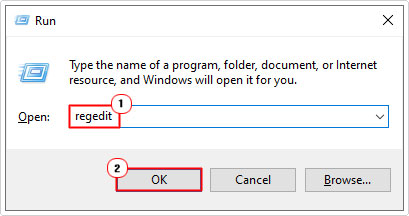
2. Then press  + R, type regedit and click on OK.
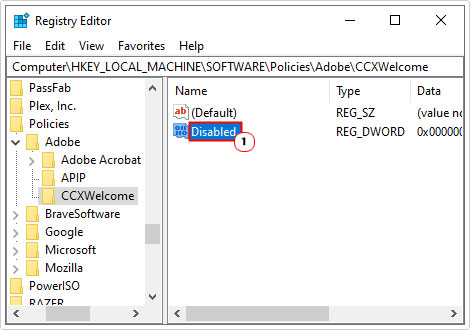
3. When Registry Editor loads up, navigate to the following path:
HKEY_LOCAL_MACHINE\SOFTWARE\Policies\Adobe
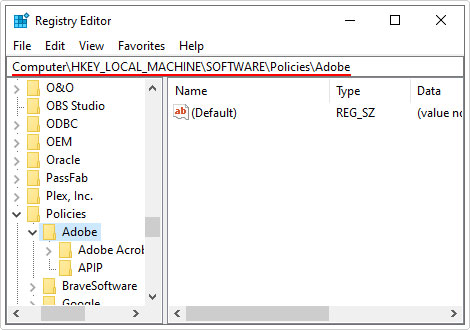
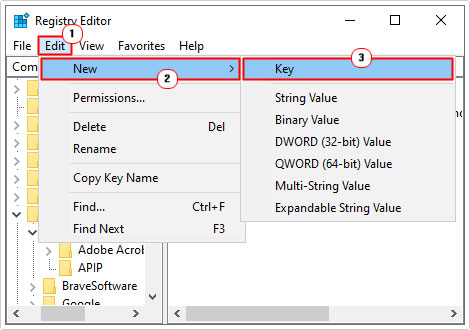
4. Click on Edit -> New -> Key.
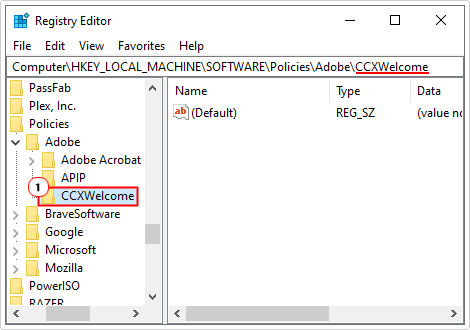
5. Name this new Key CCXWelcome and click on it.
6. Right-click in the right pane and select New -> DWORD (32-bit) Value.
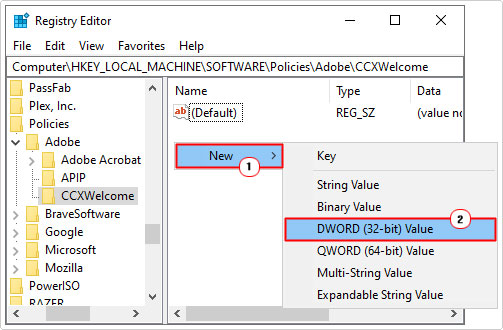
7. Name this new DWORD Disabled and double-click on it.
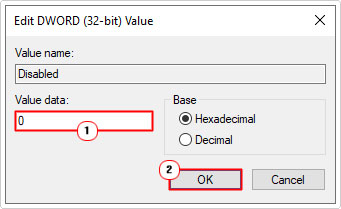
8. This will bring up the Edit DWORD (32-bit) Value box, type 0 into the Value data box and click on OK.
9. Restart your system and you are done.
Use Task Manager
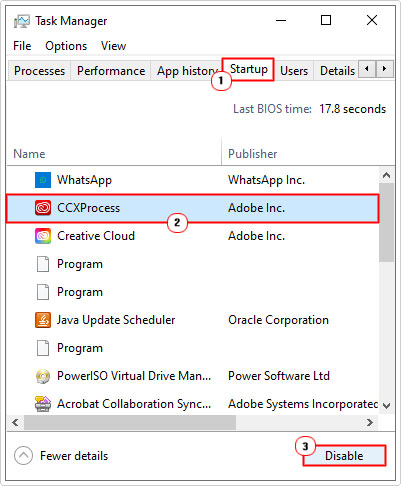
1. Right-click on the Taskbar and select Task Manager.
2. When Task Manager loads up, click on the Startup Tab, then click on CCXProcess and select Disable.
3. Lastly, restart your system.
Are you looking for a way to repair all the errors on your computer?

If the answer is Yes, then I highly recommend you check out our 24/7 Live Support Service.
Which is the leading Online Support Service that is able to help you cure your system from a number of different ailments such as Windows Installer Errors, Runtime Errors, Malicious Software, Spyware, System Freezing, Active Malware, Blue Screen of Death Errors, Rundll Errors, Slow Erratic Computer Performance, ActiveX Errors and much more. Click here to check it out NOW!