
| Attention Before you read this post, I highly recommend you check out my resources page for access to the tools and services I use to not only maintain my system but also fix all my computer errors, by clicking here! |
When using a Windows based system, errors are commonplace, yet very frustrating when they occur. One of these most frustrating errors has to be the “Class Not Registered” issue. This error, like most, occurs in a number of different circumstances, ultimately resulting in loss of productivity. In this tutorial, I will discuss further, exactly what this error is, along with verifiable solutions you can use to rectify it.
“Class not registered” is an error notification that indicates that a class (or component) required by a particular program has not been registered by the system. This will oftentimes occur when a COM (Component Object Model) or DLL (Dynamic Link Library) is not present or hasn’t been registered in the system.
DLL or Dynamic Link Library files are a type of shared file, used across multiple applications.
They differ from .exe files in that they cannot be directly run. They must be accessed by another app while it is running. Despite that, DLL and EXE files are very similar, with some (DLL files) having .exe extensions.
In this tutorial, I will be going through a number of solutions you can use to fix the “class not registered” error.
However, before we get to those solutions, let’s take a closer, more in-depth look at the various common causes of this error.
What Causes “Class Not Registered” Errors?
As previously discussed, unregistered COM or DLL files are known to cause the “class not registered” error.
An unregistered DLL file can, and typically does result in all associated apps no longer running.
The most common symptoms of this error is:
- Windows Start Button Unresponsive: If the operating system becomes sluggish and the Start button unresponsive, this is typically signs of a “class not registered” error.
However, when it comes to the causes, we’re looking at the following culprits:
- App Conflict: If two more apps installed on your system are conflicting with one another, this can inhibit the registration process, resulting in the error.
- Faulty Hard Drive: A faulty hard drive with damage sectors is known to cause this error. As damaged sectors can corrupt data.
- iCloud: On some systems, running iCloud in the background is known to cause the “class not registered” error.
- CLR (Common Language Runtime Libraries): The CLR may have been altered. For example, you may be trying to run an app on the wrong architecture. A 64-bit app on a 32-bit CLR. This is known to trigger the error.
- Windows Registry Corruption: Corruption is known to occur in the Windows registry over time. Due to the uninstallation and installation of new apps.
- Missing (or Corrupt) DLL File(s): The DLL file required by a particular app (you may be trying to open) is missing or corrupted.
Now that we have a general idea of what causes this error, let’s get to those much desired solutions.
How to Fix It
Before we get to the most complex solutions, let’s start with the basics.
In the vast majority of cases, users find that the simplest solutions tend to be the most effective. In this case, we’re going to start with Restarting Windows Explorer using Task Manager. To do that, follow the steps below:
1. In your Windows Environment, right-click on the Taskbar and select Task Manager.
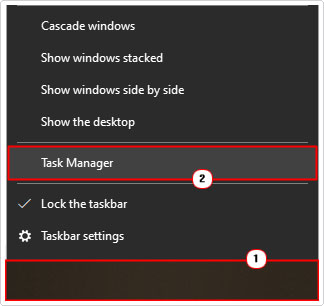
2. This will bring up Task Manager. From here, right-click on Windows Explorer and select Restart.

This will restart the Windows Explorer feature, which in many instances is known to fix the error.
End iCloud
Many end users tend to associate this error with Google Chrome, but as previously mentioned, this error is related to virtually every application. As it’s been proven that iCloud can cause this error. If you have this program running on your system, then I recommend you End (Close) it.
1. Simply follow step 1 in How to Fix It.
2. Then right-click on iCloud and select End task.

Restart Windows
Probably the simplest of all the solutions, and the most self-explanatory, is to restart your computer. In many instances an error can simply be the result of a temporary glitch. In circumstances like this, you can fix it, by restarting Windows. So, go ahead and do that.
The same is true, if the “class not registered” error occurs when attempting to open a specific app. In instances like that, reopening the problematic app may fix the error.
Use Windows Repair Tool to Fix “Class Not Registered” Errors
If you want a faster and more secure system, then you can’t go wrong with a Windows repair tool. The one I personally recommended was developed by experienced professionals in the field.
It is capable of fixing a plethora of problems on your system, from DLL errors, BSOD errors, registry corruption and much more.
It’s also highly adept at optimising system performance, making it the idea repair and maintenance tool.
If by any chance this interests you, then visit the link below:
CLICK HERE TO CHECK OUT THE ADVANCED REPAIR TOOL
 The solution(s) below are for ADVANCED level computer users. If you are a beginner to intermediate computer user, I highly recommend you use the automated tool(s) above! The solution(s) below are for ADVANCED level computer users. If you are a beginner to intermediate computer user, I highly recommend you use the automated tool(s) above! |
Re-Register ExplorerFrame.dll
If you experience the “class not registered” error while attempting to use Microsoft Edge (formerly Internet Explorer), then one way of fixing it is by re-registering the ExplorerFrame.dll file.
To do this, follow the steps below:
1. First, boot into Windows as a full administrator.
2. Then press  + R, type cmd and press CTRL + Shift + Enter.
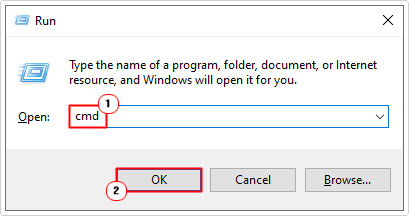
3. When Command Prompt loads up, type the command below and press Enter.
Regsvr32 ExplorerFrame.dll
4. Once finished, restart your system, then check whether or not it fixed the error.
Restart ETW Collector
Another component the “class not registered” error is associated with is the ETW Collector. This solution is also tied to the Microsoft Edge issue. If you experience this error while attempting to surf the web, then ensuring this component is running has been known to fix it.
Instructions are as follows:
1. Boot into Windows as an admin.
2. Then press + R, type Services.msc and click on OK.
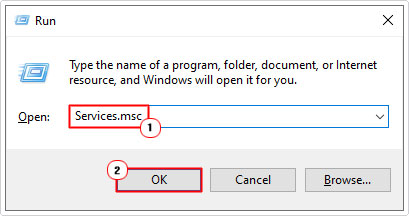
3. Now, right-click on Internet Explorer ETW Collector Service and select Start.

Note: This service is not available on later iterations of Windows 10/11.
4. Now you can try running Microsoft Edge to see whether or not it fixed the error.
Fix DCOM
If the associated “class not registered” references the DCOM (Distributed Component Object Model), then you can fix the error, following the steps below:
1. Boot into Windows as an admin.
2. Then press + R, type dcomcnfg and click on OK.

3. This will bring up the Component Services, from here, navigate to the following path:
Component Services > Computers > My Computer

4. Next, double-click on DCOM Config.

5. A series of Warning! Notification boxes will pop up. Click on Yes for all of them.

6. Lastly, reboot your system, then verify whether or not it fixed the error.
Modify Photo Viewer
If the “class not registered” error occurs when trying to open image files (like .jpg and .png), then you can fix the problem by setting the default Image Viewer to your Windows Photo Viewer.
To do that, follow the steps below:
1. First, boot into Windows as a full administrator.
2. Then, download and run the Activate Windows Photo Viewer on Windows 10.reg file, as it will enable Windows Photo Viewer in your Windows registry: https://www.mediafire.com/file/8gzrcp2zg1gcg7e/Activate-Windows-Photo-Viewer-on-Windows-10.zip/file
Note: This .reg file is only applicable for Windows 10 systems.
3. Now, right-click on an Image file, and select Open with -> Choose another app.

4. From the How do you want to open this file applet, click on Windows Photo Viewer, then tick the box for Always use this app to open .jpg files and click on OK.

Reset Default Applications to Fix “Class Not Registered” Errors
For those of you who experiencing the “Class not Registered” error while attempting to open image (.jpg) files, another way you can fix this error is by resetting your default apps.
To do that, follow these steps:
1. First, boot into Windows as a full administrator.
2. Then press + I, and click on Apps.

3. When Apps loads up, click on Default Apps.

4. Lastly, scroll down and click on the Reset button beneath Reset all default apps.

5. Now you can check whether it fixed the “class not registered” error.
Run (CHKDSK) Check Disk
A hard drive with bad sectors can oftentimes cause “class not registered” errors. In circumstances like this, the CHKDSK tool should be able to fix the problem, by extracting the data from these sectors and flagging them, so the OS doesn’t store data there in the future.
For step-by-step instructions on how to use this tool, check out my post on fixing Mfc100.dll errors.
Are you looking for a way to repair all the errors on your computer?

If the answer is Yes, then I highly recommend you check out our 24/7 Live Support Service.
Which is the leading Online Support Service that is able to help you cure your system from a number of different ailments such as Windows Installer Errors, Runtime Errors, Malicious Software, Spyware, System Freezing, Active Malware, Blue Screen of Death Errors, Rundll Errors, Slow Erratic Computer Performance, ActiveX Errors and much more. Click here to check it out NOW!