
| Attention Before you read this post, I highly recommend you check out my resources page for access to the tools and services I use to not only maintain my system but also fix all my computer errors, by clicking here! |
Command Prompt is a legacy tool available on all iterations of Windows. With the right understanding, you can use it to carry out a number of advanced functions through text commands. However, like with every Windows tool, it’s not without its issues as “Command Prompt Access Denied”, a not so uncommon error message, will attest to. This fairly complex issue can arise due to a number of known culprits.
Access Denied errors are all too common on Microsoft Windows. In most cases, the error notification indicates a permissions issue, occurring when attempting to access or view a folder or file. This is oftentimes the result of the user account lacking access rights to the directory being sourced.
To put it simply, your user account does not have the appropriate authorisation to access the file, folder or directory path on the external or internal hard drive.
An Access Denied error may lock you out of your system, prevent you from completing an important task or block access to a specific folder, file or directory. Either way, there are things you can do to fix it. However, before we get to them, let’s discuss its numerous error causes.
What Causes “Command Prompt Access Denied” Errors?
As previously stated, the main cause of Command Prompt Access Denied error notifications is a lack of appropriate permission(s) or right(s).
For example, if you’re attempting to move a crucial system file on a user account that lacks administrative rights, then you may be greeted with an “access denied” error notice.
That said, there are other known causes. Which are, as follows:
- A third-party internet security tool is prohibiting access.
- The hard disc drive is corrupted.
- Integral system files have been erased or corrupted.
To summarise, the general cause is usually attached to some form of OS corrupted. So, what can you do about it? Continue reading to find out.
How to Fix It
The first thing you’ll want to do when receiving an access denied error while using Command Prompt is determine whether or not your user account has administrative rights.
This is very important as many Command Prompt tasks are tied behind user access levels.
Thus, for step-by-step instructions on how to find out your user level, check out my post on fixing “There Is a Problem with This Windows Installer Package” errors.
If it is determined that you lack the appropriate rights, then you will need to log back into Windows with an admin account.
Otherwise, I’d suggest you attempt the many solutions below, ideally in the order that they appear.
Use Windows Repair Tool to Fix “Command Prompt Access Denied” Errors
If you would like an easy and convenient way of fixing all the errors on your system, then you cannot go wrong with a Windows repair tool.
The tool I have in mind is capable of fixing a plethora of problems on your system. From registry corruption, to malware infections. This is a tool designed to keep your system safe.
In addition, you can expect it to repair BSOD errors, fatal system errors, runtime errors, DLL errors and much more.
It also optimises system performance, ensuring a fast and healthy computing experience.
If for any chance, this interests you. Then visit the link below:
CLICK HERE TO CHECK OUT THE ADVANCED REPAIR TOOL
 The solution(s) below are for ADVANCED level computer users. If you are a beginner to intermediate computer user, I highly recommend you use the automated tool(s) above! The solution(s) below are for ADVANCED level computer users. If you are a beginner to intermediate computer user, I highly recommend you use the automated tool(s) above! |
Use Built-in Administrator Account
One relatively unknown thing about the Windows platforms, is that they come with a built-in administrator account. If you’re having trouble accessing a potentially protected folder or file, then this account should grant you the necessary access.
For instructions on how to access and use this account, follow below:
1. Boot into your system with your main user (admin) account.
2. Then press  + R, type cmd and press CTRL + Shift + Enter.
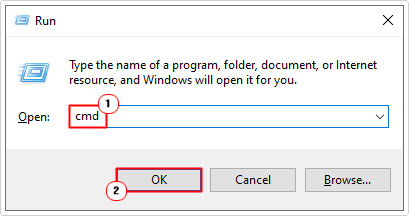
3. When Command Prompt loads up, type the following command below and press Enter.
Net user administrator/ active: yes
Note: This will make the Admin Account accessible.
4. Log off Windows and switch to the Admin Account.
Note: You can now attempt to access the file/folder that you were being denied access to in Command Prompt.
5. Once you’ve finished, follow steps 2 – 3 again, only this time, type the new command below and press Enter.
Net user administrator/ active: no
Pin Command Prompt
Depending on the circumstances, if the “Command Prompt Access Denied” error notification is preventing you from using Command Prompt altogether, then you can get around this problem by pinning the tool to the Start menu.
To do this, follow the steps below:
1. First, boot into your system as a full administrator.
2. Then press + S, type Command Prompt (into the Type here to search box), then right-click on Command Prompt and select Pin to Start.

3. Now you can try launching Command Prompt from the Start menu.

Check Group Policy
There is a specific Group Policy setting that when enabled, blocks access to the Command Prompt feature. It’s possible the “Command Prompt Access Denied” error is a result of this.
To determine whether or not that is the case and to enable Command Prompt, simply do the following:
1. First, boot into Windows as a full administrator.
2. Next, press + R, type gpedit.msc and click on OK.
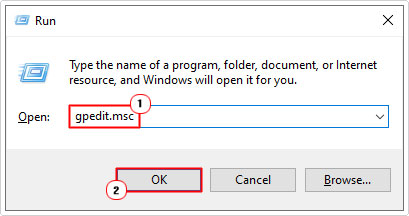
3. This will bring up the Local Group Policy Editor, from here, navigate to the following path:
User Configuration > Administrative Templates > System

4. Now, in the right pane, double-click on Prevent access to the command prompt.

5. This will bring up the Prevent access to the command prompt group policy. Now, click on Not Configured and click on OK.

Note: The final step is only applicable if the group policy has been enabled.
Check Windows Registry
Just like with the Group Policy Editor, it’s also possible to disable (and enable) Command Prompt through the Registry Editor.
WARNING: The Windows registry is a very sensitive area of the operating system. Thus, any wrong modification can render your system inoperable. Thus, tread with caution.
To enable (or disable) this feature through the Windows registry, simply do the following:
1. Boot into Windows as an administrator.
2. Then press + R, type regedit and click on OK.
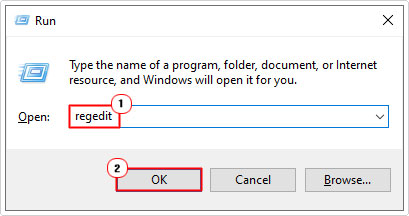
3. When Registry Editor loads up, go to the following path:
HKEY_CURRENT_USER\Software\Policies\Microsoft\Windows\System
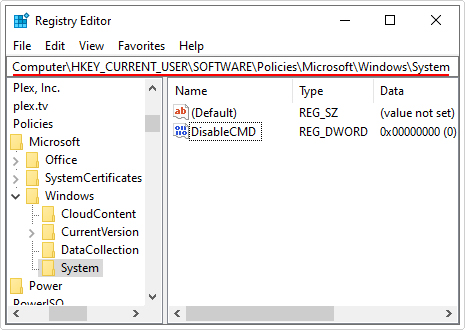
4. Next, in the right pane, right-click on DisableCMD and click on Delete.

Note: If the system registry key does not exist, it means Command Prompt is enabled through the registry.
5. Close Registry Editor and restart your system.
Reset Command Prompt Permissions
There have been known incidences where OneDrive has conflicted with the Command Prompt tool. This is the result of an error when attempting to access specific storage locations. One way to get around this, is to (re)set the apps permissions for two specific folders.
To do that, follow the steps below:
1. First, boot into Windows as an admin.
2. Then press + R, type … and click on OK.
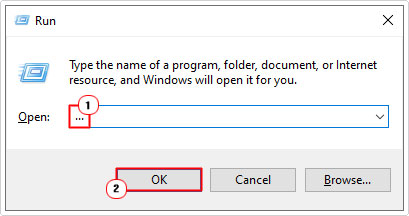
3. When File Explorer loads up, right-click on OneDrive and select Settings.

Note: Alternatively, you can click on Start button then select OneDrive from the menu.
4. This will bring up the OneDrive Settings applet, from here, click on Account, then click on Choose folders for the OneDrive option.

5. When the Choose folders applet appears, tick the boxes for Documents and Photos and click on OK.

6. Close OneDrive then verify whether or not it has fixed Command Prompt.
Edit Windows Registry
This is another solution which entails making a critical change to the registry to fix the Command Prompt Access Denied issue.
WARNING: The Windows registry is a very sensitive area of your OS. Thus, any wrong modification can render Windows inoperable so apply at your own risk.
The steps are as follows:
1. Boot into Windows as an admin.
2. Then press + R, type regedit and click on OK.
3. When Registry Editor loads up, go to the following path:
HKEY_LOCAL_MACHINE\SYSTEM\CurrentControlSet\Services\LanmanWorkstation\Parameters

4. Now, right-click in the right pane and select New -> DWORD (32-bit) Value.

5. Name the new DWORD AllowInsecureGuestAuth, then double-click on it.

6. This will bring up the Edit DWORD (32-bit) Value applet, type 1 into the Vale data box and click on OK.

7. Close Registry Editor and restart your system.
You can now check whether or not it fixed the “Command Prompt Access Denied” issue.
Are you looking for a way to repair all the errors on your computer?
If the answer is Yes, then I highly recommend you check out our 24/7 Live Support Service.
Which is the leading Online Support Service that is able to help you cure your system from a number of different ailments such as Windows Installer Errors, Runtime Errors, Malicious Software, Spyware, System Freezing, Active Malware, Blue Screen of Death Errors, Rundll Errors, Slow Erratic Computer Performance, ActiveX Errors and much more. Click here to check it out NOW!