
| Attention Before you read this post, I highly recommend you check out my resources page for access to the tools and services I use to not only maintain my system but also fix all my computer errors, by clicking here! |
When people think about data loss, they often assume it only happens because of viruses, hackers, or accidental deletion. In reality, one of the biggest causes of permanent data loss is much simpler: improper handling of storage drives. Both traditional hard drives (HDDs) and solid-state drives (SSDs) are highly sensitive devices. A single mistake: pulling out a USB without ejecting it, letting a power surge hit your system, or dropping a laptop while it’s running, can damage a drive beyond repair.
What many people don’t realize is that the physical medium storing your files is far more fragile than the digital content itself. Documents, photos, and databases are resilient in the sense that they can be copied endlessly, but the hardware that holds them has natural weaknesses. Every time a drive is mishandled, you introduce unnecessary risk that could turn into catastrophic loss.
Why Improper Drive Handling Leads to Data Loss
Data is stored magnetically in HDDs and electronically in SSDs, but in both cases it requires extreme precision. Any disruption in that process (mechanical shock, electrical surge, or unfinished write operations) introduces corruption or outright destruction of stored information.
- HDDs rely on spinning platters and floating heads. Even a small vibration while the drive is writing can cause the head to crash into the platter, scratching data permanently.
- SSDs store data in NAND flash cells. Power cuts during writes or too many erase cycles can corrupt the flash translation layer, making large portions of the drive unreadable.
- External drives are especially vulnerable. If disconnected without safe ejection, cached data doesn’t finish writing, leaving the file system broken.
A drive may look fine physically, but the data on it can be corrupted instantly by careless handling. What appears as a single corrupted file today may actually signal deeper structural issues that will spread across the entire drive.
It’s important to understand that corruption can be logical as well as physical. Logical corruption occurs when the file system itself becomes inconsistent. For example, if you unplug a flash drive during a transfer, the file allocation table may lose track of where certain blocks are stored. The drive hardware itself might remain perfectly functional, but the files are no longer accessible. Physical corruption, on the other hand, affects the media surface, memory cells, or electronic components directly. Both scenarios can cause permanent loss, but logical issues are sometimes repairable with software tools while physical damage is often irreversible without professional intervention.
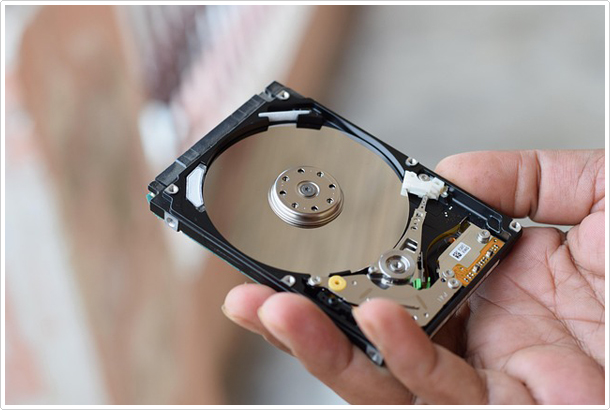
Common Failure Types
1. Head Crashes (HDDs)
A head crash happens when the read/write head physically touches the spinning platter. This is usually caused by movement, shock, or dust particles. The result is irreversible scratches on the magnetic surface, leading to bad sectors and permanent loss of files stored there.
Once a head crash occurs, even specialized recovery labs may not be able to restore every file. The worst part is that such crashes often happen without warning, especially if a laptop is bumped while in use.
2. NAND Wear (SSDs)
Every SSD has a finite number of write cycles. Over time, NAND cells wear out and stop holding charge reliably. Sudden power loss during writes can also corrupt data mapping tables, making it impossible to locate stored files. Unlike HDDs, SSDs often fail silently, one day they just become unreadable.
This silent failure is particularly dangerous because users tend to assume SSDs are invincible due to their lack of moving parts. In fact, SSDs offer better resistance to shock but are highly vulnerable to power issues and wear levelling exhaustion. This is why SSD health monitoring tools should be part of any serious data protection plan.
3. Power Surges (HDDs & SSDs)
A voltage spike or brownout can fry a drive’s controller board. Without the controller, the data is still there but inaccessible without expensive recovery services. Even partial surges can corrupt sectors mid-write.
It’s worth noting that many users plug laptops, desktops, or external drives directly into wall sockets without any form of protection. The cost of a surge protector or a UPS is tiny compared to the cost of losing years of irreplaceable photos, work files, or research data.
How to Protect Data Integrity
If you want to avoid permanent data loss, the key is prevention. Below are several methods you can apply.
Method 1: Always Use Safe Ejection
- On Windows, right-click the USB icon in the taskbar and select Safely Remove Hardware.
- On macOS, drag the disk to Trash or click Eject in Finder.
- On Linux, run:
umount /dev/sdX
(replace /dev/sdX with your drive ID; check using lsblk).
It ensures cached data is written fully and prevents logical corruption of the file system. Ignoring this step may not always lead to visible problems immediately, but the silent corruption that builds up can eventually render the drive useless.
Method 2: Use Surge Protection
- Plug your PC or laptop into a surge protector or, ideally, an uninterruptible power supply (UPS).
- For external drives, connect them to a surge-protected port only.
- For servers and NAS devices, configure the UPS to trigger graceful shutdowns during outages.
It prevents controller board damage and avoids interrupted writes caused by power fluctuations. Businesses often use enterprise-grade UPS systems not just for uptime but for data protection, something home users should also consider even on a smaller scale.
Method 3: Follow the 3-2-1 Backup Rule
- Keep 3 total copies of your data.
- Store them on 2 different storage types (e.g., internal drive + external HDD).
- Keep 1 copy offsite, such as on cloud storage or a physically separate drive.
You can use tools like Clonezilla, Macrium Reflect, or dd on Linux for full-drive backups.
Even if a drive fails completely, you’ll still have copies elsewhere, a practice that also plays a big role in preventing data breaches.
Backups aren’t just a precaution against hardware failure. They also protect against ransomware, accidental deletion, and natural disasters like floods or fires. Without a robust backup plan, you’re betting all your data on a single point of failure.
Method 4: Monitor Drive Health
- Install smartmontools on Linux or use CrystalDiskInfo on Windows.
- Run a SMART test:
smartctl -a /dev/sdX
- Check attributes like:
- Reallocated_Sector_Count (HDDs)
- Uncorrectable_Error_Count (SSDs)
- Power_On_Hours and Temperature
Early detection gives you time to back up before complete failure. Monitoring tools can also help you predict lifespan and schedule replacements before failure strikes.
Method 5: Prepare for Recovery
- If your HDD makes clicking or grinding noises, stop using it immediately.
- Clone the drive with ddrescue:
ddrescue -f -n /dev/sdX /dev/sdY logfile.log
- For SSDs in read-only mode, image them right away before they stop responding.
- For critical data, contact a professional recovery lab instead of forcing DIY fixes.
Limiting usage reduces further damage and increases the chances of successful recovery.
Points to Note
- Don’t attempt physical repairs at home. Opening a drive outside of a cleanroom almost always destroys it further.
- Keep drives cool and stable. Use cooling pads for laptops and ensure airflow in desktops.
- Plan for failure. Drives are consumables. Backups are not optional, they’re the only real protection.
Many people treat drives as permanent vaults, assuming data will last forever once stored. In truth, storage media is temporary. Even archival solutions like M-DISC or tape backups require periodic migration to newer media. Accepting that failure is inevitable makes you more disciplined about backups and careful handling.
Data integrity is both a technical practice and a mindset. Every time you handle a drive, you’re making a choice that either protects or endangers your data. The best long-term strategy combines careful handling, robust backup planning, and proactive monitoring.
| Author Bio Daniel Chinonso John is a penetration tester and writer who explores the intersections of technology, security, and innovation. He is the founder of Axiv Tech |
Are you looking for a way to repair all the errors on your computer?
If the answer is Yes, then I highly recommend you check out Advanced System Repair Pro.
Which is the leading registry cleaner program online that is able to cure your system from a number of different ailments such as Windows Installer Errors, Runtime Errors, Malicious Software, Spyware, System Freezing, Active Malware, Blue Screen of Death Errors, Rundll Errors, Slow Erratic Computer Performance, ActiveX Errors and much more. Click here to check it out NOW!