
| Attention Before you read this post, I highly recommend you check out my resources page for access to the tools and services I use to not only maintain my system but also fix all my computer errors, by clicking here! |
BSOD or Blue Screen of Death errors are an unfortunate, yet regular experience of Windows based systems. Each BSOD error may be accompanied by hundreds of different “Stop” codes. One of the more common BSOD errors end users may encounter, specifically highlights the dxgkrnl.sys file. As is typical with Windows errors, there may be a large assortment of causes, but generally, you’re looking at a GPU-related cause. The good news is that it can be fixed. So continue reading, to find out how.
Dxgkrnl.sys belongs to the DirectX Graphics Kernel Subsystem. Its responsibility is to provide a communication interface between the Windows operating system and the graphics card drivers. The specific dxgkrnl.sys file is crucial in video playback and image rendering. If something happens to this file, it typically manifests in the form of hardware or graphics card driver related problem.
All BSOD errors are frustrating, and there is no exception here with the dxgkrnl.sys error.
As previously noted, this particular (dxgkrnl.sys) file is referenced in a number of BSOD errors, which may include IRQL_NOT_LESS_EQUAL, KMODE_EXCEPTION_NOT_HANDLED and PAGE_FAULT_IN_NONPAGED_AREA.
So, with that out of the way, let’s take a deeper look at its most common causes.
What Causes Dxgkrnl.sys BSOD Errors?
There are so many reasons why this Dxgkrnl.sys error may be occurring, with some reasons being more common than others.
Generally, you’re looking at the following:
- Corrupted or Incompatible GPU Drivers: Drivers that haven’t been updated in a while, failed driver installations and driver corruption are the most common causes.
- Failed Overclock: If you have an established overclock on your GPU, it may be unstable, causing the GPU to run at unsustainable temperatures. This invariably causes the GPU to cease, which in turn, causes the BSOD error.
- Corrupted DirectX: The DirectX installed on your system may have become corrupted, due to any number of reasons.
So, these are the things you need to consider when looking at dxgkrnl.sys errors and there causes.
Now that we have a general idea of what may be causing the issue in your system, let’s take a look at the different ways you can fix it.
How to Fix It
Dxgkrnl.sys is a file that belongs to the Microsoft DirectX component. Thus, if you see the dxgkrnl.sys file referenced in a BSOD error, then it typically means there is a problem with your graphics card drivers or some other related hardware device.
Such errors tend to be intermittent, which means, you should be able to access Windows. So, within your Windows sessions, the first thing you’ll want to do is Update DirectX.
Because the dxgkrnl.sys file ultimately belongs to the DirectX component, the first thing you should try, is re-installing DirectX.
This is a fairly simple process. Just download the setup.exe file from the following Microsoft Link: https://www.microsoft.com/en-gb/download/details.aspx?id=35
Select the appropriate Language and click on Download.

Once the (setup.exe) file is on your system, simply double-click on it to begin the Installation process. Follow the onscreen instructions to complete.
Run DirectX Diagnostic Tool
As a DirectX related error, you may want to consider running the DirectX Diagnostic Tool to determine whether or not a problem actually exists within this component.
To do that, simply follow the steps below:
1. First, boot into Windows as an admin.
2. Then press  + R, type dxdiag and click on OK.
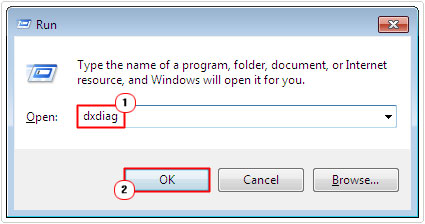
3. This will bring up the DirectX Diagnostic Tool, from here, click on the Display Tab, then check under Notes.
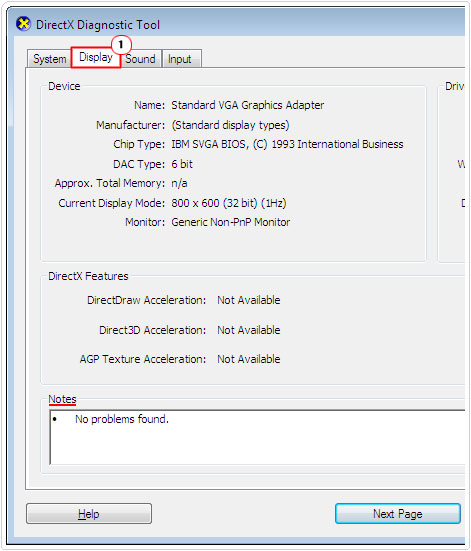
Note: If that particular component of DirectX is running without issue(s) it should say: No problems found.
4. Repeat Step 3 for the Sound Tab and Input Tab.
Note: You may have more than one Sound Tab, so be sure to check them all.
If you click on the Save All Information button, it will allow you to save a complete report (of the issue(s)) to your system. This can come in handy, if speaking directly with a DirectX Specialist.
Update GPU Drivers
Dxgkrnl.sys is a DirectX file, which is related to your Graphics card drivers. Thus, if the error still persists, then it means you may have outdated or corrupt GPU drivers.
So, for this next solution, you’ll want to ensure that the drivers for your graphics card (whether it be AMD or NVIDIA) is up-to-date and compatible with the version of Windows you’re running it on.
To be sure of that, you will need to visit the official website of your GPU and download the appropriate drivers off there. The information you need, is the Brand and Version of your card to complete this process.
However, if this seems all too complicated for you, then you can use a driver automation tool. This tool will scan your system automatically, then locate and download the most up-to-date drivers for all the devices connected to your system.
All you need to do is make a few necessary mouse clicks.
If by any chance, that interests you, then visit the link below:
CLICK HERE TO CHECK OUT THE DRIVER FINDER TOOL
 The solution(s) below are for ADVANCED level computer users. If you are a beginner to intermediate computer user, I highly recommend you use the automated tool(s) above! The solution(s) below are for ADVANCED level computer users. If you are a beginner to intermediate computer user, I highly recommend you use the automated tool(s) above! |
Manual GPU Driver Update
Again, the dxgkrnl.sys error is most likely the result of an outdated or corrupt graphics card driver. For this reason, you may want to consider updating your drivers.
If you feel you’re up to the task, then you can carry out this entire process manually. To do that, just follow the steps below:
1. First, boot into Windows as a full administrator.
2. Then press + R, type devmgmt.msc and click on OK.
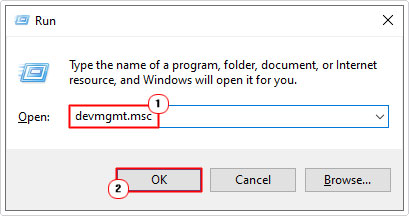
3. When Device Manager loads up, click on the > icon next to Display adapters.

Note: This should reveal the name and version of your GPU.
4. Now, type the name of your card with the word “drivers” at the end of it into the Search Engine.

5. Next, click on the first result (in the Search Engine).

Note: In this example, I’m using a GeForce Card.
6. Depending on the age of your card, you may be required to carry out a Manual Search. Simply provide the Product Category, Product Series, Product, Operating System and Language information, then click on Find.

7. On the results page, click on View for the most up-to-date driver set.

Note: This can be determined by the driver Release Date.
8. Lastly, click on Download, and save the file to your Desktop.

9. Double-click on the setup.exe file to begin the installation process.
Check Hardware Fault(s)
Another cause of the dxgkrnl.sys error is faulty hardware, in this case, the GPU, Motherboard or RAM modules may be at fault. To determine whether or not the RAM modules are the cause, you will need to run the Windows Memory Diagnostic test.
For step-by-step instructions on how to run this test via Windows, check out my post on fixing error code 0x8007025D.
To determine whether your GPU is faulty, you will need to run a GPU stress test on it. The one I personally recommend is PCMARK. You can acquire it from the following link: https://benchmarks.ul.com/pcmark10
Note: The PCMark Basic Edition is Free to use via Steam.
Lastly, if you want to test your motherboard, then you will need to run a system stress test to do it. There are many of them around. But I personally recommend you check out my page PC Stress Tests, for more information.
Change GPU Memory Size
On older motherboards and GPUs it was possible to alter the cards memory size via the BIOS. This was especially true for systems running on an integration system (Motherboard + GPU).
In this particular case, you may want to try decreasing the cards memory usage, as a lack of available resources could be triggering the error.
You should be able to find this particular setting in the Advanced Features or Advanced Chipset area of the BIOS.
Once in there, locate and change memory size to 128MB or more.

Of course, this process will vary, depending on the motherboard and the GPU. So I recommend you seek additional information from the motherboard manual.
Run System File Checker
System File Checker or SFC is a built-in Windows tool designed to fix and/or replace missing or corrupt system files. Dxgkrnl.sys is a system file, so it’s possible running a full scan of your system (using this tool), may fix the error.
For step-by-step instructions on how to do that, check out my post on how to run SFC Scannow.
Are you looking for a way to repair all the errors on your computer?

If the answer is Yes, then I highly recommend you check out our 24/7 Live Support Service.
Which is the leading Online Support Service that is able to help you cure your system from a number of different ailments such as Windows Installer Errors, Runtime Errors, Malicious Software, Spyware, System Freezing, Active Malware, Blue Screen of Death Errors, Rundll Errors, Slow Erratic Computer Performance, ActiveX Errors and much more. Click here to check it out NOW!