
| Attention Before you read this post, I highly recommend you check out my resources page for access to the tools and services I use to not only maintain my system but also fix all my computer errors, by clicking here! |
ERR_CONNECTION_REFUSED is an error code that appears when a request to connect to a website fails. The cause of this may vary. Although at first glance, you wouldn’t be wrong to assume it’s a server-side issue, there are things, on your systems end that can cause this error to occur.
We live in the information age, where data of our choosing is only a few clicks away. It’s for this reason why ERR_CONNECTION_REFUSED errors can be so frustrating, as they stop us dead in our tracks. This error message may indicate a severe underlying issue or it could be something very simple.
First things firsts, this is an error message that will appear in your web browser window. Informing you that the browser is unable to establish a connection to the server of the website.
Outside of that, there isn’t any additional information that you can use to glean what may have caused the problem. In truth, there are so many things that can cause it.
To follow is a rundown of all possible causes.
What Causes ERR_CONNECTION_REFUSED Errors?
So, what are the types of things that can cause an ERR_CONNECTION_REFUSED error? Quite a few things actually. Generally, you’re looking at the following:
- DNS Problems: The DNS server is having problems translating the site name into an IP address.
- Corrupted Cache Data: The web browser’s cache data has become corrupted, which is inhibiting some or all sites from loading.
- Web Server is Down: The server hosting the website is down, making the site inaccessible.
Other things for you to consider is an outdated browser, in which case, a simple update would be in order. Or a browser extension conflict. Which may be the result of incompatibility or corruption.
As previously noted, the cause of this error can be an array of things. It could be as simple as an intermittent internet connection. Either way, you’ll want to know how to handle it.
So, continue reading for those much desired solutions.
How to Fix It
You may think, the relatively wide range of possible causes may make fixing the ERR_CONNECTION_REFUSED error an issue. But that isn’t the case. Many of these causes only require a few critical steps to tackle.
So, let’s get to it.
The first thing you’ll want to do, is check the site status. By checking the status of the website, you can determine whether the ERR_CONNECTION_REFUSED error is due to downtime or an issue with your computer system.
To do this effectively, I’d suggest you used a site monitoring tool, such as: https://downforeveryoneorjustme.com/
Just type the website URL into the Search box and click on Search.
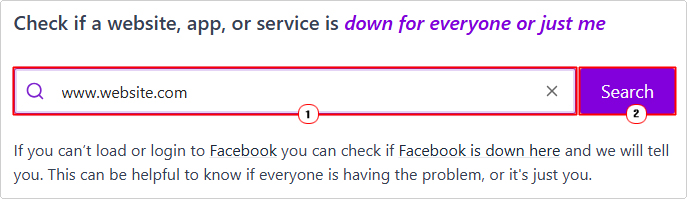
If the tool indicates that the site is down, then you know the issue is with the site, in which case, you will need to wait until its back up again. If the site is up, then I suggest you try the additional solutions outlined below.
Restart Router
It’s possible you have a faulty connection, which typically can be resolved by restarting your router. Because you always want to start with the simplest solutions first, this should always be your first consideration.
So:
1. Unplug your internet router and wait a couple of seconds.
2. Then plug it back in.
Wait until a new connection has been re-established, then you can try connecting to the website again.
Disable Internet Security Software
Another possible cause of the ERR_CONNECTION_REFUSED error is an overzealous internet security tool. It could be your firewall blocking your browser or a program guard tool, doing something pretty similar. In either case, the only way you can be sure is by disabling the tool (at least temporarily).
The process of disabling your security tool will vary, depending on brand and version. But generally, you’ll want to load up its GUI (Graphical User Interface), and disable Real-Time Monitoring.
If you use Windows Firewall, then you can disable it by following the instructions on my post on fixing error code 0x8007003b.
Use Windows Repair Tool to Fix ERR_CONNECTION_REFUSED Error
If none of the simple solutions above were able to fix the ERR_CONNECTION_REFUSED issue, then it’s probably worth giving a Windows repair tool a try. The tool I have in mind is highly advanced, capable of fixing a wide range of issues within a single scan.
Issues such as blue screen (BSOD) errors, app crashes, registry corruption, DLL errors and much more, can be fixed with this tool.
Additionally, it’s also adept at optimising system performance. Meaning, a faster, smoother and more consistent Windows experience.
If, for any reason, this interests you, then please visit the link below:
CLICK HERE TO CHECK OUT THE ADVANCED REPAIR TOOL
 The solution(s) below are for ADVANCED level computer users. If you are a beginner to intermediate computer user, I highly recommend you use the automated tool(s) above! The solution(s) below are for ADVANCED level computer users. If you are a beginner to intermediate computer user, I highly recommend you use the automated tool(s) above! |
Clear DNS Cache
If everyone else can visit the website except you, then it’s possible it is due to your system having outdated or obsolete DNS cache data stored on your system. Deleting this cached data will force the system to update the sites IP address, which could have changed since the last time this process was carried out.
To clear the DNS cache, simply do the following:
1. First, boot into Windows as an admin.
2. Then press  + X, and click on Windows PowerShell (Admin).
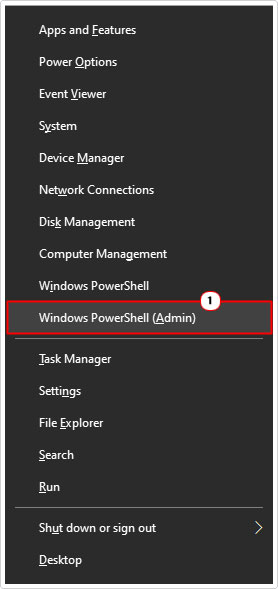
3. When Windows PowerShell (Admin) loads up, type the command below and press Enter.
Clear-DnsClientCache
4. Close Windows PowerShell and try connecting to the site again.
Clear Browser Cache
If the cache data for your browser has become severely outdated, this can sometimes result in a data mismatch. If the solution above failed to fix this problem, then you should try erasing Google Chrome’s cache data.
The whole process isn’t too difficult, just painstaking, depending on the size of your cache data – which oftentimes can be quite substantive.
For step-by-step instructions on how to erase your browsers cached data, check out my post on fixing ERR_CONNECTION_TIMED_OUT errors.
Check Browser Extensions
Browser extensions are designed for just that, to extend the browsers functionality. Ultimately, improving the end users overall web surfing experience.
However, these extensions are developed by a wide assortment of third-party companies with fairly limited play testing. This means, they can, at times conflict with other extensions or outright break the browser.
This is why it’s up to you, the user, to ensure all your extensions are up-to-date and working as they should.
To determine whether or not an extension is at fault here, you will need to use the process of elimination. Disabling and testing.
Anyway, for instructions on how to disable your extensions, check out my post on fixing ERR_FILE_NOT_FOUND errors.
Change DNS Servers
If all of the above solutions failed to fix the ERR_CONNECTION_REFUSED error, then you may want to consider changing DNS servers as a possible solution.
I recommend you try free public DNS servers such as those from Google. For instructions on how to use them, check out my post on fixing DNS Server not responding errors.
Disable VPN
Depending on your circumstances, having a VPN may be crucial to carrying out your daily online tasks. As it provides the user with a layer of anonymity and privacy.
However, these VPN tools are not flawless, as at times they can adversely affect your ability to surf the web. Resulting in sluggish site loading and in more severe situations, ERR_CONNECTION_REFUSED errors.
To get around this problem, simply disable the VPN.
Update Google Chrome
Despite its popularity and its general satisfactory stability. It can never truly be bug-free. This means, various issues can and do oftentimes arise from its usage. In this particular case, you could be looking at an incompatibility could be preventing you from accessing the site.
To eliminate the browser as a possible root cause of the error, I suggest you consider a updating it. This is a very simple process. But if you need help, check out my post on fixing ERR_CACHE_MISS errors.
Are you looking for a way to repair all the errors on your computer?

If the answer is Yes, then I highly recommend you check out our 24/7 Live Support Service.
Which is the leading Online Support Service that is able to help you cure your system from a number of different ailments such as Windows Installer Errors, Runtime Errors, Malicious Software, Spyware, System Freezing, Active Malware, Blue Screen of Death Errors, Rundll Errors, Slow Erratic Computer Performance, ActiveX Errors and much more. Click here to check it out NOW!