

| Attention Before you read this post, I highly recommend you check out my resources page for access to the tools and services I use to not only maintain my system but also fix all my computer errors, by clicking here! |
If Device Manager identifies your monitor as “Generic PnP Monitor” it means the operating system was/is unable to recognise your exact monitor. For desktop systems, this issue is typically caused by a signal issue between the GPU and the monitor itself. Although the OS misidentifies the monitor, it oftentimes isn’t the result of a driver problem. That said, there are a wide range of things for you to consider, so let’s dive deeper into it.
Plug and Play or PnP is a technology that allows the end user and the system easily identify and install new hardware devices. It allows for the installation and removal of devices without having to reconfigure or install any drivers.
When the end user plugs a device into a system, such as a USB stick, the system will automatically identify what it is, then install the necessary drivers for it.
The Generic PnP Monitor identification refers to genetic monitor drivers that the OS is using to operate the monitor. Depending on the brand and features of the monitor, this may be sufficient in some circumstances, however, oftentimes this means, certain functions may cease to work correctly or at all.
Issues like this are most likely to occur right after an OS upgrade or reinstallation.
If the Windows operating system fails to properly identify your monitor or failed to load the appropriate drivers for it, then you may encounter issues such as, an inability to set the recommended resolution for your monitor, or an inability to use the correct refresh rate. For this reason, it’s important you fix the problem.
With that said, let’s take a look at the different things that are known to cause this error.
What Causes Generic PNP Monitor Issues
As I initially touched on, there are a series of symptoms that are commonly associated with this particular issue. They are as follows:
- The monitor may flicker (due to an incorrect refresh rate) or drop to a black screen.
- Any mirroring or extended display features may not work.
- The end user is unable to change the screen resolution.
The Generic PnP Monitor problem occurs when Windows is unable to identify the monitor connected to your system. To identify this exact issue is relatively easy, as you may encounter the following error message:
Failed to load hardware Monitor Driver!
Which will occur when attempting to load an app that requires the appropriate monitor drivers to work.
In other situations you may see a Yellow Exclamation Mark next to your monitor in Device Manager.
All-in-all, this issue is most commonly caused by the following:
- Faulty HDMI, VGA or DVI cable.
- The cable isn’t properly fastened in its socket(s).
- The monitor is damaged or faulty.
- Windows requires the drivers for the monitor to identify it.
Now that you have a good understanding of what this issue is and what causes it, let’s go through the various ways you can rectify it.
How to Fix It
An unsolved monitor issue can be identified by the Generic PnP Monitor identification in Device Manager. So, what can you do to solve it? Fortunately, quite a few things. To start, let’s go through the following:
Check Connections
Make sure your cables are properly fastened in their sockets – you should feel it click into place, when it is in. Additionally, consider unplugging and plugging it in again.
Follow these steps:
- First, turn off your computer and monitor.
- Now, disconnect the power cord from the monitor and wait at least 5 minutes.
- Then, disconnect the cable connecting the monitor to the system (GPU) and wait 5 minutes.
- Reconnect the monitor to the system, then plug the monitor back into the power socket.
- Restart your system.
You can now verify whether or not it fixed your monitor problem.
If the problem persists, then consider using a different HDMI, VGA or DVI cable.
You may also want to try the monitor on a different system, just to determine whether the problem is with your system or the monitor itself.
Update Drivers
The ability to inability to identify your monitor is dependent on the Graphics card, which in turn is dependent on the drivers installed for it. For this reason, it’s important that you have the most up-to-date and working drivers for your GPU.
To do that, you will need to go the website of your GPU manufacturer and download the drivers off there. You will need to know the brand and model of your device to do that. You should also consider downloading the drivers for your monitor (if it has anyone).
Alternatively, you can use a driver automation tool, which will do all of that for you. Just download, install and run the tool and it will scan, identify your different hardware components, then acquire the different drivers for them.
If the driver tool seems more to your liking, then visit the link below:
CLICK HERE TO CHECK OUT THE DRIVER FINDER TOOL
Use Windows Repair Tool to Fix Generic PNP Monitor Issues
With all the benefits of the Windows operating system, it is not without its issues, as bugs and errors can slow your system down.
In this particular instance, we’re looking at the Generic PnP Monitor issue, which could just as easily be the result of accidental erasure or OS corruption.
This is where the Windows repair tool comes into the equation, with its ability to fix registry corruption, driver issues, BSOD errors, virus infections and much more.
You can’t go wrong with such tools. For this reason, I recommend you give this particular repair tool a try.
If that sounds interesting to you, then visit the link below:
CLICK HERE TO CHECK OUT THE ADVANCED REPAIR TOOL
 The solution(s) below are for ADVANCED level computer users. If you are a beginner to intermediate computer user, I highly recommend you use the automated tool(s) above! The solution(s) below are for ADVANCED level computer users. If you are a beginner to intermediate computer user, I highly recommend you use the automated tool(s) above! |
Uninstall PnP Monitor
Instead of trying to update the generic driver, you may want to try forcing a reinstallation. To do that, you will need to remove the monitor (in Device Manager) and force Windows to scan for hardware changes.
To do that, follow the steps below:
1. First, boot into Windows as a full administrator.
2. Next, press  + R, type devmgmt.msc and click on OK.
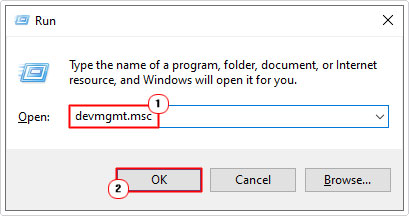
3. When Device Manager loads up, click on the > icon next to Monitors, then right-click on the Generic PnP Monitor and select Uninstall device.

4. Wait a couple of seconds, then click on the Scan for hardware changes icon.

Update Windows
Microsoft is constantly releasing new updates for their OS, these updates fix known vulnerabilities, bugs and driver problems.
It’s possible a fix already exists for your monitor issue. In which case, running a Windows Update should fix this problem.
For step by step instructions on how to access and run this feature, check out my post on fixing MSVCP120.dll is missing errors.
Use SFC
SFC or System File Checker is a built-in repair tool, designed to scan, and replace missing or corrupt system files.
If the generic PnP monitor issue is the result of corrupted system files, then this tool will fix the problem.
It’s a relatively simple tool to use, just do the following:
1. Boot into Windows as a full administrator.
2. Then press + R, type cmd and press CTRL + Shift + Enter.
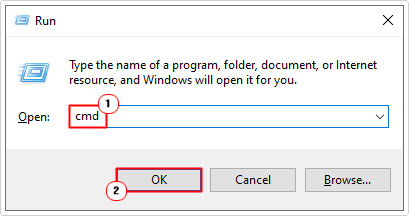
3. When Command Prompt loads up, type the command below and press Enter.
SFC /Scannow
4. When the scan has complete, it will tell you whether it found and fixed any issue(s). Restart your system then verify whether or not the problem has been resolved.
Are you looking for a way to repair all the errors on your computer?

If the answer is Yes, then I highly recommend you check out Fortect.
Which is the leading registry cleaner program online that is able to cure your system from a number of different ailments such as Windows Installer Errors, Runtime Errors, Malicious Software, Spyware, System Freezing, Active Malware, Blue Screen of Death Errors, Rundll Errors, Slow Erratic Computer Performance, ActiveX Errors and much more. Click here to check it out NOW!